15

Studio wall vector portrait combo: GPT Image 2 prompt
Enlarge

Studio wall vector portrait combo: GPT Image 2 prompt

Prompt
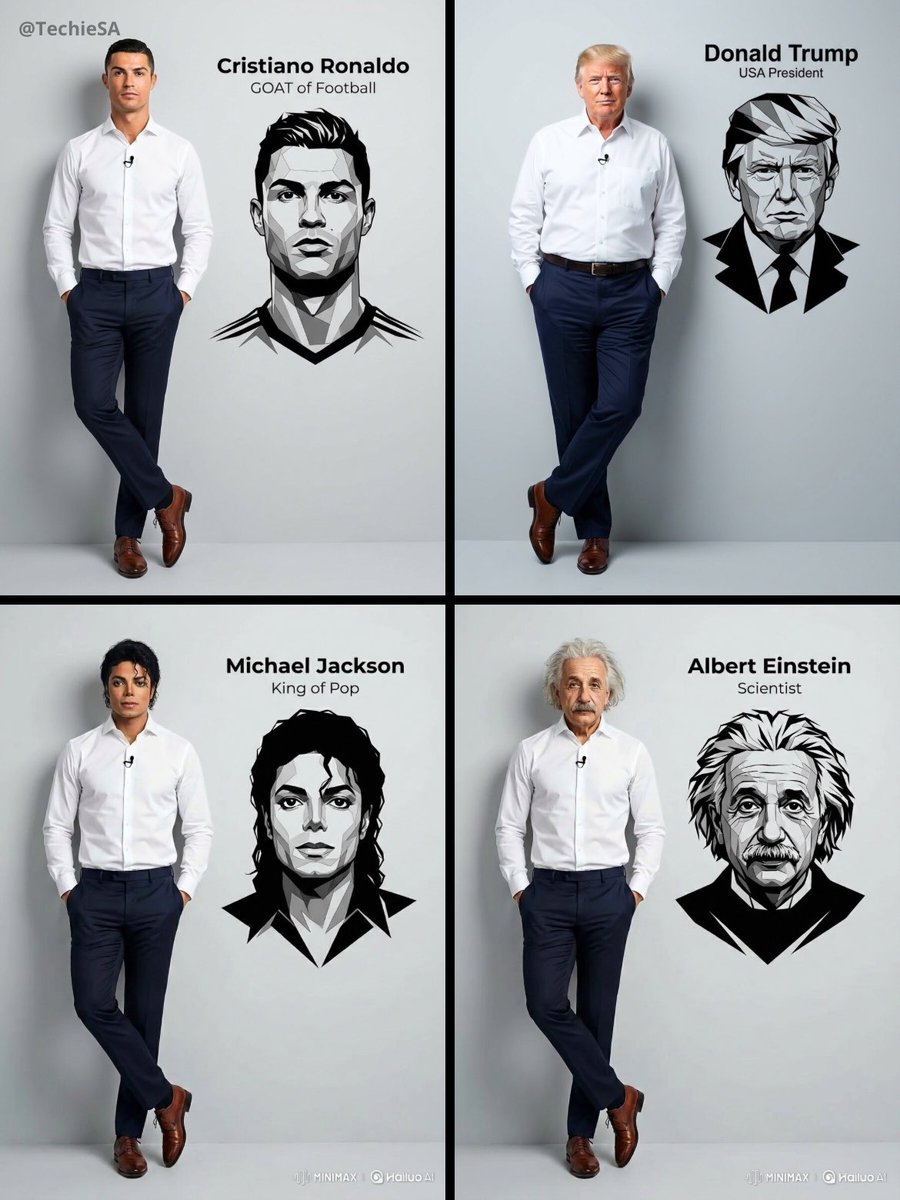
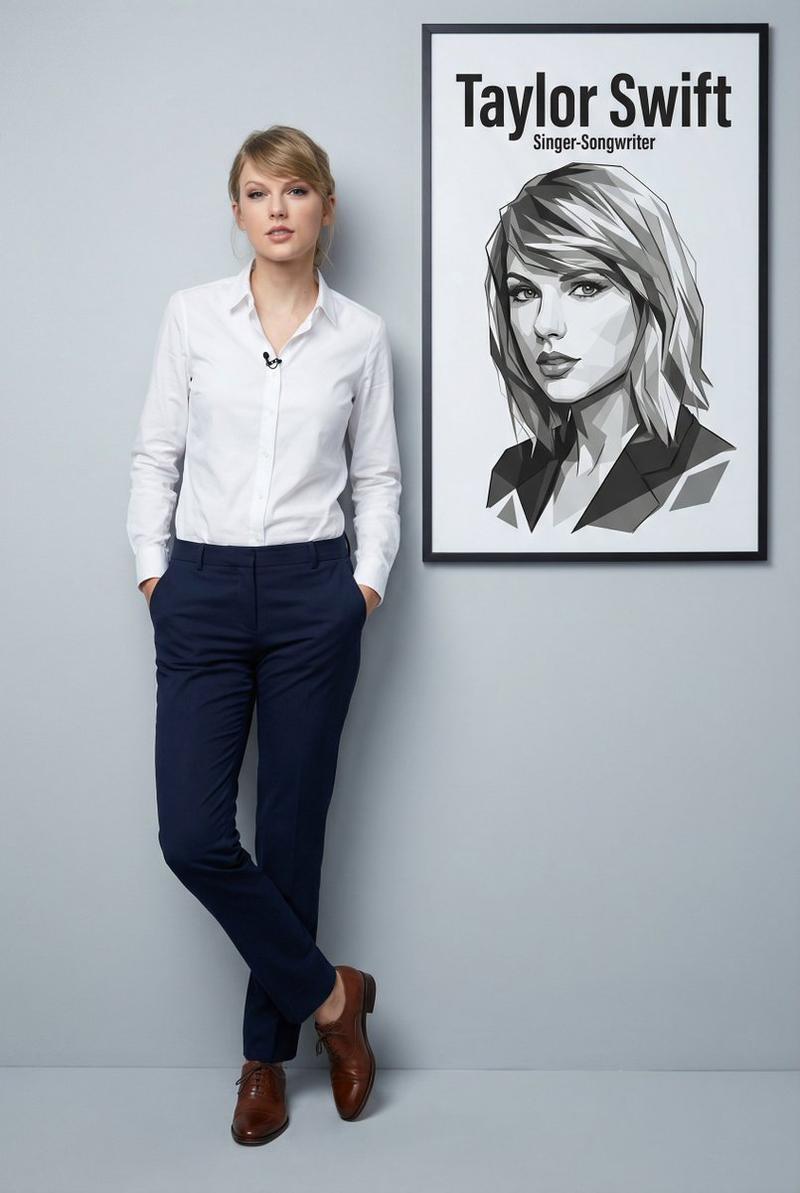
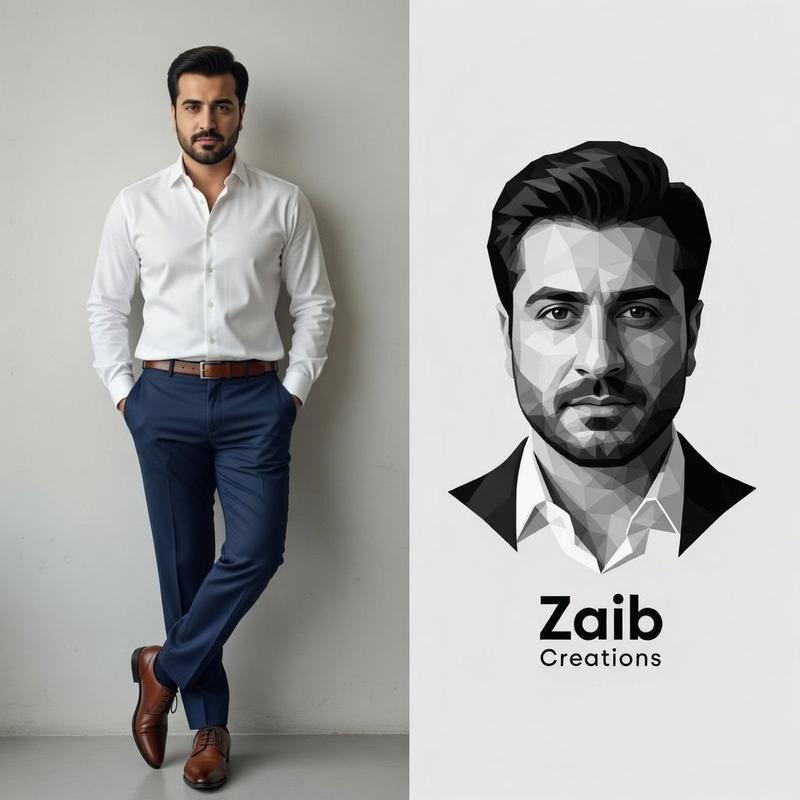
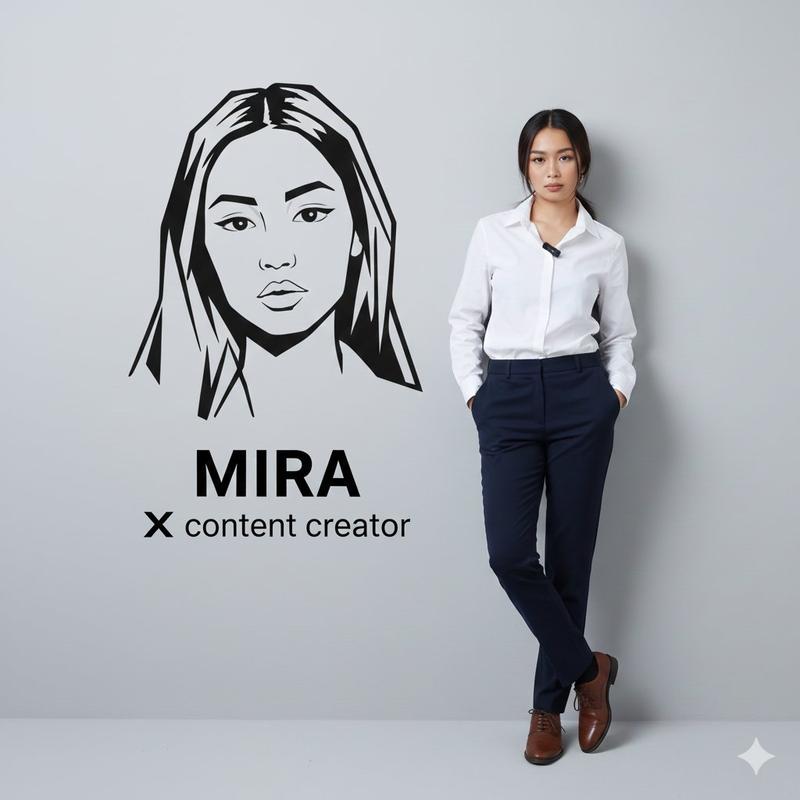
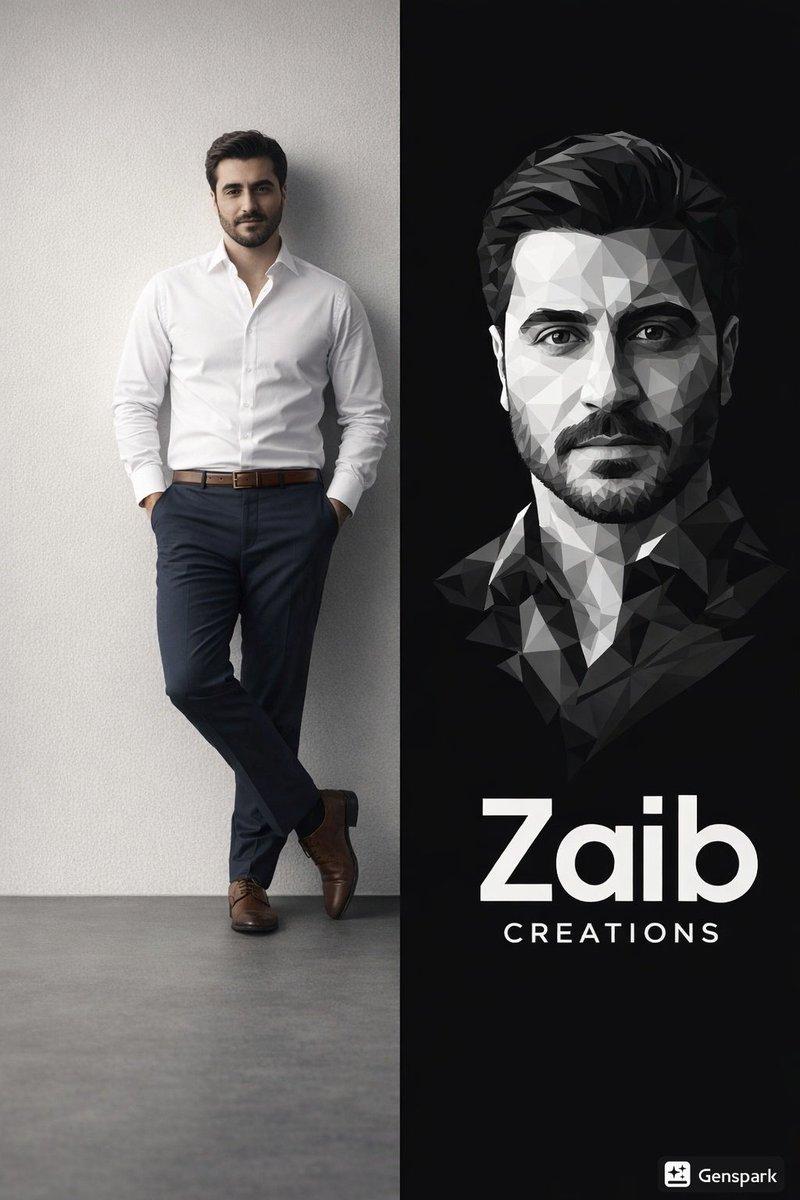
Ultra-realistic 8K full body portrait of [PERSON’S FULL NAME], wearing a clean and pressed white social shirt with folded collar and a small lapel microphone, dark navy-blue dress pants and polished brown social shoes. Casually and unpretentiously leaning against a smooth light gray studio wall; hands are in pockets and one leg is crossed over the other, with relaxed and confident body language. Add to the wall next to them a prominent vector portrait in black and white of their face and bust - with sharp lines and angles, overlapping polygonal shapes and a minimalist modern graphic style, right below the information: “[PERSON’S FULL NAME]”, and below the name: “[PROFESSION]”
Category
Photography & Realism
Model
GPT Image 2
Creator
TechieBySA
Views0
Source ID
2011898760650170378
Published
Jan 15, 2026

Guide

About "Studio wall vector portrait combo: GPT Image 2 prompt"

What is this prompt for?

"Studio wall vector portrait combo: GPT Image 2 prompt" AI image prompt for GPT Image 2 (Photography & Realism). Ultra-realistic 8K full body portrait of [PERS…

The full copyable prompt and example visuals above are ready for AI image generation or one-click recreate in Picva.

How to use this prompt

  1. Step 1

    Open the prompt detail

    Review the example visuals, category, and full prompt text for "Studio wall vector portrait combo: GPT Image 2 prompt".

  2. Step 2

    Copy the prompt

    Copy the prompt body from this page, or load it directly in Studio.

  3. Step 3

    Pick a model (GPT Image 2)

    Prefer GPT Image 2. If you switch models, keep subject and composition and tweak style terms.

  4. Step 4

    Generate and export

    Recreate the look in Picva, or export into your workflow for editing and publishing.

FAQ

What is the "Studio wall vector portrait combo: GPT Image 2 prompt" prompt?
It is an AI image-generation prompt for GPT Image 2 in the Photography & Realism category. This page includes the full prompt text, example visuals, and a one-click recreate path in Picva.
How do I use this prompt to generate an image?
Copy the prompt from this page, or use Generate / Studio. Paste it into a compatible image model, or recreate the look in Picva with optional reference images.
Which model is this prompt for?
This page lists GPT Image 2. Most descriptive prompts also transfer to nearby image models such as GPT Image, Flux, or Midjourney with light style tweaks.
Can I use the result commercially?
You can usually copy the prompt for creation, but commercial use of the final image depends on the model terms, reference-image rights, and the generated content. Follow the source author and platform rules.