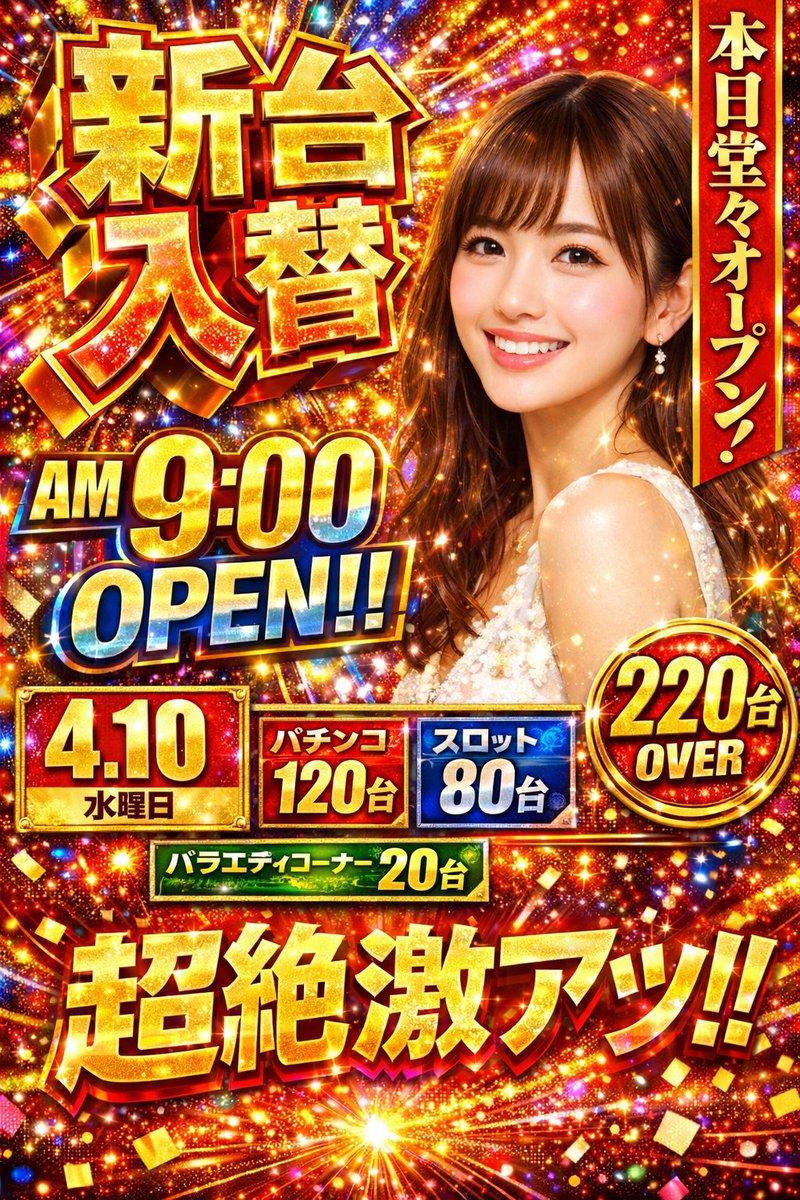
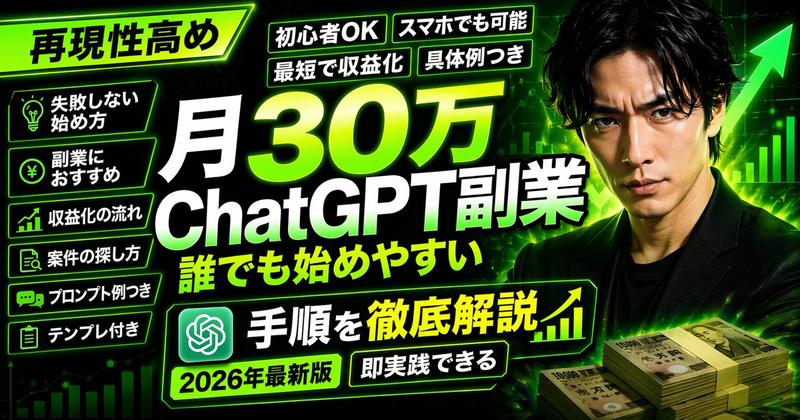
界面交互设计图
Prompt
{
  "type": "promotional banner / YouTube thumbnail",
  "style": "high contrast, flashy, professional, {argument name=\"theme color\" default=\"gold and black\"} palette, glowing light rays, sparkling particles",
  "subject": {
    "description": "{argument name=\"subject description\" default=\"confident young Asian man in a dark suit with arms crossed\"}",
    "pose": "looking upwards to the right",
    "props": "glowing open laptop in front of him"
  },
  "layout": {
    "background": "dark with radiant gold light bursts",
    "text_sections": {
      "top_left_badge": "[保存版]",
      "top_header": "{argument name=\"top text\" default=\"知識ゼロからでも今日から始められる! AIで稼ぐ力を最短で手に入れる!\"}",
      "main_title": {
        "text": "{argument name=\"main title\" default=\"AI副業 完全攻略\"}",
        "style": "large, bold, 3D gold and white typography"
      },
      "subtitle_box": "{argument name=\"subtitle\" default=\"初心者でも月10万\"}",
      "top_right_badge": {
        "style": "gold laurel wreath",
        "text": "2026年版 最新版"
      },
      "middle_right_tags": {
        "count": 3,
        "style": "stacked gold-bordered boxes",
        "labels": ["最短で収益化", "具体例つき", "誰でも始めやすい"]
      },
      "middle_right_ribbon": {
        "style": "red ribbon banner",
        "text": "手順を徹底解説"
      },
      "bottom_left_tags": {
        "count": 6,
        "style": "2x3 grid of gold-bordered boxes",
        "labels": ["おすすめツール紹介", "収益化の流れがわかる", "失敗しない始め方", "作業時間を最小化", "テンプレ付き", "再現しやすい方法"]
      },
      "bottom_footer": "迷わず稼げる!AI副業の教科書",
      "bottom_right_badge": {
        "style": "gold laurel wreath",
        "text": "テンプレ付き"
      }
    }
  }
}- Category
- Posters & Typography
- Model
- GPT Image 2
- Creator
- freestylefly
- Source ID
- 99
Views3