17

渲染宝石
Enlarge

渲染宝石

Prompt
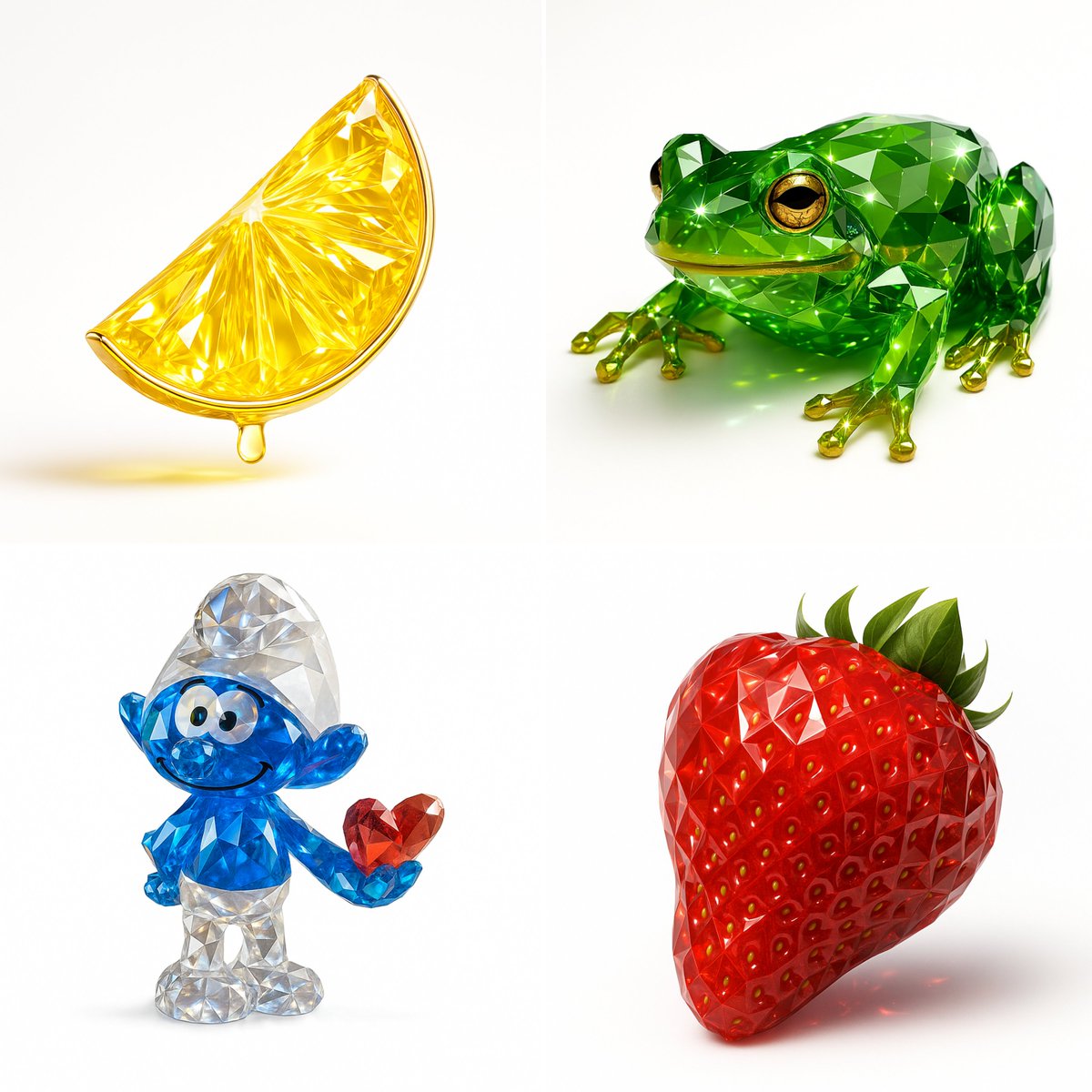
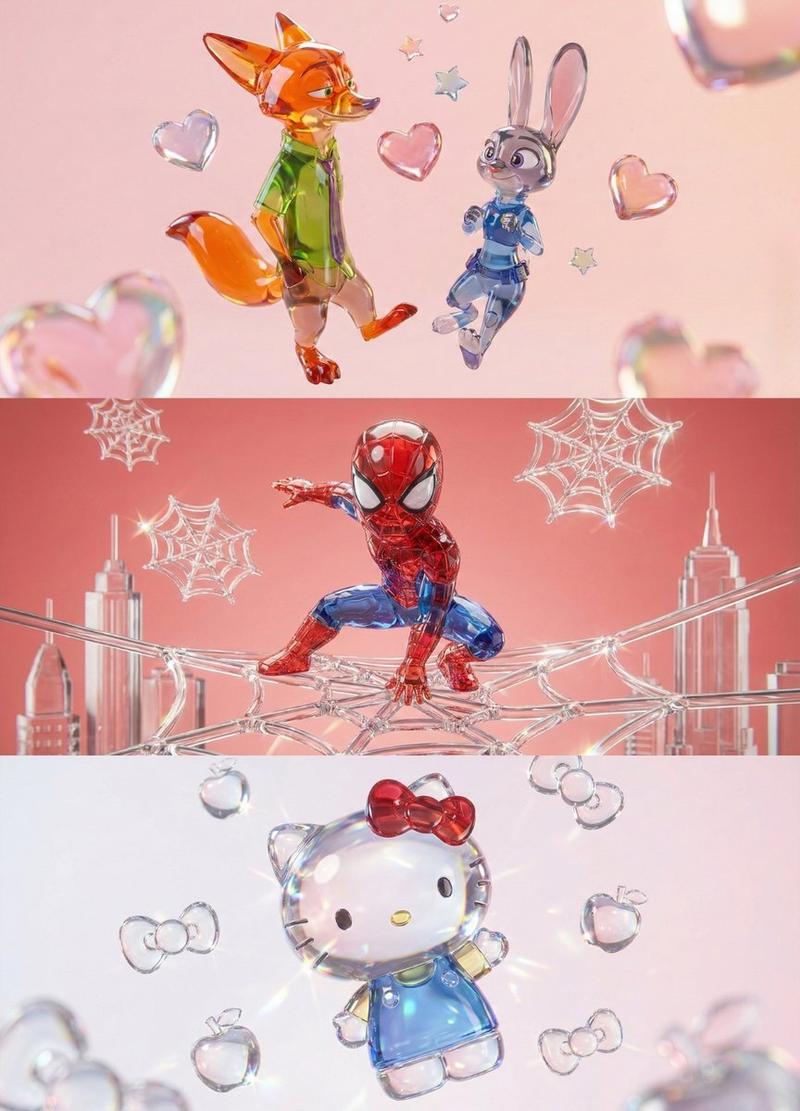
Recreate this image using the pamareters of the JSON provided.
{
  "name": "Gemstone Render",
  "object": {
    "type": "auto",
    "detected_color": "auto",
    "form": "realistic, natural form preserved",
    "material": "crystal or faceted gemstone glass",
    "surface": "precision-cut facets, sharp reflections",
    "transparency": "high clarity with light refraction",
    "internal_features": "color depth, internal shimmer, and light dispersion"
  },
  "color_and_light": {
    "primary_color": "{detected_color}",
    "highlight_effects": "specular highlights, gemstone brilliance, caustics",
    "lighting_setup": "studio lighting with white or soft background",
    "metallic_accents": {
      "enabled": true,
      "material": "gold or chrome",
      "application": "rim, stem, or edge detailing"
    }
  },
  "style": {
    "artistic_style": [
      "photorealistic 3D render",
      "Gemstone Render Style",
      "luxury object visualization"
    ],
    "design_language": [
      "faceted precision modeling",
      "jewelry-like rendering",
      "optical depth and brilliance"
    ]
  },
  "technical_details": {
    "render_engine": [
      "Blender with Cycles",
      "Cinema 4D + Redshift/Octane"
    ],
    "rendering_techniques": [
      "physically-based rendering (PBR)",
      "ray tracing",
      "global illumination"
    ],
    "resolution": "ultra high-res (4K–8K)",
    "post_processing": [
      "subtle glow",
      "enhanced reflections",
      "color-preserving contrast boost"
    ]
  }
Category
Charts & Infographics
Model
GPT Image 2
Creator
@alban_gz
Views42
Source ID
929
Published
Jan 8, 2026

Guide

About "渲染宝石"

What is this prompt for?

"渲染宝石" AI image prompt for GPT Image 2 (Charts & Infographics). 使用提供的 JSON 的 pamareters 重新创建此图像。 { “name”: “宝石渲染”, “对象”: { “type”: “auto”, //类型 “detected_color…

The full copyable prompt and example visuals above are ready for AI image generation or one-click recreate in Picva.

How to use this prompt

  1. Step 1

    Open the prompt detail

    Review the example visuals, category, and full prompt text for "渲染宝石".

  2. Step 2

    Copy the prompt

    Copy the prompt body from this page, or load it directly in Studio.

  3. Step 3

    Pick a model (GPT Image 2)

    Prefer GPT Image 2. If you switch models, keep subject and composition and tweak style terms.

  4. Step 4

    Generate and export

    Recreate the look in Picva, or export into your workflow for editing and publishing.

FAQ

What is the "渲染宝石" prompt?
It is an AI image-generation prompt for GPT Image 2 in the Charts & Infographics category. This page includes the full prompt text, example visuals, and a one-click recreate path in Picva.
How do I use this prompt to generate an image?
Copy the prompt from this page, or use Generate / Studio. Paste it into a compatible image model, or recreate the look in Picva with optional reference images.
Which model is this prompt for?
This page lists GPT Image 2. Most descriptive prompts also transfer to nearby image models such as GPT Image, Flux, or Midjourney with light style tweaks.
Can I use the result commercially?
You can usually copy the prompt for creation, but commercial use of the final image depends on the model terms, reference-image rights, and the generated content. Follow the source author and platform rules.