Cosmic Dark Mode UI 设计系统
Prompt
{
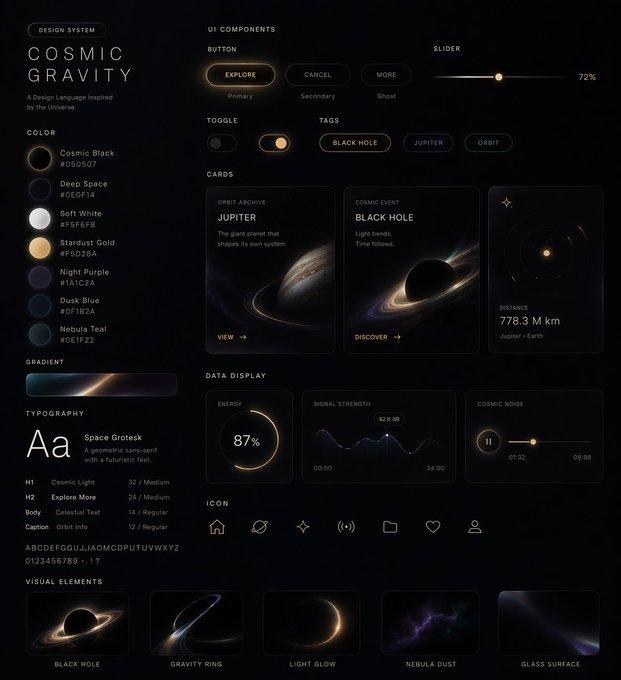
  "type": "UI Design System",
  "theme": "dark mode, space-inspired, glowing accents",
  "header": {
    "label": "DESIGN SYSTEM",
    "title": "{argument name=\"system name\" default=\"COSMIC GRAVITY\"}",
    "subtitle": "{argument name=\"theme description\" default=\"A Design Language Inspired by the Universe.\"}"
  },
  "layout": {
    "left_column": [
      {
        "title": "COLOR",
        "count": 7,
        "items": [
          {"name": "Cosmic Black", "hex": "#050507"},
          {"name": "Deep Space", "hex": "#0E0F14"},
          {"name": "Soft White", "hex": "#F5F6F8"},
          {"name": "{argument name=\"primary accent color\" default=\"Stardust Gold\"}", "hex": "#F5D28A"},
          {"name": "Night Purple", "hex": "#1A1C2A"},
          {"name": "Dusk Blue", "hex": "#0F1B2A"},
          {"name": "Nebula Teal", "hex": "#0E1F22"}
        ]
      },
      {
        "title": "GRADIENT",
        "count": 1,
        "description": "horizontal bar showing a dark-to-light-to-dark cosmic glow"
      },
      {
        "title": "TYPOGRAPHY",
        "font": "{argument name=\"font name\" default=\"Space Grotesk\"}",
        "hierarchy_count": 4,
        "levels": ["H1 Cosmic Light", "H2 Explore More", "Body Celestial Text", "Caption Orbit Info"]
      }
    ],
    "main_column": [
      {
        "title": "UI COMPONENTS",
        "subsections": [
          {"title": "BUTTON", "count": 3, "labels": ["EXPLORE (Primary)", "CANCEL (Secondary)", "MORE (Ghost)"]},
          {"title": "SLIDER", "count": 1, "value": "72%"},
          {"title": "TOGGLE", "count": 2, "states": ["Off", "On"]},
          {"title": "TAGS", "count": 3, "labels": ["BLACK HOLE", "JUPITER", "ORBIT"]}
        ]
      },
      {
        "title": "CARDS",
        "count": 3,
        "items": [
          {"title": "{argument name=\"card subject\" default=\"JUPITER\"}", "subtitle": "ORBIT ARCHIVE", "image": "Jupiter planet"},
          {"title": "BLACK HOLE", "subtitle": "COSMIC EVENT", "image": "Black hole with accretion disk"},
          {"title": "DISTANCE", "value": "778.3 M km", "image": "Concentric orbital rings"}
        ]
      },
      {
        "title": "DATA DISPLAY",
        "count": 3,
        "items": [
          {"title": "ENERGY", "type": "circular progress ring", "value": "87%"},
          {"title": "SIGNAL STRENGTH", "type": "line graph with glowing nodes", "value": "42.6 dB"},
          {"title": "COSMIC NOISE", "type": "audio player UI"}
        ]
      },
      {
        "title": "ICON",
        "count": 7,
        "labels": ["Home", "Planet", "Sparkle", "Signal", "Folder", "Heart", "User"]
      }
    ],
    "bottom_row": [
      {
        "title": "VISUAL ELEMENTS",
        "count": 5,
        "labels": ["BLACK HOLE", "GRAVITY RING", "LIGHT GLOW", "NEBULA DUST", "GLASS SURFACE"]
      }
    ]
  }
}- Category
- Charts & Infographics
- Model
- GPT Image 2
- Creator
- cheaty
- Source ID
- 13506
- Published
- Apr 19, 2026
Views1