15

水彩绘本封面
Enlarge

水彩绘本封面

Prompt
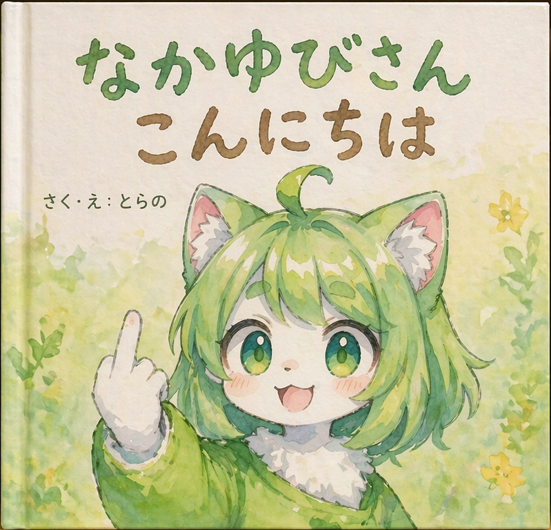
A watercolor illustration of a children's picture book cover. The main subject is a {argument name="character appearance" default="cute furry kemonomimi girl with short green hair, cat ears, and green eyes"}. She is {argument name="action" default="smiling happily while holding up her middle finger"} with a white-furred hand. She wears a green garment with a fluffy white collar. The background features soft, painted green foliage and small yellow flowers on textured paper. At the top, large hand-drawn green Japanese text reads "{argument name="main title" default="なかゆびさん"}". Below it, brown Japanese text reads "{argument name="subtitle" default="こんにちは"}". On the middle-left, smaller black text reads "{argument name="author text" default="さく・え:とらの"}". The image has a visible book spine on the left edge, emphasizing the physical book format.
Category
Charts & Infographics
Model
GPT Image 2
Views2
Source ID
14206
Published
Apr 20, 2026

Guide

About "水彩绘本封面"

What is this prompt for?

"水彩绘本封面" AI image prompt for GPT Image 2 (Charts & Infographics). 生成柔和水彩风格的儿童绘本封面,包含可爱的角色及可自定义的日文标题。 Copy it on Picva and recreate the look in one click.

The full copyable prompt and example visuals above are ready for AI image generation or one-click recreate in Picva.

How to use this prompt

  1. Step 1

    Open the prompt detail

    Review the example visuals, category, and full prompt text for "水彩绘本封面".

  2. Step 2

    Copy the prompt

    Copy the prompt body from this page, or load it directly in Studio.

  3. Step 3

    Pick a model (GPT Image 2)

    Prefer GPT Image 2. If you switch models, keep subject and composition and tweak style terms.

  4. Step 4

    Generate and export

    Recreate the look in Picva, or export into your workflow for editing and publishing.

FAQ

What is the "水彩绘本封面" prompt?
It is an AI image-generation prompt for GPT Image 2 in the Charts & Infographics category. This page includes the full prompt text, example visuals, and a one-click recreate path in Picva.
How do I use this prompt to generate an image?
Copy the prompt from this page, or use Generate / Studio. Paste it into a compatible image model, or recreate the look in Picva with optional reference images.
Which model is this prompt for?
This page lists GPT Image 2. Most descriptive prompts also transfer to nearby image models such as GPT Image, Flux, or Midjourney with light style tweaks.
Can I use the result commercially?
You can usually copy the prompt for creation, but commercial use of the final image depends on the model terms, reference-image rights, and the generated content. Follow the source author and platform rules.