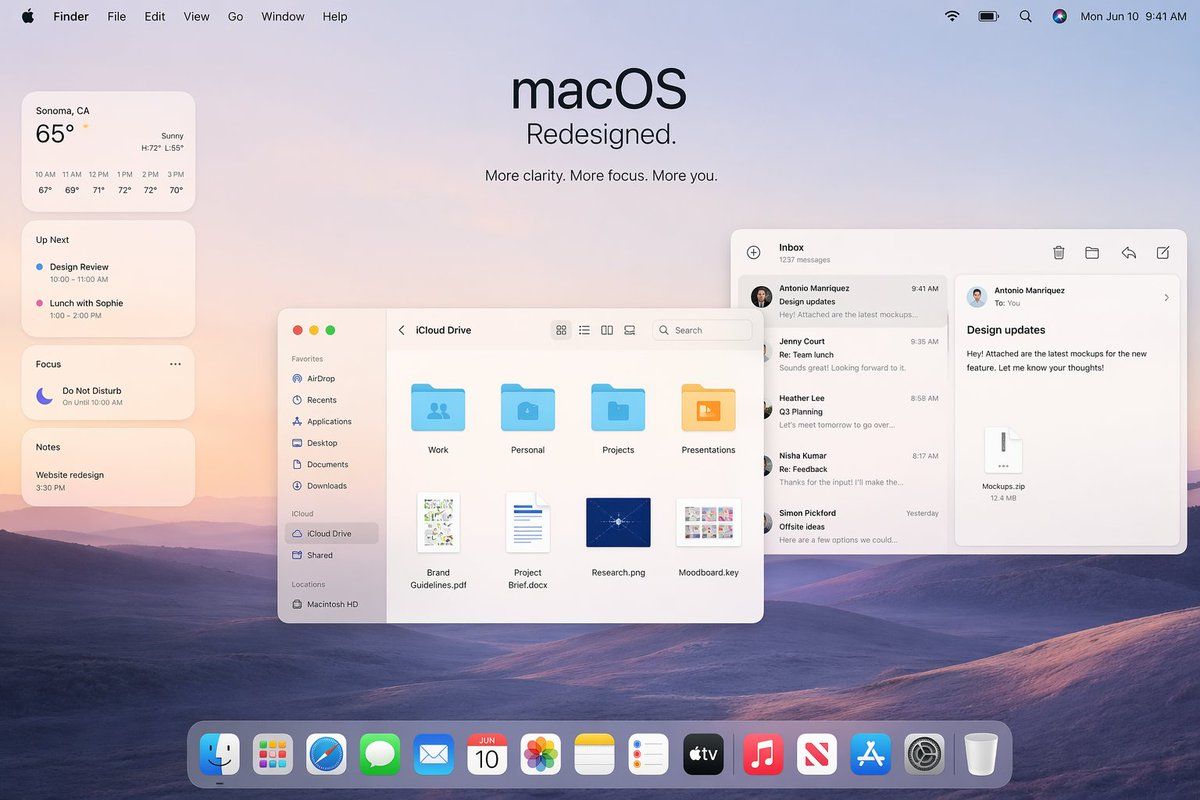
Apple macOS 重新设计宣传样机
Prompt
A polished Apple-style macOS promotional desktop mockup shown as a full-screen screenshot, with a soft pastel dawn wallpaper of layered purple-blue rolling hills under a pale peach and lavender sky. Centered near the top is a large minimalist headline reading "macOS" with the subheadline "Redesigned." and a smaller line below that says "More clarity. More focus. More you." The top system menu bar is visible across the full width: Apple logo, Finder, File, Edit, View, Go, Window, Help on the left; Wi‑Fi, battery, search, colorful user icon, and the date/time "Mon Jun 10 9:41 AM" on the right. On the left side, stack 4 translucent rounded widgets vertically: a weather widget for "Sonoma, CA" showing "65°", "Sunny", high/low "H:72° L:55°", and 6 hourly temperatures from 10 AM to 3 PM; an "Up Next" widget with 2 calendar items, "Design Review" and "Lunch with Sophie" with times; a "Focus" widget showing "Do Not Disturb" and "On Until 10:00 AM"; and a "Notes" widget with the note "Website redesign" and time "3:30 PM". In the middle-left foreground, place a Finder window with rounded corners and a light frosted interface, titled "iCloud Drive". Include a left sidebar with 10 items total: Favorites with 6 items "AirDrop", "Recents", "Applications", "Desktop", "Documents", "Downloads"; iCloud with 2 items "iCloud Drive" and "Shared"; and Locations with 1 item "Macintosh HD". In the main Finder area show 8 file items arranged in a grid: 4 folders on the top row labeled "Work", "Personal", "Projects", "Presentations", and 4 documents on the bottom row labeled "Brand Guidelines.pdf", "Project Brief.docx", "Research.png", "Moodboard.key". Add standard macOS traffic-light window buttons and small view/search controls in the title bar. On the right side, overlap a Mail app window with a three-column layout. The left mail list column is titled "Inbox" and shows "1237 messages" plus 5 visible senders/messages: "Antonio Manriquez" with subject "Design updates", "Jenny Court" with "Re: Team lunch", "Heather Lee" with "Q3 Planning", "Nisha Kumar" with "Re: Feedback", and "Simon Pickford" with "Offsite ideas". The reading pane shows the selected message from Antonio Manriquez to You with subject "Design updates" and body text about attached mockups for a new feature, plus a file attachment card labeled "Mockups.zip" and "12.4 MB". Use clean SF Pro-style typography, subtle shadows, translucent glassmorphism panels, soft ambient lighting, and a premium Apple keynote aesthetic. At the bottom center, include a glossy translucent macOS Dock with 15 icons: Finder, Launchpad, Safari, Messages, Mail, Calendar showing "JUN 10", Photos, Notes, Reminders, TV, Music, News, App Store, Settings, and Trash. Composition should feel balanced, airy, realistic, and highly refined, like an official Apple macOS redesign announcement image.
- Category
- Charts & Infographics
- Model
- GPT Image 2
- Creator
- doanbactam
- Source ID
- 14581
- Published
- Apr 21, 2026
Views5