16

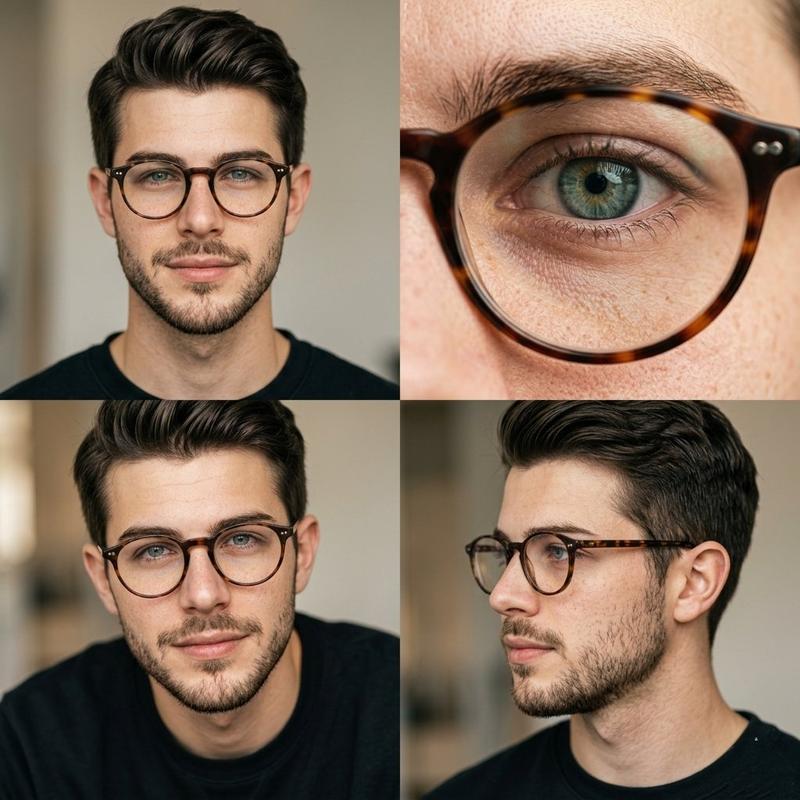
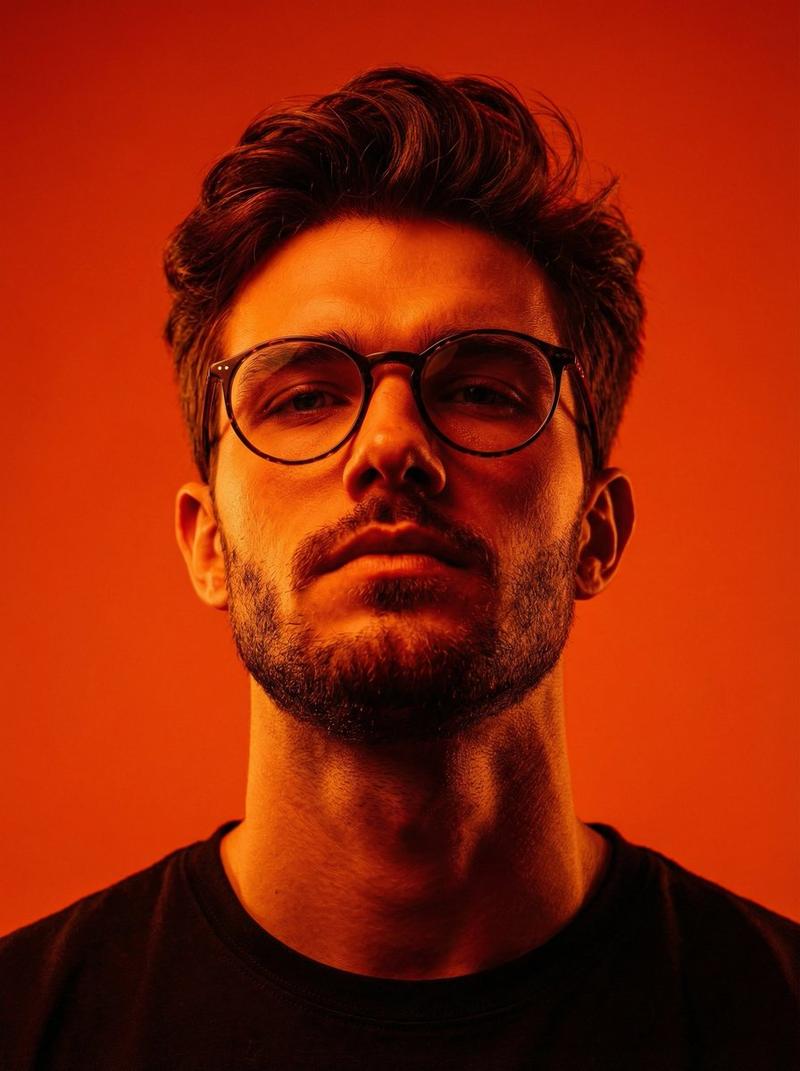
编辑风肖像 2x2 网格
Enlarge

编辑风肖像 2x2 网格

Prompt
Editorial portrait photography arranged in a 2x2 grid layout featuring the same {argument name="subject" default="man"} with {argument name="accessory" default="round tortoiseshell glasses"}, natural look, light beard, {argument name="background" default="soft neutral background"}.
Top-left: front-facing portrait with direct eye contact, calm expression.
Top-right: extreme macro close-up of eye behind glasses, ultra-detailed iris and skin texture.
Bottom-left: slightly lower angle portrait, subtle expression, soft shadows.
Bottom-right: side profile portrait, natural pose, looking away.
Soft diffused natural lighting, warm neutral tones, shallow depth of field, ultra-realistic skin texture with visible pores and freckles, minimal retouching, 85mm lens, high-end editorial photography style, clean composition, 4K
Category
Charts & Infographics
Model
GPT Image 2
Creator
Taaruk
Views3
Source ID
17793
Published
May 2, 2026

Guide

About "编辑风肖像 2x2 网格"

What is this prompt for?

"编辑风肖像 2x2 网格" AI image prompt for GPT Image 2 (Charts & Infographics). 一份用于创建高端编辑风摄影网格的详细提示词,包含一致的角色细节和多角度构图。 Copy it on Picva and recreate the look in one cl…

The full copyable prompt and example visuals above are ready for AI image generation or one-click recreate in Picva.

How to use this prompt

  1. Step 1

    Open the prompt detail

    Review the example visuals, category, and full prompt text for "编辑风肖像 2x2 网格".

  2. Step 2

    Copy the prompt

    Copy the prompt body from this page, or load it directly in Studio.

  3. Step 3

    Pick a model (GPT Image 2)

    Prefer GPT Image 2. If you switch models, keep subject and composition and tweak style terms.

  4. Step 4

    Generate and export

    Recreate the look in Picva, or export into your workflow for editing and publishing.

FAQ

What is the "编辑风肖像 2x2 网格" prompt?
It is an AI image-generation prompt for GPT Image 2 in the Charts & Infographics category. This page includes the full prompt text, example visuals, and a one-click recreate path in Picva.
How do I use this prompt to generate an image?
Copy the prompt from this page, or use Generate / Studio. Paste it into a compatible image model, or recreate the look in Picva with optional reference images.
Which model is this prompt for?
This page lists GPT Image 2. Most descriptive prompts also transfer to nearby image models such as GPT Image, Flux, or Midjourney with light style tweaks.
Can I use the result commercially?
You can usually copy the prompt for creation, but commercial use of the final image depends on the model terms, reference-image rights, and the generated content. Follow the source author and platform rules.