17

8 画面 GRWM 项目
Enlarge

8 画面 GRWM 项目

Prompt
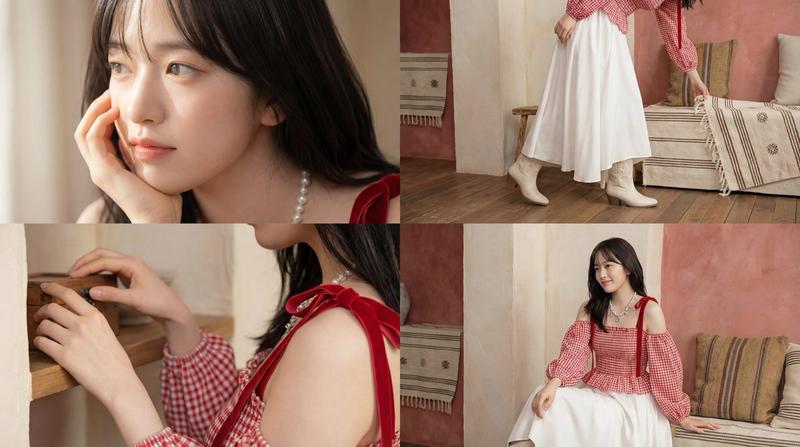
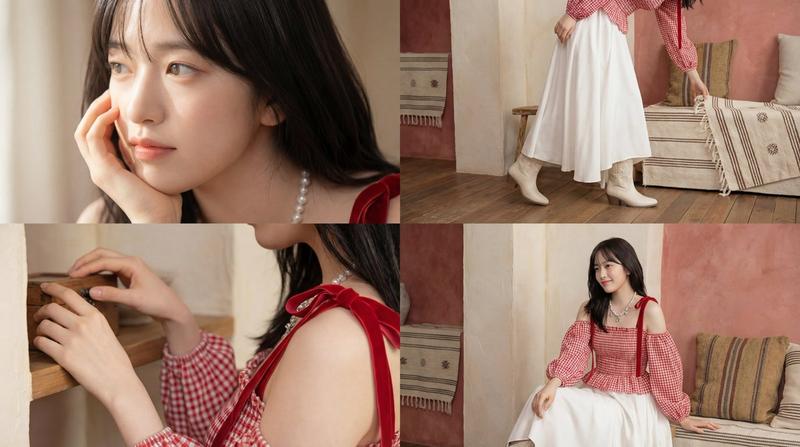
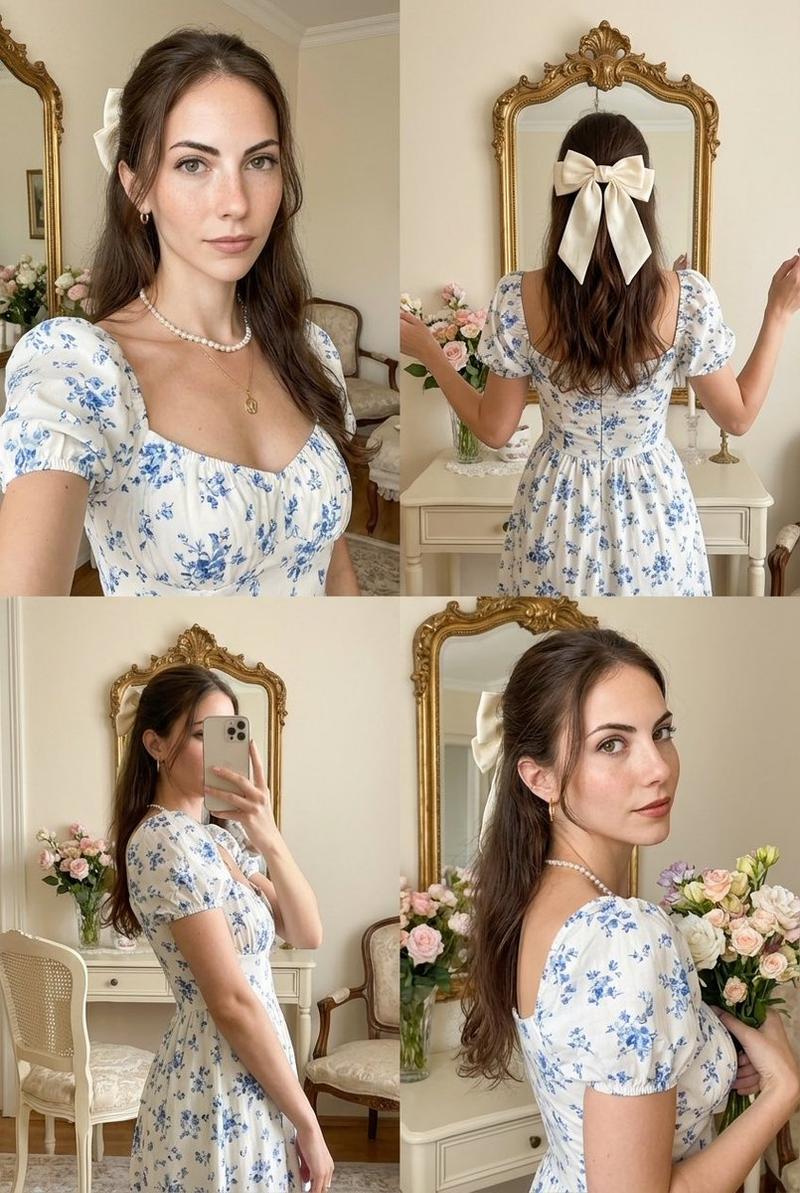
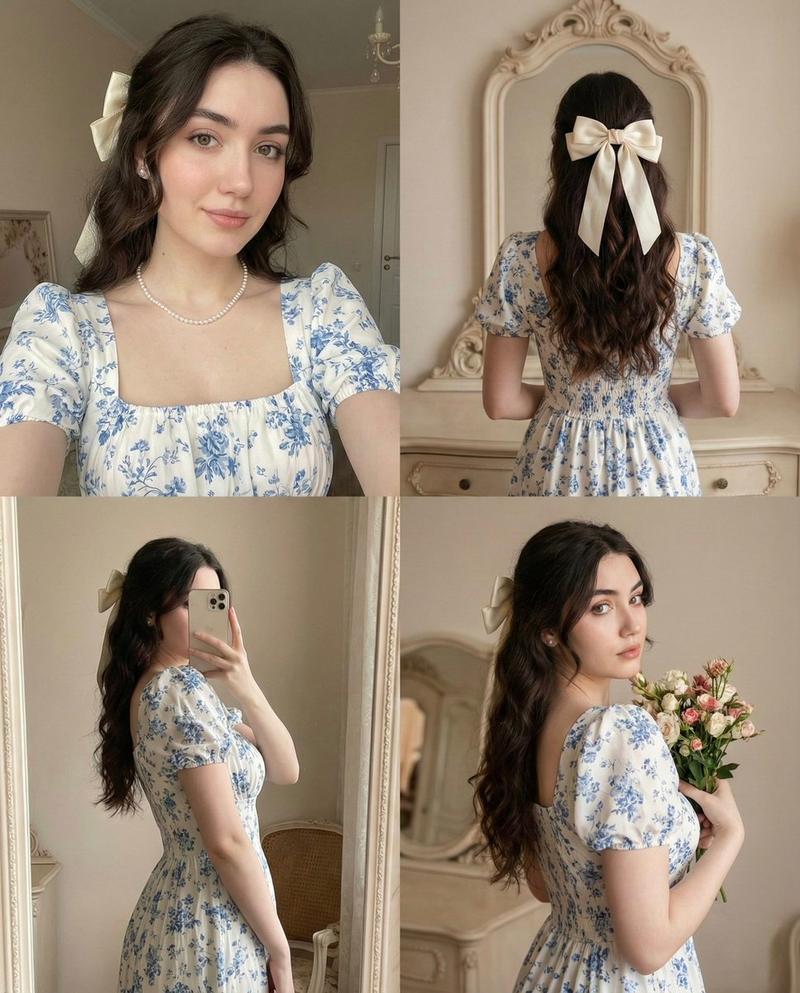
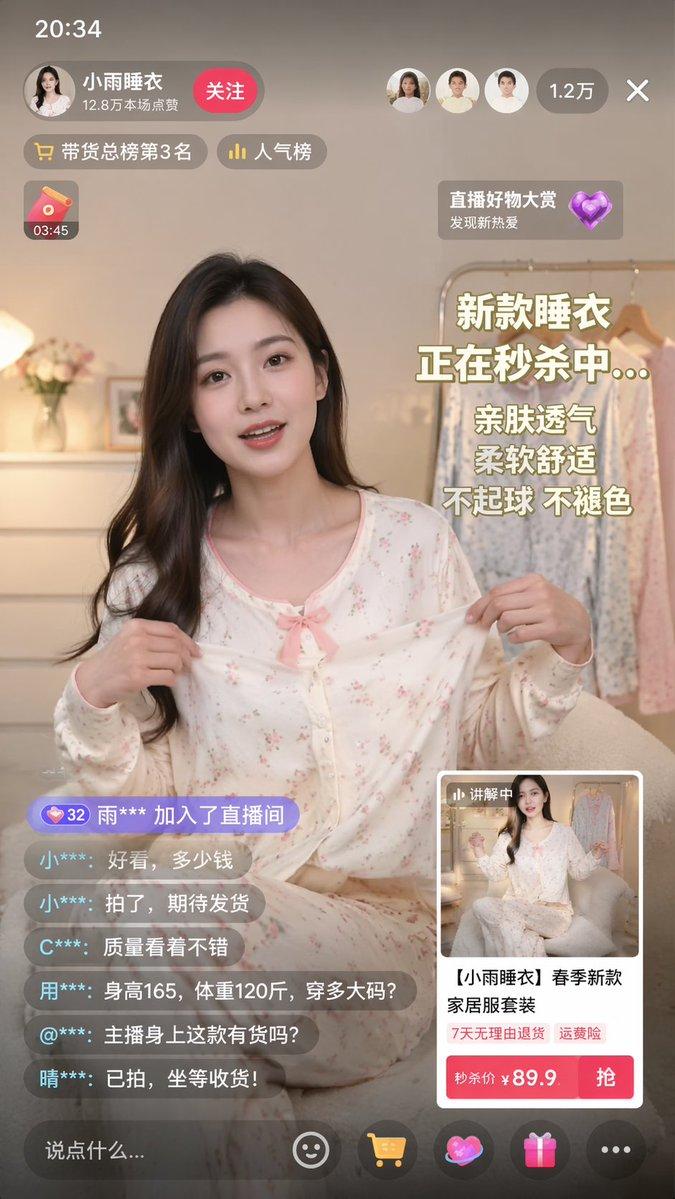
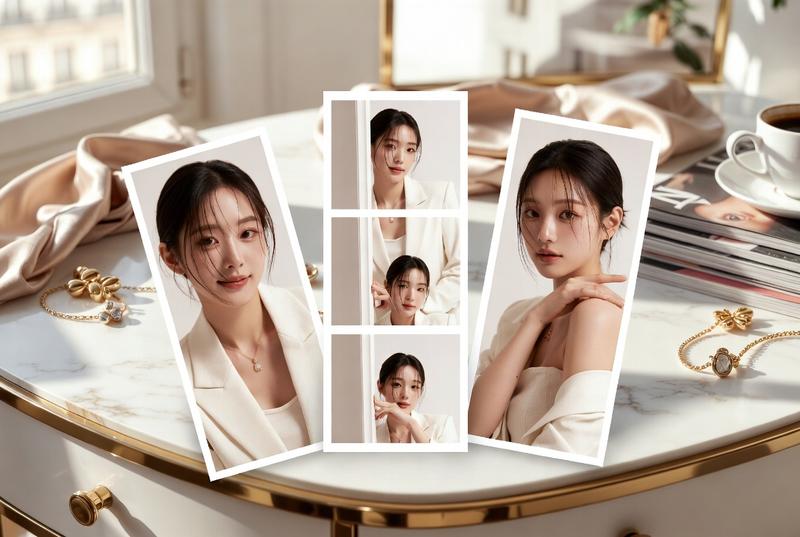
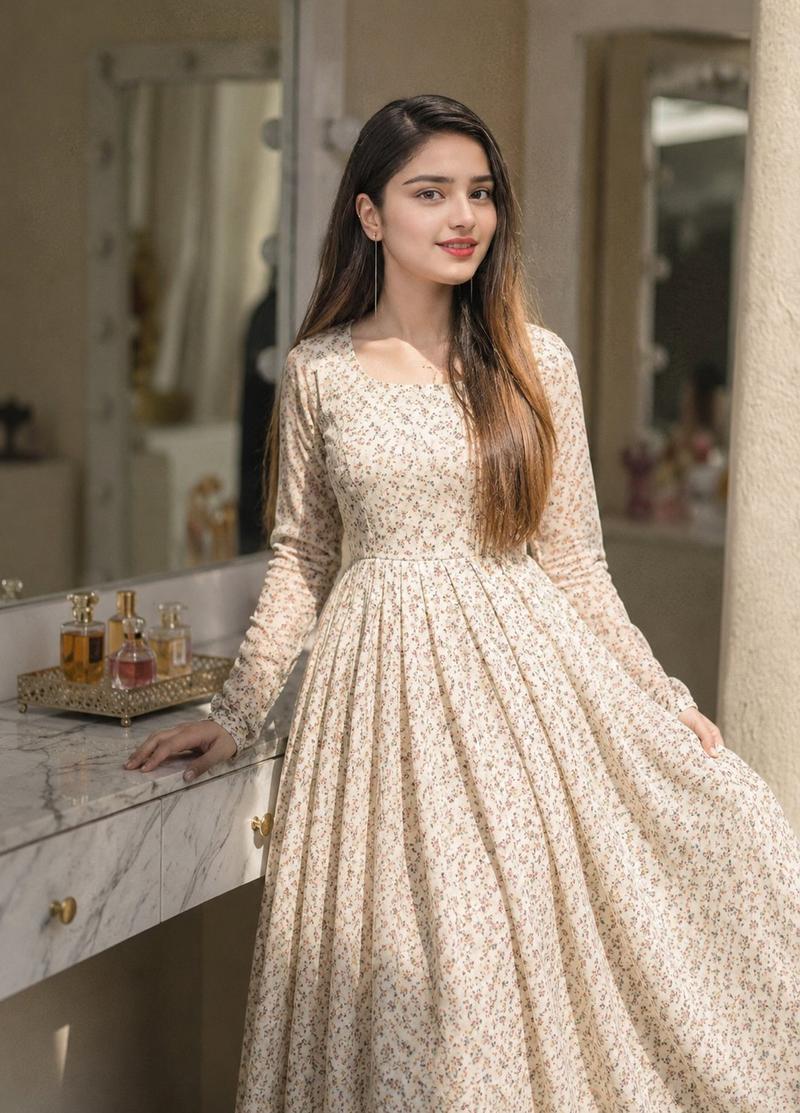
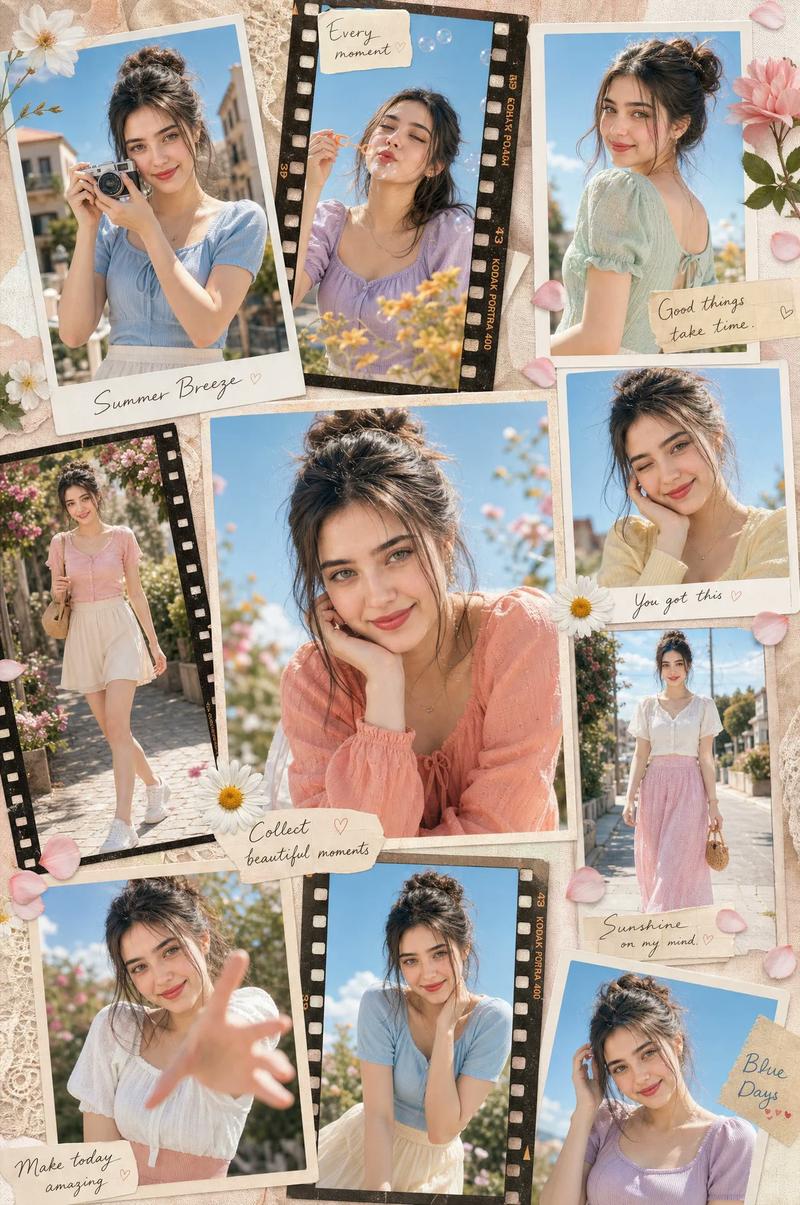
Create a high-quality 4K cinematic “Get Ready With Me” Instagram-style storyboard in a 9:16 vertical layout with EXACTLY 8 PANELS ONLY (no more, no less). Use soft natural lighting, pastel tones, and a clean trendy aesthetic. No text anywhere.
The storyboard must include exactly these 8 scenes:
Waking up in a cozy aesthetic bedroom with soft sunlight
Skincare close-up (applying serum or moisturizer)
Standing in front of wardrobe, choosing outfit
Changing into a modern trendy outfit (quick transition moment, stylish dress)
Makeup close-up (foundation, lip gloss, or blush)
Hair styling (brushing, tying, or clip styling)
Mirror check with full modern outfit, confident pose
Final confident walk or soft smile in sunlight
Keep panels clearly separated in one single frame with even spacing. Use cinematic angles (mirror shots, close-ups, POV), smooth lighting, and a strong glow-up transformation vibe.
Strict rule: only 8 panels, no extra frames, no repetition.
Category
Architecture & Spaces
Model
GPT Image 2
Creator
Zara
Views5
Source ID
17799
Published
May 2, 2026

Guide

About "8 画面 GRWM 项目"

What is this prompt for?

"8 画面 GRWM 项目" AI image prompt for GPT Image 2 (Architecture & Spaces). 一个用于 Instagram 风格“Get Ready With Me”视频序列的 4K 电影感项目提示词,包含精确的 8 个场景。 Copy it on Picva and…

The full copyable prompt and example visuals above are ready for AI image generation or one-click recreate in Picva.

How to use this prompt

  1. Step 1

    Open the prompt detail

    Review the example visuals, category, and full prompt text for "8 画面 GRWM 项目".

  2. Step 2

    Copy the prompt

    Copy the prompt body from this page, or load it directly in Studio.

  3. Step 3

    Pick a model (GPT Image 2)

    Prefer GPT Image 2. If you switch models, keep subject and composition and tweak style terms.

  4. Step 4

    Generate and export

    Recreate the look in Picva, or export into your workflow for editing and publishing.

FAQ

What is the "8 画面 GRWM 项目" prompt?
It is an AI image-generation prompt for GPT Image 2 in the Architecture & Spaces category. This page includes the full prompt text, example visuals, and a one-click recreate path in Picva.
How do I use this prompt to generate an image?
Copy the prompt from this page, or use Generate / Studio. Paste it into a compatible image model, or recreate the look in Picva with optional reference images.
Which model is this prompt for?
This page lists GPT Image 2. Most descriptive prompts also transfer to nearby image models such as GPT Image, Flux, or Midjourney with light style tweaks.
Can I use the result commercially?
You can usually copy the prompt for creation, but commercial use of the final image depends on the model terms, reference-image rights, and the generated content. Follow the source author and platform rules.