17

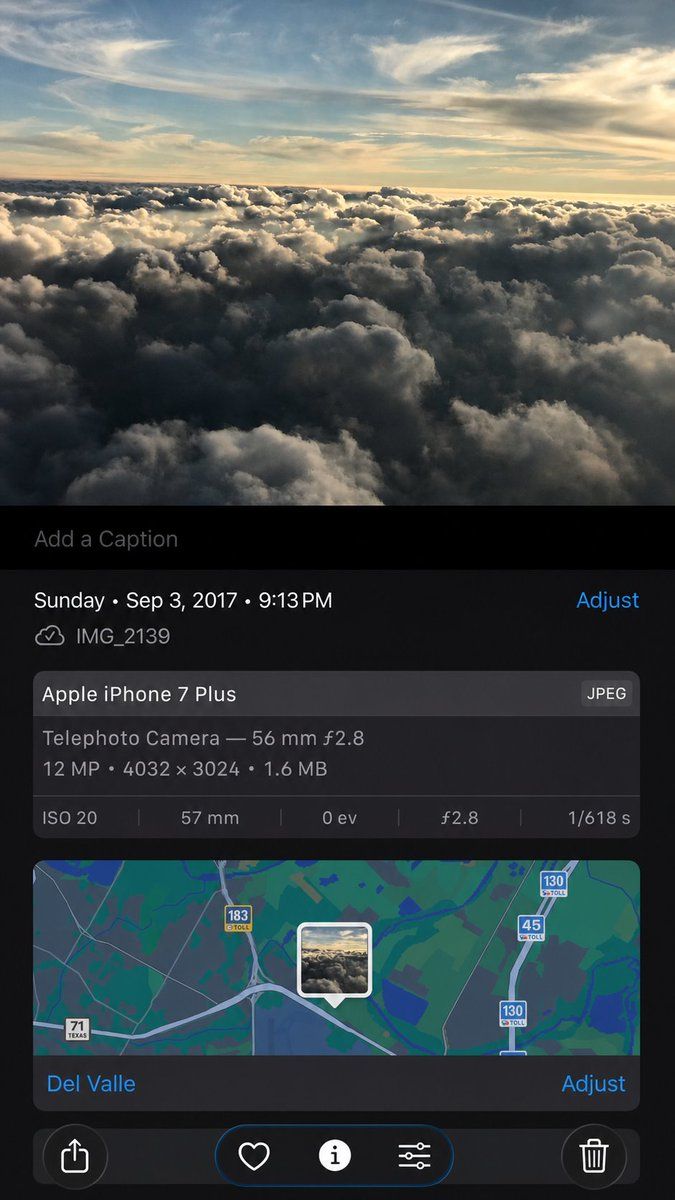
Synthetic iPhone Photos Metadata Screenshot
Enlarge

Synthetic iPhone Photos Metadata Screenshot

Prompt
Using the provided iPhone Photos screenshot as the reference, recreate it as a cleaner, high-fidelity synthetic screenshot while preserving the same overall content: the cloud photo, the Photos app metadata panel, the map, date/time, filename, camera details, and bottom controls. Subtly rebuild the cloud image rather than copying it exactly, with a slightly wider-feeling crop, sharper modern rendering, and a more polished dark iOS interface. Keep the visible text and metadata unchanged, including {argument name="date and time" default="Sunday • Sep 3, 2017 • 9:13 PM"}, {argument name="filename" default="IMG_2139"}, {argument name="device name" default="Apple iPhone 7 Plus"}, {argument name="location" default="Del Valle"}, and {argument name="photo specs" default="Telephoto Camera — 56 mm ƒ2.8; 12 MP • 4032 × 3024 • 1.6 MB; ISO 20; 57 mm; 0 ev; ƒ2.8; 1/618 s"}. Include exactly 5 bottom toolbar icons: share, heart, information, adjustment sliders, and trash. Keep the map section with the centered photo-pin thumbnail and the visible road shields 71 Texas, 183 toll, 45 toll, and 130 toll.
Category
Charts & Infographics
Model
GPT Image 2
Creator
8fstudioz
Views2
Source ID
18128
Published
May 3, 2026

Guide

About "Synthetic iPhone Photos Metadata Screenshot"

What is this prompt for?

"Synthetic iPhone Photos Metadata Screenshot" AI image prompt for GPT Image 2 (Charts & Infographics). Creates a realistic rebuilt iPhone Photos details screen…

The full copyable prompt and example visuals above are ready for AI image generation or one-click recreate in Picva.

How to use this prompt

  1. Step 1

    Open the prompt detail

    Review the example visuals, category, and full prompt text for "Synthetic iPhone Photos Metadata Screenshot".

  2. Step 2

    Copy the prompt

    Copy the prompt body from this page, or load it directly in Studio.

  3. Step 3

    Pick a model (GPT Image 2)

    Prefer GPT Image 2. If you switch models, keep subject and composition and tweak style terms.

  4. Step 4

    Generate and export

    Recreate the look in Picva, or export into your workflow for editing and publishing.

FAQ

What is the "Synthetic iPhone Photos Metadata Screenshot" prompt?
It is an AI image-generation prompt for GPT Image 2 in the Charts & Infographics category. This page includes the full prompt text, example visuals, and a one-click recreate path in Picva.
How do I use this prompt to generate an image?
Copy the prompt from this page, or use Generate / Studio. Paste it into a compatible image model, or recreate the look in Picva with optional reference images.
Which model is this prompt for?
This page lists GPT Image 2. Most descriptive prompts also transfer to nearby image models such as GPT Image, Flux, or Midjourney with light style tweaks.
Can I use the result commercially?
You can usually copy the prompt for creation, but commercial use of the final image depends on the model terms, reference-image rights, and the generated content. Follow the source author and platform rules.