19

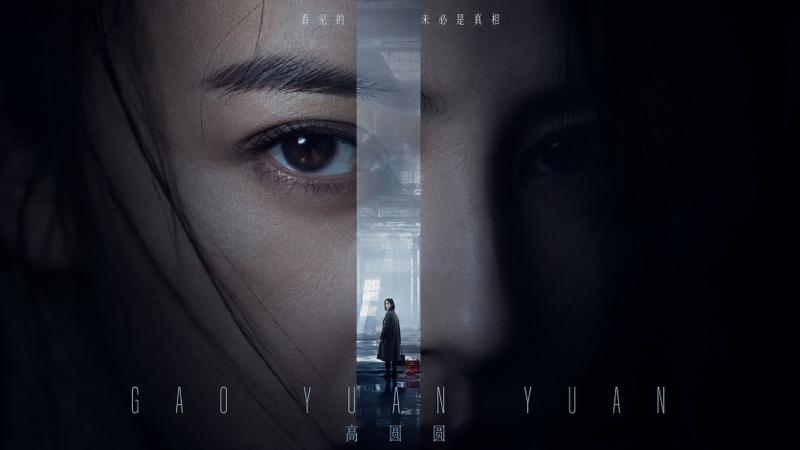
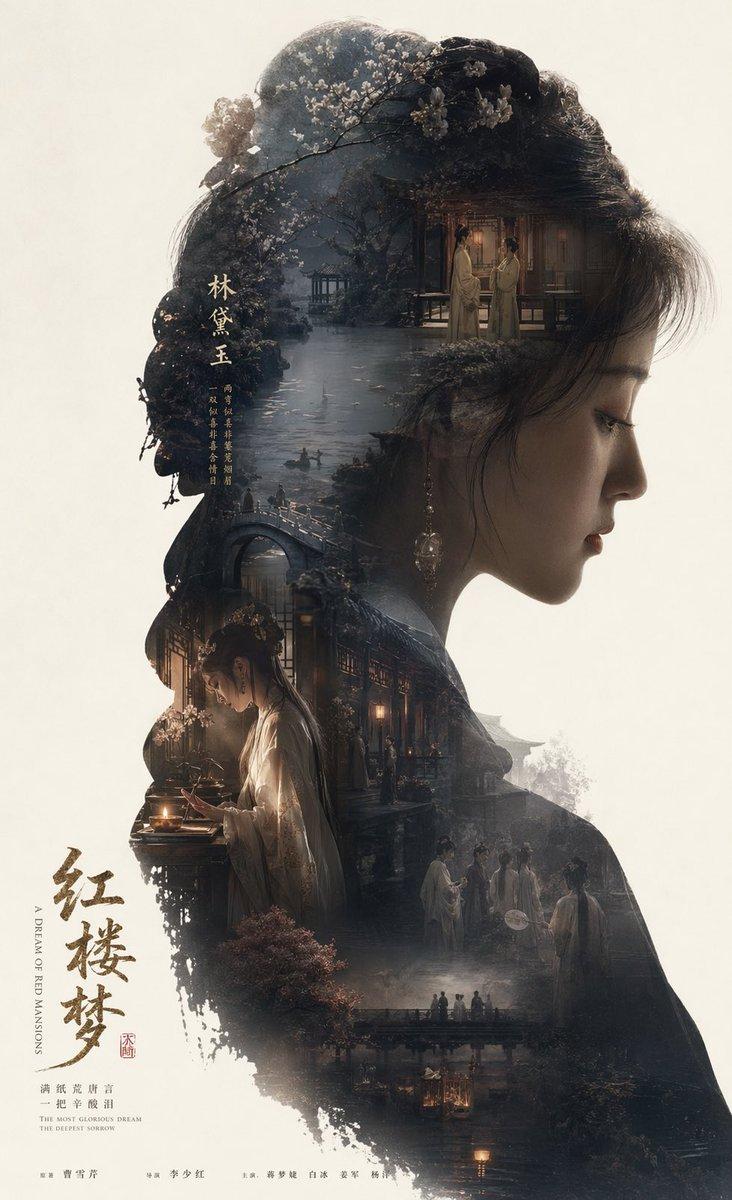
双重曝光编辑人像
Enlarge

双重曝光编辑人像

Prompt
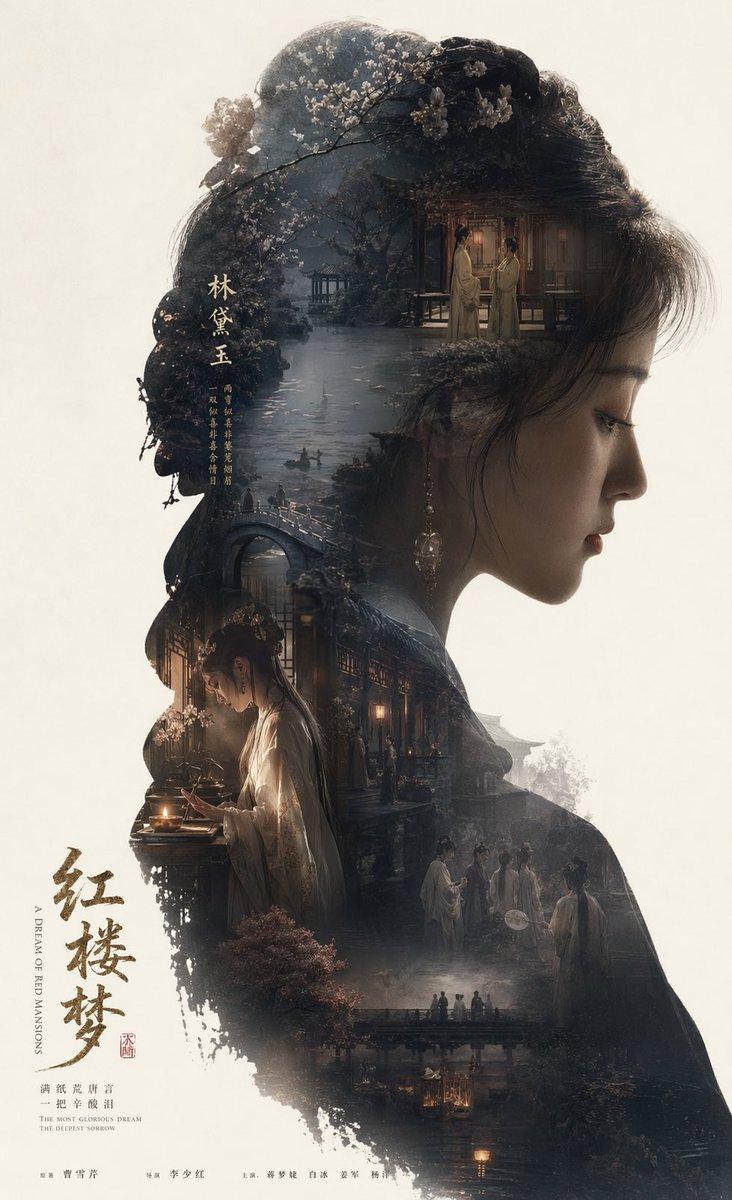
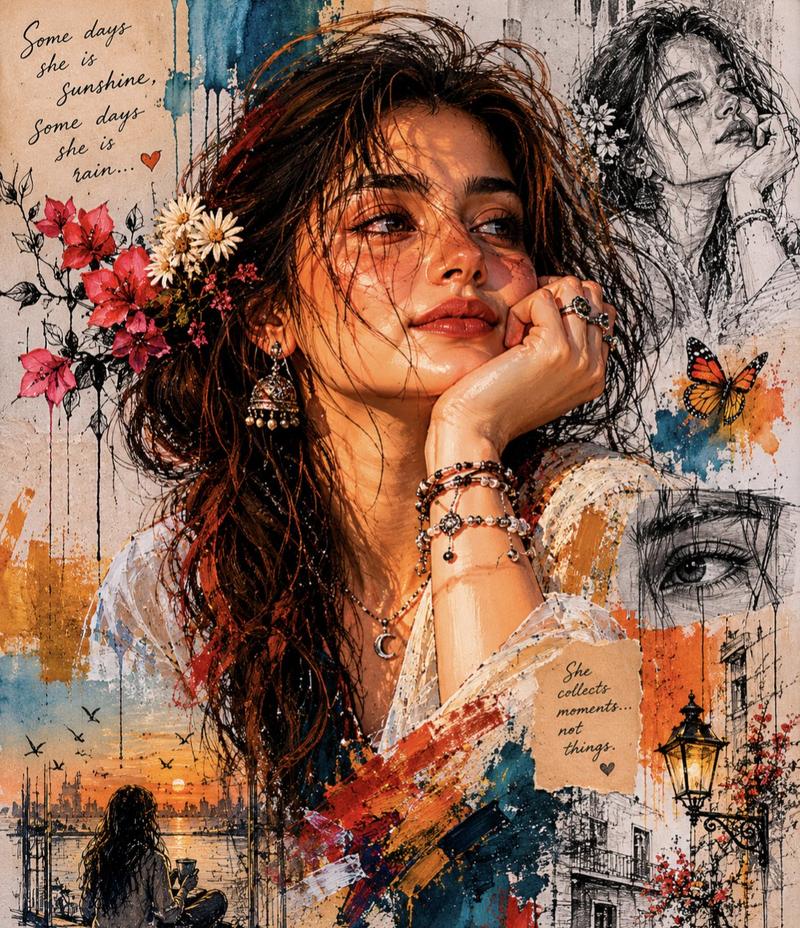
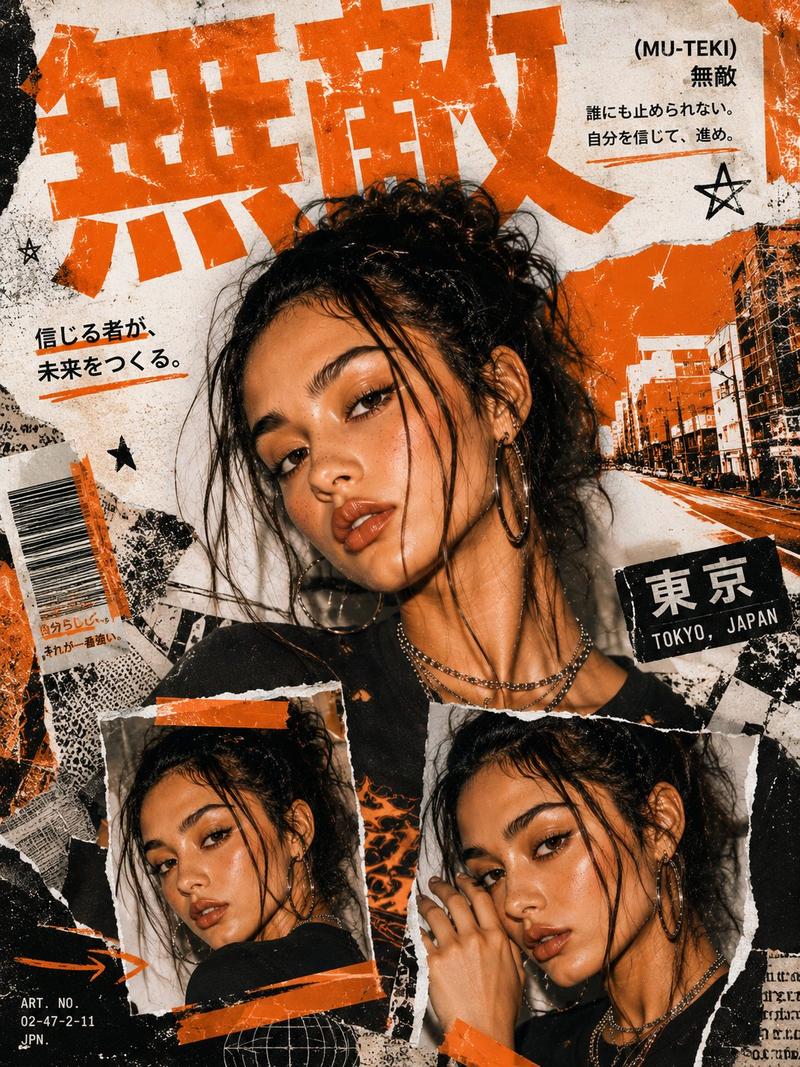
A high-contrast, double-exposure editorial portrait of a {argument name="subject" default="beautiful woman"} gazing down with a thoughtful expression. The image is creatively segmented into vertical cuts of varying heights against a textured, off-white parchment background. Overlay effect: Within the vertical cuts of the woman's face, a secondary scene is visible: a solitary figure of the same woman in a sweatshirt walking along a {argument name="secondary scene" default="rain-soaked street at night"}.

The street scene features a warm orange bokeh emanating from the streetlights and reflections on the wet pavement, creating a striking contrast with the cool tones of the portrait. Stylistic elements: Lighting: A chiaroscuro style with deep shadows and bright highlights on the woman's white shirt and dark jacket.

Texture: A subtle grain and a worn, paper-like texture cover the entire canvas, lending an artistic and raw feel. Color palette: A mix of desaturated monochromatic tones for the portrait, punctuated by vibrant touches of amber, gold, and turquoise from the rainy cityscape. Atmosphere: Melancholic, introspective, and with hints of modern film noir; facial hair and skin texture rendered in great detail.

Technical specifications: Photograph taken with an 85mm lens, f/1.8, cinematic lighting, sharp focus on the glasses, 8K resolution, graphic poster style. Aspect ratio {argument name="aspect ratio" default="9:16"}.
Category
Charts & Infographics
Model
GPT Image 2
Creator
Aqsa
Views2
Source ID
18824
Published
May 6, 2026

Guide

About "双重曝光编辑人像"

What is this prompt for?

"双重曝光编辑人像" AI image prompt for GPT Image 2 (Charts & Infographics). 一个用于高对比度双重曝光人像的艺术提示词,将影棚人像与雨中城市街景相结合。 Copy it on Picva and recreate the look in one click.

The full copyable prompt and example visuals above are ready for AI image generation or one-click recreate in Picva.

How to use this prompt

  1. Step 1

    Open the prompt detail

    Review the example visuals, category, and full prompt text for "双重曝光编辑人像".

  2. Step 2

    Copy the prompt

    Copy the prompt body from this page, or load it directly in Studio.

  3. Step 3

    Pick a model (GPT Image 2)

    Prefer GPT Image 2. If you switch models, keep subject and composition and tweak style terms.

  4. Step 4

    Generate and export

    Recreate the look in Picva, or export into your workflow for editing and publishing.

FAQ

What is the "双重曝光编辑人像" prompt?
It is an AI image-generation prompt for GPT Image 2 in the Charts & Infographics category. This page includes the full prompt text, example visuals, and a one-click recreate path in Picva.
How do I use this prompt to generate an image?
Copy the prompt from this page, or use Generate / Studio. Paste it into a compatible image model, or recreate the look in Picva with optional reference images.
Which model is this prompt for?
This page lists GPT Image 2. Most descriptive prompts also transfer to nearby image models such as GPT Image, Flux, or Midjourney with light style tweaks.
Can I use the result commercially?
You can usually copy the prompt for creation, but commercial use of the final image depends on the model terms, reference-image rights, and the generated content. Follow the source author and platform rules.