14

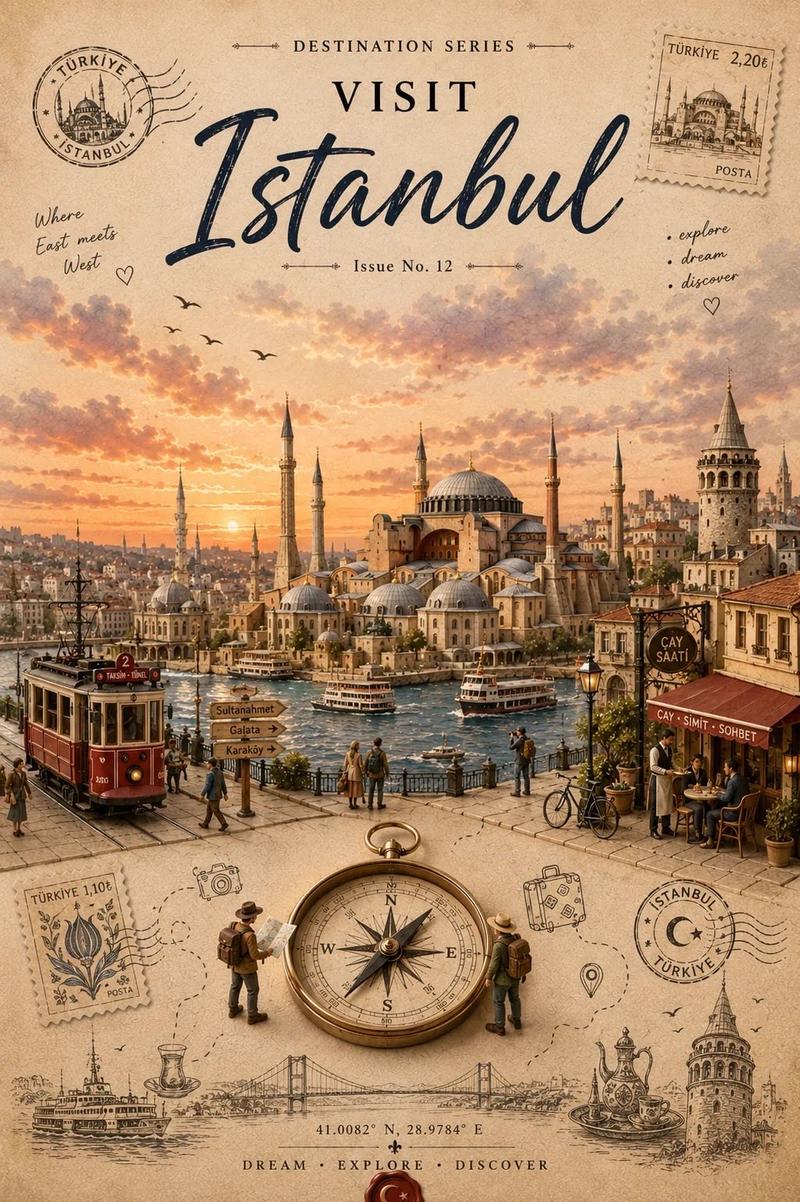
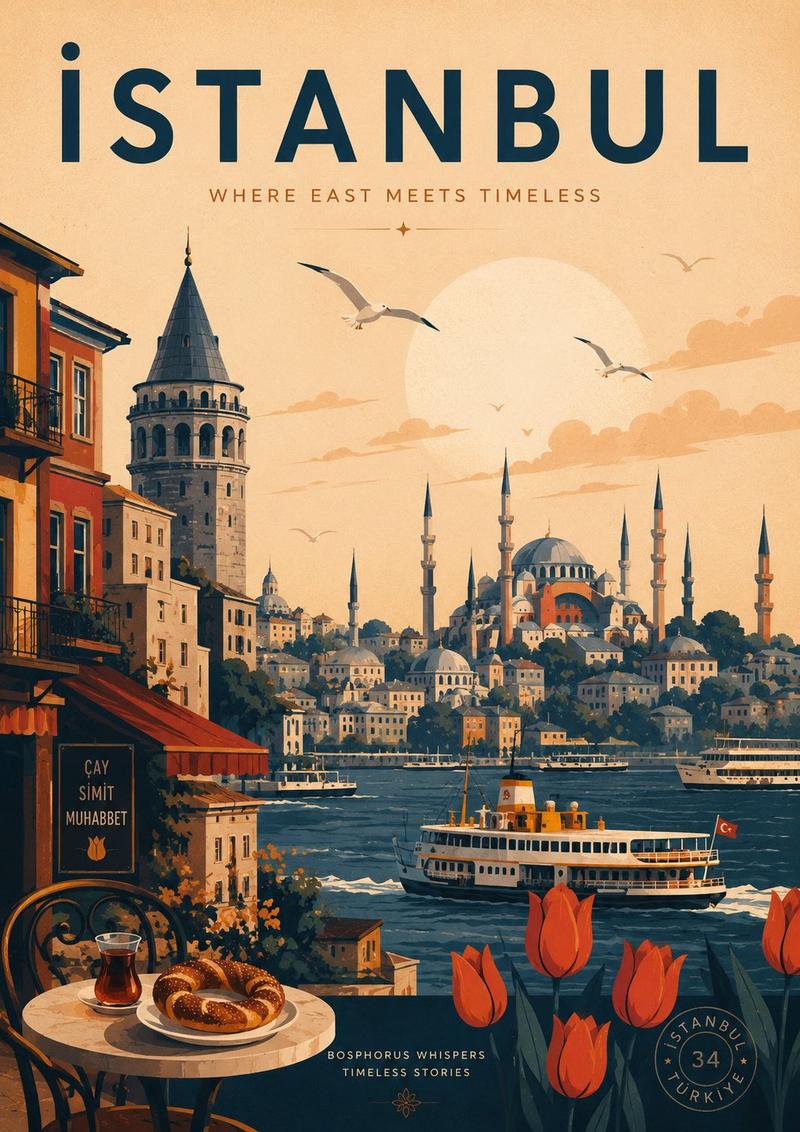
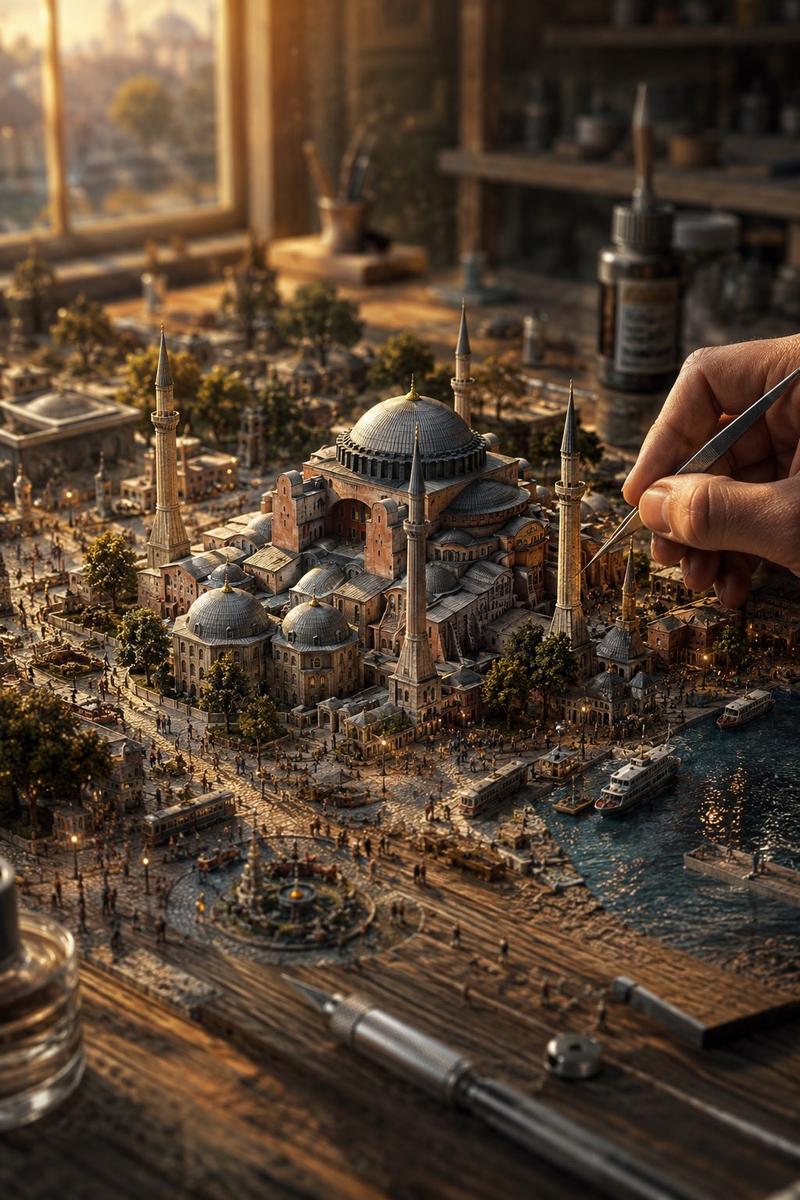
复古中世纪旅行海报
Enlarge

Example images

复古中世纪旅行海报

Prompt
Design a vertical retro mid-century travel poster of {argument name="city name" default="[CITY NAME]"} showcasing {argument name="landmark" default="[LANDMARK]"}. Stick to a tight 3-color scheme: cream-toned paper background, black technical line drawing, plus one {argument name="accent color" default="[COLOR]"} accent.
Aesthetic: minimalist isometric top-down aerial perspective with very fine cross-hatching and silkscreen print grain.
Color rules: fill the entire sky in flat solid {argument name="accent color" default="[COLOR]"}, add small {argument name="accent color" default="[COLOR]"} touches on rooftops or street details. Zero gradients allowed.
Typography: large bold sans-serif "{argument name="city name" default="[CITY NAME]"}" at the top in cream, with the city's name in its native language set smaller in cream beneath it.
Category
Charts & Infographics
Model
GPT Image 2
Creator
PromptLab
Views3
Source ID
20026
Published
May 13, 2026

Guide

About "复古中世纪旅行海报"

What is this prompt for?

"复古中世纪旅行海报" AI image prompt for GPT Image 2 (Charts & Infographics). 一款极简主义等距视角旅行海报,采用精细的交叉影线和严谨的三色配色方案,呈现出复古的中世纪美学。 Copy it on Picva and recreate the look in…

The full copyable prompt and example visuals above are ready for AI image generation or one-click recreate in Picva.

How to use this prompt

  1. Step 1

    Open the prompt detail

    Review the example visuals, category, and full prompt text for "复古中世纪旅行海报".

  2. Step 2

    Copy the prompt

    Copy the prompt body from this page, or load it directly in Studio.

  3. Step 3

    Pick a model (GPT Image 2)

    Prefer GPT Image 2. If you switch models, keep subject and composition and tweak style terms.

  4. Step 4

    Generate and export

    Recreate the look in Picva, or export into your workflow for editing and publishing.

FAQ

What is the "复古中世纪旅行海报" prompt?
It is an AI image-generation prompt for GPT Image 2 in the Charts & Infographics category. This page includes the full prompt text, example visuals, and a one-click recreate path in Picva.
How do I use this prompt to generate an image?
Copy the prompt from this page, or use Generate / Studio. Paste it into a compatible image model, or recreate the look in Picva with optional reference images.
Which model is this prompt for?
This page lists GPT Image 2. Most descriptive prompts also transfer to nearby image models such as GPT Image, Flux, or Midjourney with light style tweaks.
Can I use the result commercially?
You can usually copy the prompt for creation, but commercial use of the final image depends on the model terms, reference-image rights, and the generated content. Follow the source author and platform rules.