20

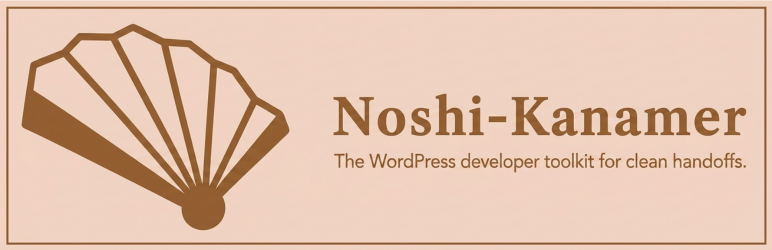
Noshi-Kanamer WordPress 插件横幅
Enlarge

Noshi-Kanamer WordPress 插件横幅

Prompt
Create a horizontal WordPress plugin banner with a refined minimalist Japanese aesthetic. Canvas: wide rectangle, approximately 1540 × 500 pixels, pale warm peach background with a very subtle soft radial glow near the center. Add a thin medium-brown rectangular border inset slightly from the edges. Layout: place a large stylized folding fan icon on the left occupying about 35% of the width, and place the product name and tagline on the right, vertically centered. Icon details: a simple geometric Japanese folding fan in dark warm brown outlines and fills, angled slightly upward, with exactly 7 visible fan panels separated by thick brown ribs, cream-filled inner panels, dark brown filled outer side sections, and a rounded dark brown pivot circle at the bottom center of the fan. Text: large serif title reading {argument name="plugin name" default="Noshi-Kanamer"} in dark warm brown, bold, elegant, with generous letter spacing; directly underneath, smaller sans-serif tagline reading {argument name="tagline" default="The WordPress developer toolkit for clean handoffs."} in the same brown. Keep the design clean, flat, vector-like, professional, and suitable for a WordPress plugin banner. Use no extra icons, no shadows, no mockups, no people, and no additional text.
Category
Charts & Infographics
Model
GPT Image 2
Creator
ノシ
Views3
Source ID
20113
Published
May 13, 2026

Guide

About "Noshi-Kanamer WordPress 插件横幅"

What is this prompt for?

"Noshi-Kanamer WordPress 插件横幅" AI image prompt for GPT Image 2 (Charts & Infographics). 一款简洁的横向插件横幅,采用日式折扇标志和 WordPress 开发者工具包品牌设计。 Copy it on Picva and recrea…

The full copyable prompt and example visuals above are ready for AI image generation or one-click recreate in Picva.

How to use this prompt

  1. Step 1

    Open the prompt detail

    Review the example visuals, category, and full prompt text for "Noshi-Kanamer WordPress 插件横幅".

  2. Step 2

    Copy the prompt

    Copy the prompt body from this page, or load it directly in Studio.

  3. Step 3

    Pick a model (GPT Image 2)

    Prefer GPT Image 2. If you switch models, keep subject and composition and tweak style terms.

  4. Step 4

    Generate and export

    Recreate the look in Picva, or export into your workflow for editing and publishing.

FAQ

What is the "Noshi-Kanamer WordPress 插件横幅" prompt?
It is an AI image-generation prompt for GPT Image 2 in the Charts & Infographics category. This page includes the full prompt text, example visuals, and a one-click recreate path in Picva.
How do I use this prompt to generate an image?
Copy the prompt from this page, or use Generate / Studio. Paste it into a compatible image model, or recreate the look in Picva with optional reference images.
Which model is this prompt for?
This page lists GPT Image 2. Most descriptive prompts also transfer to nearby image models such as GPT Image, Flux, or Midjourney with light style tweaks.
Can I use the result commercially?
You can usually copy the prompt for creation, but commercial use of the final image depends on the model terms, reference-image rights, and the generated content. Follow the source author and platform rules.