14

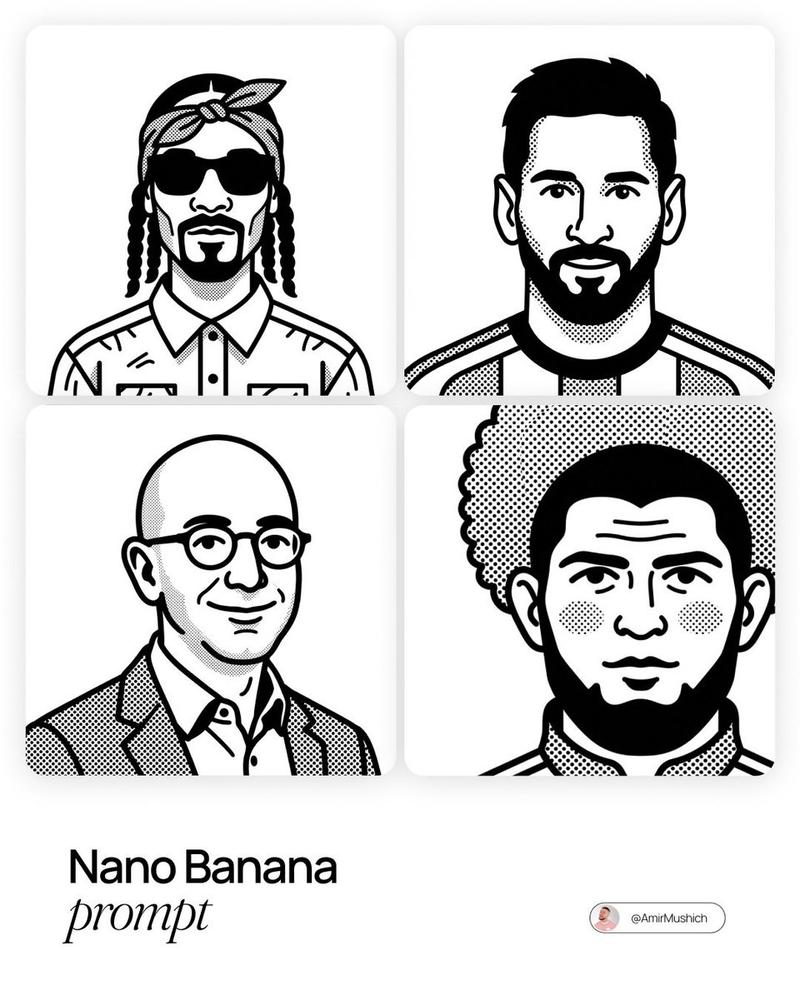
极简企业风头像精灵图
Enlarge

极简企业风头像精灵图

Prompt
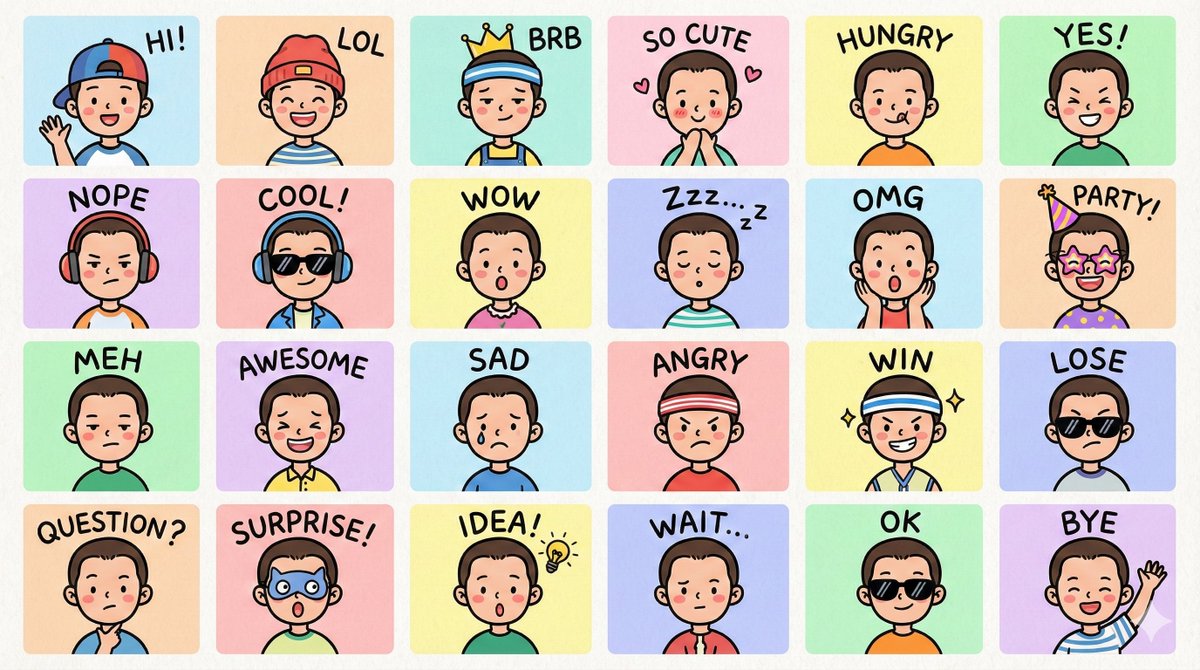
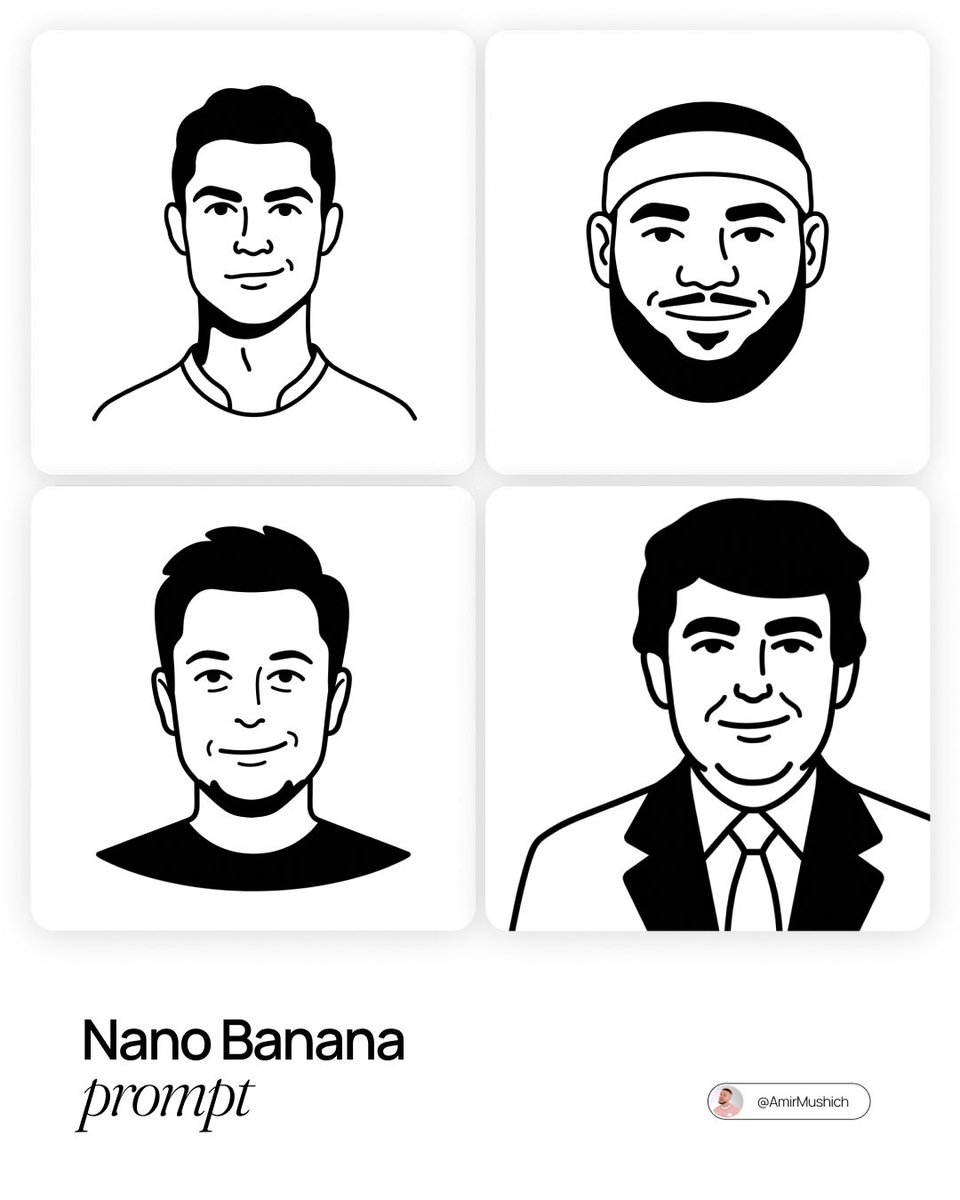
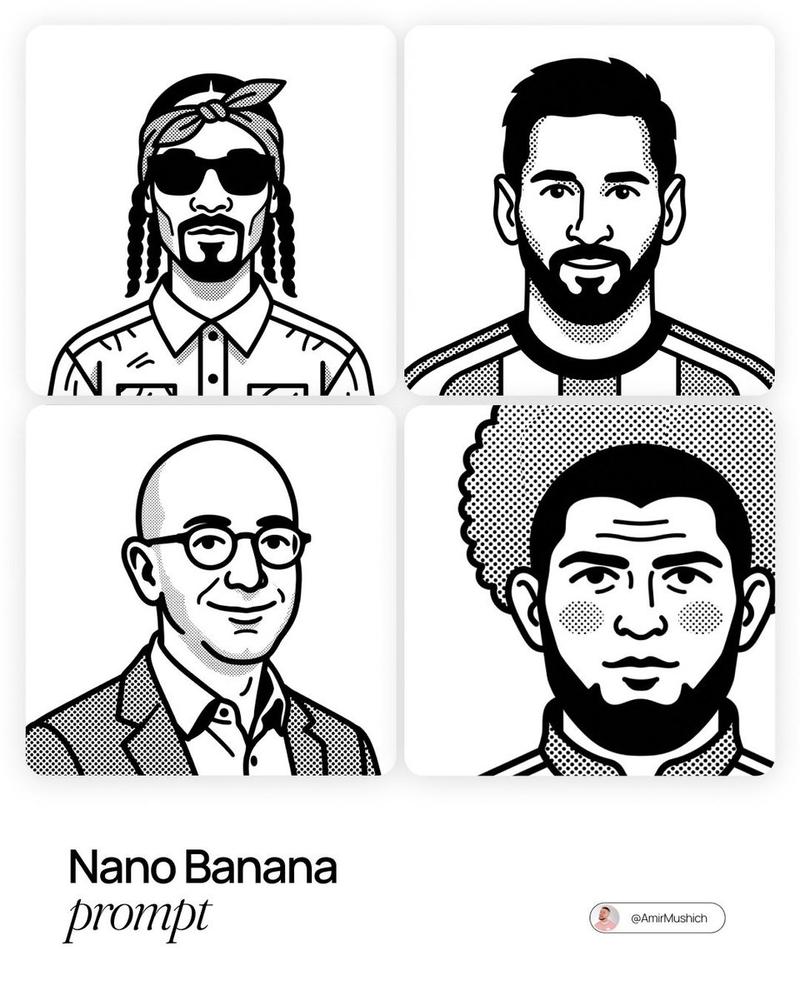
Create a single 3x3 sprite sheet image containing {argument name="image count" default="9"} different simple bust portrait illustrations, matching a {argument name="website style" default="gentle Japanese corporate website"} style. White/off-white background for each cell, consistent navy blue hand-drawn line art, very light pastel clothing fills in {argument name="clothing colors" default="pale blue, cream, and soft yellow"}. Subjects: mix of adult men and women, 20s to 60s, friendly neutral smiles, shoulders visible, centered in each cell with generous but even margins, no cropping, no text, no labels, no borders, no shadows. Each portrait should be easy to crop into a square or vertical avatar. Style should resemble clean minimalist line illustrations used for customer testimonials, warm, calm, professional, not cartoonish, no photorealism. High resolution, exactly 3 columns by 3 rows, consistent scale across all nine portraits.
Category
UI & Interfaces
Model
GPT Image 2
Views7
Source ID
20236
Published
May 14, 2026

Guide

About "极简企业风头像精灵图"

What is this prompt for?

"极简企业风头像精灵图" AI image prompt for GPT Image 2 (UI & Interfaces). 用于生成 3x3 专业头像精灵图的提示词,呈现简洁、手绘风格的日式企业网站视觉效果。 Copy it on Picva and recreate the look in one click.

The full copyable prompt and example visuals above are ready for AI image generation or one-click recreate in Picva.

How to use this prompt

  1. Step 1

    Open the prompt detail

    Review the example visuals, category, and full prompt text for "极简企业风头像精灵图".

  2. Step 2

    Copy the prompt

    Copy the prompt body from this page, or load it directly in Studio.

  3. Step 3

    Pick a model (GPT Image 2)

    Prefer GPT Image 2. If you switch models, keep subject and composition and tweak style terms.

  4. Step 4

    Generate and export

    Recreate the look in Picva, or export into your workflow for editing and publishing.

FAQ

What is the "极简企业风头像精灵图" prompt?
It is an AI image-generation prompt for GPT Image 2 in the UI & Interfaces category. This page includes the full prompt text, example visuals, and a one-click recreate path in Picva.
How do I use this prompt to generate an image?
Copy the prompt from this page, or use Generate / Studio. Paste it into a compatible image model, or recreate the look in Picva with optional reference images.
Which model is this prompt for?
This page lists GPT Image 2. Most descriptive prompts also transfer to nearby image models such as GPT Image, Flux, or Midjourney with light style tweaks.
Can I use the result commercially?
You can usually copy the prompt for creation, but commercial use of the final image depends on the model terms, reference-image rights, and the generated content. Follow the source author and platform rules.