19

趣味童趣涂鸦照片转换
Enlarge

趣味童趣涂鸦照片转换

Prompt
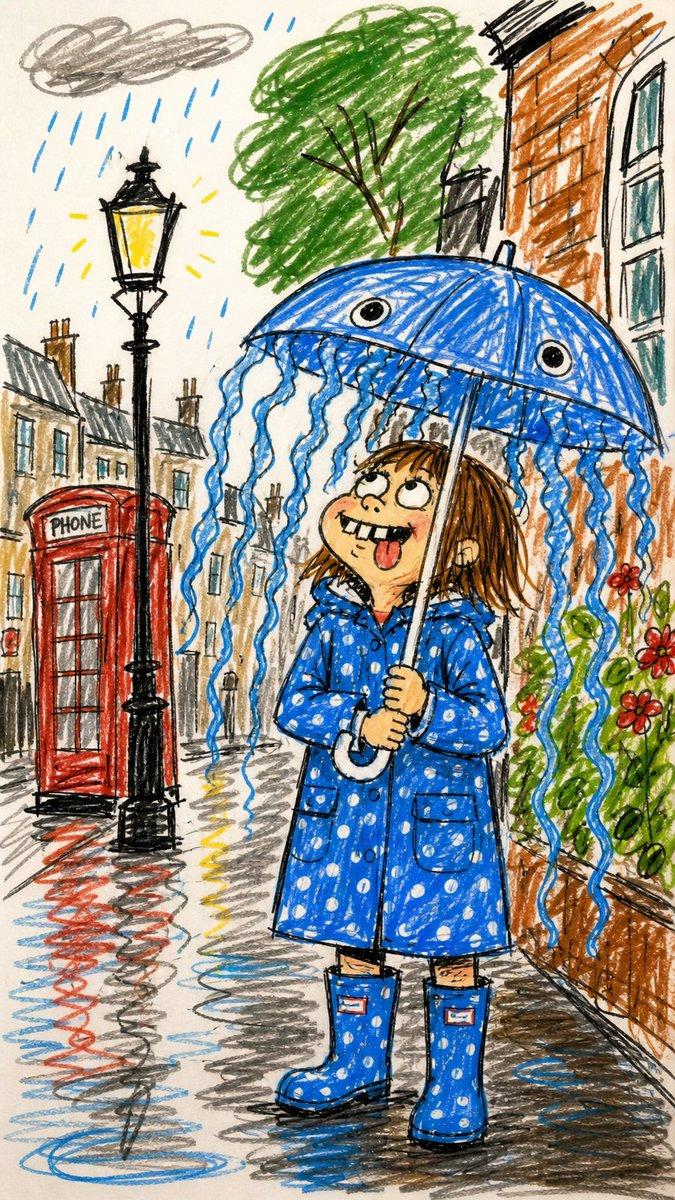
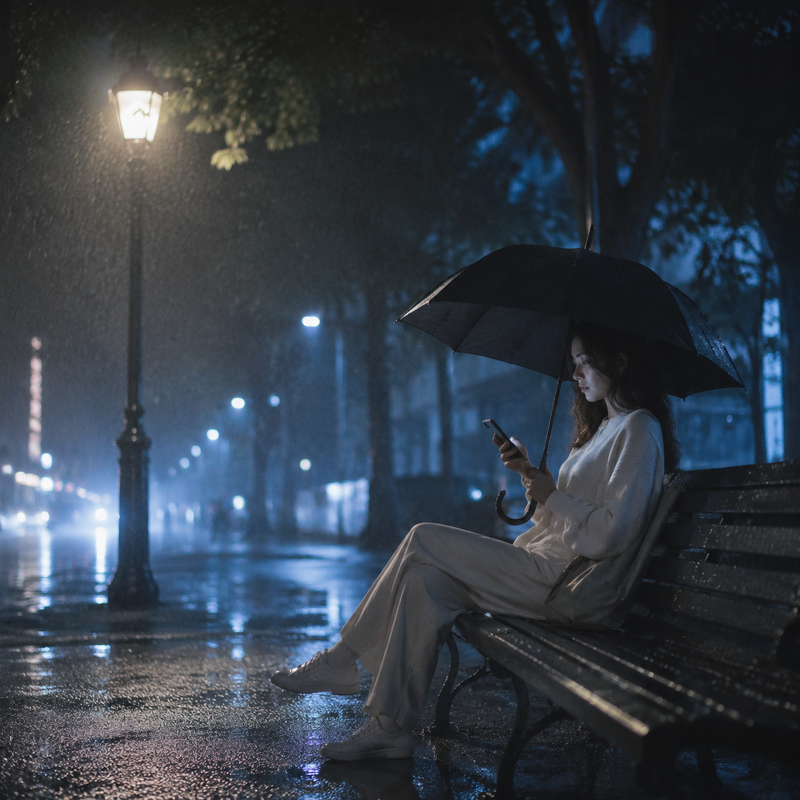
Using the provided reference image, transform the scene into a funny childlike doodle drawing while preserving the same core setup: the child with the blue raincoat, blue rain boots, jellyfish-style umbrella, rainy street, lamp post, red phone booth, brick building, flowers, wet pavement reflections, and tree. Make it look like a quick messy sketch drawn with cheap markers or crayons on off-white paper: wobbly black outlines, scribbled coloring, rough crosshatching, bad perspective, awkward proportions, and intentionally imperfect details. Exaggerate the child's face into a silly cartoon expression with big uneven eyes, buck teeth, blushy cheeks, and tongue sticking out. Add simple cartoon rain marks, a gray scribble cloud, yellow glow strokes around the lamp, and loose puddle/reflection scribbles. Keep the umbrella blue with two cartoon eyes and dangling tentacles, but make all shapes playful and naive rather than realistic. Do not make it polished, realistic, painterly, or clean.
Category
Charts & Infographics
Model
GPT Image 2
Views7
Source ID
20567
Published
May 15, 2026

Guide

About "趣味童趣涂鸦照片转换"

What is this prompt for?

"趣味童趣涂鸦照片转换" AI image prompt for GPT Image 2 (Charts & Infographics). 将一张雨中街道的照片转换为凌乱的蜡笔风格卡通涂鸦,并加入夸张的面部特征和俏皮的背景细节。 Copy it on Picva and recreate the look in on…

The full copyable prompt and example visuals above are ready for AI image generation or one-click recreate in Picva.

How to use this prompt

  1. Step 1

    Open the prompt detail

    Review the example visuals, category, and full prompt text for "趣味童趣涂鸦照片转换".

  2. Step 2

    Copy the prompt

    Copy the prompt body from this page, or load it directly in Studio.

  3. Step 3

    Pick a model (GPT Image 2)

    Prefer GPT Image 2. If you switch models, keep subject and composition and tweak style terms.

  4. Step 4

    Generate and export

    Recreate the look in Picva, or export into your workflow for editing and publishing.

FAQ

What is the "趣味童趣涂鸦照片转换" prompt?
It is an AI image-generation prompt for GPT Image 2 in the Charts & Infographics category. This page includes the full prompt text, example visuals, and a one-click recreate path in Picva.
How do I use this prompt to generate an image?
Copy the prompt from this page, or use Generate / Studio. Paste it into a compatible image model, or recreate the look in Picva with optional reference images.
Which model is this prompt for?
This page lists GPT Image 2. Most descriptive prompts also transfer to nearby image models such as GPT Image, Flux, or Midjourney with light style tweaks.
Can I use the result commercially?
You can usually copy the prompt for creation, but commercial use of the final image depends on the model terms, reference-image rights, and the generated content. Follow the source author and platform rules.