17

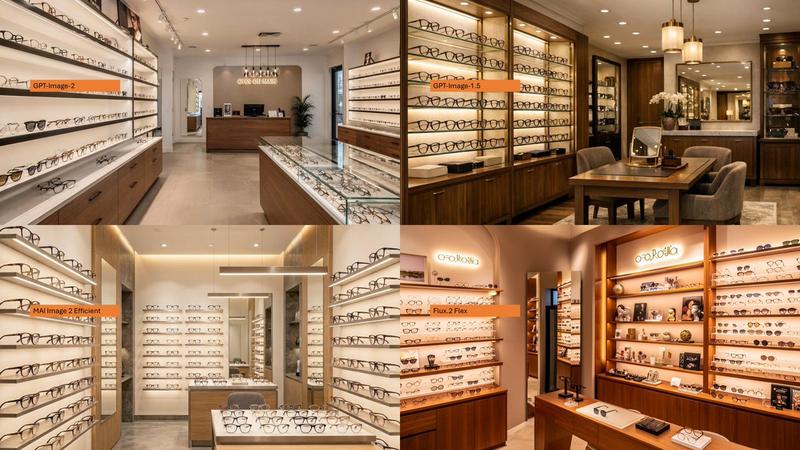
四宫格眼镜店模型对比
Enlarge

四宫格眼镜店模型对比

Prompt
Using the provided reference image as a layout/comparison inspiration, replace the dense Japanese policy infographic with a photorealistic 2×2 comparison collage. Each of the 4 panels should show a different realistic interior view of {argument name="store type" default="a modern eyeglasses boutique"}, with warm retail lighting, shelves full of glasses, wooden cabinetry, display cases, mirrors, and a polished upscale showroom feel. Add one small horizontal orange label near the left side of each panel, using exactly these 4 labels: {argument name="top left label" default="GPT-Image-2"}, {argument name="top right label" default="GPT-Image-1.5"}, {argument name="bottom left label" default="MAI Image 2 Efficient"}, and {argument name="bottom right label" default="Flux.2 Flex"}. Keep the image as a clean four-quadrant comparison, with no Japanese report text, no diagrams, no government-style boxes, and no extra captions beyond the four orange labels.
Category
Charts & Infographics
Model
GPT Image 2
Views2
Source ID
20599
Published
May 15, 2026

Guide

About "四宫格眼镜店模型对比"

What is this prompt for?

"四宫格眼镜店模型对比" AI image prompt for GPT Image 2 (Charts & Infographics). 创建一个 2×2 的照片级真实感眼镜精品店室内对比拼图,并按图像生成模型进行标注。 Copy it on Picva and recreate the look in one c…

The full copyable prompt and example visuals above are ready for AI image generation or one-click recreate in Picva.

How to use this prompt

  1. Step 1

    Open the prompt detail

    Review the example visuals, category, and full prompt text for "四宫格眼镜店模型对比".

  2. Step 2

    Copy the prompt

    Copy the prompt body from this page, or load it directly in Studio.

  3. Step 3

    Pick a model (GPT Image 2)

    Prefer GPT Image 2. If you switch models, keep subject and composition and tweak style terms.

  4. Step 4

    Generate and export

    Recreate the look in Picva, or export into your workflow for editing and publishing.

FAQ

What is the "四宫格眼镜店模型对比" prompt?
It is an AI image-generation prompt for GPT Image 2 in the Charts & Infographics category. This page includes the full prompt text, example visuals, and a one-click recreate path in Picva.
How do I use this prompt to generate an image?
Copy the prompt from this page, or use Generate / Studio. Paste it into a compatible image model, or recreate the look in Picva with optional reference images.
Which model is this prompt for?
This page lists GPT Image 2. Most descriptive prompts also transfer to nearby image models such as GPT Image, Flux, or Midjourney with light style tweaks.
Can I use the result commercially?
You can usually copy the prompt for creation, but commercial use of the final image depends on the model terms, reference-image rights, and the generated content. Follow the source author and platform rules.