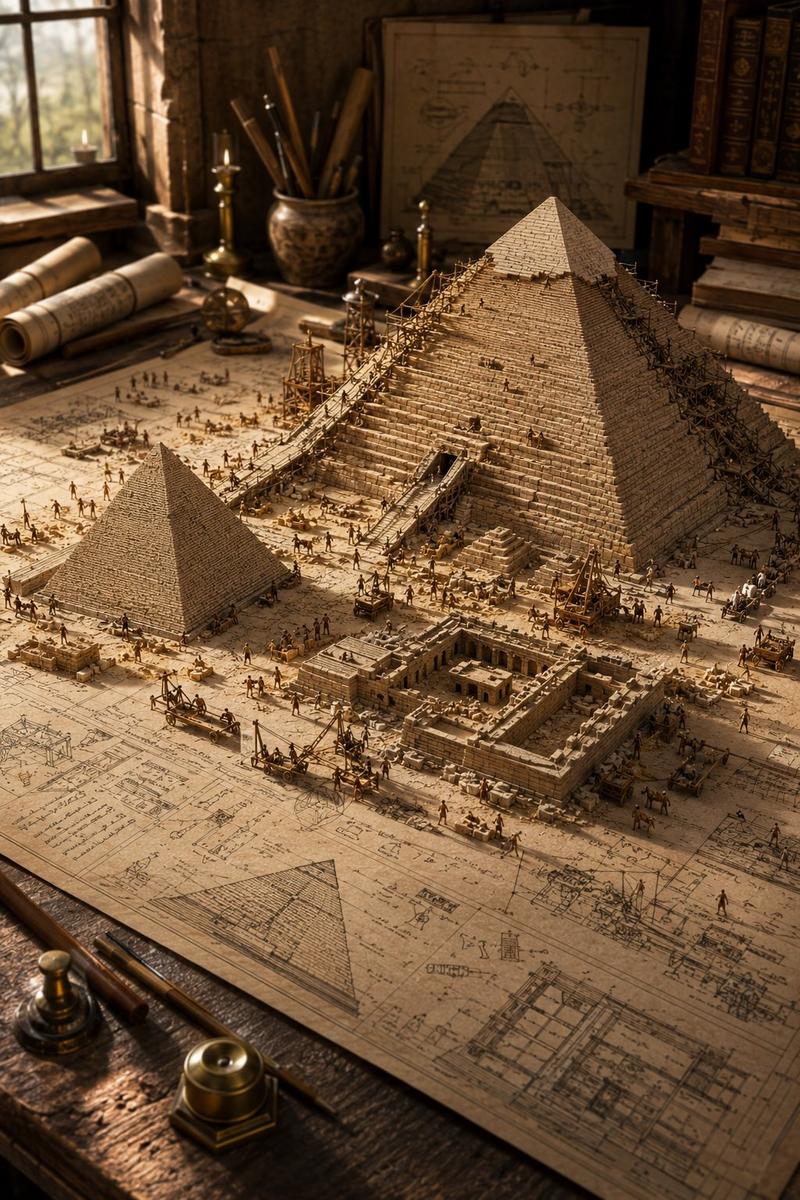
在 Excel 中建造金字塔海报
Prompt
Goal: Create a surreal vintage editorial poster for a fictional “spreadsheet civilization series” about {argument name="headline concept" default="BUILDING PYRAMIDS IN EXCEL"}, combining ancient monumental architecture with obsolete office software anxiety.

Canvas: Vertical poster, 2:3 ratio, aged cream paper background with stains, dust, scratches, faint technical drafting marks, thin registration crosses, and muted sepia tones. Use a distressed printed-magazine texture, like an archival science pamphlet mixed with brutalist collage art.

Layout: Large typography occupies the upper-left quadrant. A monumental stepped pyramid fills the center and lower half, viewed from slightly below, with rubble at the base. The upper-right quadrant contains a large flat orange clock graphic. Small spreadsheet tables, diagrams, and marginal notes float around the pyramid like technical annotations.

Main subject: A massive gray stone stepped pyramid, cracked open vertically down the front. The broken opening reveals a dense mechanical interior made of dark metal panels, cables, pipes, servers, wires, and industrial machinery. Concrete chunks and debris scatter outward. At the top of the pyramid, a large tipped-over off-white bucket or cylindrical container pours a wide stream of brown sand or dirt down the right side of the pyramid. Put a small minimalist orange geometric logo on the bucket.

Typography and visible text: Upper-left small text reads “// spreadsheet civilization series” and a small issue number “03”. The main title is stacked in tall elegant serif type: “BUILDING” then “PYRAMIDS” then “IN”, with “EXCEL” below in very large bold condensed orange block letters. Add a small paragraph under the title: “We construct our monuments from cells and rows, stacking formulas like stone, convinced it will last.” Add “fig. 3 — ambition.exe” nearby. Bottom-left small footer text: “v.95”, “build 4.59”, “© 1995–forever”. Bottom-right small footer text: “sheet 1 of ∞”, “SUM(ambition)”, “#VALUE!”. Near the clock, include “4:59” in orange and the tiny caption “almost done. again.” Add a vertical margin note on the left that reads “measure twice, pivot table once.”

Discrete elements to include exactly: 1 central broken pyramid; 1 tipped bucket pouring sand; 1 orange clock in the upper right with numbers 12, 3, 6, 9 and black hands indicating roughly 4:59; 1 pixelated black hourglass icon on the right side; 1 Microsoft Excel-style error dialog near the lower center of the pyramid; 4 floating spreadsheet table fragments. The 4 spreadsheet fragments are: a top-left fragment labeled with columns A, B, C, D and rows of decimal values; a left-middle fragment with columns A, B, C and rows 1–5; a right-middle fragment with columns F, G and rows labeled “Total” plus percentages; a bottom-right fragment with columns K, L, M and labels like Avg, Max, Min.

Error dialog detail: Make the dialog look like an old Windows 95 Microsoft Excel alert box with a blue title bar reading “Microsoft Excel”, a yellow warning triangle, the message “Not enough memory. Delete rows?”, and a centered “OK” button.

Visual style: Analog collage, photoreal stone and rubble mixed with flat vector UI elements, muted beige-gray-black palette with burnt orange accents, high grain, slight ink misregistration, soft shadows, worn paper texture, thin drafting lines and faint circular graph diagrams in the background.

Constraints: Keep the composition clean and poster-like, with no modern glossy interface, no people, no extra logos besides the small bucket mark and the Excel dialog, and no additional major objects beyond the counted elements.- Category
- Charts & Infographics
- Model
- GPT Image 2
- Creator
- Horus He
- Source ID
- 20946
- Published
- May 16, 2026
Views4





![A hyper-realistic 3D world guide infographic poster for [SHOW]](https://i.pixshop.app/storage/v1/render/image/public/prompt-source-media/promptsref/work-2519/image-1-c923c74e9444681d.png?width=800&quality=75&resize=contain)