10

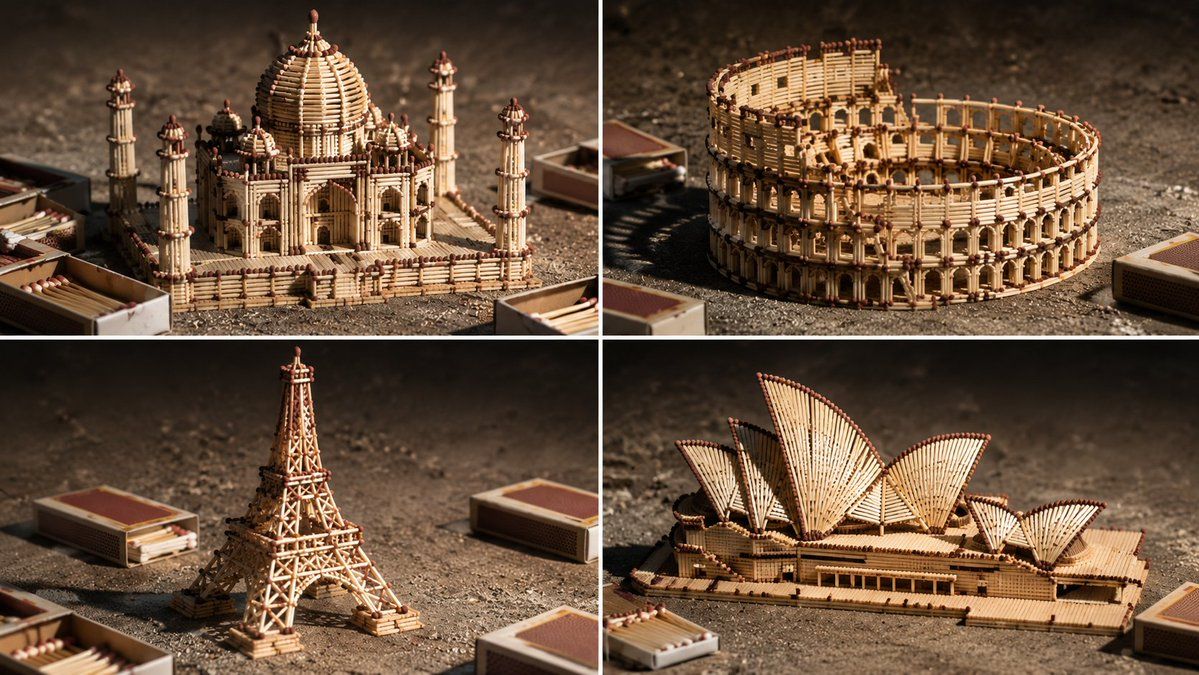
火柴棍建筑模型
Enlarge

火柴棍建筑模型

Prompt
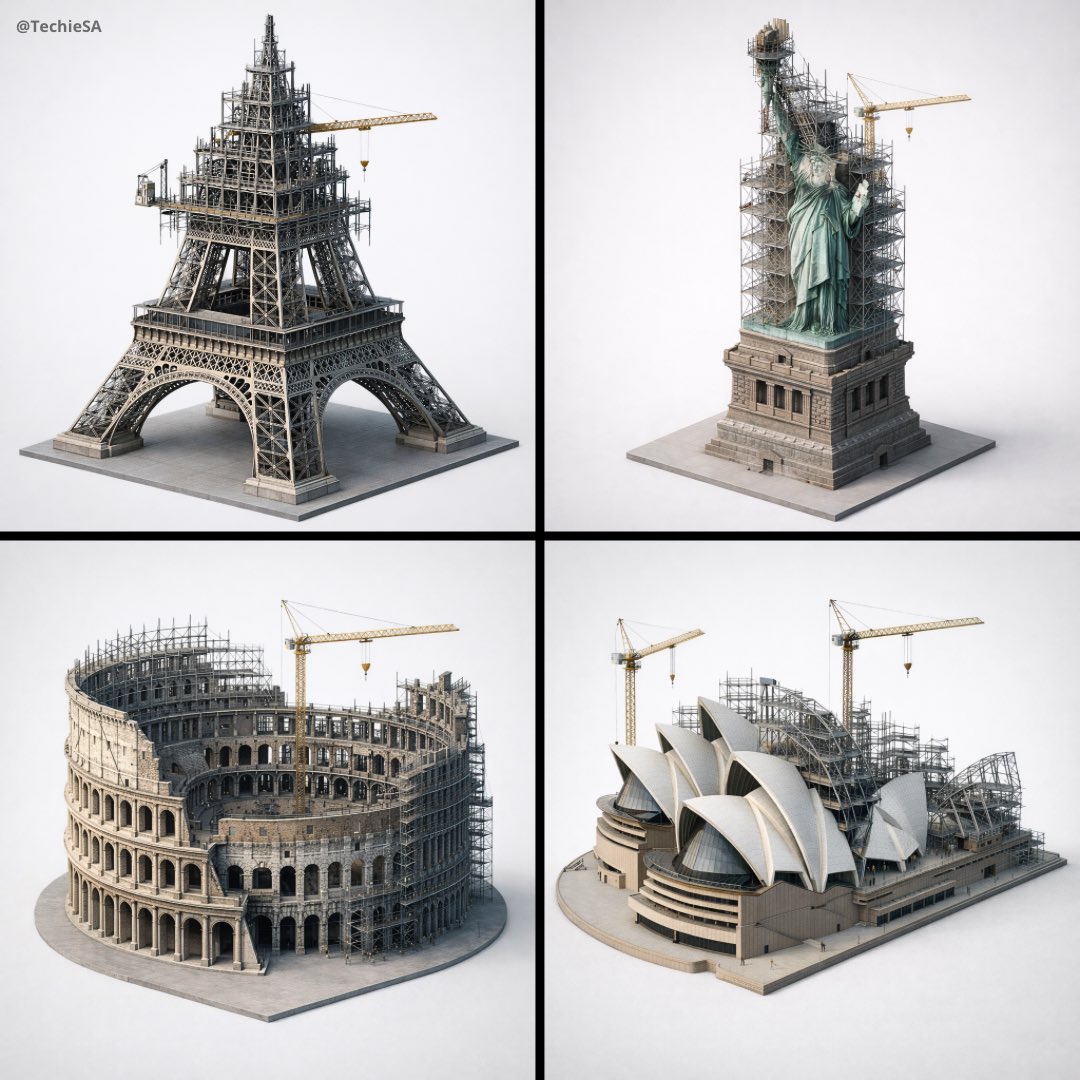
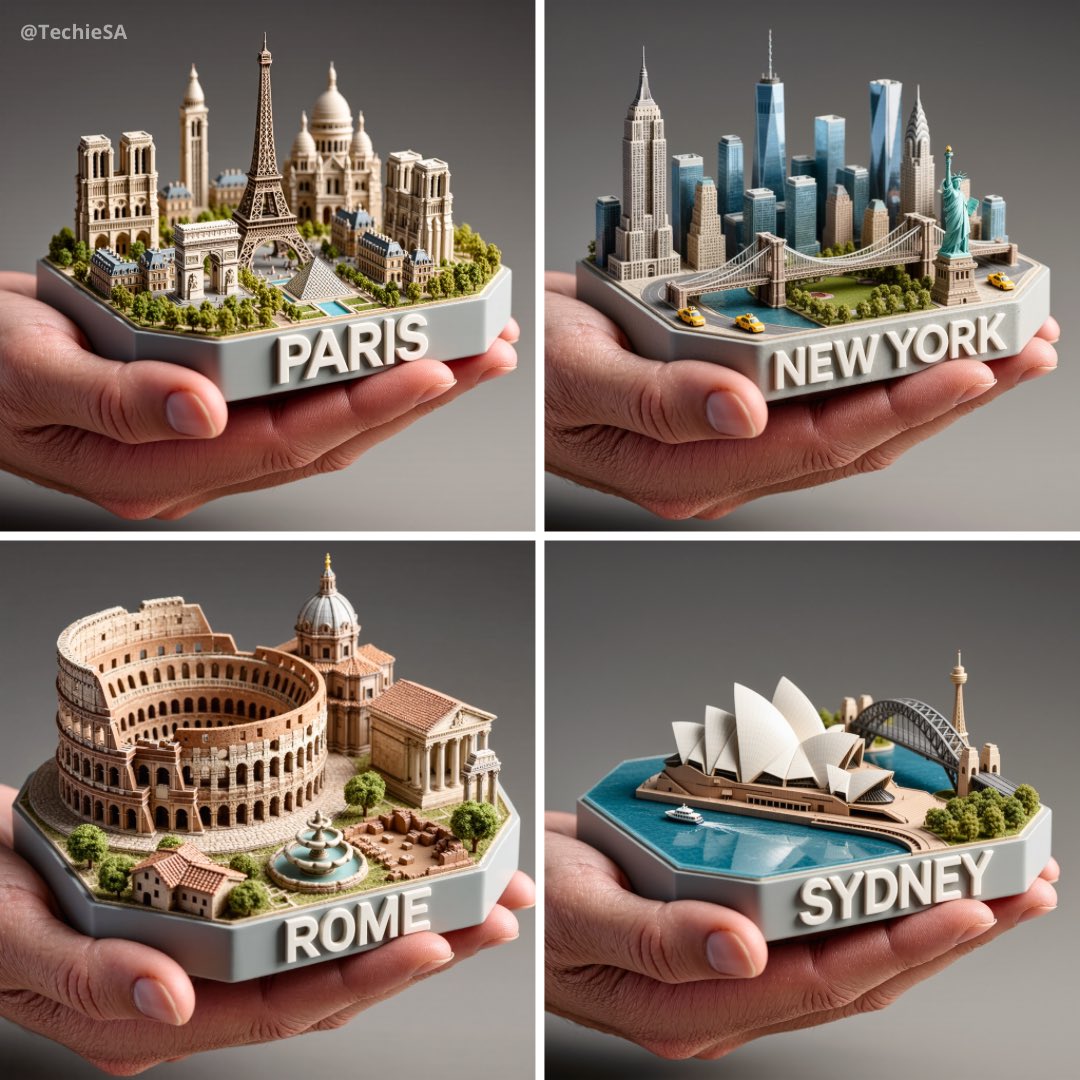
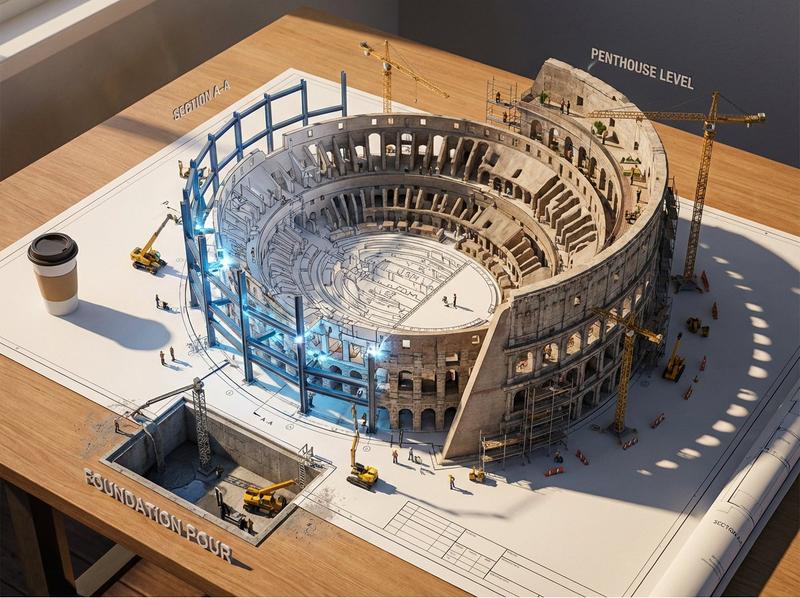
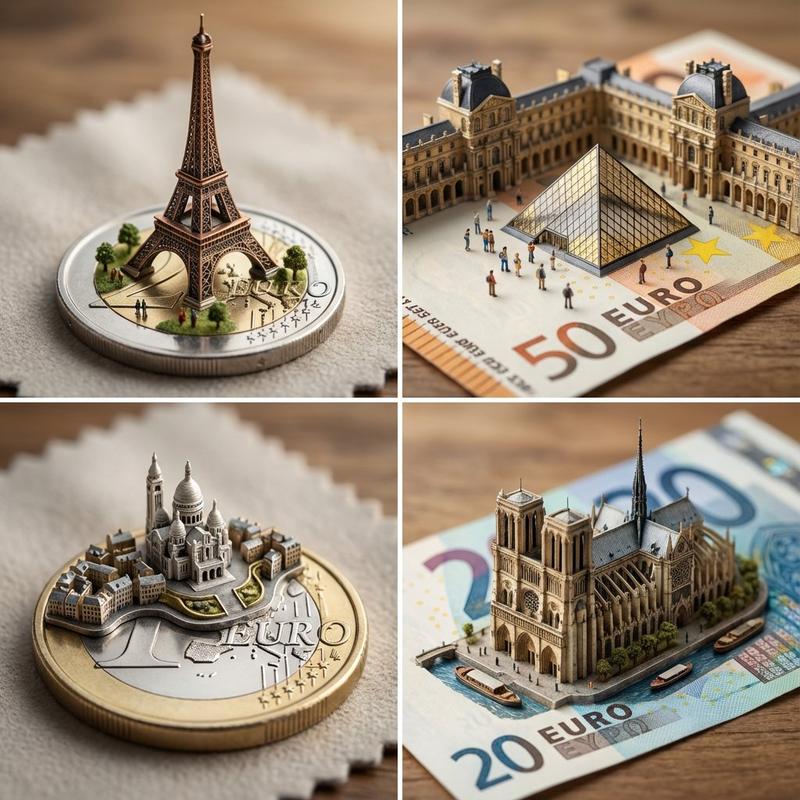
2x2 grid, 16:9, do this for {argument name="count" default="4 famous landmarks"} in this style: = { <matchstick_model_render> MATERIAL: Burnt matchsticks and matchboxes (charred heads, pale wood, striker strip). FINISH: PVA glue residue, tiny glue globs, slightly misaligned joints. LIGHTING: Bright table lamp with harsh directional shadows (hobbyist photography). </matchstick_model_render> <transformation> - Convert all architectural detail to a lattice of whole and halved matchsticks, with burnt red‑brown match heads forming decorative accents. - Convert surfaces to raw pine wood grain, occasional sulphur bloom, and matte sticker labels from matchboxes. - Convert light to strong, single-source tungsten casting long, defined shadows and catching glossy glue spots. - Background as a sheet of sandpaper with shallow depth-of-field, bokeh catching dust particles. </transformation> rules: no text}
Category
Charts & Infographics
Model
GPT Image 2
Creator
Gadgetify
Views5
Source ID
21673
Published
May 20, 2026

Guide

About "火柴棍建筑模型"

What is this prompt for?

"火柴棍建筑模型" AI image prompt for GPT Image 2 (Charts & Infographics). 一个技术提示词,用于创建由烧过的火柴棍和火柴盒构成的逼真建筑模型,包含木纹和胶水残留等精细纹理。 Copy it on Picva and recreate the look in o…

The full copyable prompt and example visuals above are ready for AI image generation or one-click recreate in Picva.

How to use this prompt

  1. Step 1

    Open the prompt detail

    Review the example visuals, category, and full prompt text for "火柴棍建筑模型".

  2. Step 2

    Copy the prompt

    Copy the prompt body from this page, or load it directly in Studio.

  3. Step 3

    Pick a model (GPT Image 2)

    Prefer GPT Image 2. If you switch models, keep subject and composition and tweak style terms.

  4. Step 4

    Generate and export

    Recreate the look in Picva, or export into your workflow for editing and publishing.

FAQ

What is the "火柴棍建筑模型" prompt?
It is an AI image-generation prompt for GPT Image 2 in the Charts & Infographics category. This page includes the full prompt text, example visuals, and a one-click recreate path in Picva.
How do I use this prompt to generate an image?
Copy the prompt from this page, or use Generate / Studio. Paste it into a compatible image model, or recreate the look in Picva with optional reference images.
Which model is this prompt for?
This page lists GPT Image 2. Most descriptive prompts also transfer to nearby image models such as GPT Image, Flux, or Midjourney with light style tweaks.
Can I use the result commercially?
You can usually copy the prompt for creation, but commercial use of the final image depends on the model terms, reference-image rights, and the generated content. Follow the source author and platform rules.