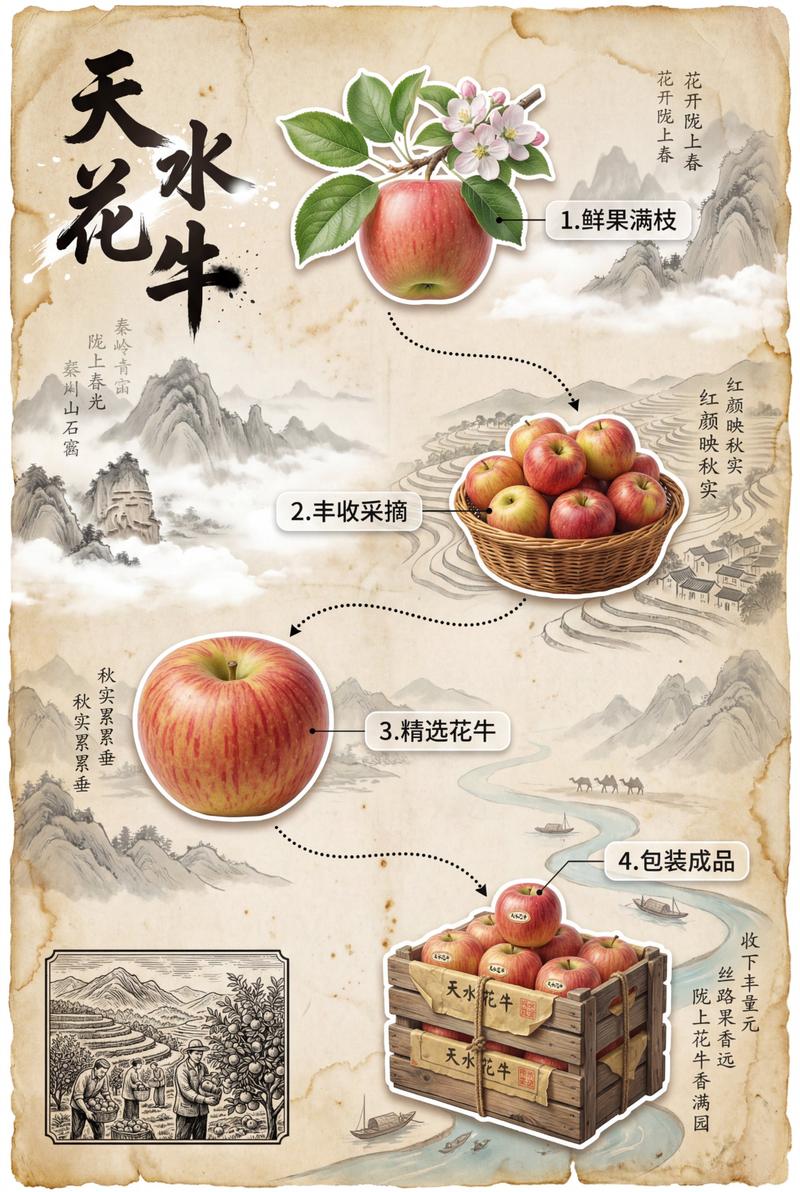
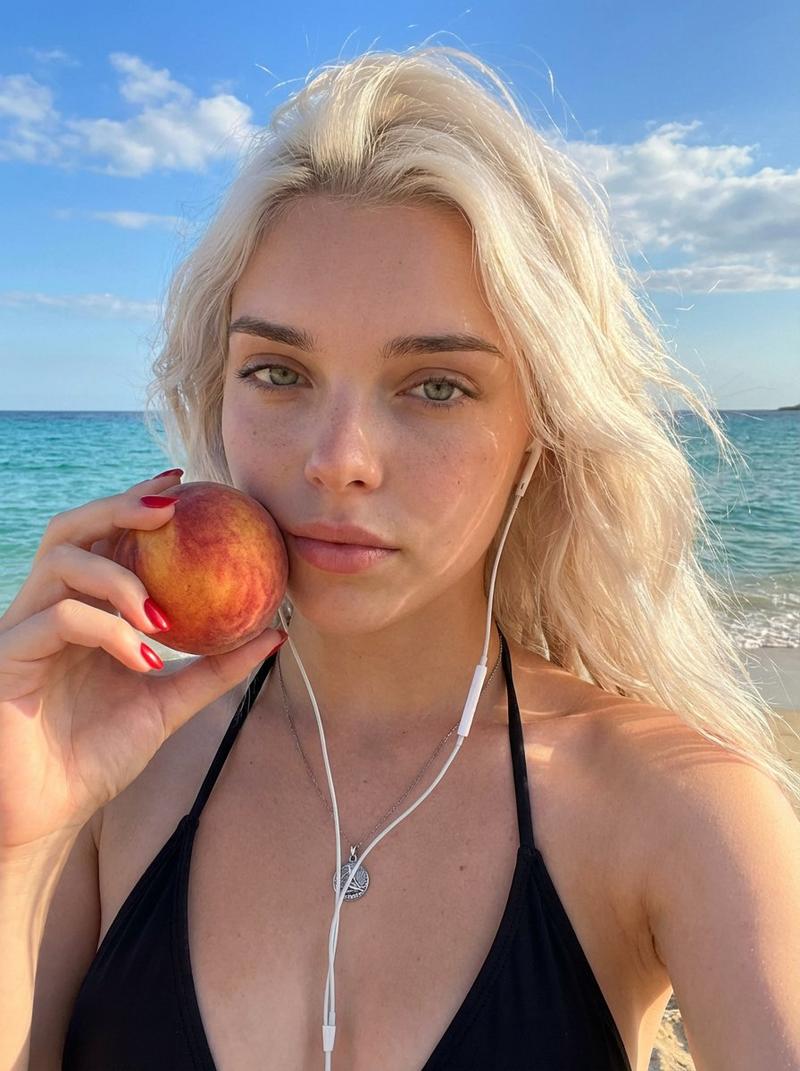
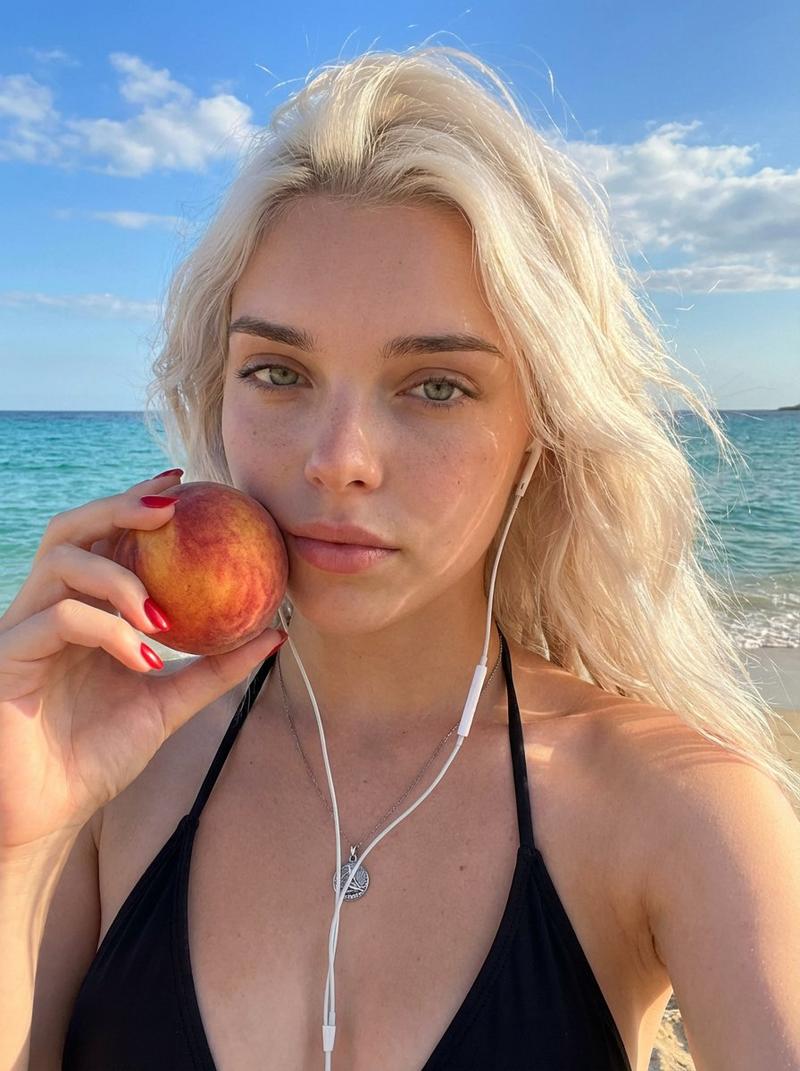
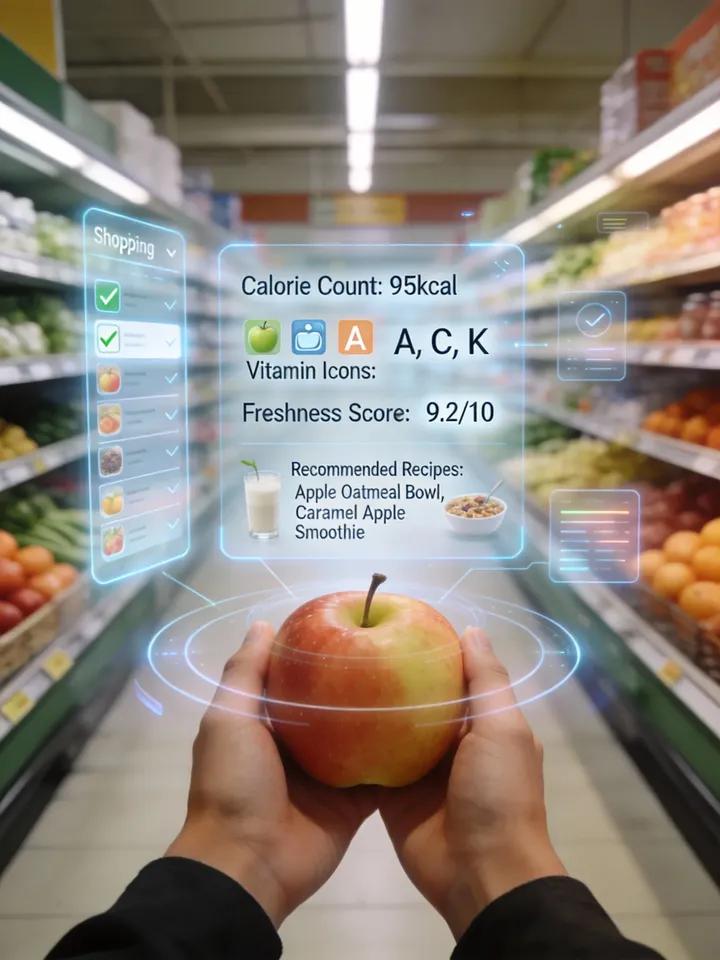
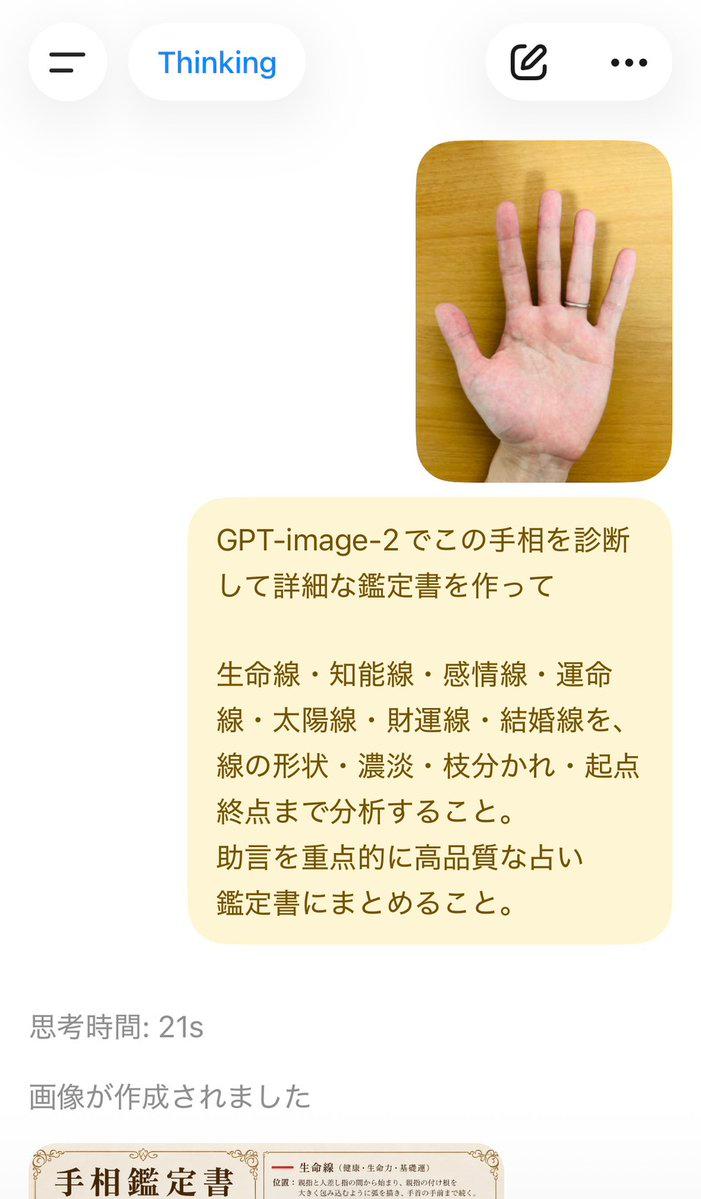
ChatGPT Apple 生成截图
Prompt
Goal: Create a realistic vertical smartphone screenshot of the ChatGPT mobile app in dark mode, showing an image-generation conversation about an apple.

Canvas: Tall phone screenshot, 9:16 aspect ratio, black background, iPhone-style status bar at the top. The time reads 19:44, with cellular bars, 4G, and battery at 67%.

Layout: At the top are exactly 4 interface elements: a circular hamburger menu button on the left, a rounded pill labeled “Thinking” in blue text, a rounded button with an edit-pencil icon on the right, and a three-dot menu icon. Below, place one right-aligned user message bubble in dark reddish-brown with rounded corners containing exactly 3 lines of text: “PROMPT: {argument name="prompt text" default="机上のリンゴ"}”, “size={argument name="image size" default="1024×1024"}”, and “seed={argument name="seed value" default="1234"}”. Under it, show the gray status text “Thought for {argument name="thinking time" default="33s"}”.

Generated image card: Below the status text, show one large rounded-square image card with a photorealistic red apple centered on a wooden tabletop. The apple is glossy with red skin, yellow-green highlights near the top indentation, subtle vertical streaks, a small brown stem, and soft studio lighting. The background inside the photo is a plain pale gray wall above the wooden desk, slightly blurred. The card has large rounded corners and fills most of the screen width.

Overlays and bottom UI: Inside the lower-left of the image card, add one brown rounded button labeled “編集する”. Inside the lower-right, add one circular brown share button with a white upload/share arrow icon. Below the image card, add exactly one standalone ellipsis line: “…”. At the bottom, show a ChatGPT input bar with exactly 5 visible elements: a plus icon button, placeholder text “ChatGPT に質問する”, a small microphone icon, an orange circular voice-wave button, and the rounded dark text-field container.

Visual style: Authentic iOS ChatGPT app screenshot, dark theme, crisp UI, realistic spacing, clean sans-serif typography, no extra messages, no watermark, no browser chrome.- Category
- Charts & Infographics
- Model
- GPT Image 2
- Creator
- KOBATAKA|建築設計と生成AI
- Source ID
- 21765
- Published
- May 20, 2026
Views8