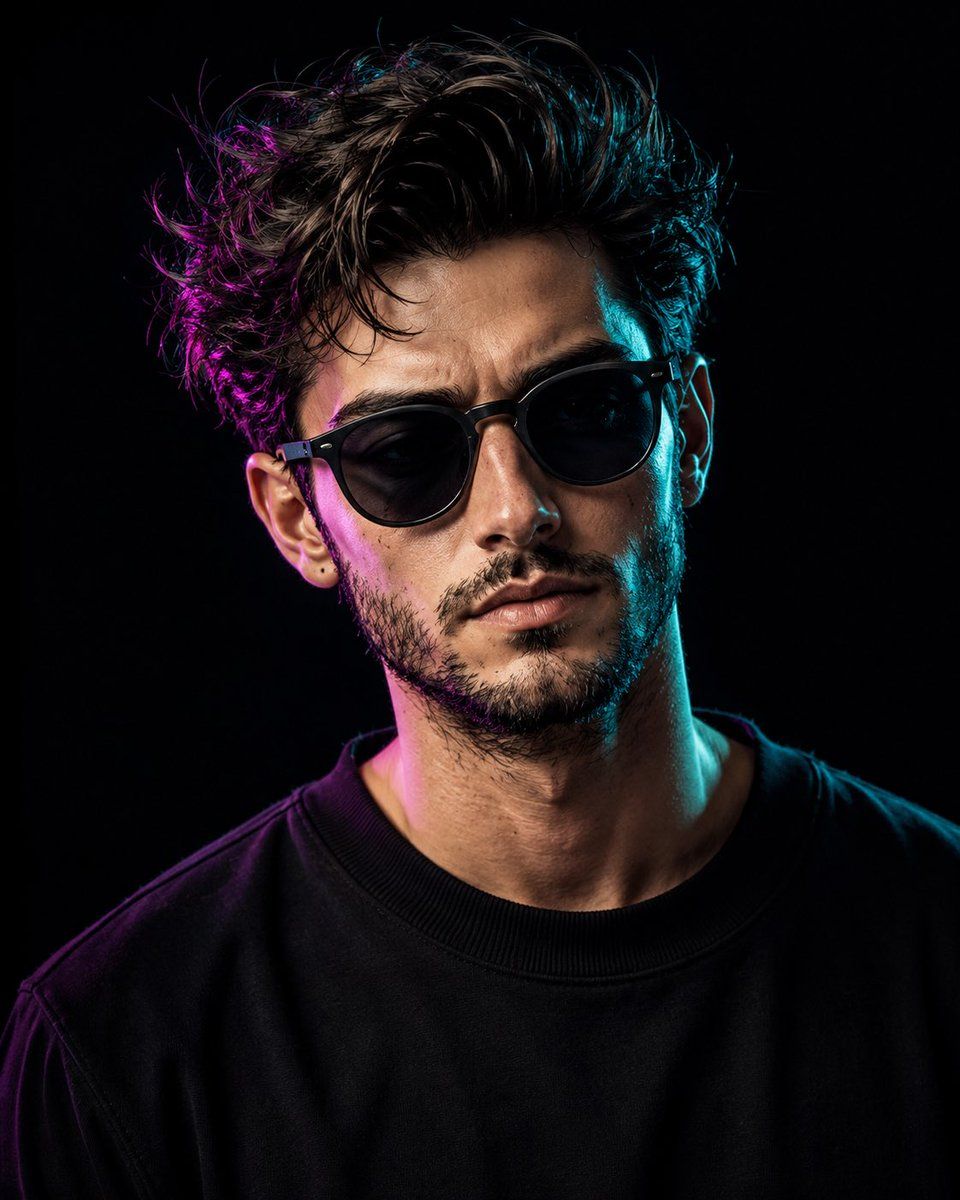
双色调摄影棚滤色片布光
Prompt
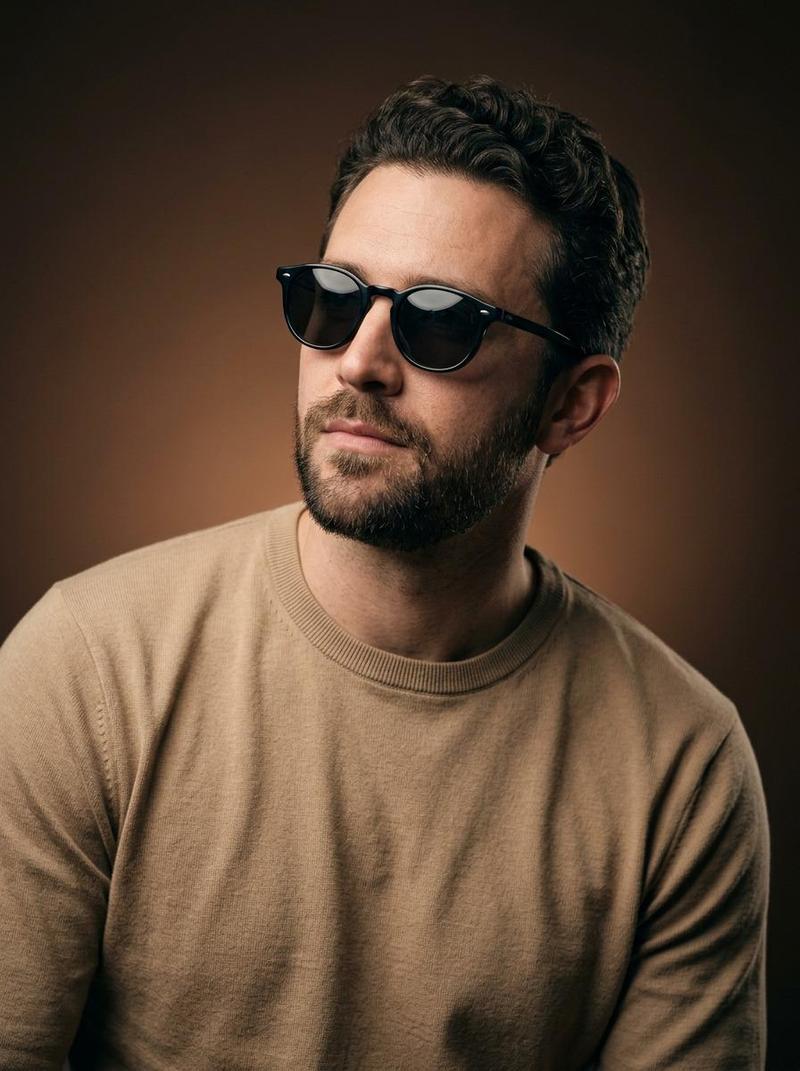
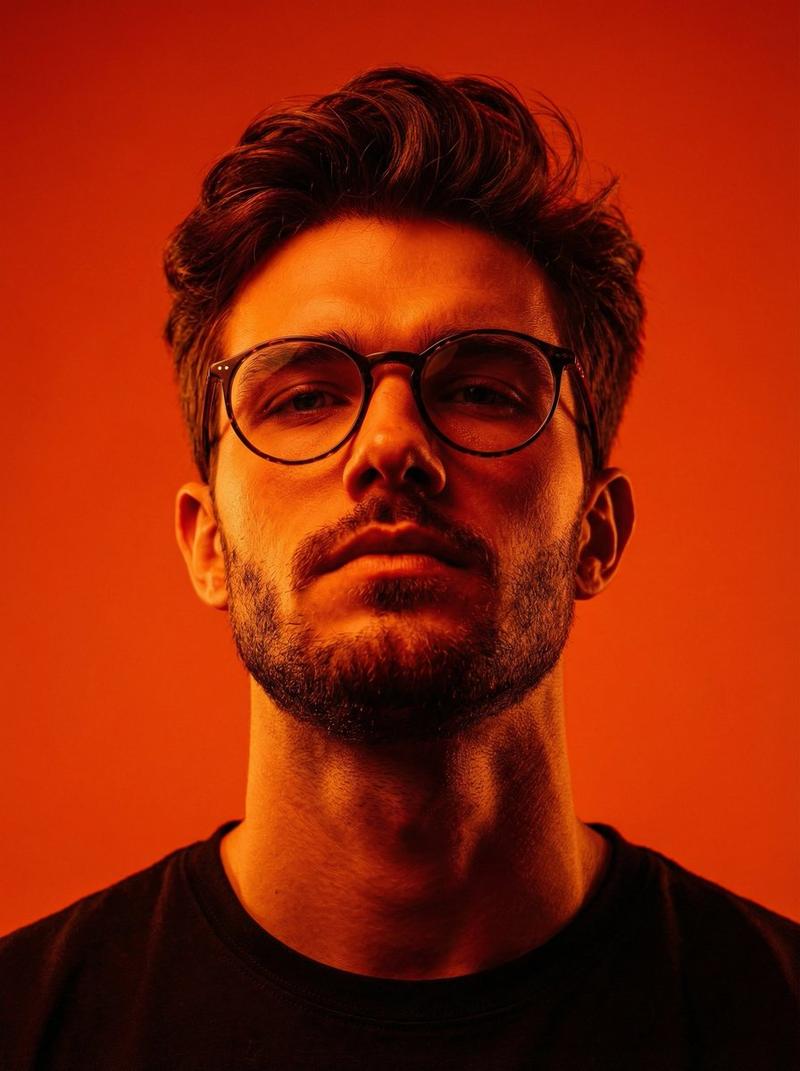
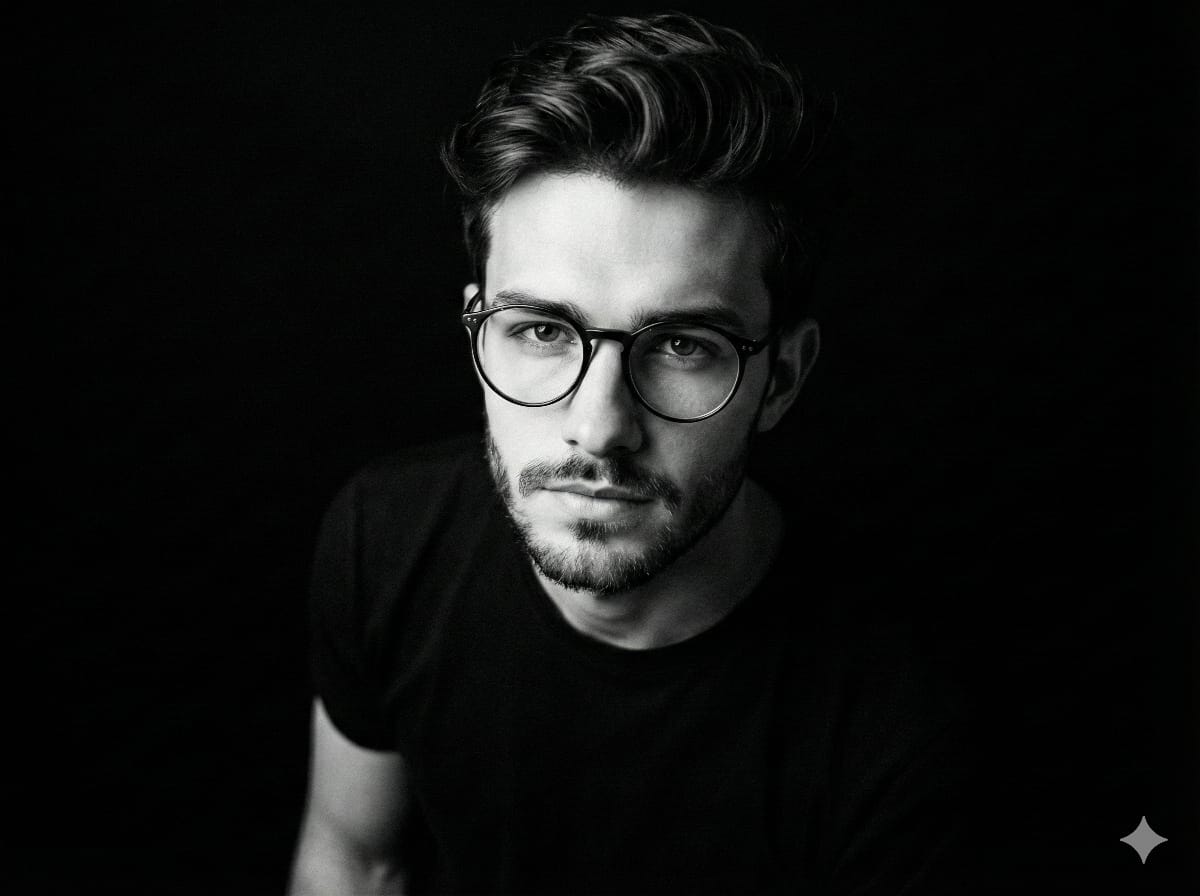
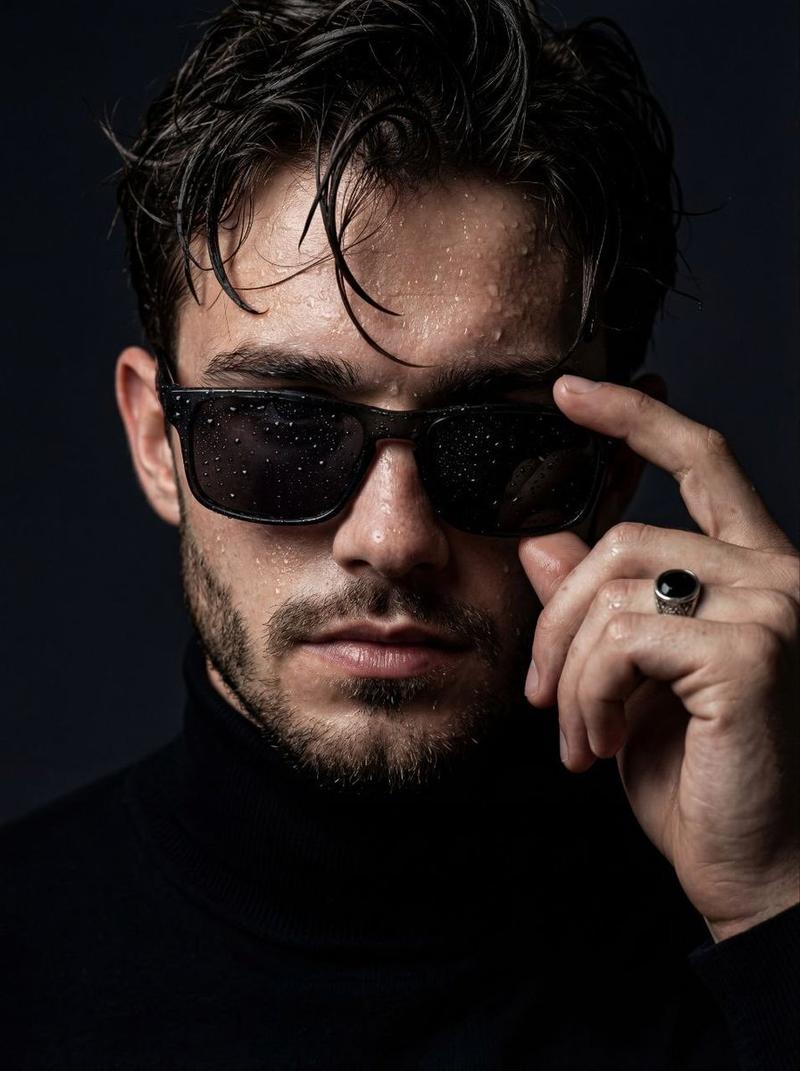
Create a cinematic, ultra-realistic studio upper-body portrait of {argument name="subject" default="any man"}, preserving his natural hairstyle, beard style, eyewear or accessories if present in the reference, and overall facial appearance without changing his natural look. Frame the subject from the upper chest to the head, with the {argument name="clothing" default="black crew-neck sweatshirt"} clearly visible. The man should face the camera naturally with his chin slightly raised and eyes looking slightly upward, wearing a soft, calm, confident expression with a very subtle relaxed smile, not overly joyful and not serious. Use a deep solid black studio background with no distractions. Lighting should be dramatic but controlled: add vibrant magenta/purple accent light from one side, mainly touching the hair, cheek edge, beard edge, neck, and shoulder, and cool cyan/teal accent light from the opposite side, mainly creating a soft rim and side highlight. Keep the center of the face naturally lit with realistic skin tones; do not make the entire face look painted, neon, or harshly split into two colors. The dual-tone effect should feel like professional studio gel lighting, not a cyberpunk color mask. Maintain smooth but natural skin texture, sharp facial details, realistic beard texture if present, bright clear eyes, and crisp focus on the face. Professional editorial photography style, shallow depth of field, soft rim light, high dynamic range, 85mm lens look, f/1.8 aperture, photorealistic studio quality, high-resolution detail, modern cinematic aesthetic. Vertical 4:5 aspect ratio.- Category
- Charts & Infographics
- Model
- GPT Image 2
- Creator
- K
- Source ID
- 22238
- Published
- May 24, 2026
Views4