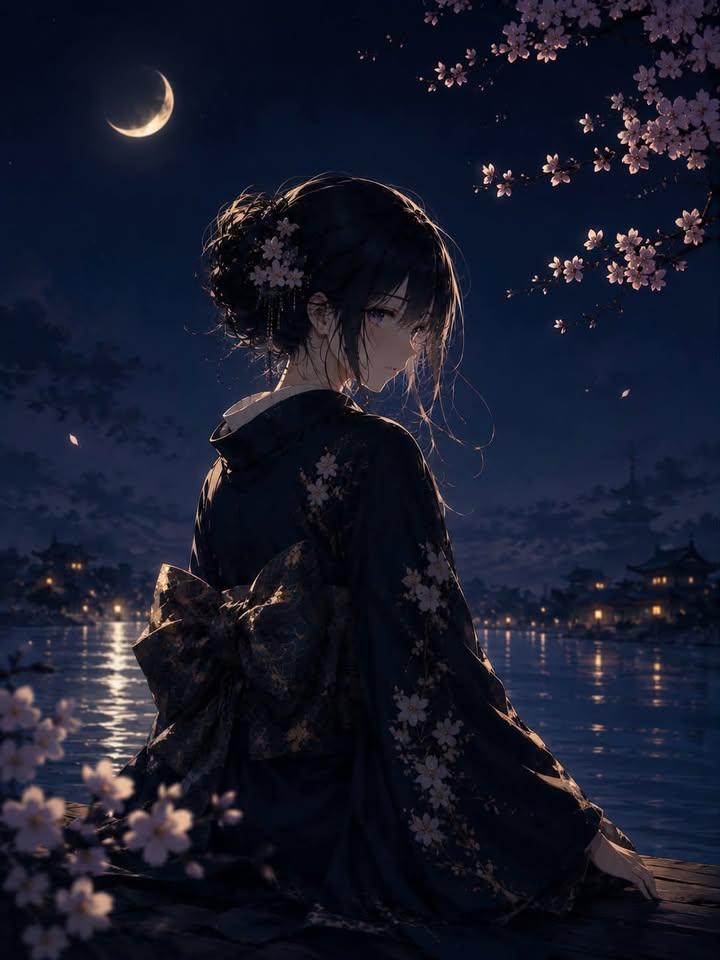
浮世绘风格角色转换
Prompt
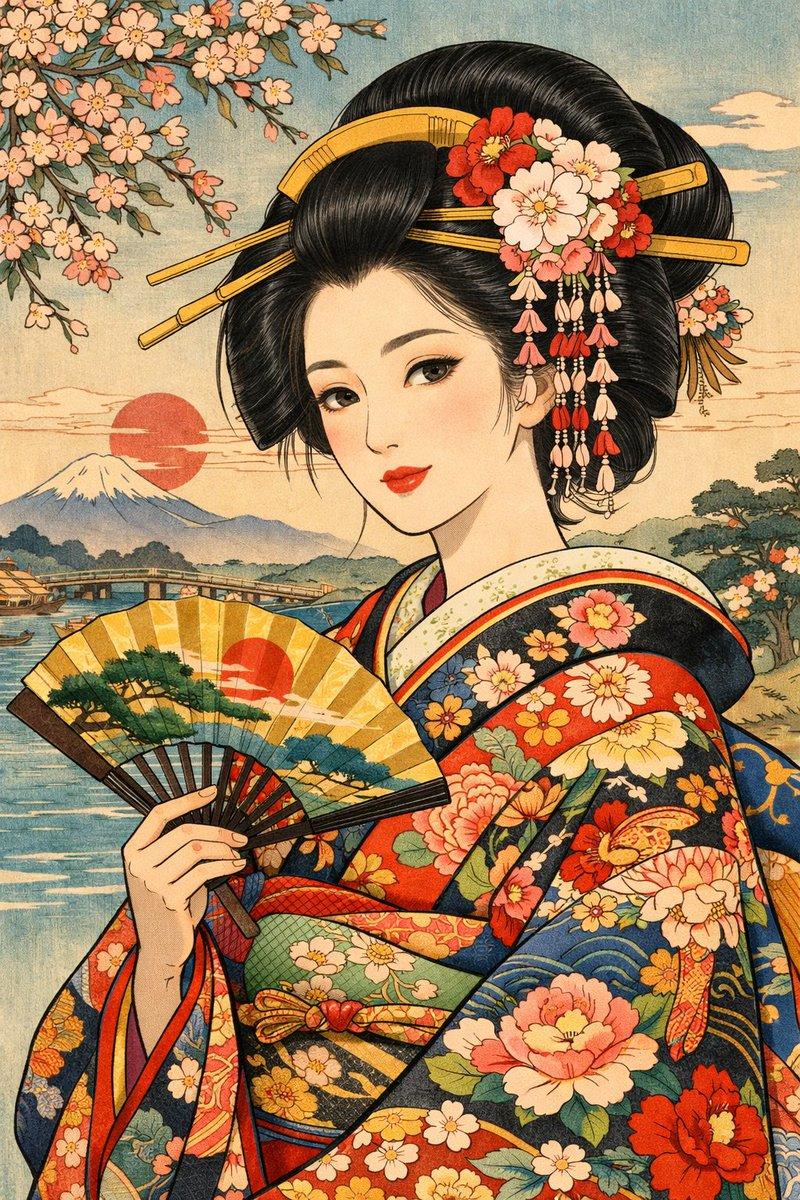
Use the uploaded character strictly as the identity reference only. Transform the character into a {argument name="art style" default="refined Japanese ukiyo-e inspired illustration"} influenced by Kitagawa Utamaro aesthetics while preserving the character’s recognizable face, hairstyle, hair color, eye shape, silhouette, and emotional identity. The image should feel like: a luxurious modern-anime reinterpretation of a traditional ukiyo-e bijin-ga artwork. IMPORTANT: The character should pose with elegant, flowing, asymmetrical “Utamaro-style” body language rather than modern anime action posing. Pose direction examples: - {argument name="pose" default="looking back over the shoulder"} - adjusting hair ornaments - partially hiding the mouth with a sleeve - delicate hand near the neck or collar - seated side pose with flowing kimono silhouette - graceful walking motion - turning mid-movement - subtle emotional gesture - elegant fan interaction - layered sleeve movement - quiet theatrical gesture. The pose must feel: graceful, poetic, feminine, rhythmical, silhouette-focused, naturally flowing. Avoid: action pose, fighting pose, idol pose, modern peace sign, hand reaching toward camera, stiff standing, symmetrical pose, exaggerated perspective. Clothing: Transform the character into a stylized ukiyo-e fantasy kimono aesthetic. Use: simplified layered kimono, elegant obi, flowing sleeves, subtle seasonal motifs, clean silhouette, controlled ornament density. Patterns should use: waves, flowers, clouds, maple leaves, gold dust, traditional geometric motifs, ink gradients. Keep the design visually organized and readable. Do not overdecorate. Hair and accessories: Add elegant kanzashi, cords, comb ornaments, silk ribbons, or subtle fantasy ornamentation inspired by Edo-period beauty paintings. Background: Create a beautiful ukiyo-e inspired {argument name="environment" default="Japanese environment"}. Possible elements: moonlit riverside, paper lantern streets, Edo-style wooden architecture, folding screens, cherry blossoms, misty gardens, rain over old bridges, flowing water, gold-leaf clouds, ink-painted sky, stylized waves, cranes, red maple trees, traditional interior spaces. The background should feel: atmospheric, painterly, elegant, layered, softly detailed. Composition: The composition should resemble: ukiyo-e bijin-ga, Japanese woodblock print, traditional hanging scroll, elegant Japanese poster art. Use: asymmetrical balance, strong negative space, layered foreground/background, graceful silhouette design, flowing kimono shapes, subtle depth. Art style: modern ukiyo-e anime fusion, Utamaro-inspired beauty painting, Japanese woodblock print aesthetics, flat layered coloring, soft washi-paper texture, controlled ink outlines, stylized traditional shading, elegant Japanese color palette, minimal realism, high readability, refined silhouette design, traditional Japanese artistic atmosphere.- Category
- Charts & Infographics
- Model
- GPT Image 2
- Creator
- 咲山(AIイラスト・AI動画垢)
- Source ID
- 22343
- Published
- May 24, 2026
Views11