14

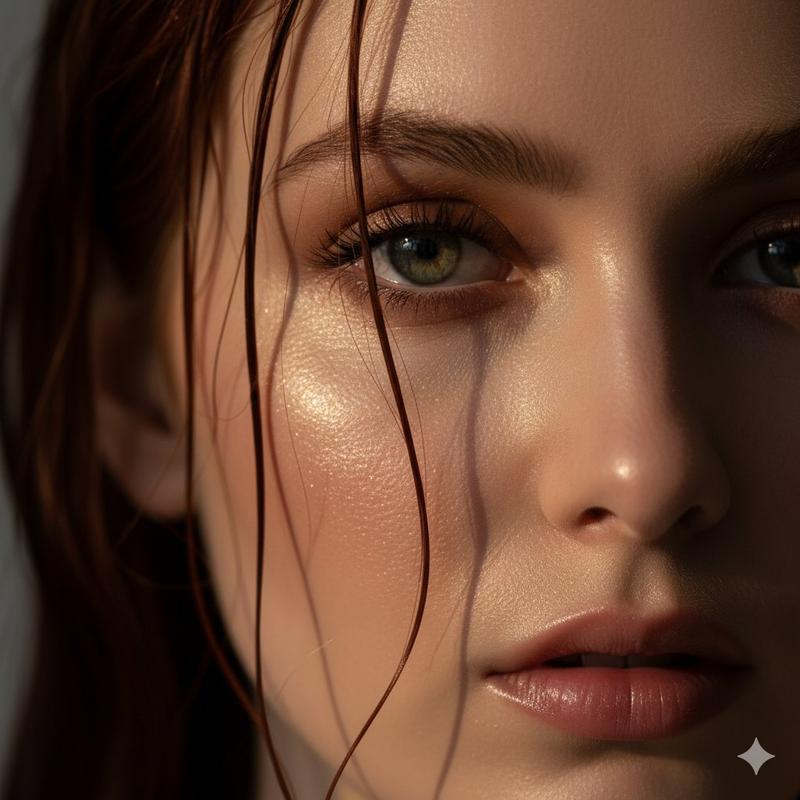
Photoreal Claire 面部修复
Enlarge

Photoreal Claire 面部修复

Prompt
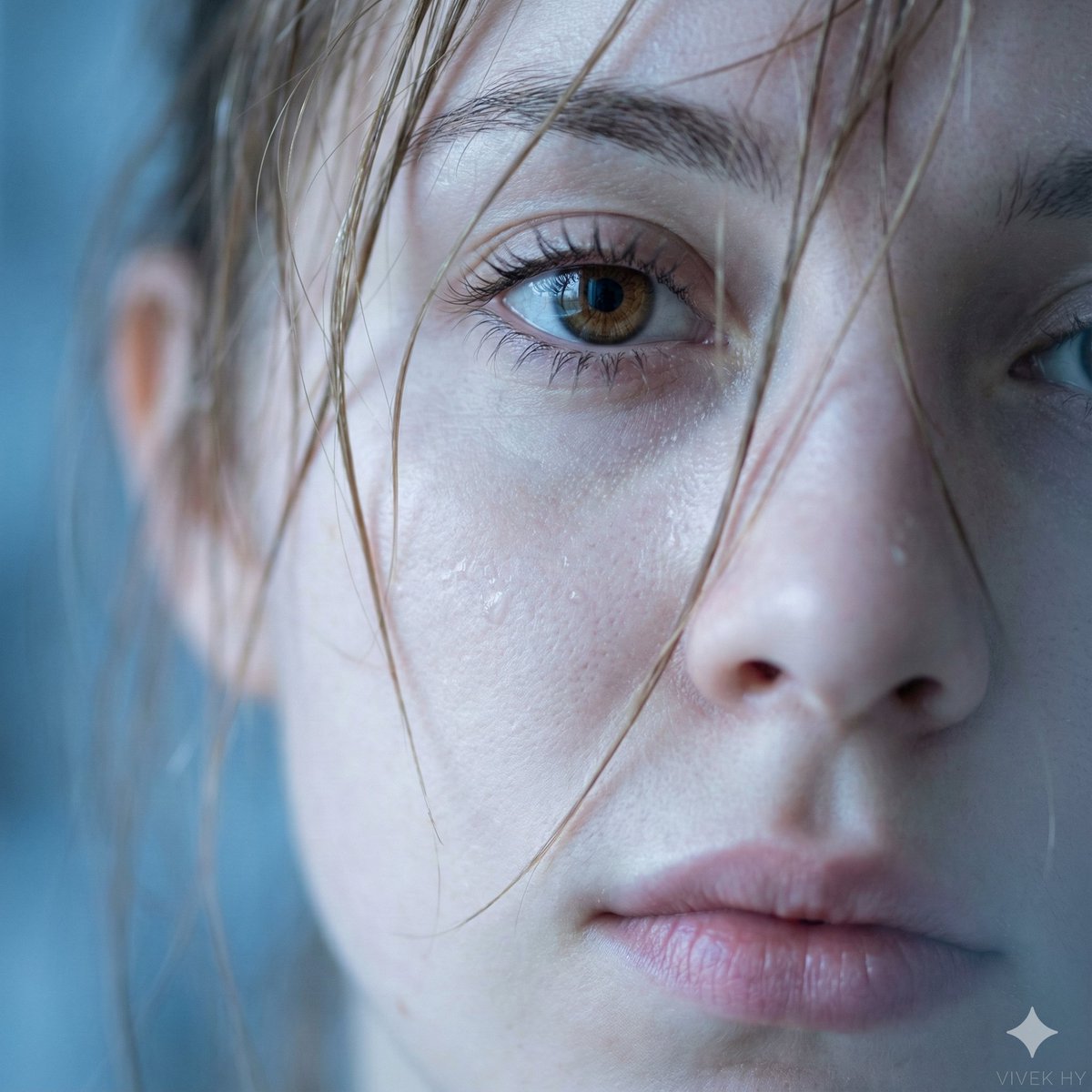
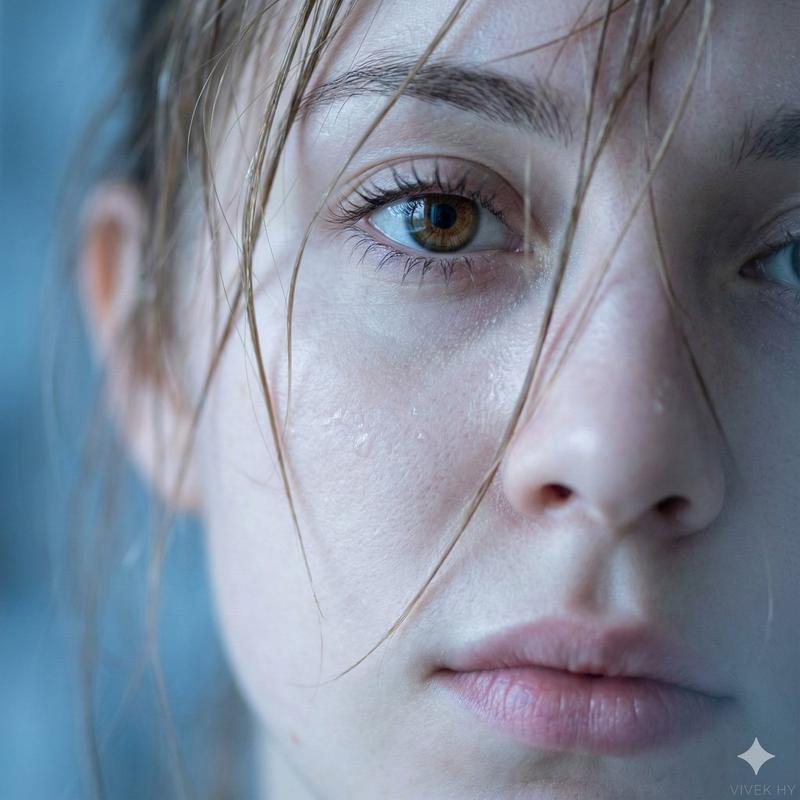
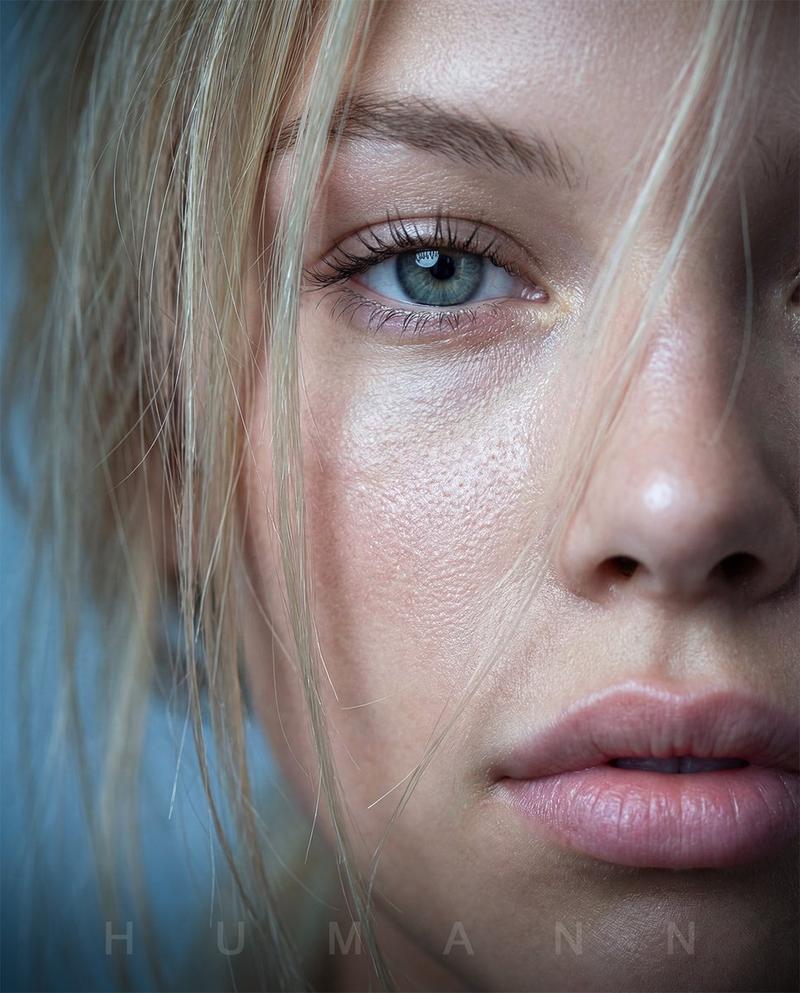
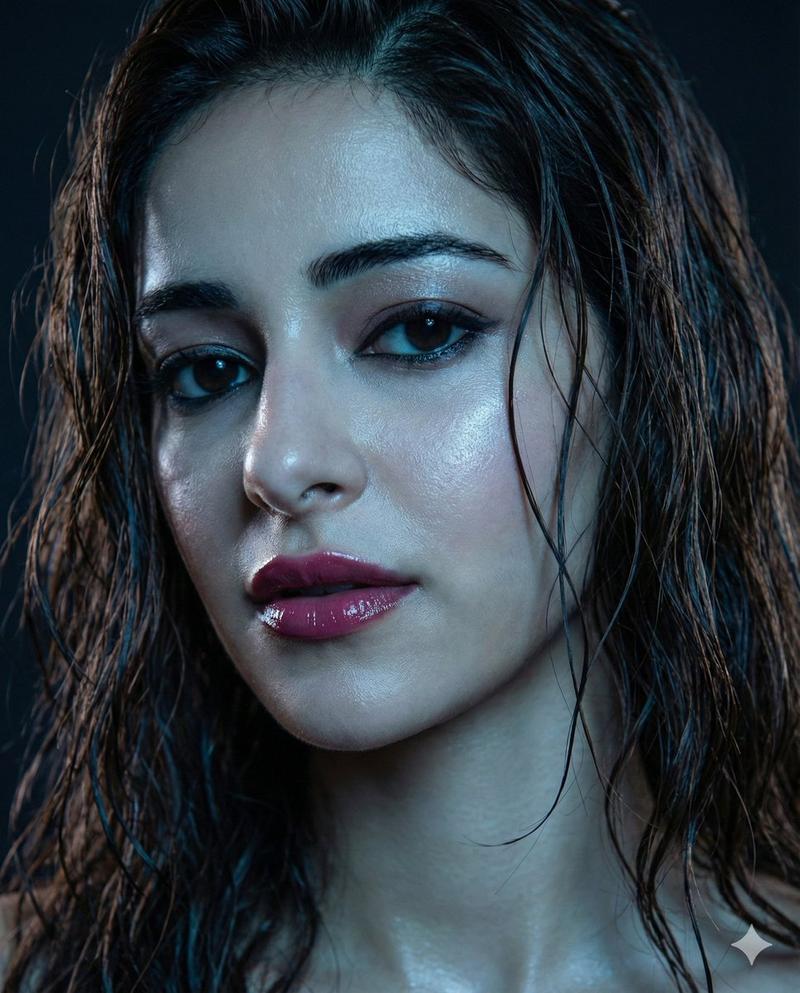
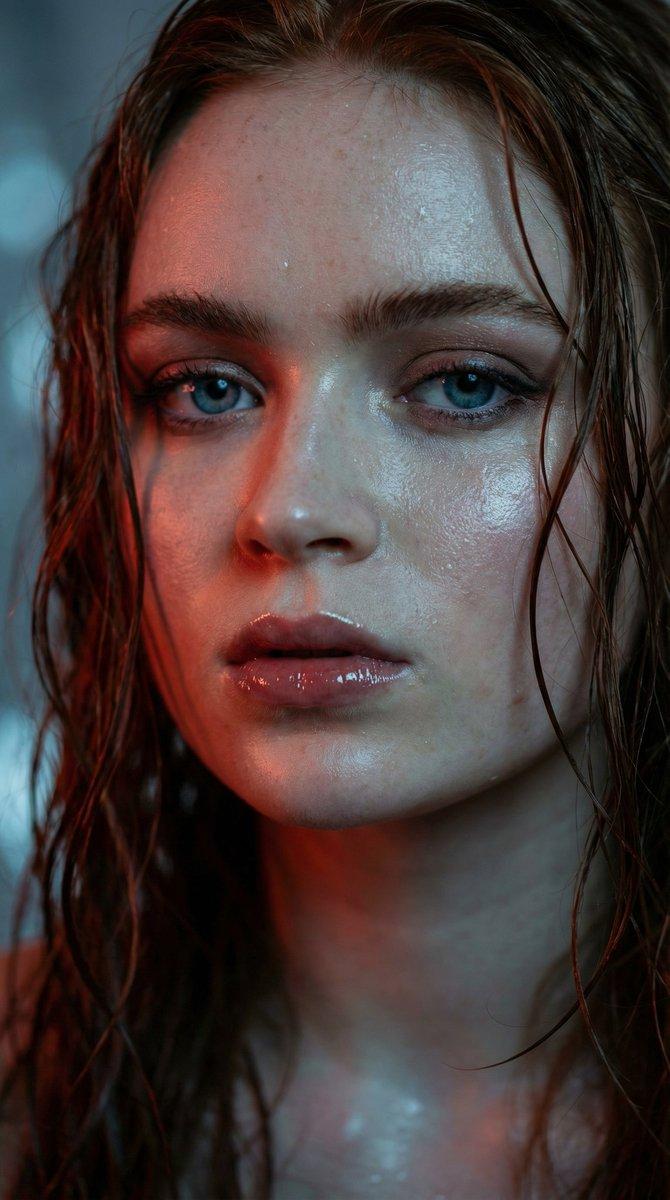
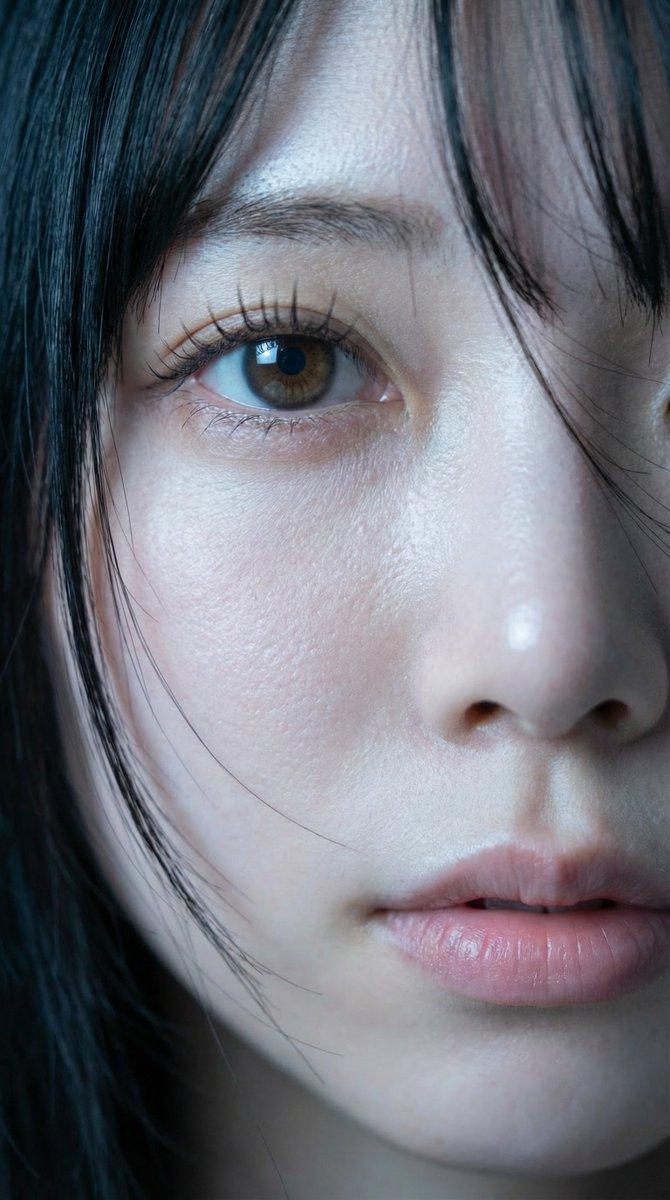
Using the provided reference image as the base, remove the solid censor block covering the face and realistically reconstruct the hidden face as {argument name="character name" default="Claire Redfield from Resident Evil"}. Keep the existing close-up composition, wet dark ponytail, red leather jacket collar, moody cinematic lighting, shallow depth of field, and grey background continuous with the reference. Make the final portrait ultra-photorealistic and high-detail, with a serious direct gaze, natural skin texture, loose strands of hair across the face, subtle makeup, defined brows, full lips, and striking {argument name="eye color" default="blue"} eyes. Reframe only enough to create a clean square head-and-shoulders poster-style portrait, while preserving the same gritty realistic survival-horror mood. Do not add text, logos, borders, extra characters, or stylized illustration effects.
Category
Posters & Typography
Model
GPT Image 2
Creator
AI.na
Views4
Source ID
22753
Published
May 26, 2026

Guide

About "Photoreal Claire 面部修复"

What is this prompt for?

"Photoreal Claire 面部修复" AI image prompt for GPT Image 2 (Posters & Typography). 将部分遮挡的角色参考图转化为精致、写实的特写肖像,适用于同人艺术或海报设计。 Copy it on Picva and recreate the look i…

The full copyable prompt and example visuals above are ready for AI image generation or one-click recreate in Picva.

How to use this prompt

  1. Step 1

    Open the prompt detail

    Review the example visuals, category, and full prompt text for "Photoreal Claire 面部修复".

  2. Step 2

    Copy the prompt

    Copy the prompt body from this page, or load it directly in Studio.

  3. Step 3

    Pick a model (GPT Image 2)

    Prefer GPT Image 2. If you switch models, keep subject and composition and tweak style terms.

  4. Step 4

    Generate and export

    Recreate the look in Picva, or export into your workflow for editing and publishing.

FAQ

What is the "Photoreal Claire 面部修复" prompt?
It is an AI image-generation prompt for GPT Image 2 in the Posters & Typography category. This page includes the full prompt text, example visuals, and a one-click recreate path in Picva.
How do I use this prompt to generate an image?
Copy the prompt from this page, or use Generate / Studio. Paste it into a compatible image model, or recreate the look in Picva with optional reference images.
Which model is this prompt for?
This page lists GPT Image 2. Most descriptive prompts also transfer to nearby image models such as GPT Image, Flux, or Midjourney with light style tweaks.
Can I use the result commercially?
You can usually copy the prompt for creation, but commercial use of the final image depends on the model terms, reference-image rights, and the generated content. Follow the source author and platform rules.