深色研究图示库 UI
Prompt
Goal: Create a dark, high-end gallery index page for a curated preset library of research paper figure styles, titled {argument name="headline text" default="研究论文图示"}. The interface should look like a polished web app screenshot showcasing academic diagram thumbnails.

Canvas: Wide landscape browser-like composition, approximately 16:9, dark charcoal background, subtle grid borders, crisp UI typography, high contrast white and cyan text.

Header: Center the title at the top with a small stacked multicolor document icon to its left. Add a thin horizontal divider line below the header. In the upper-right area, place a compact rounded button labeled “↑ 图库索引”.

Section title: On the left below the divider, show the section heading {argument name="section title" default="研究论文图示网格"} in bold light text.

Layout: Display a 4-column gallery grid with thin gray borders and dark card gutters. Show exactly 12 visible gallery cards: 8 full cards in the first two rows and 4 partially visible cards in the third row at the bottom edge. Each card contains a white research-paper-style thumbnail image, a bold lettered title underneath, and three small dark rounded tag pills below the title reading exactly “landscape”, “high”, and “Curated”.

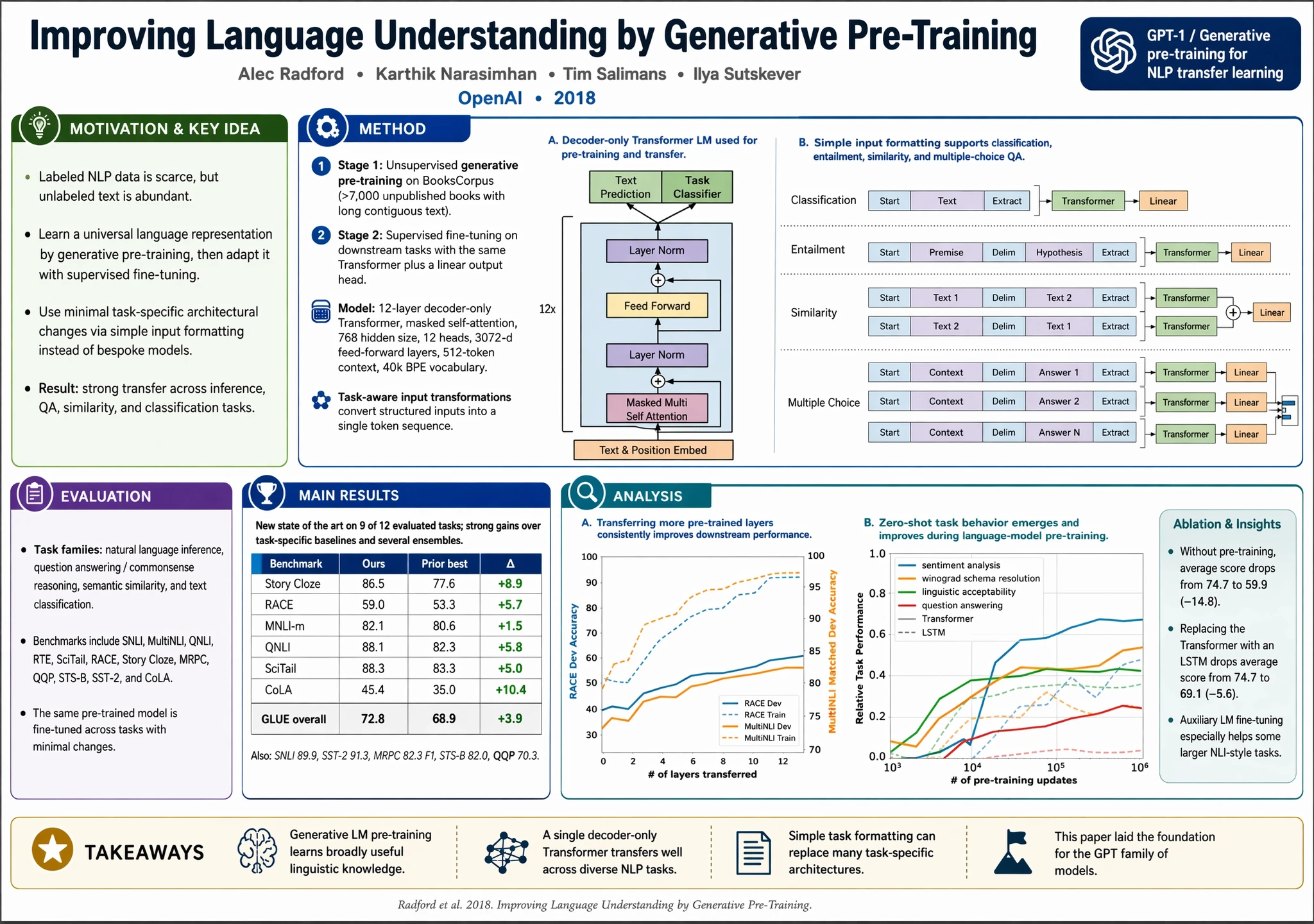
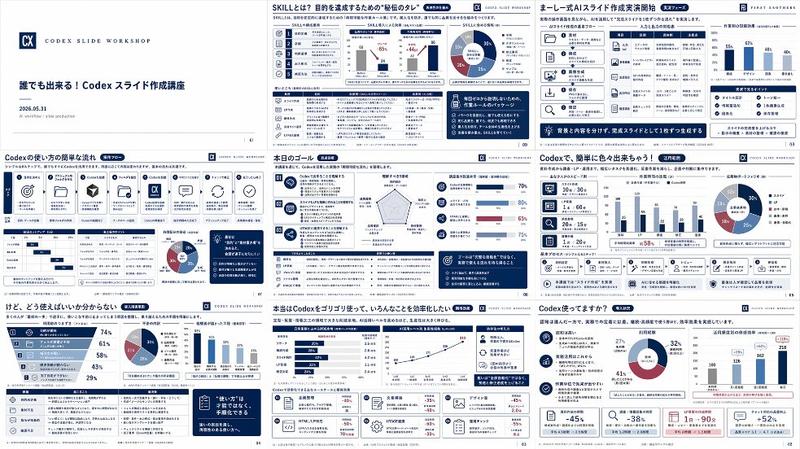
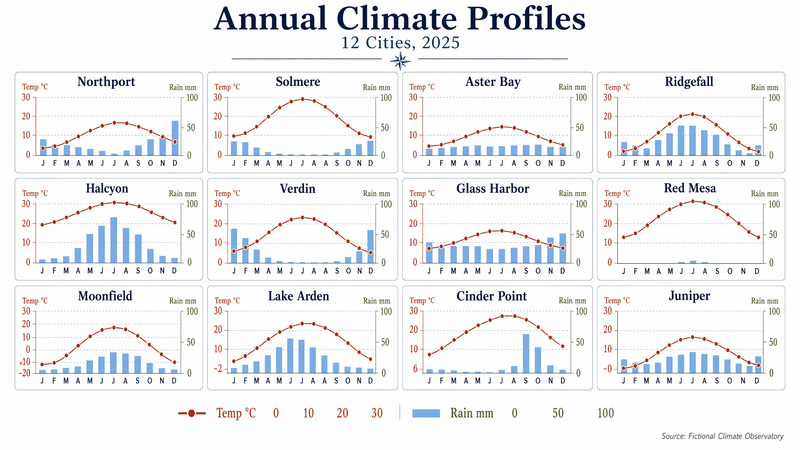
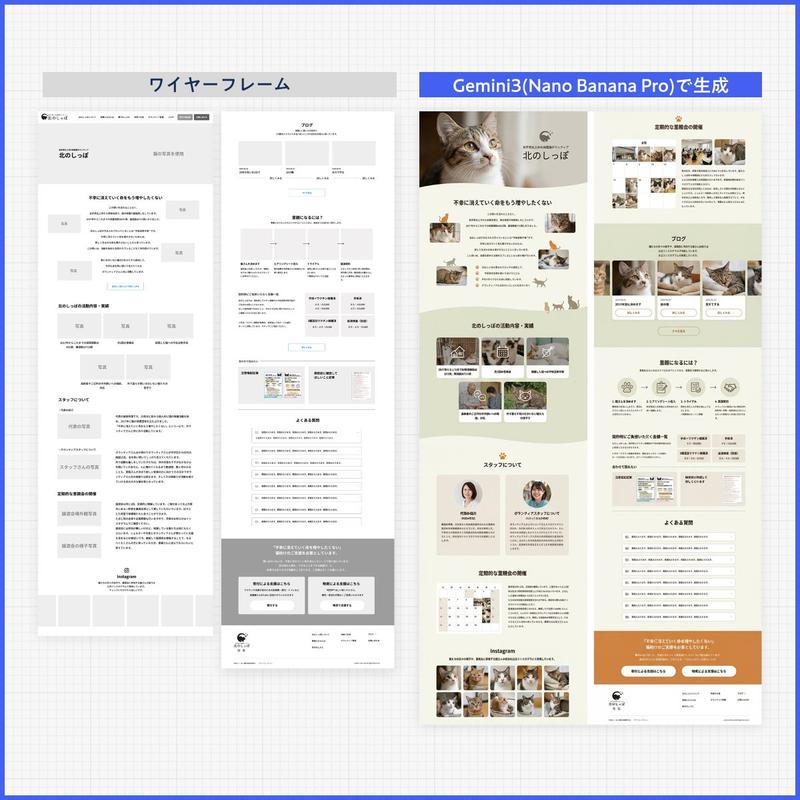
Visible card count and labels: Card A: “患者队列与多模态生物标志物流称流程”, thumbnail showing a patient cohort workflow with boxes, charts, and a survival curve. Card B: “单细胞免疫图谱”, thumbnail showing a single-cell immune atlas with UMAP clusters, dot plot, stacked bar chart, and trajectory plot. Card C: “多模态医疗 AI 方法图”, thumbnail showing a multimodal foundation model clinical decision support diagram with medical image, pathology, text, and model blocks. Card D: “治疗响应统计图”, thumbnail showing therapeutic response statistics with bar charts, forest plots, scatter plot, and a circular workflow. Card E: “Transformer 编码器-解码器架构”, thumbnail showing a transformer encoder-decoder architecture diagram with stacked module blocks. Card F: “多智能体 LLM 系统架构”, thumbnail showing an LLM multi-agent system architecture with central model block, surrounding tool icons, memory, reflection, and evaluation modules. Card G: “去噪扩散正/逆向链”, thumbnail showing a denoising diffusion forward and reverse process chain with noisy image panels and arrows. Card H: “经验缩放规律图”, thumbnail showing empirical scaling laws with multiple descending colored curves and a legend. Bottom partially visible card 1: title begins “Benchmark comparison across 10 frontier LLMs”, thumbnail with bar chart comparisons. Bottom partially visible card 2: title begins “Ablation of core reasoning components across 5 benchmarks”, thumbnail with grouped bars. Bottom partially visible card 3: title begins “LLM pretraining data mixture and downstream splits”, thumbnail with stacked area/data mixture blocks. Bottom partially visible card 4: title begins “Representative multi-head attention patterns in a 16-layer Transformer”, thumbnail with heatmaps.

Visual style: Use a modern SaaS dashboard aesthetic, dark mode, neat academic curation feel, subtle cyan accents, small but legible labels, and realistic research figure thumbnails that resemble high-quality journal diagrams. Keep thumbnails varied but consistently white-background scientific figures.

Constraints: Preserve the Chinese interface labels and card titles as written. Do not add people, photos, watermarks, browser address bars, or decorative clutter. The composition should feel like a screenshot of a curated research-figure template library named {argument name="project name" default="GPT-IMAGE-2-SKILL"}.- Category
- Charts & Infographics
- Model
- GPT Image 2
- Creator
- Heliocore.C6
- Source ID
- 23219
- Published
- May 29, 2026
Views4