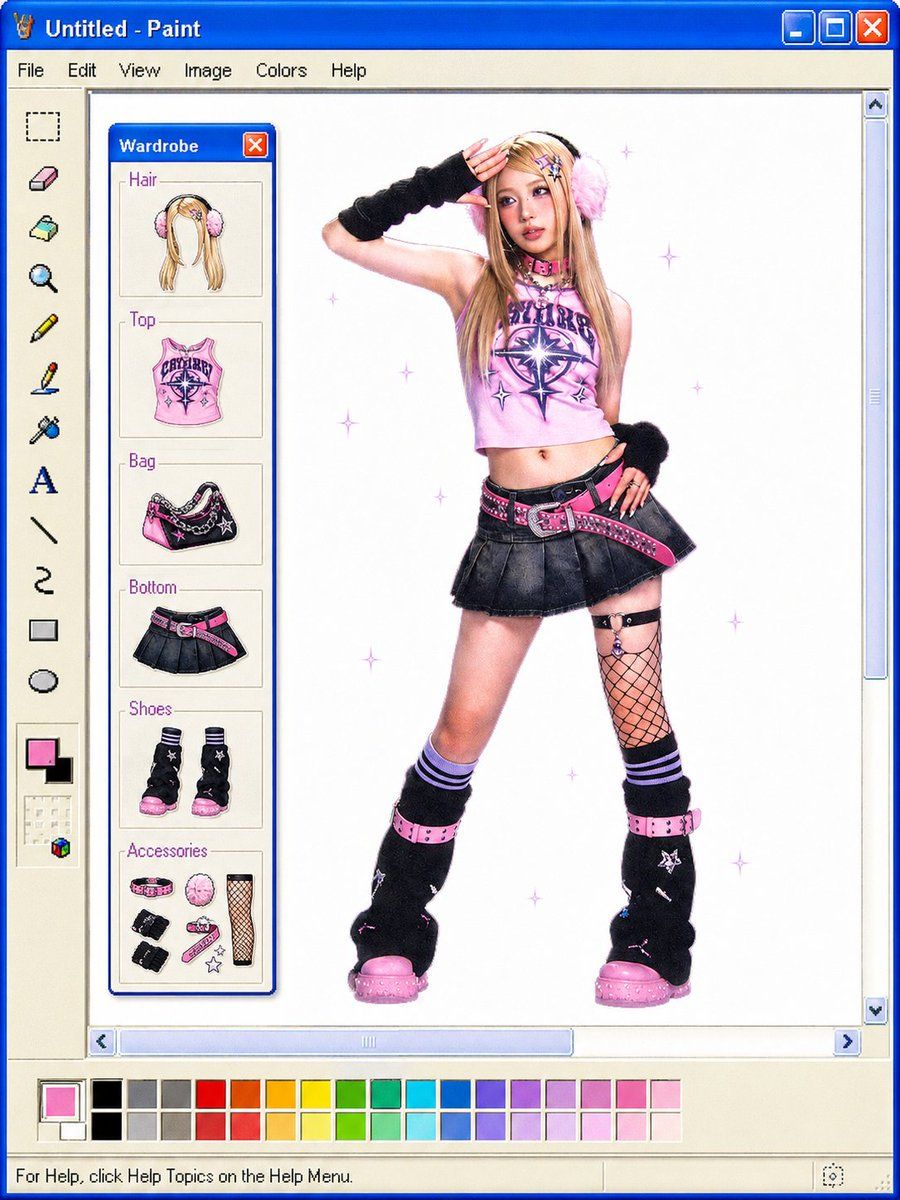
Windows Paint Y2K 穿搭拆解
Prompt
Goal: Create a playful Y2K outfit breakdown displayed inside a retro Windows XP Microsoft Paint window, as if a fashion selfie has been inserted into Paint and annotated with modular wardrobe items.

Canvas: Square 4:3-ish digital image, approximately 768×1024, with the full Microsoft Paint interface visible: bright blue Windows XP title bar reading “Untitled - Paint,” classic menu bar with 6 menu items labeled File, Edit, View, Image, Colors, Help, left vertical tool palette, bottom color palette, scroll bars, and a white drawing canvas.

Main subject: Center-right full-body fashion photo of a young woman in a pink-and-black cyber/Y2K outfit, face intentionally covered by a soft square blur. She poses standing with one hand raised near her head and the other hand at her hip. Use {argument name="outfit style" default="pink-and-black Y2K cyber mall-goth"}. She has long blonde hair with fluffy pink earmuffs, a cropped pink graphic halter top, black pleated mini skirt, hot-pink studded belt, black-and-pink shoulder bag styling, fishnet thigh detail on one leg, striped socks, black leg warmers, chunky pink platform shoes, black wrist warmers, and small star/punk accessories. Add pale purple sparkle/star doodles scattered around the white canvas.

Wardrobe panel: On the left side of the white Paint canvas, create a floating Windows XP mini-window titled {argument name="panel title" default="Wardrobe"}, with a blue title bar and red close button. Inside are exactly 6 labeled wardrobe sections stacked vertically, each with a thin beige box, purple label text, and a small illustrated cutout of the item. The 6 sections are: 1) Hair — long blonde hair with pink earmuffs, 2) Top — pink graphic crop top, 3) Bag — black and pink patterned shoulder bag, 4) Bottom — black pleated mini skirt with pink belt, 5) Shoes — pair of black chunky boots with pink soles, 6) Accessories — a grouped set of small accessories including a pink collar/choker, pink fluffy earmuff piece, fishnet stocking panel, black wrist warmers, pink strap accessories, and star charms.

Interface details: Left Paint toolbar contains exactly 16 visible tool icons arranged vertically, including rectangular select, eraser, fill bucket, magnifier, pencil, brush, spray can, text “A,” straight line, curve, rectangle, ellipse, plus foreground/background color squares and small color controls near the bottom. Bottom color palette contains rows of small square swatches in black, grays, reds, oranges, yellows, greens, cyans, blues, purples, and pinks; the active color is bright pink. Include a bottom status bar with the text “For Help, click Help Topics on the Help Menu.”

Text content: The window title must read {argument name="window title" default="Untitled - Paint"}. Keep the menu labels as File, Edit, View, Image, Colors, Help. Keep wardrobe labels in English: Hair, Top, Bag, Bottom, Shoes, Accessories.

Visual style: Clean collage of semi-realistic fashion photography and cute hand-drawn paper-doll item illustrations, placed inside a nostalgic pixel-perfect Windows XP Paint UI. White background, crisp blue window chrome, beige tool panels, vivid hot pink and black outfit palette, soft high-key studio lighting, slight pixelated retro interface edges.

Constraints: Do not add extra wardrobe categories beyond the exact 6 listed. Do not add extra people. Keep the subject’s face blurred/obscured. Preserve the Paint application frame and all major UI elements clearly visible.- Category
- Charts & Infographics
- Model
- GPT Image 2
- Creator
- LerSent
- Source ID
- 24003
- Published
- Jun 3, 2026
Views6