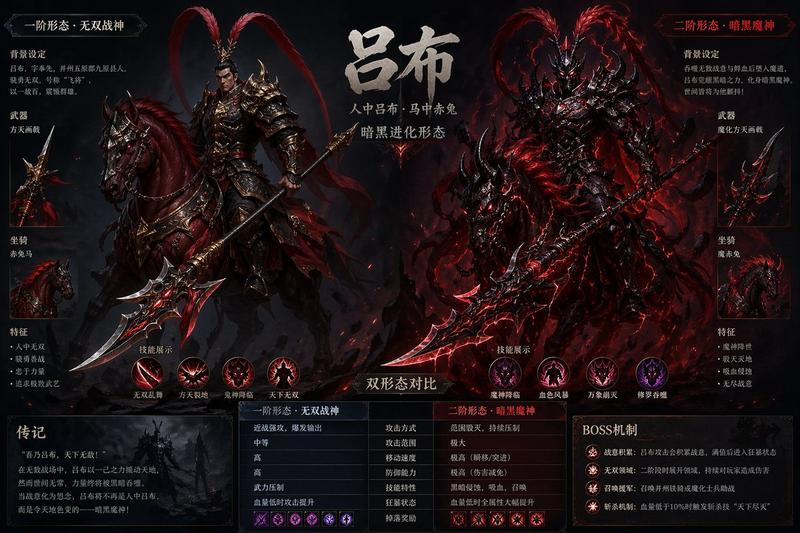
日式奇幻 RPG 战斗 UI
Prompt
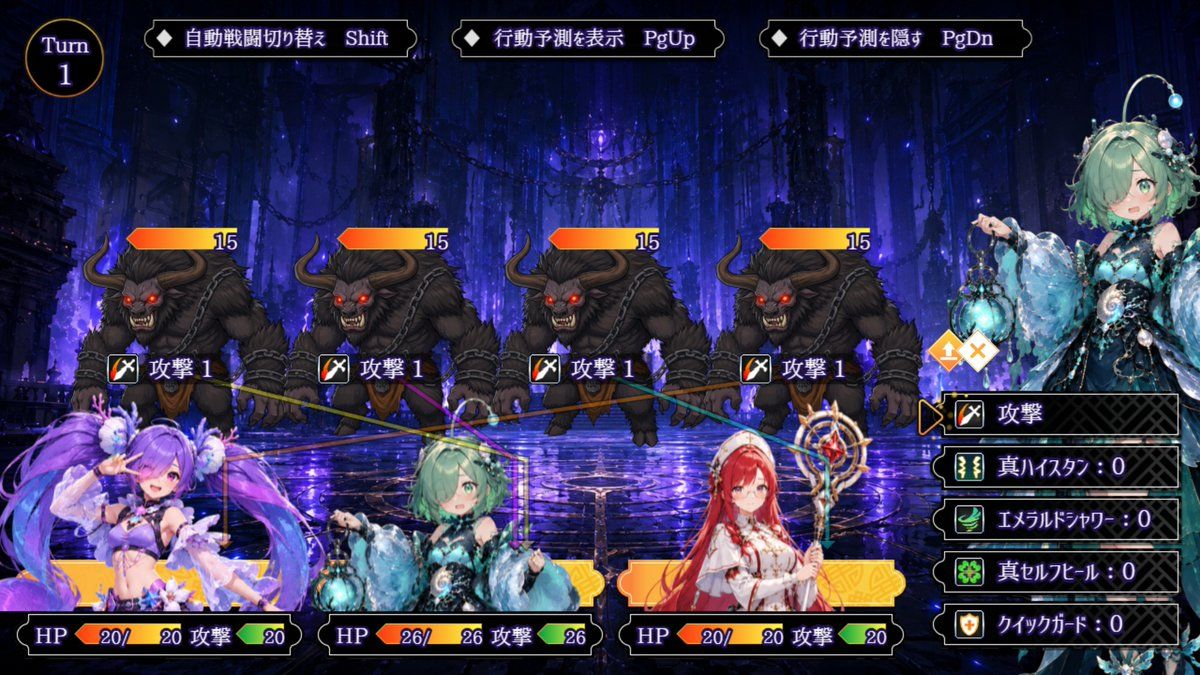
Goal: Create a 16:9 Japanese fantasy RPG battle screen UI for {argument name="game engine style" default="RPG Maker-style"}, showing a turn-based combat encounter in a dark magical dungeon.

Canvas: 1200×675 widescreen game screenshot composition, crisp 2D anime game art, high-quality but not overly detailed, readable UI, no watermark.

Background: A deep blue and violet ruined cathedral or underground temple with towering columns, dangling chains, glowing purple crystals, mist, and a reflective wet stone floor. The scene should feel dark, magical, and battle-ready.

Layout: Top-left has a circular turn badge reading “Turn” above “1”. Across the top are exactly 3 black beveled control tabs with small diamond icons and Japanese labels: 1) 「自動戦闘切り替え」 with “Shift”, 2) 「行動予測を表示」 with “PgUp”, 3) 「行動予測を隠す」 with “PgDn”.

Enemies: Place exactly 4 identical horned beast enemies in the midground, evenly spaced from left to right. Each enemy is a black-furred minotaur-like demon with curved horns, glowing red eyes, snarling mouth, muscular hunched body, chains around the shoulders, and clawed hands. Above each enemy is an orange-to-yellow HP bar with the number “15”. In front of each enemy is a small sword icon and the Japanese action label 「攻撃 1」. Thin colored targeting lines should connect enemies to party members.

Player party: Along the bottom foreground place exactly 3 visible allied anime girls as character busts with UI status panels: 1) left ally is a purple-haired fairy-like girl in a revealing purple-and-white outfit with large fluffy ornaments and translucent purple wings, 2) center ally is {argument name="main character" default="a mint-green-haired aquatic/forest fairy girl"} wearing ornate teal and black clothing, holding a glowing blue lantern, with floral and shell-like accessories, 3) right ally is a red-haired priestess or mage in a white-and-red outfit holding a decorative staff. Each ally has a bottom HP/action panel: left shows “HP 20/20” and 「攻撃」 with “20”; center shows “HP 26/26” and 「攻撃」 with “26”; right shows “HP 20/20” and 「攻撃」 with “20”. Add yellow/orange selection bars behind the allies.

Active character and command menu: On the right side, show a large portrait of the mint-green-haired ally cropped from mid-body upward, with face area softly blurred or obscured. Next to her are two small diamond buttons, one with an upward arrow and one with an X. Below is a vertical black command menu with exactly 5 selectable rows, each with an icon and Japanese text: 1) sword icon 「攻撃」 highlighted with an orange pointer, 2) green lightning icon 「真ハイスクタ:0」, 3) green feather/wind icon 「エメラルドシャワー:0」, 4) green clover icon 「真セルフヒール:0」, 5) shield icon 「クイックガード:0」.

Visual style: Polished 2D anime fantasy RPG battle UI, luminous purple-blue lighting, ornate beveled black panels with gold trim, white and lavender text, colorful HP bars, strong contrast, readable Japanese UI labels, no extra characters, no extra enemies, no extra menu options.- Category
- Charts & Infographics
- Model
- GPT Image 2
- Creator
- 濃縮ビンプル@個人ゲーム制作者
- Source ID
- 24043
- Published
- Jun 3, 2026
Views7