17

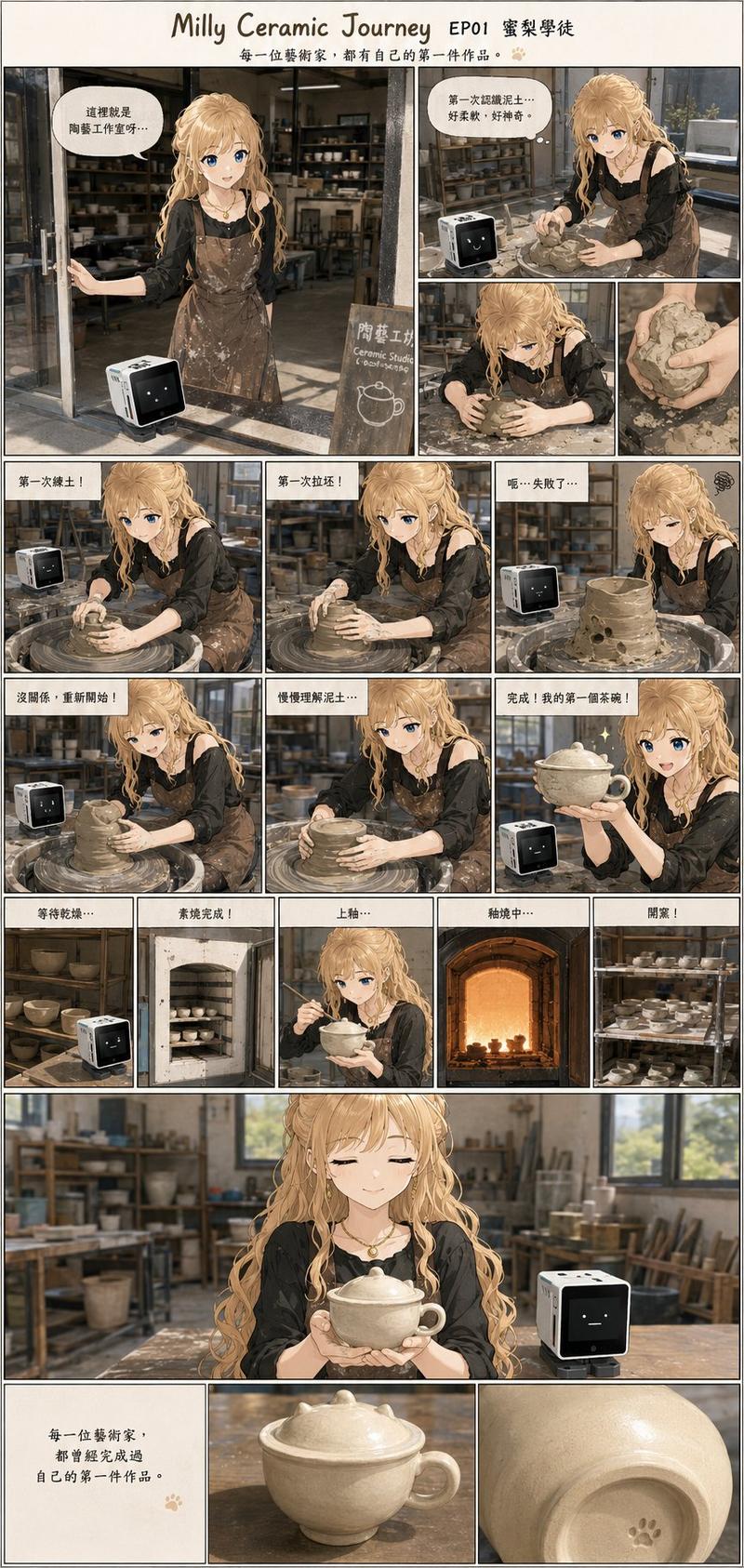
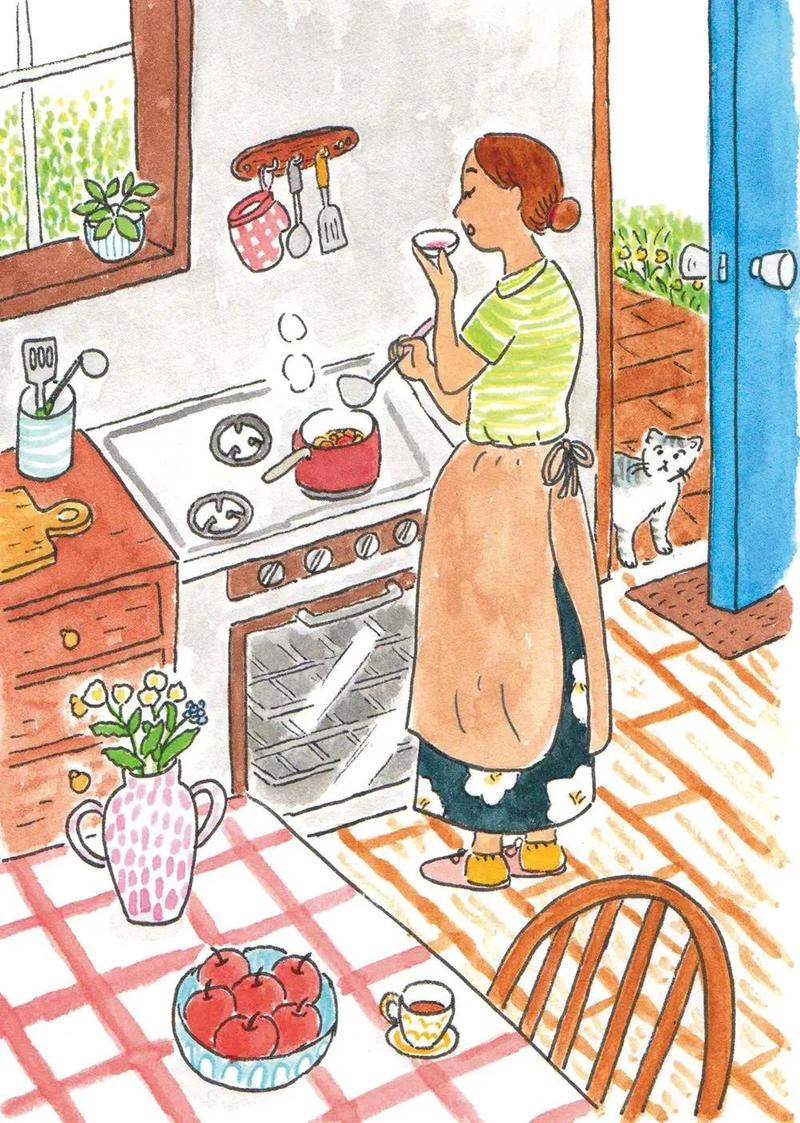
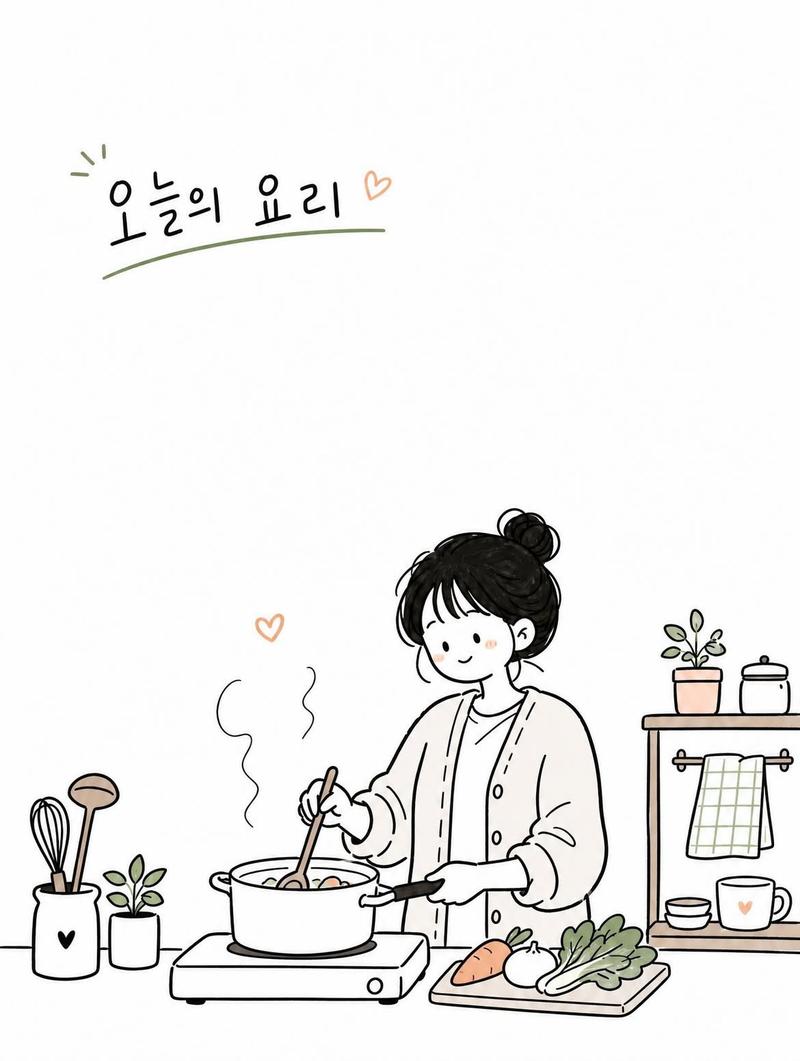
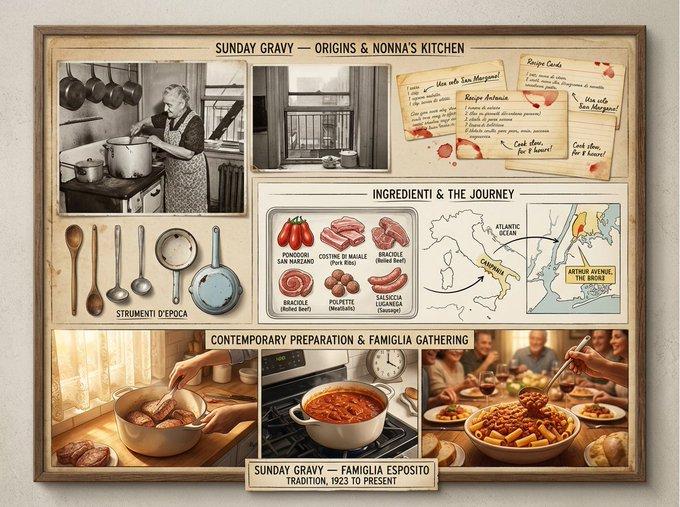
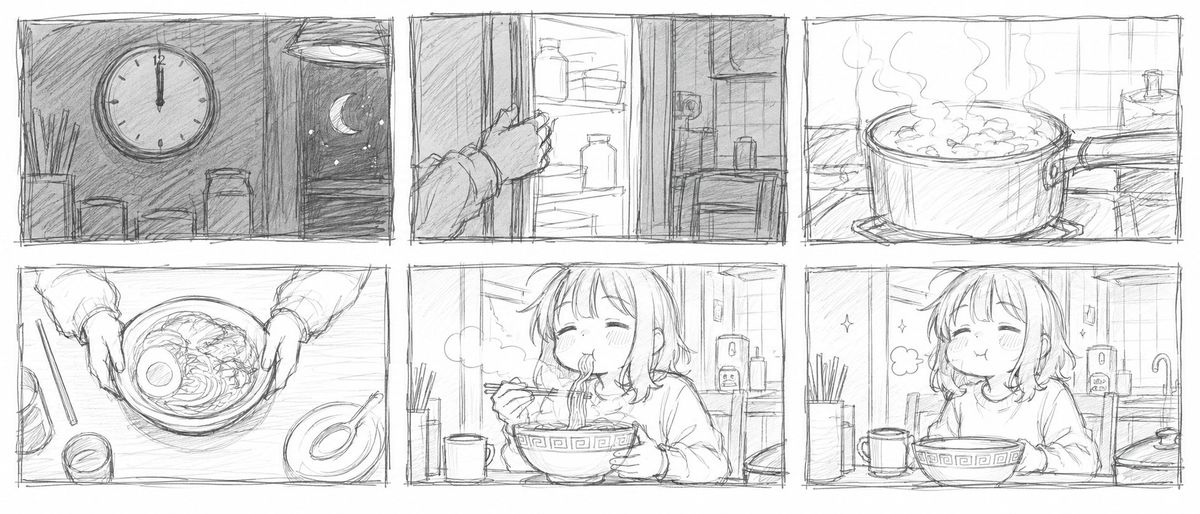
铅笔素描故事板草图
Enlarge

铅笔素描故事板草图

Prompt
极其粗略的铅笔故事板草图,凌乱的手绘涂鸦,随意的潦草线条,{argument name="number of frames" default="6"} 帧网格布局,仅包含基础构图,无细节,使用 {argument name="writing tool" default="灰色铅笔"} 在白纸上绘制,粗略的动画分镜概念。
Category
Scenes & Storytelling
Model
GPT Image 2
Creator
オズ
Views0
Source ID
25799
Published
Jun 15, 2026

Guide

About "铅笔素描故事板草图"

What is this prompt for?

"铅笔素描故事板草图" AI image prompt for GPT Image 2 (Scenes & Storytelling). 一个用于生成粗略、手绘铅笔故事板草图的提示词,采用网格布局,非常适合快速制作动画分镜和概念可视化。 Copy it on Picva and recreate the look i…

The full copyable prompt and example visuals above are ready for AI image generation or one-click recreate in Picva.

How to use this prompt

  1. Step 1

    Open the prompt detail

    Review the example visuals, category, and full prompt text for "铅笔素描故事板草图".

  2. Step 2

    Copy the prompt

    Copy the prompt body from this page, or load it directly in Studio.

  3. Step 3

    Pick a model (GPT Image 2)

    Prefer GPT Image 2. If you switch models, keep subject and composition and tweak style terms.

  4. Step 4

    Generate and export

    Recreate the look in Picva, or export into your workflow for editing and publishing.

FAQ

What is the "铅笔素描故事板草图" prompt?
It is an AI image-generation prompt for GPT Image 2 in the Scenes & Storytelling category. This page includes the full prompt text, example visuals, and a one-click recreate path in Picva.
How do I use this prompt to generate an image?
Copy the prompt from this page, or use Generate / Studio. Paste it into a compatible image model, or recreate the look in Picva with optional reference images.
Which model is this prompt for?
This page lists GPT Image 2. Most descriptive prompts also transfer to nearby image models such as GPT Image, Flux, or Midjourney with light style tweaks.
Can I use the result commercially?
You can usually copy the prompt for creation, but commercial use of the final image depends on the model terms, reference-image rights, and the generated content. Follow the source author and platform rules.