17

极简数字插画转换
Enlarge

极简数字插画转换

Prompt
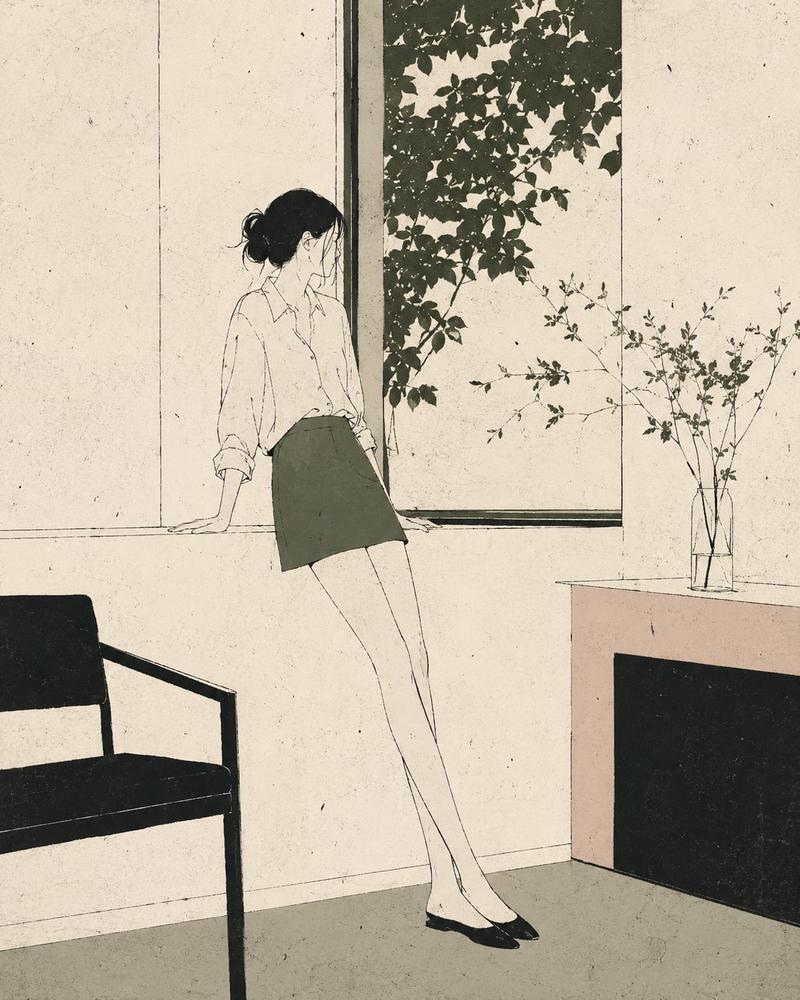
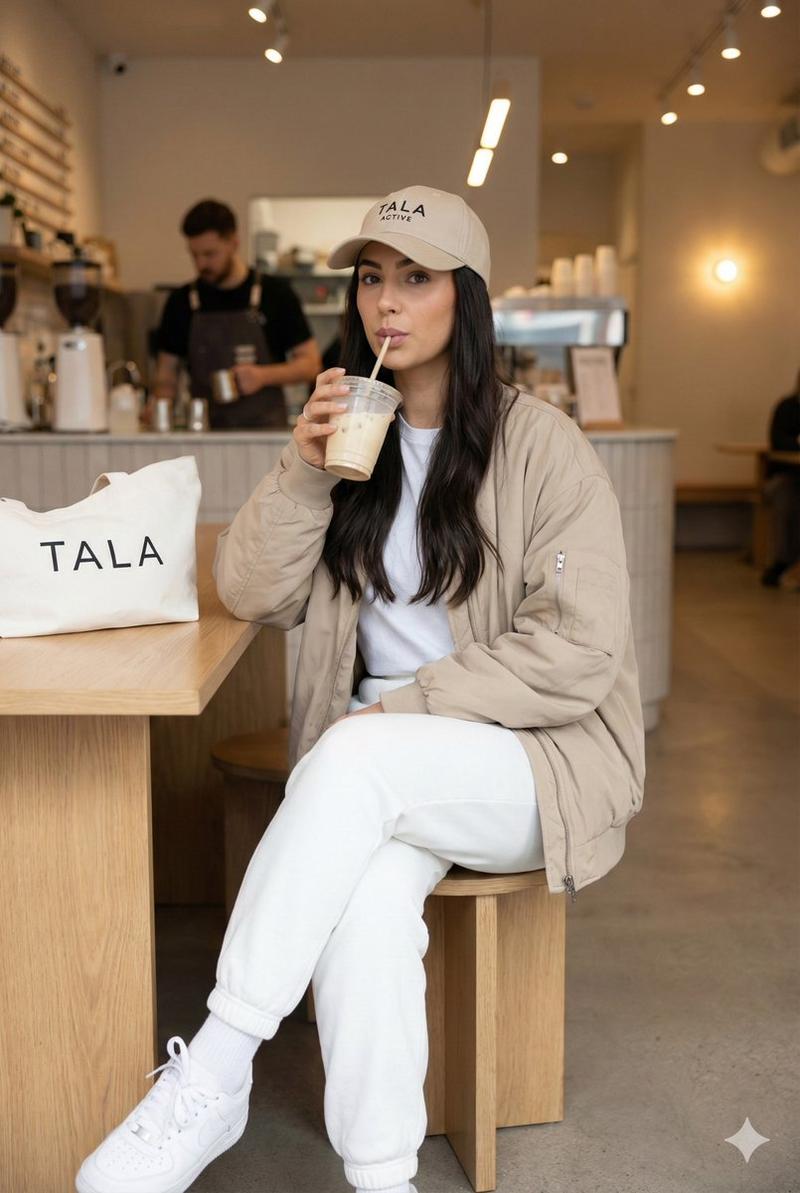
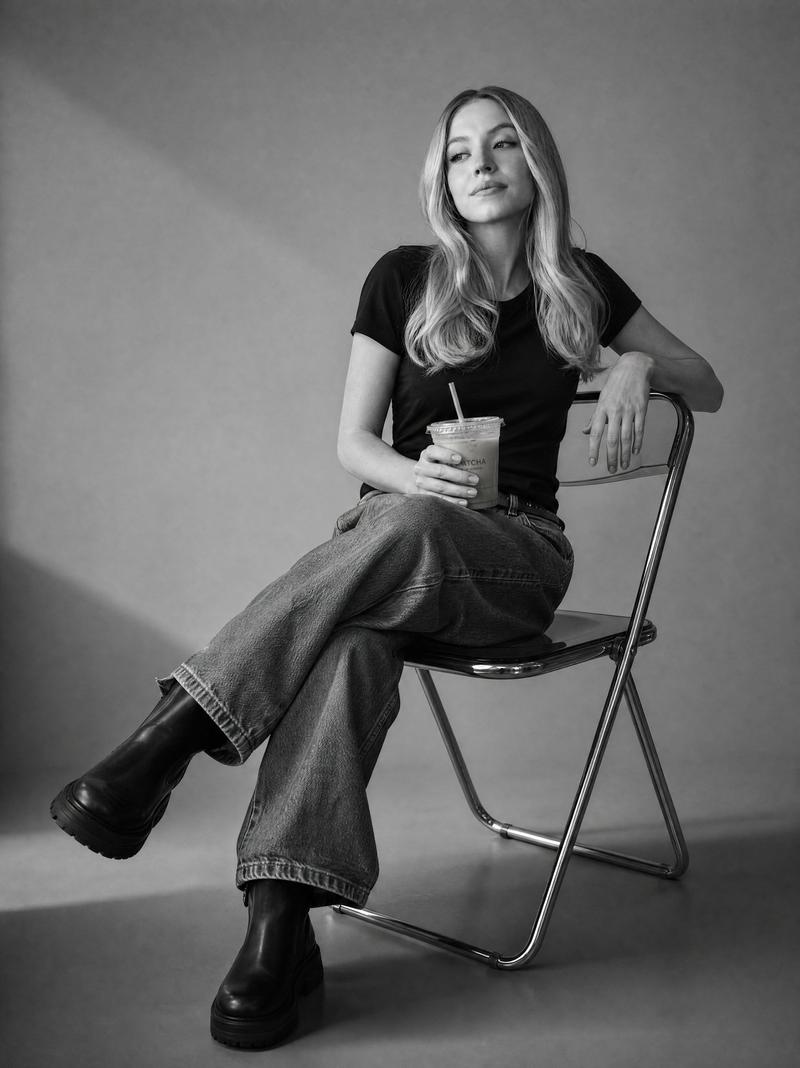
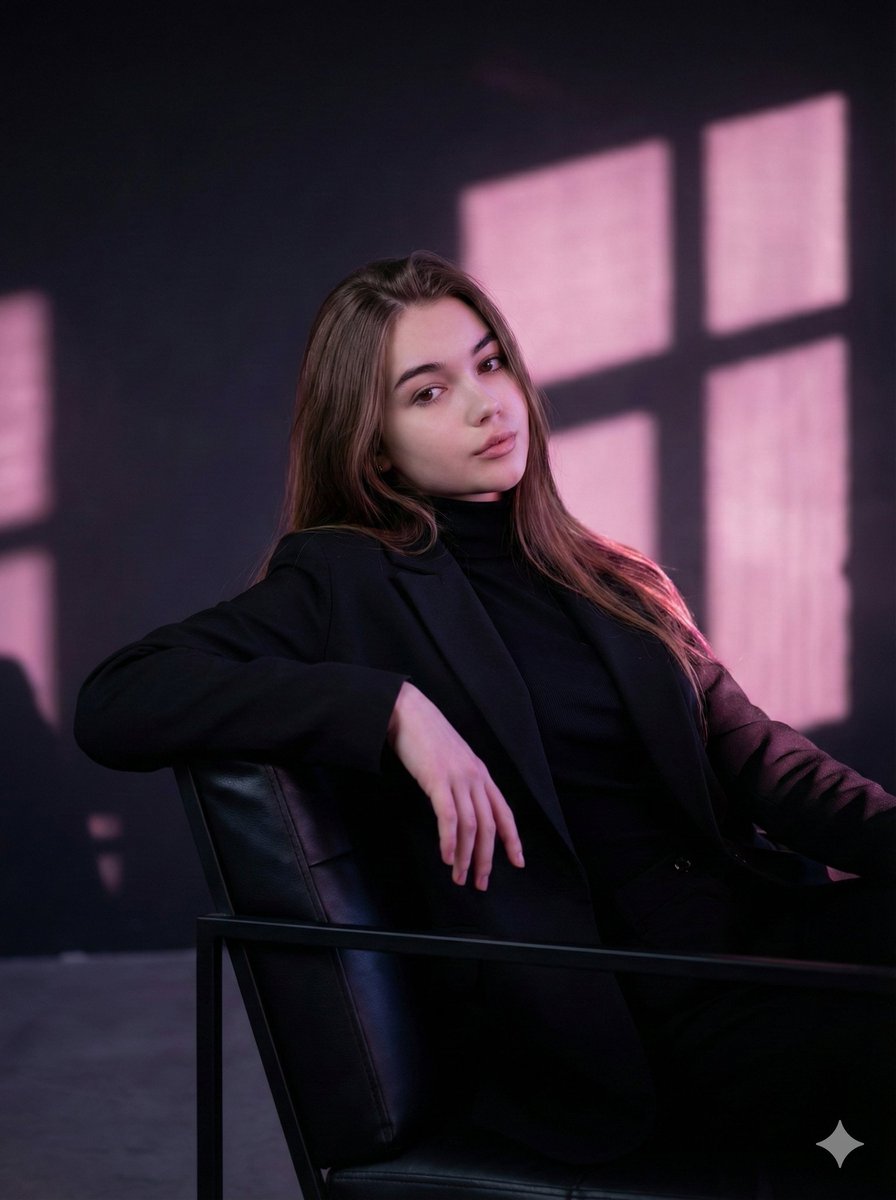
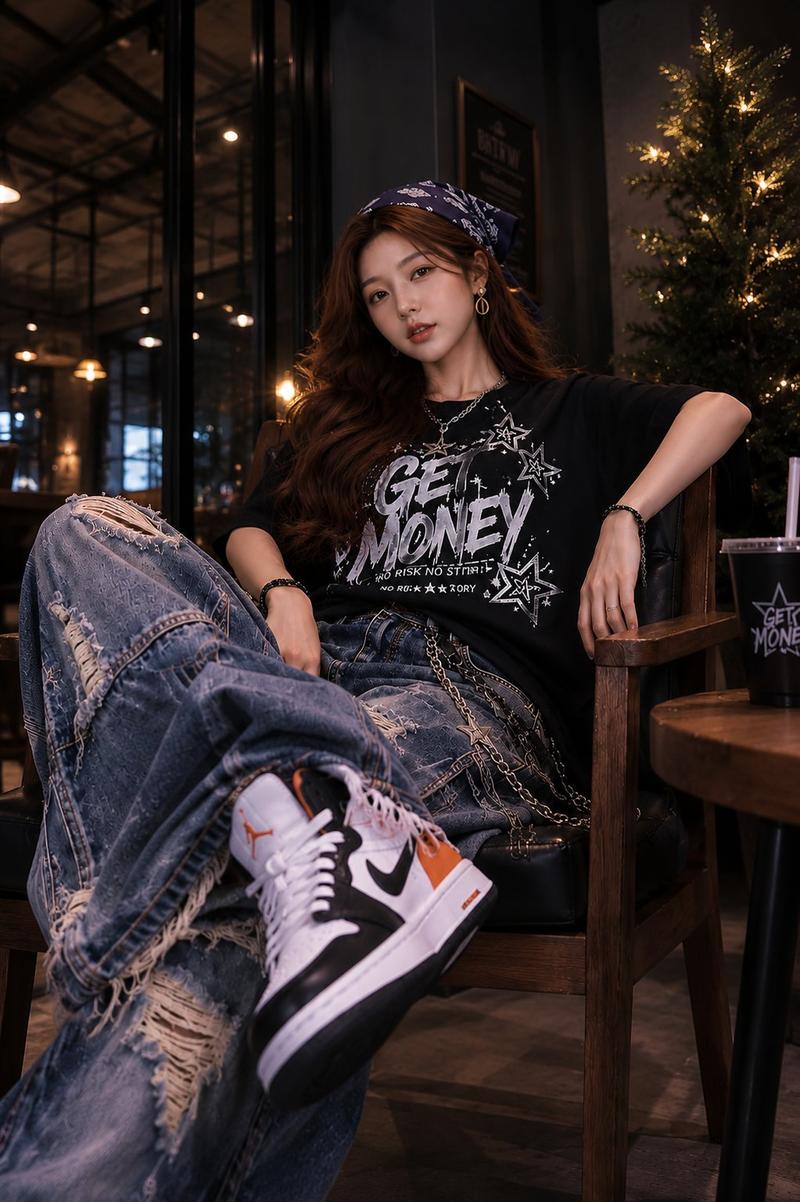
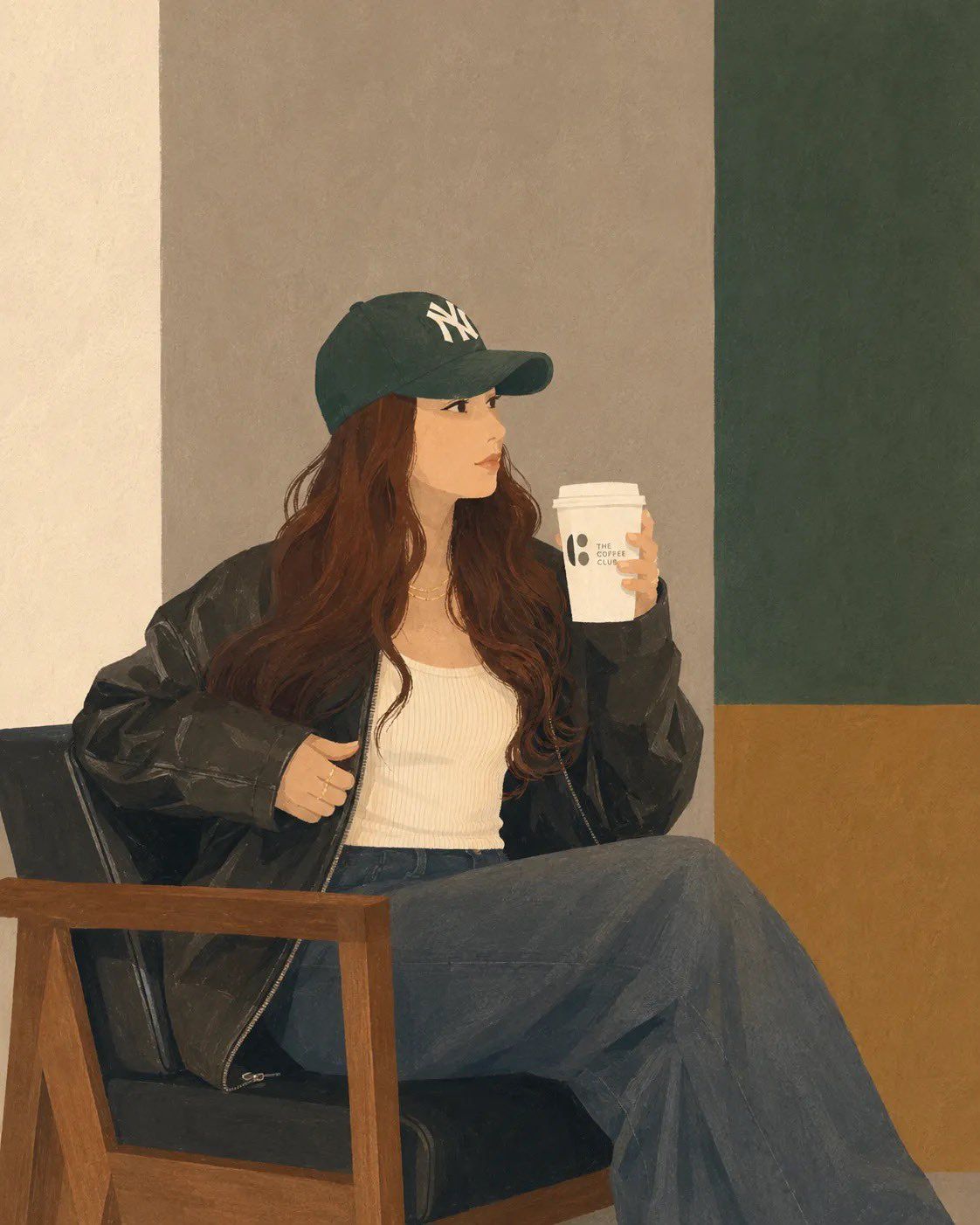
Transform the uploaded photo into a clean, minimalist semi-realistic digital illustration while preserving the original composition, pose, outfit, chair, coffee cup, and overall framing. Simplify facial features with smooth vector-like shapes, soft painterly shading, and subtle linework. Use {argument name="color palette" default="muted earthy tones, warm beige, olive green, charcoal black, and soft brown"}. Replace the detailed café background with simple geometric color-blocked walls and minimal interior elements. Maintain {argument name="clothing and accessories" default="natural long wavy hair, oversized black leather jacket, white ribbed tank top, dark wide-leg jeans, and green baseball cap"}. Create a calm, cozy coffeehouse atmosphere with soft ambient lighting, smooth textures, flat-color rendering, elegant minimalism, modern editorial illustration style, high detail, clean edges, balanced composition, premium lifestyle artwork, 4K quality.
Category
Architecture & Spaces
Model
GPT Image 2
Creator
Sairah
Views0
Source ID
26424
Published
Jun 22, 2026

Guide

About "极简数字插画转换"

What is this prompt for?

"极简数字插画转换" AI image prompt for GPT Image 2 (Architecture & Spaces). 一个适用于 GPT Image 2 的转换提示词,可将上传的照片转换为干净、半写实的数字插画,同时保留原始构图和风格。 Copy it on Picva and recreate t…

The full copyable prompt and example visuals above are ready for AI image generation or one-click recreate in Picva.

How to use this prompt

  1. Step 1

    Open the prompt detail

    Review the example visuals, category, and full prompt text for "极简数字插画转换".

  2. Step 2

    Copy the prompt

    Copy the prompt body from this page, or load it directly in Studio.

  3. Step 3

    Pick a model (GPT Image 2)

    Prefer GPT Image 2. If you switch models, keep subject and composition and tweak style terms.

  4. Step 4

    Generate and export

    Recreate the look in Picva, or export into your workflow for editing and publishing.

FAQ

What is the "极简数字插画转换" prompt?
It is an AI image-generation prompt for GPT Image 2 in the Architecture & Spaces category. This page includes the full prompt text, example visuals, and a one-click recreate path in Picva.
How do I use this prompt to generate an image?
Copy the prompt from this page, or use Generate / Studio. Paste it into a compatible image model, or recreate the look in Picva with optional reference images.
Which model is this prompt for?
This page lists GPT Image 2. Most descriptive prompts also transfer to nearby image models such as GPT Image, Flux, or Midjourney with light style tweaks.
Can I use the result commercially?
You can usually copy the prompt for creation, but commercial use of the final image depends on the model terms, reference-image rights, and the generated content. Follow the source author and platform rules.