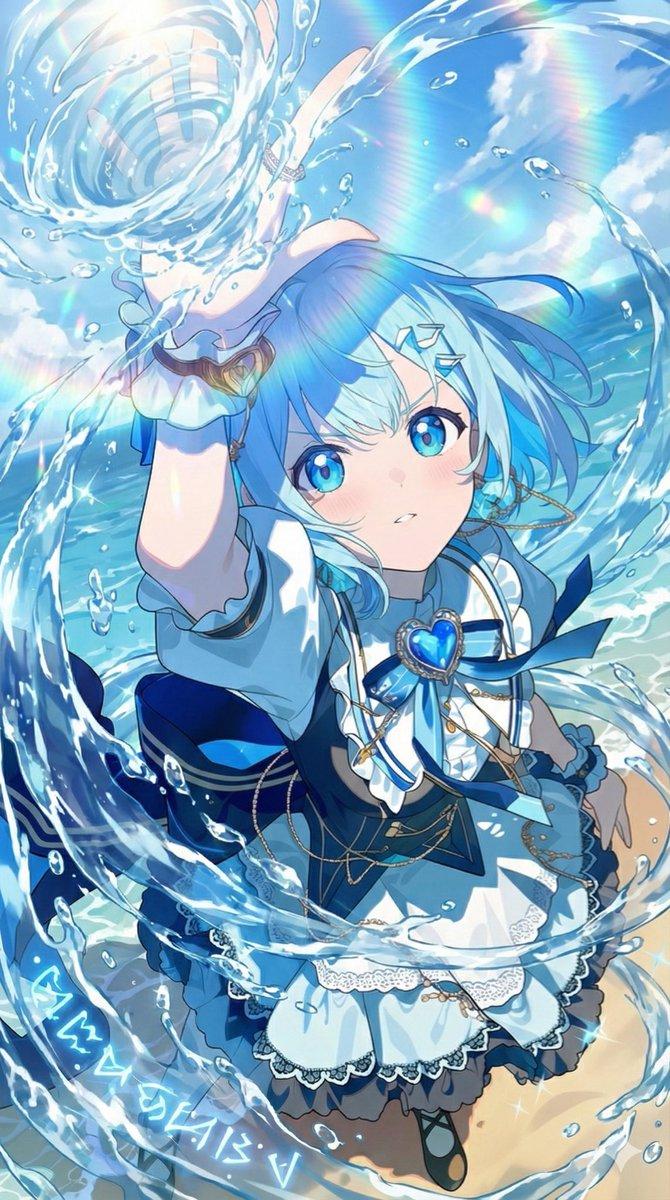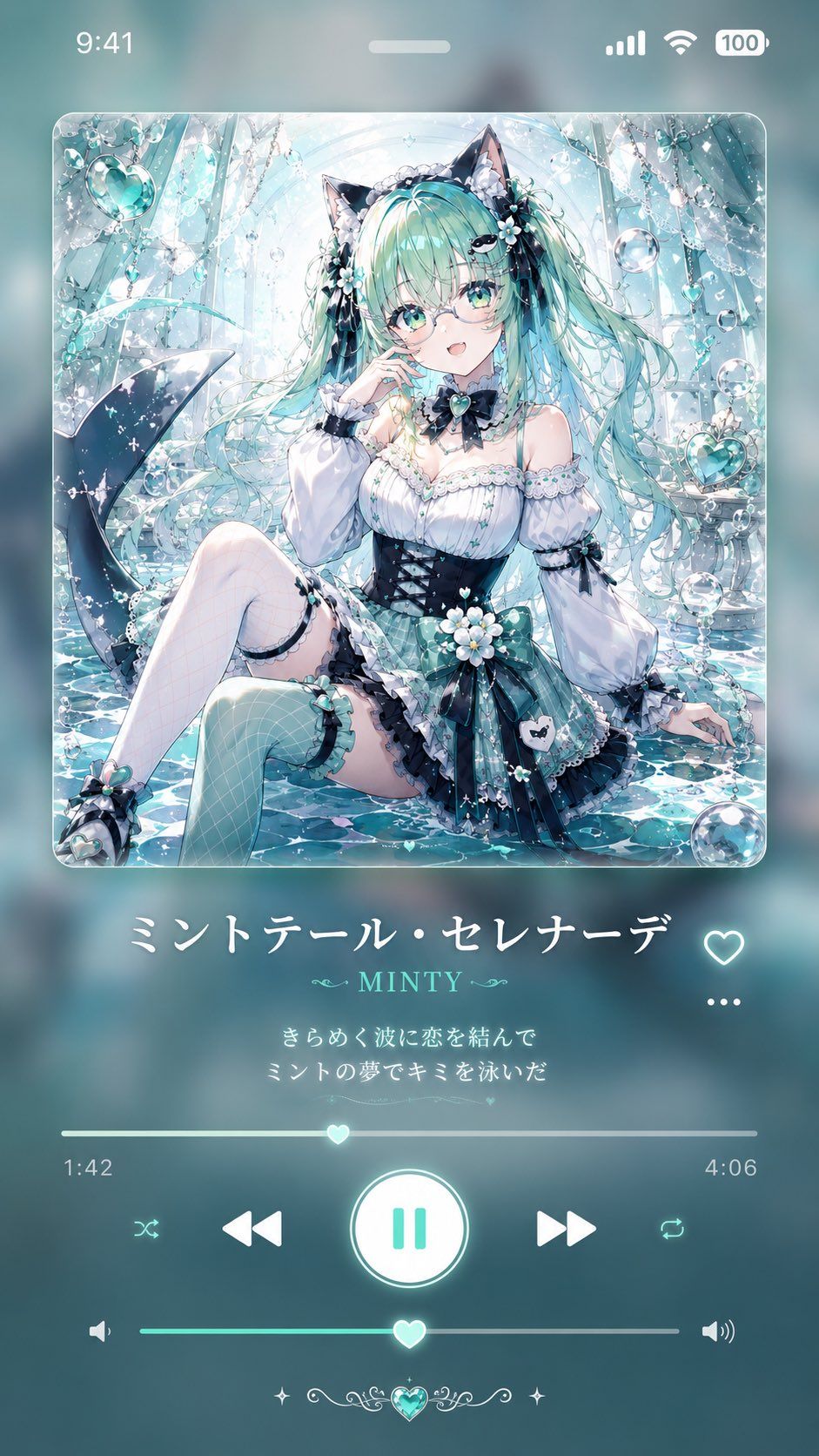
薄荷色动漫音乐播放器壁纸
Prompt
Goal: Create a vertical 9:16 smartphone wallpaper styled like a dreamy music player screen, featuring an anime album-art illustration and a translucent teal audio UI.

Canvas: 9:16 phone wallpaper, soft aqua and mint color palette, blurred glassmorphism background, iPhone-like status bar at the top showing 9:41 on the left and signal, Wi‑Fi, and 100% battery on the right, with a small white home-indicator pill near the top center.

Main album art: A large rounded-square album cover centered in the upper half, with glossy glass edges and subtle glow. Inside the cover, illustrate {argument name="character name" default="Minty Serenade"} as a beautiful anime cat-girl mermaid-idol sitting in sparkling shallow water inside an ornate crystalline underwater palace. She has very long flowing {argument name="hair color" default="mint turquoise"} twin-tail hair, black cat ears, large aqua eyes, delicate round glasses, a shy open-mouth expression, and pale skin. Her outfit is a frilly white-and-black gothic lolita swimsuit dress with mint plaid accents, black corset waist, lace sleeves, ribbons, flower ornaments, pearl details, thigh-high stockings, and small teal bows. Include a dark mermaid tail curling behind her on the left. Surround her with bubbles, dangling crystal chains, heart-shaped aqua jewels, white flowers, shimmering water reflections, sparkles, and luminous cyan highlights. The illustration should be highly detailed, romantic, glossy, and ethereal.

Music player layout below album art: Center the song title in large elegant white Japanese text: {argument name="song title" default="ミントテール・セレナーデ"}. To the right of the title line place one outlined heart favorite icon. Below it, show the artist name in smaller mint serif text with decorative flourishes: {argument name="artist name" default="MINTY"}. Under that, include exactly 2 centered Japanese lyric lines in small glowing white text: 1) {argument name="lyric line one" default="きらめく波に恋を結んで"} 2) {argument name="lyric line two" default="ミントの夢でキミを泳いだ"}. To the right of the lyric area place a horizontal three-dot menu icon.

Playback controls: Add one thin progress bar with a glowing heart-shaped scrubber near the center; show elapsed time 1:42 on the left and total time 4:06 on the right. Beneath it, place exactly 5 playback icons in a row: shuffle, previous track, large circular pause button in the center, next track, repeat. The central pause button should be a glowing white circle with mint pause bars. Below that, add a volume slider with speaker icon on the left, louder speaker icon on the right, and another heart-shaped knob. At the bottom center, add a small decorative aqua heart gem with symmetrical filigree and tiny star sparkles.

Visual style: Soft glow, translucent frosted glass UI, crisp anime rendering, pastel mint/cyan highlights, white typography, romantic underwater fantasy mood, no harsh shadows, no watermark, no extra app branding. Keep all interface elements aligned and readable like a polished music playback screen.- Category
- UI & Interfaces
- Model
- GPT Image 2
- Creator
- あまり🖋️AI &フリー素材配布
- Source ID
- 27118
- Published
- Jun 28, 2026
Views8