20

Risograph Print: City Shadows
Enlarge

Risograph Print: City Shadows

Prompt
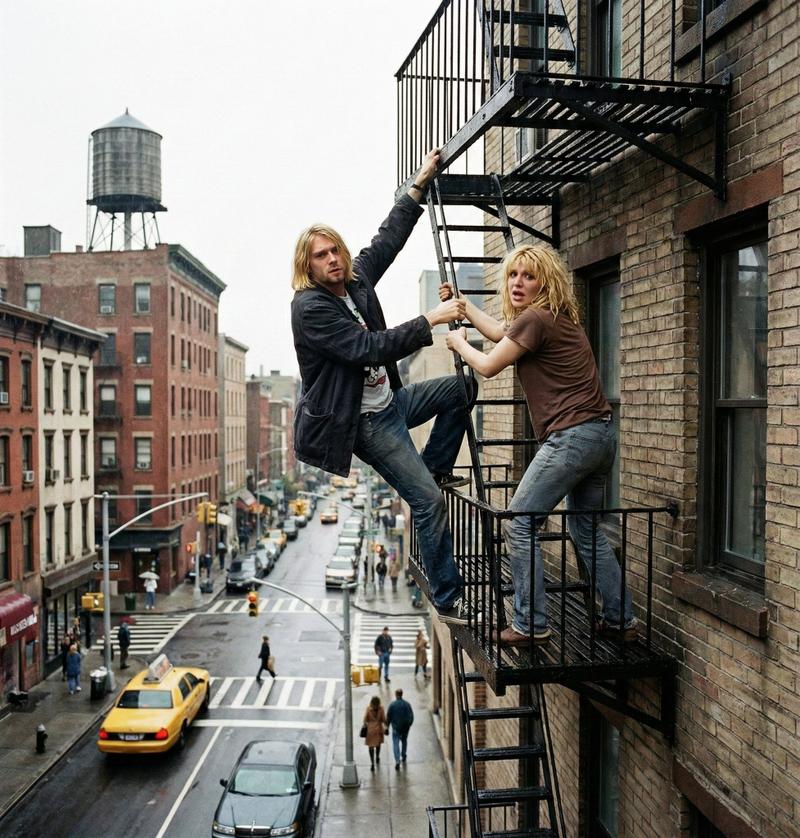
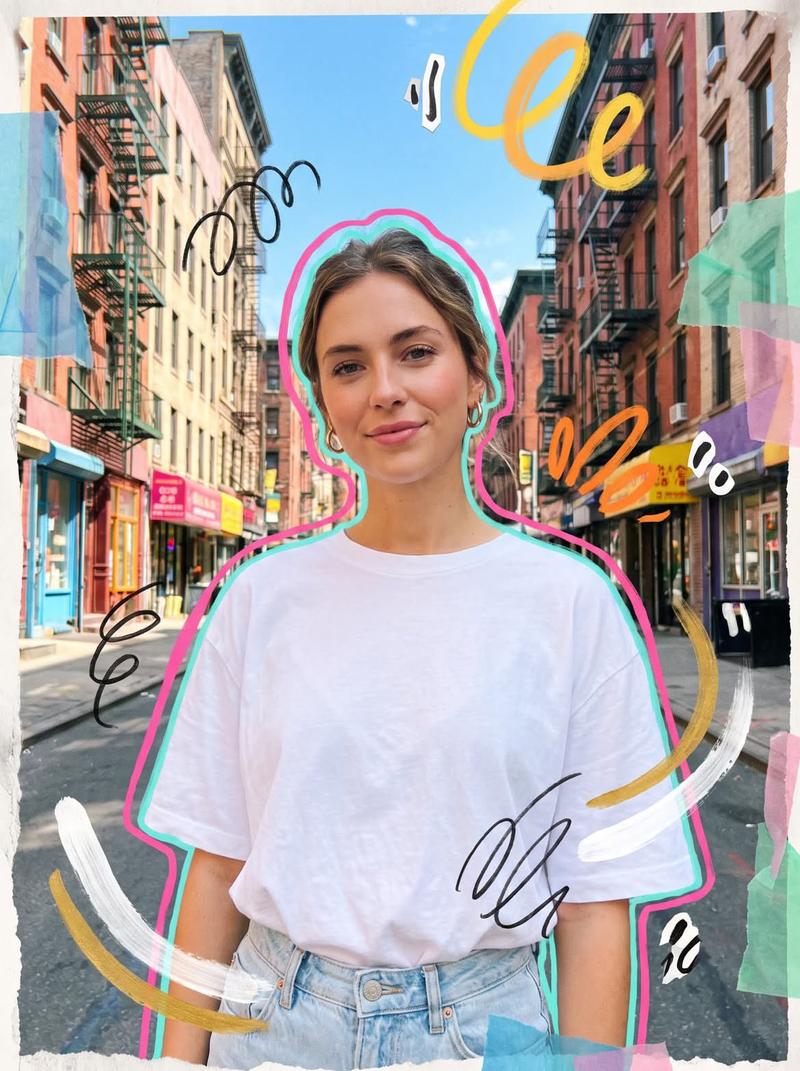
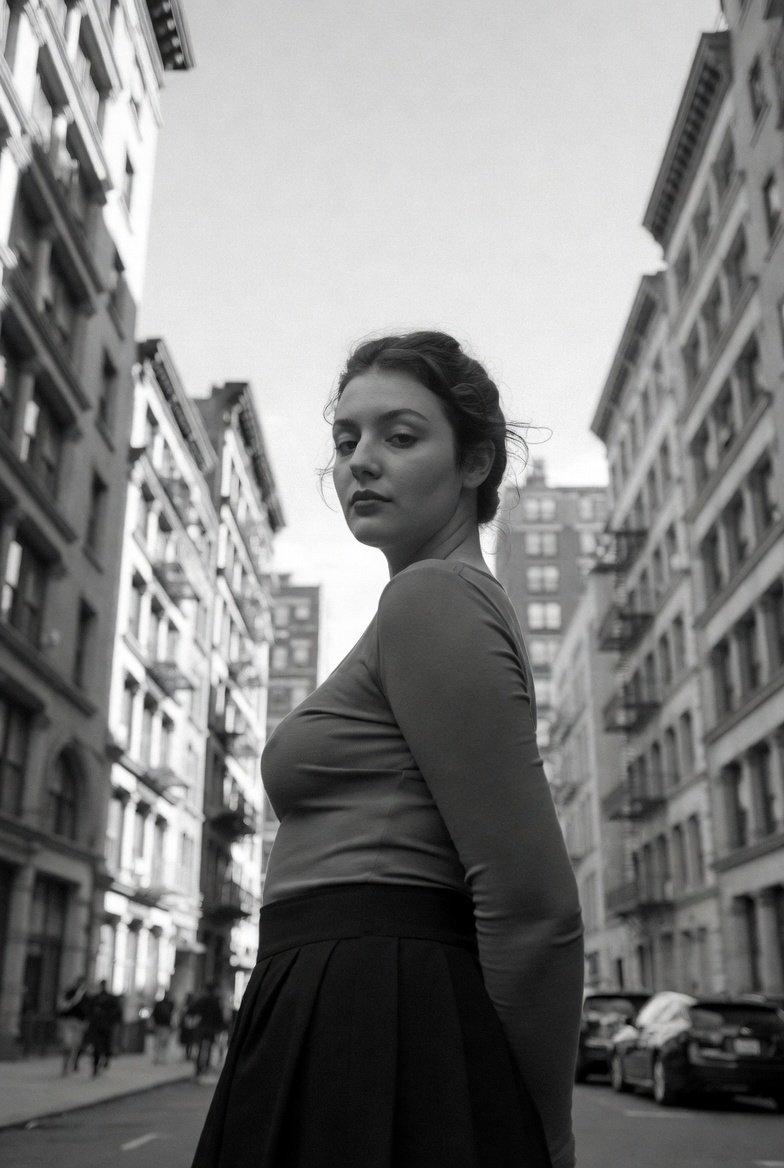
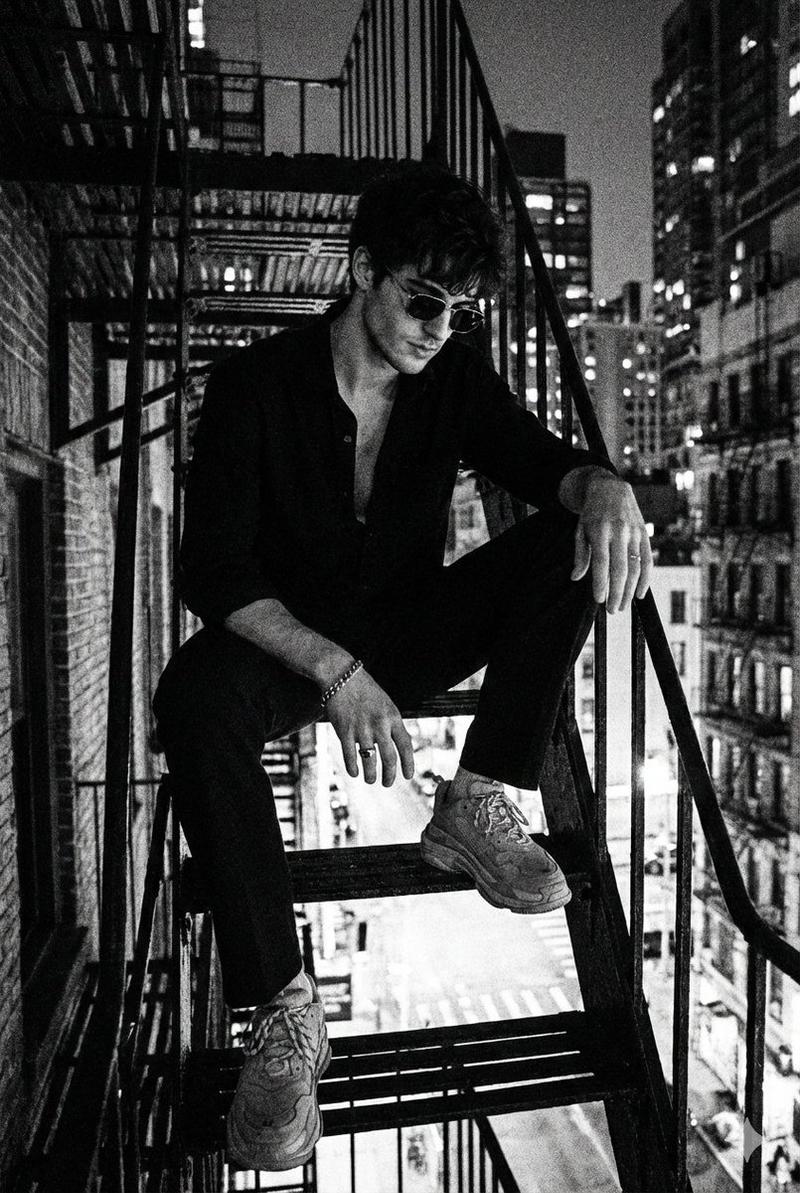
An urban landscape illustration created in the style of a two-color Risograph print. The palette is limited to 'Fluorescent Pink' and 'Teal Blue', with a dark navy created where the two inks overlap. The image has the characteristic grainy, tactile texture of Riso printing, with visible halftones and a slight, intentional 'misregistration' where the colors don't perfectly align. The subject is a high-contrast view of a city street with fire escapes and power lines. The lighting is represented through the density of the dot patterns, creating a gritty, lo-fi aesthetic. The composition uses flat shapes and bold silhouettes, with the pink ink used for the sky and the teal for the building shadows. The mood is indie, artistic, and nostalgic for DIY zine culture. The text 'SHIFT' is printed in the bottom corner in a distorted, ink-heavy typeface.
Category
Illustration & Art
Model
GPT Image 2
Creator
wuyoscar
Views1
Source ID
146

Guide

About "Risograph Print: City Shadows"

What is this prompt for?

"Risograph Print: City Shadows" AI image prompt for GPT Image 2 (Illustration & Art). An urban landscape illustration created in the style of a two-color Risog…

The full copyable prompt and example visuals above are ready for AI image generation or one-click recreate in Picva.

How to use this prompt

  1. Step 1

    Open the prompt detail

    Review the example visuals, category, and full prompt text for "Risograph Print: City Shadows".

  2. Step 2

    Copy the prompt

    Copy the prompt body from this page, or load it directly in Studio.

  3. Step 3

    Pick a model (GPT Image 2)

    Prefer GPT Image 2. If you switch models, keep subject and composition and tweak style terms.

  4. Step 4

    Generate and export

    Recreate the look in Picva, or export into your workflow for editing and publishing.

FAQ

What is the "Risograph Print: City Shadows" prompt?
It is an AI image-generation prompt for GPT Image 2 in the Illustration & Art category. This page includes the full prompt text, example visuals, and a one-click recreate path in Picva.
How do I use this prompt to generate an image?
Copy the prompt from this page, or use Generate / Studio. Paste it into a compatible image model, or recreate the look in Picva with optional reference images.
Which model is this prompt for?
This page lists GPT Image 2. Most descriptive prompts also transfer to nearby image models such as GPT Image, Flux, or Midjourney with light style tweaks.
Can I use the result commercially?
You can usually copy the prompt for creation, but commercial use of the final image depends on the model terms, reference-image rights, and the generated content. Follow the source author and platform rules.