13

Isometric 3d scene v4: GPT Image 2 prompt
Enlarge

Example images

Isometric 3d scene v4: GPT Image 2 prompt

Prompt
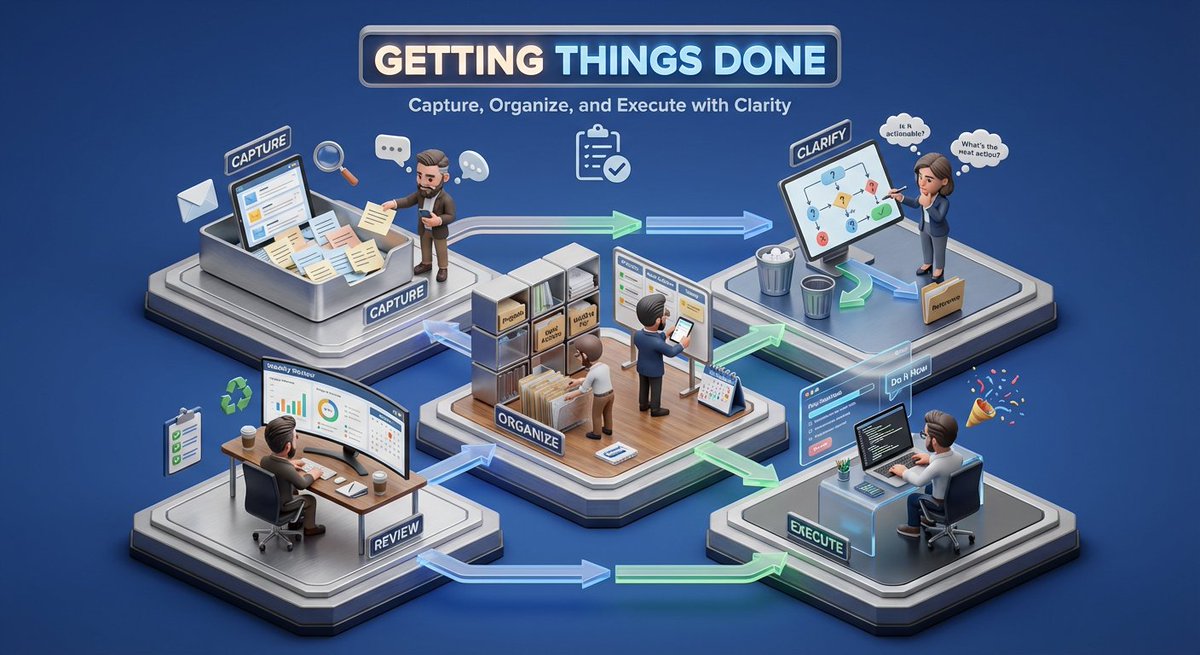
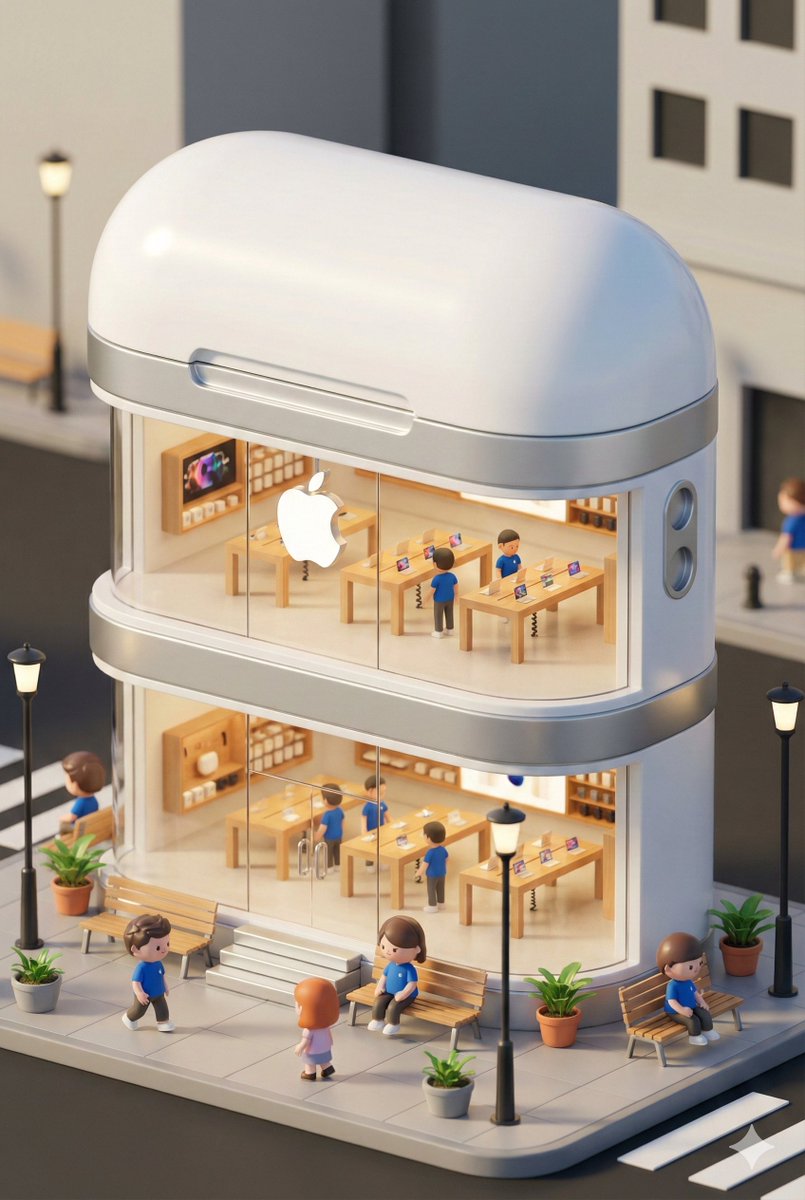
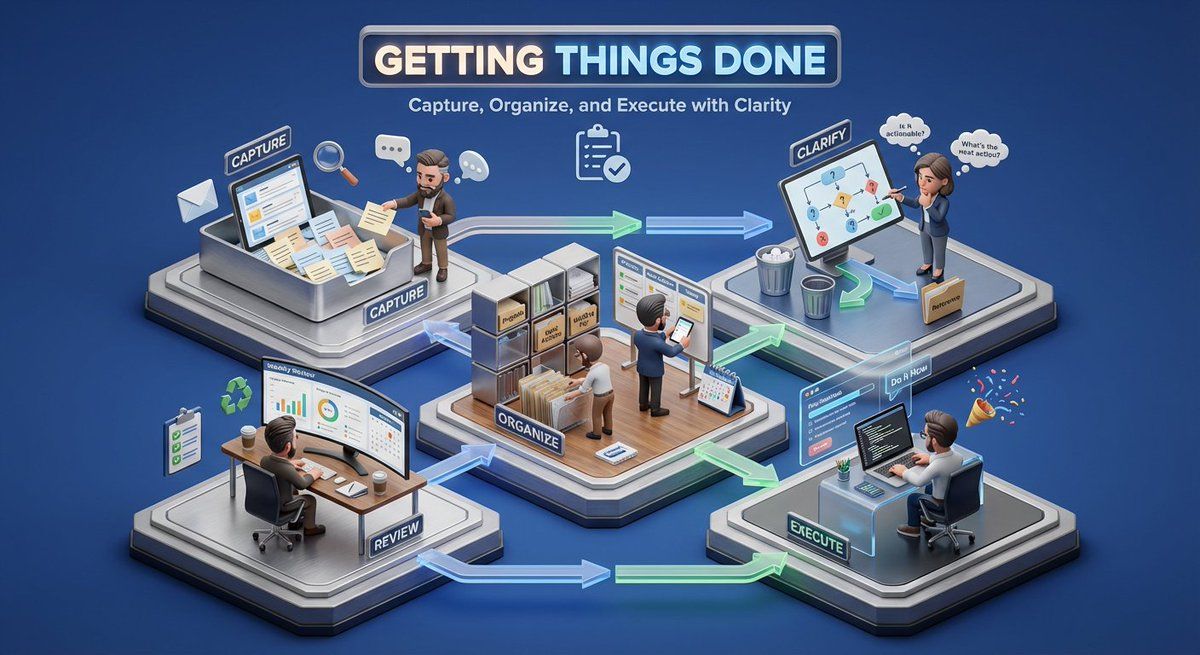
Create a 3D isometric miniature diorama showcasing the productivity system [SYSTEM NAME]. Angle remains between 35–45°. Materials feel modern and structured with realistic PBR textures.

Lighting is soft but focused. The raised base is divided into functional zones such as planning, execution, tracking, and review. Use connecting paths or arrows to show workflow.

Tiny stylized professionals interact with desks, boards, or devices. With heavy facial details.
Background remains solid [BACKGROUND COLOR].

Top center shows [SYSTEM NAME] in bold. Below it add a short benefit-focused subtitle. Place a minimal productivity icon underneath. Text automatically adapts.”
Category
Illustration & Art
Model
GPT Image 2
Views0
Source ID
2022522374483235110
Published
Feb 14, 2026

Guide

About "Isometric 3d scene v4: GPT Image 2 prompt"

What is this prompt for?

"Isometric 3d scene v4: GPT Image 2 prompt" AI image prompt for GPT Image 2 (Illustration & Art). Create a 3D isometric miniature diorama showcasing the produc…

The full copyable prompt and example visuals above are ready for AI image generation or one-click recreate in Picva.

How to use this prompt

  1. Step 1

    Open the prompt detail

    Review the example visuals, category, and full prompt text for "Isometric 3d scene v4: GPT Image 2 prompt".

  2. Step 2

    Copy the prompt

    Copy the prompt body from this page, or load it directly in Studio.

  3. Step 3

    Pick a model (GPT Image 2)

    Prefer GPT Image 2. If you switch models, keep subject and composition and tweak style terms.

  4. Step 4

    Generate and export

    Recreate the look in Picva, or export into your workflow for editing and publishing.

FAQ

What is the "Isometric 3d scene v4: GPT Image 2 prompt" prompt?
It is an AI image-generation prompt for GPT Image 2 in the Illustration & Art category. This page includes the full prompt text, example visuals, and a one-click recreate path in Picva.
How do I use this prompt to generate an image?
Copy the prompt from this page, or use Generate / Studio. Paste it into a compatible image model, or recreate the look in Picva with optional reference images.
Which model is this prompt for?
This page lists GPT Image 2. Most descriptive prompts also transfer to nearby image models such as GPT Image, Flux, or Midjourney with light style tweaks.
Can I use the result commercially?
You can usually copy the prompt for creation, but commercial use of the final image depends on the model terms, reference-image rights, and the generated content. Follow the source author and platform rules.