18

夹层式品牌编辑海报
Enlarge

夹层式品牌编辑海报

Prompt
[BRAND NAME]. You are a world-class editorial designer.

STEP 1, DYNAMIC SUBJECT LOGIC:
- Subject pick: independently study [BRAND NAME] and choose the right hero subject.
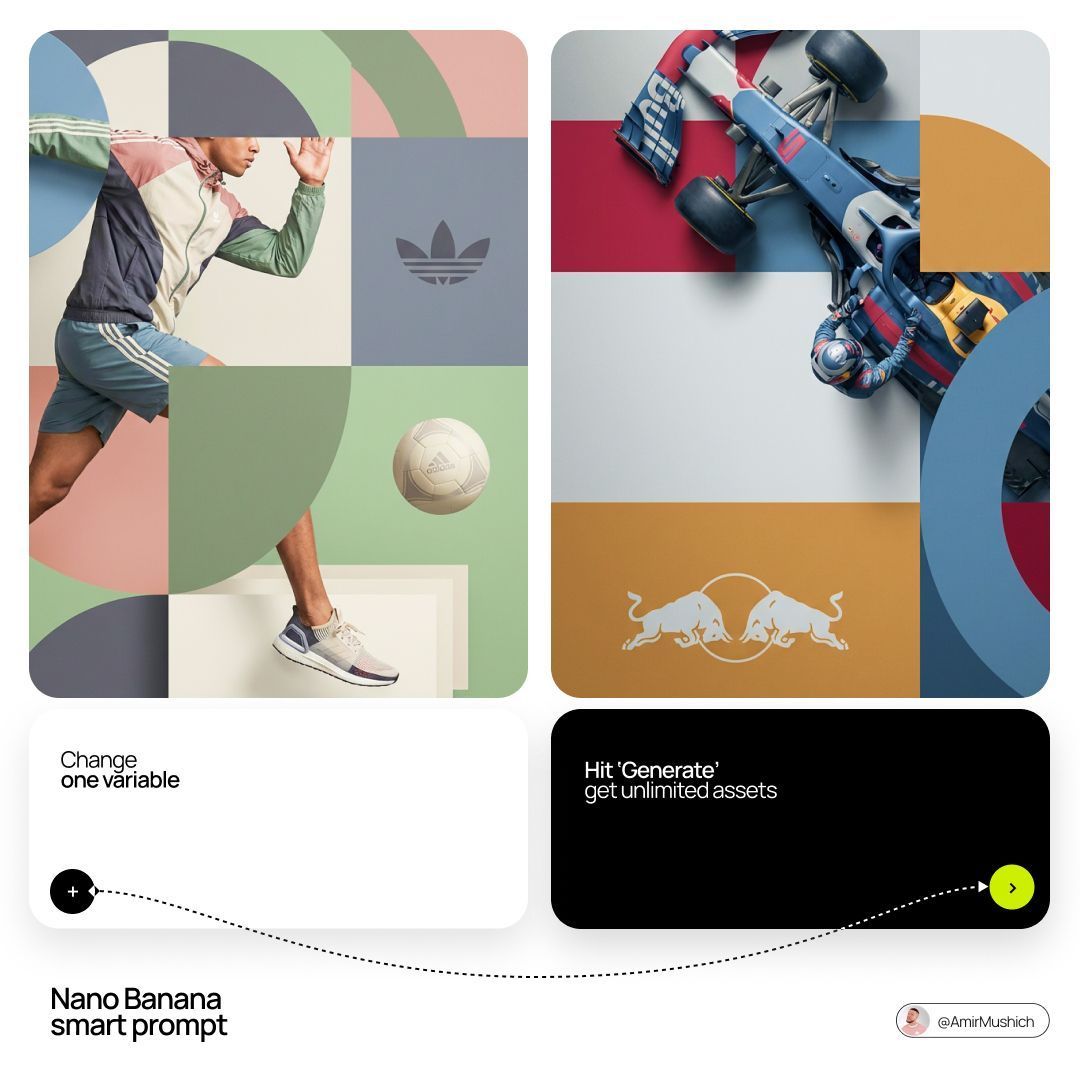
- Sandwich layering: weave the subject through the background shapes. Parts of the car or figure must sit hidden behind geometric blocks, while other parts (wheels, limbs, props) overlap in front of those blocks to fake real 3D depth.

STEP 2, GRID & GEOMETRY:
- Layout: a clean 2x2 grid composition.
- Overlays: drop large bold geometric arcs and circles on top of the grid.
- Visual balance: place one iconic product prop (a floating key fob for cars, a ball for sports, etc.) in its own quadrant to counterweight the subject.

STEP 3, SOPHISTICATED MUTED PALETTE:
- No aggressive neon, no oversaturated colors.
- Pull [BRAND NAME]'s core colors and shift them into a "sophisticated muted" range. Use desaturated, earthy, dusty versions of the brand colors (dusty rose instead of hot pink, sage green instead of bright mint, slate blue instead of royal blue).
- Finish: matte flat color blocks, zero gradients.

STEP 4, PHOTOGRAPHY & LIGHTING:
- Subject style: high-end commercial studio photography.
- Lighting: soft diffused studio light, gentle highlights, no harsh shadows.
- Integration: the subject must feel physically embedded into the graphic grid.

STEP 5, MINIMALIST BRANDING:
- Drop a clean single-color [BRAND NAME] logo dead-center on one background block. No tagline, just the iconic symbol.
Category
Brand & Logos
Model
GPT Image 2
Views3
Source ID
478

Guide

About "夹层式品牌编辑海报"

What is this prompt for?

"夹层式品牌编辑海报" AI image prompt for GPT Image 2 (Brand & Logos). [BRAND NAME]. You are a world-class editorial designer. STEP 1, DYNAMIC SUBJECT LOGIC: - Subject p…

The full copyable prompt and example visuals above are ready for AI image generation or one-click recreate in Picva.

How to use this prompt

  1. Step 1

    Open the prompt detail

    Review the example visuals, category, and full prompt text for "夹层式品牌编辑海报".

  2. Step 2

    Copy the prompt

    Copy the prompt body from this page, or load it directly in Studio.

  3. Step 3

    Pick a model (GPT Image 2)

    Prefer GPT Image 2. If you switch models, keep subject and composition and tweak style terms.

  4. Step 4

    Generate and export

    Recreate the look in Picva, or export into your workflow for editing and publishing.

FAQ

What is the "夹层式品牌编辑海报" prompt?
It is an AI image-generation prompt for GPT Image 2 in the Brand & Logos category. This page includes the full prompt text, example visuals, and a one-click recreate path in Picva.
How do I use this prompt to generate an image?
Copy the prompt from this page, or use Generate / Studio. Paste it into a compatible image model, or recreate the look in Picva with optional reference images.
Which model is this prompt for?
This page lists GPT Image 2. Most descriptive prompts also transfer to nearby image models such as GPT Image, Flux, or Midjourney with light style tweaks.
Can I use the result commercially?
You can usually copy the prompt for creation, but commercial use of the final image depends on the model terms, reference-image rights, and the generated content. Follow the source author and platform rules.