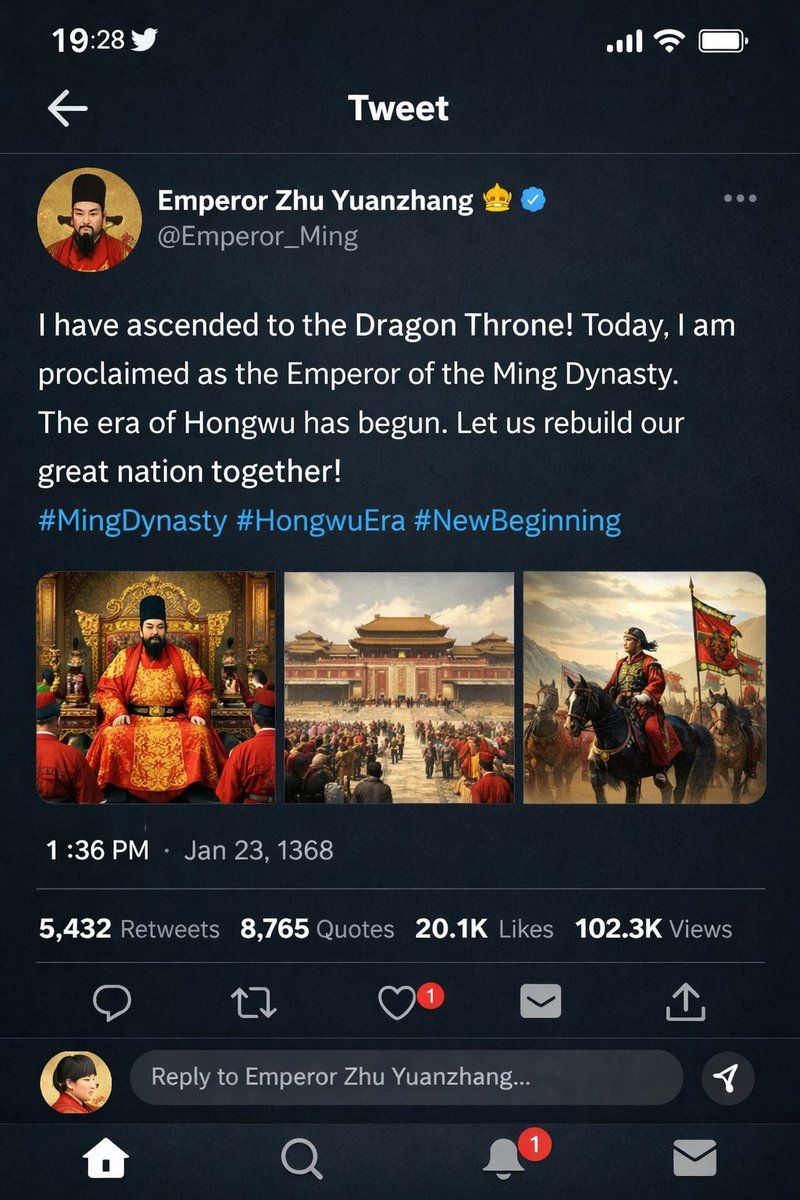
界面交互设计图
Prompt
{
  "type": "mobile social media app UI mockup",
  "platform": "Twitter/X dark mode",
  "header": {
    "status_bar": "time 19:28, bird icon, signal, wifi, battery",
    "navigation": "back arrow, 'Tweet' title"
  },
  "post": {
    "author": {
      "avatar": "portrait of a Chinese emperor in red robes and black hat",
      "display_name": "{argument name=\"display name\" default=\"Emperor Zhu Yuanzhang\"} 👑 [verified badge]",
      "handle": "{argument name=\"handle\" default=\"@Emperor_Ming\"}"
    },
    "content": {
      "text": "{argument name=\"tweet text\" default=\"I have ascended to the Dragon Throne! Today, I am proclaimed as the Emperor of the Ming Dynasty. The era of Hongwu has begun. Let us rebuild our great nation together!\"}",
      "hashtags": "#MingDynasty #HongwuEra #NewBeginning",
      "media_grid": {
        "count": 3,
        "images": [
          "emperor seated on an ornate golden throne in red and gold robes",
          "wide shot of a grand Chinese palace courtyard with a large crowd",
          "emperor on horseback leading an army with a red dragon banner"
        ]
      }
    },
    "metadata": {
      "timestamp": "{argument name=\"timestamp\" default=\"1:36 PM · Jan 23, 1368\"}",
      "engagement": "5,432 Retweets, 8,765 Quotes, 20.1K Likes, 102.3K Views"
    },
    "actions": "reply, retweet, like (red heart with '1'), share, upload"
  },
  "footer": {
    "reply_bar": {
      "avatar": "woman in red",
      "placeholder": "Reply to Emperor Zhu Yuanzhang..."
    },
    "navigation_bar": "home, search, notifications (red '1' badge), messages"
  }
}- Category
- UI & Interfaces
- Model
- GPT Image 2
- Creator
- freestylefly
- Source ID
- 57
Views3




![请生成一张竖版 2:3 高清图片,主题为《建筑微缩蓝图》。 建筑名称:[填写具体建筑] 画面是一张现代建筑设计手稿,上面布满中文平面图、剖面图、立面图、结构细节](https://i.pixshop.app/storage/v1/render/image/public/prompt-source-media/promptsref/work-3819/image-1-603cb86ef42dd5b9.png?width=800&quality=75&resize=contain)


