Alloy图标
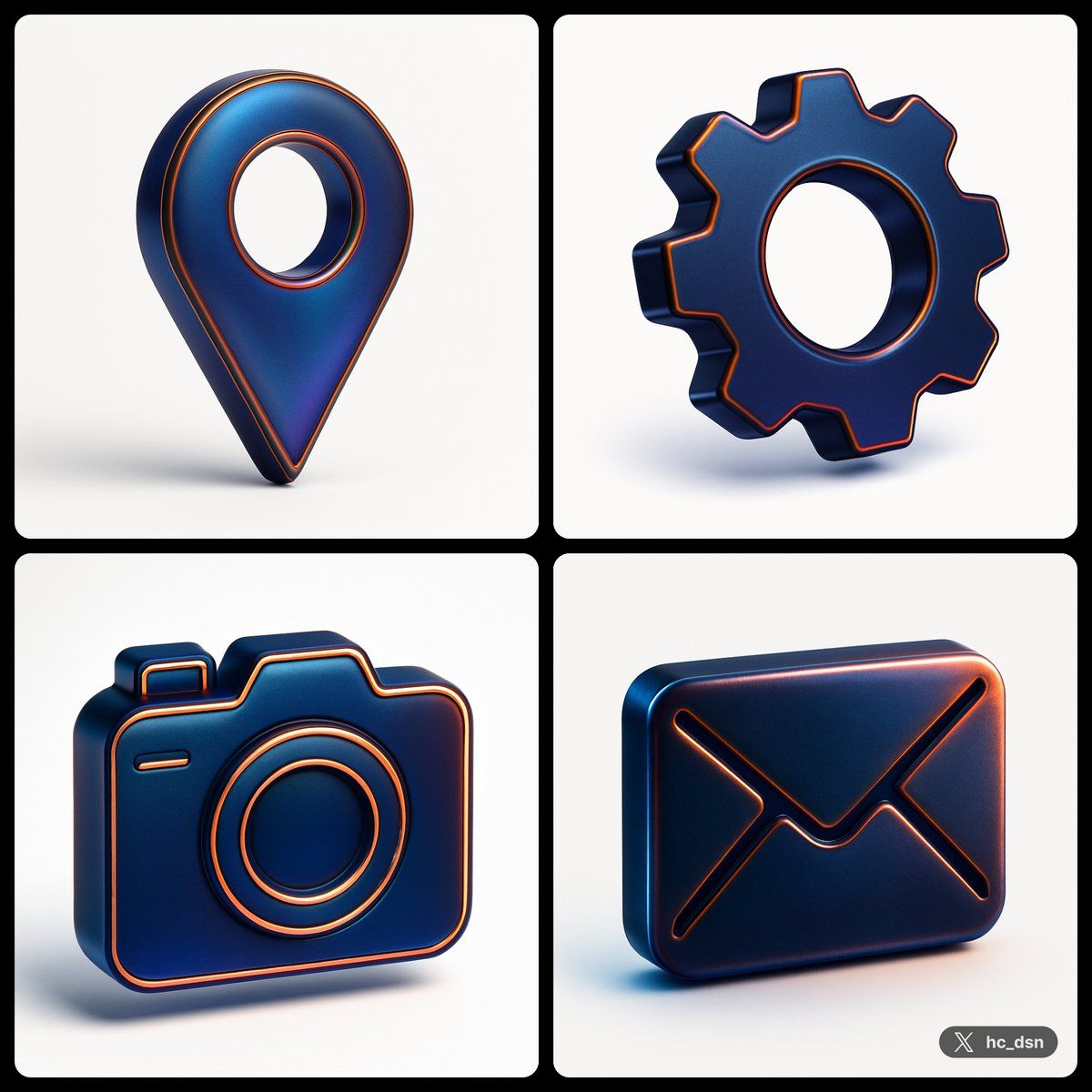
Prompt
create image with 1: 1 ratio
turn a vector [ type
] icon with the following json style
{
    "object": "icon",
    "material": {
        "primary_surface": "smooth matted translucent metallic",
        "finish": "iridescent sheen",
        "color_profile": {
            "base_color": "deep blue",
            "secondary_tones": [
                "black",
                "violet",
                "copper-orange highlights"
            ]
        },
        "panel_lines": {
            "material": "metallic copper",
            "visual_treatment": "glowing edge with subtle bevel"
        },
    },
    "lighting": {
        "type": "studio",
        "key_light": {
            "position": "top-left",
            "effect": "smooth gradient highlight across the surface"
        },
        "rim_light": {
            "position": "right side",
            "effect": "sharp metallic edge glow"
        },
        "reflections": {
            "character": "diffused but iridescent, hinting at a highly polished or lacquered surface"
        },
        "shadows": "soft edge, minimal ground contact due to floating presentation"
    },
    "background": {
        "color": "#FFF",
        "style": "solid matte",
    },
    "composition": {
        "camera_angle": "centered, eye-level",
        "depth_of_field": "none (sharp focus throughout)",
        "presentation": "floating, isolated subject"     "angle": "isometric style"
    },
    "visual_style": {
        "tone": "modern, high-impact",
        "inspiration": "sports branding meets futuristic product design",
        "aesthetic": "bold contrast, tech-luxury fusion"
    }
}- Category
- Posters & Typography
- Model
- GPT Image 2
- Creator
- @hc_dsn
- Source ID
- 849
- Published
- Jan 8, 2026
Views43