19

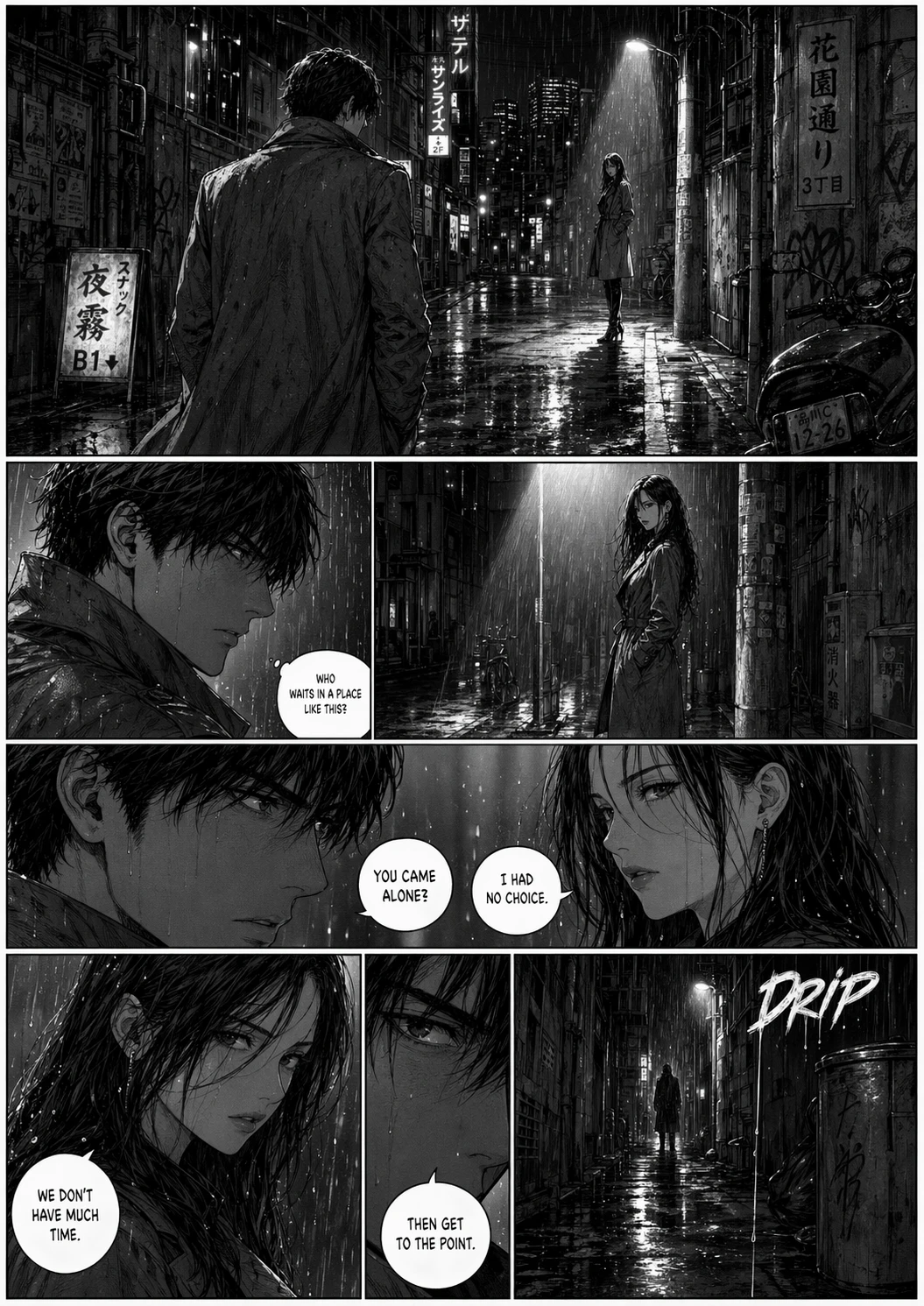
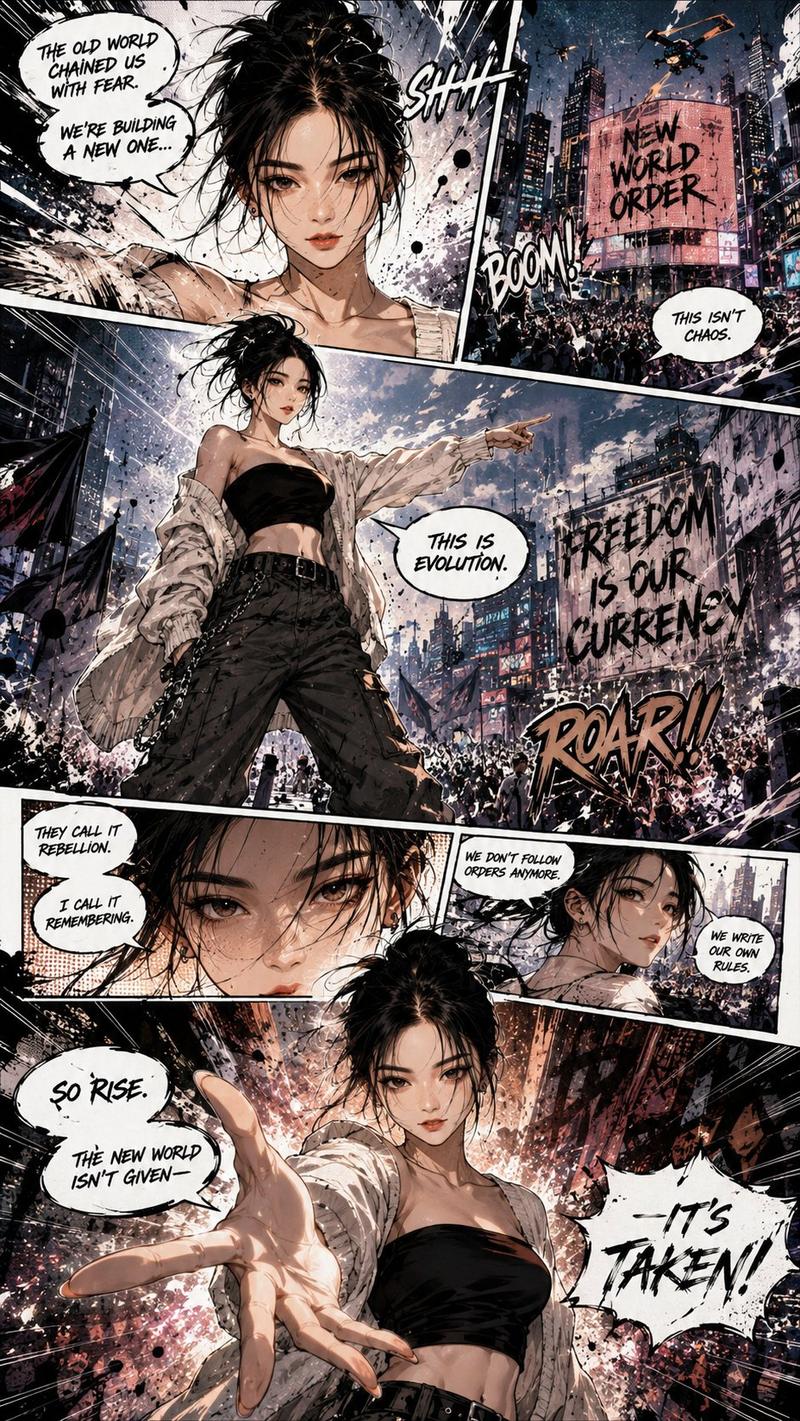
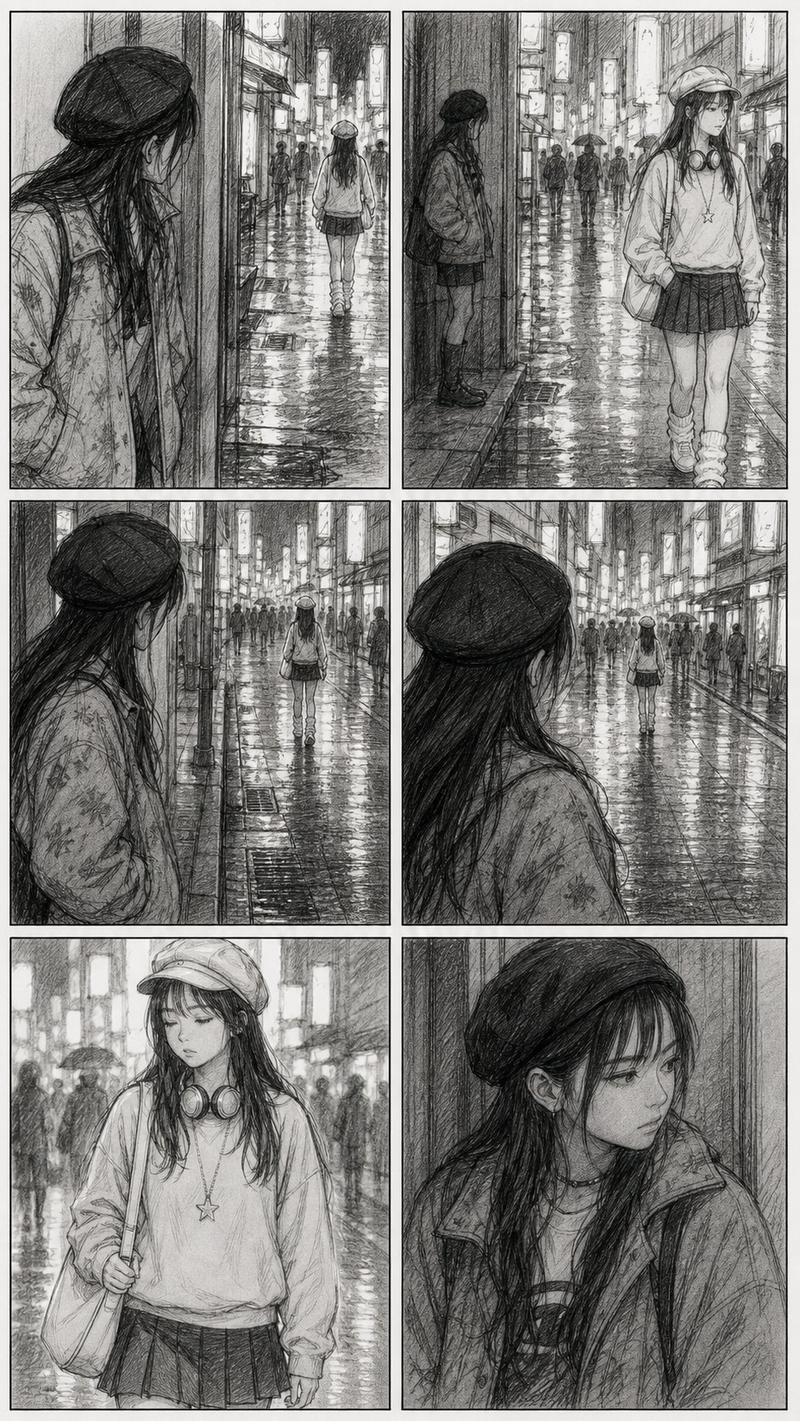
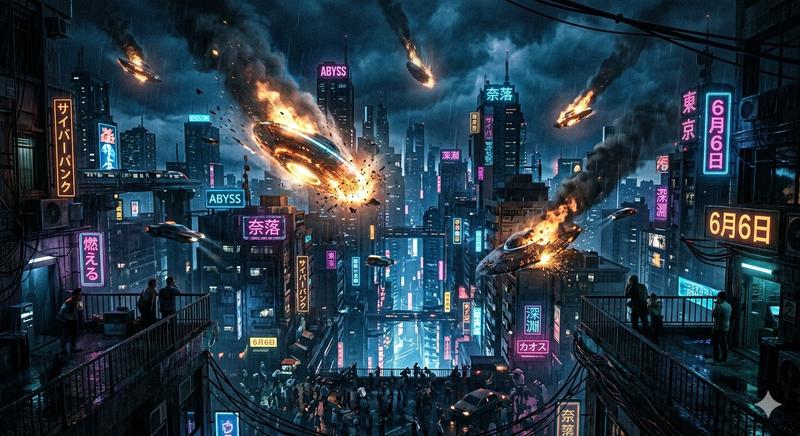
Professional 6-panel film storyboard
Enlarge

Professional 6-panel film storyboard

Prompt
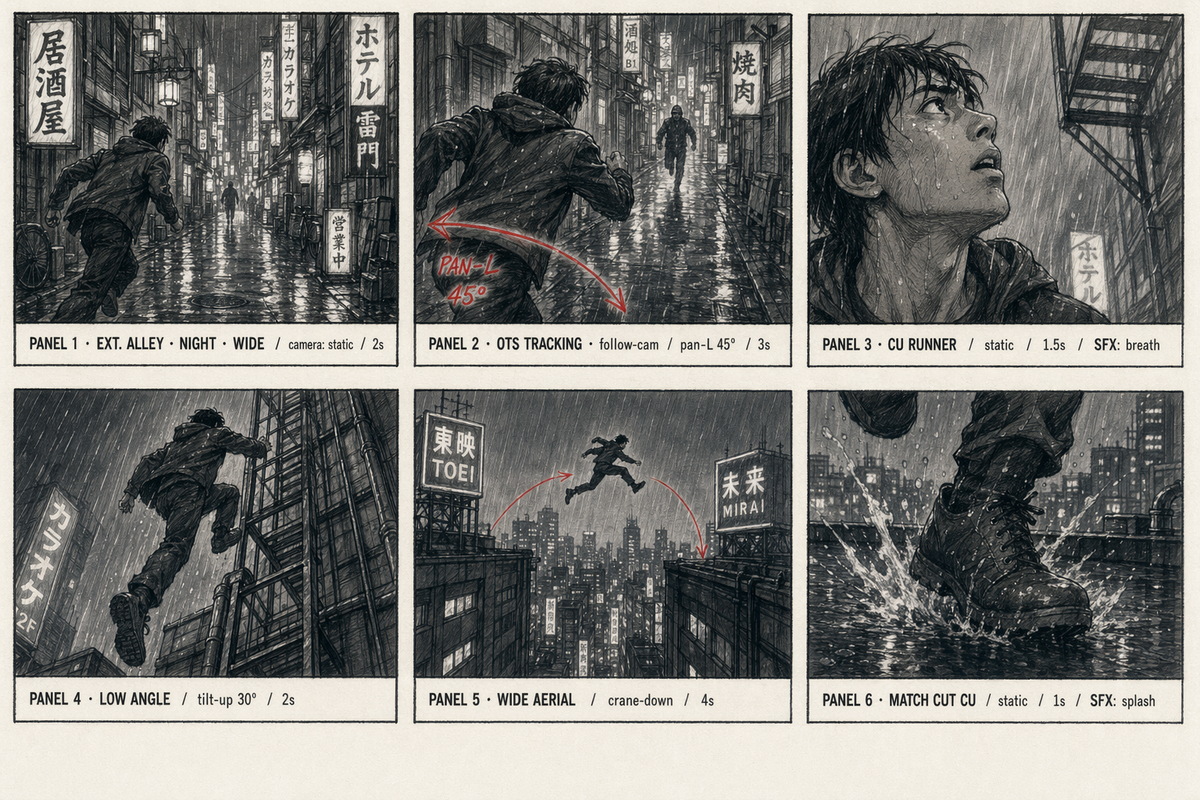
A 6-panel film storyboard laid out as a 3×2 grid, landscape 16:9 overall. Each panel is a rectangular pencil-and-marker sketch with a white margin border and a small information strip underneath.

Scene: a chase through a rainy Tokyo alleyway, ending in a rooftop jump.

Panel 1 — WIDE establishing: wet neon alleyway, runner entering from left; kanji signage on both walls. Info: "PANEL 1 · EXT. ALLEY · NIGHT · WIDE / static / 2s"
Panel 2 — OTS tracking: runner mid-stride from behind; pursuer silhouette 10 m back. Info: "PANEL 2 · OTS TRACKING / follow-cam / pan-L 45° / 3s"
Panel 3 — Close-up: runner's face, sweat, eyes darting up toward fire escape. Info: "PANEL 3 · CU RUNNER / static / 1.5s / SFX: breath"
Panel 4 — Low angle: runner leaping onto fire-escape ladder; rain streaks. Info: "PANEL 4 · LOW ANGLE / tilt-up 30° / 2s"
Panel 5 — Wide aerial: runner silhouetted against neon skyline, about to leap rooftops. Info: "PANEL 5 · WIDE AERIAL / crane-down / 4s"
Panel 6 — Match cut: runner's boots landing on wet rooftop; splash. Info: "PANEL 6 · MATCH CUT CU / static / 1s / SFX: splash"

Art direction: classic animation-school storyboard — pencil line-work, grey marker shading, red-pencil arrow annotations on panels 2 and 5 (camera move and action arc). Off-white paper texture background.
Category
Scenes & Storytelling
Model
GPT Image 2
Creator
wuyoscar
Views3
Source ID
028

Guide

About "Professional 6-panel film storyboard"

What is this prompt for?

"Professional 6-panel film storyboard" AI image prompt for GPT Image 2 (Scenes & Storytelling). A 6-panel film storyboard laid out as a 3×2 grid, landscape 16:…

The full copyable prompt and example visuals above are ready for AI image generation or one-click recreate in Picva.

How to use this prompt

  1. Step 1

    Open the prompt detail

    Review the example visuals, category, and full prompt text for "Professional 6-panel film storyboard".

  2. Step 2

    Copy the prompt

    Copy the prompt body from this page, or load it directly in Studio.

  3. Step 3

    Pick a model (GPT Image 2)

    Prefer GPT Image 2. If you switch models, keep subject and composition and tweak style terms.

  4. Step 4

    Generate and export

    Recreate the look in Picva, or export into your workflow for editing and publishing.

FAQ

What is the "Professional 6-panel film storyboard" prompt?
It is an AI image-generation prompt for GPT Image 2 in the Scenes & Storytelling category. This page includes the full prompt text, example visuals, and a one-click recreate path in Picva.
How do I use this prompt to generate an image?
Copy the prompt from this page, or use Generate / Studio. Paste it into a compatible image model, or recreate the look in Picva with optional reference images.
Which model is this prompt for?
This page lists GPT Image 2. Most descriptive prompts also transfer to nearby image models such as GPT Image, Flux, or Midjourney with light style tweaks.
Can I use the result commercially?
You can usually copy the prompt for creation, but commercial use of the final image depends on the model terms, reference-image rights, and the generated content. Follow the source author and platform rules.