17

Treemap Budget Allocation
Enlarge

Treemap Budget Allocation

Prompt
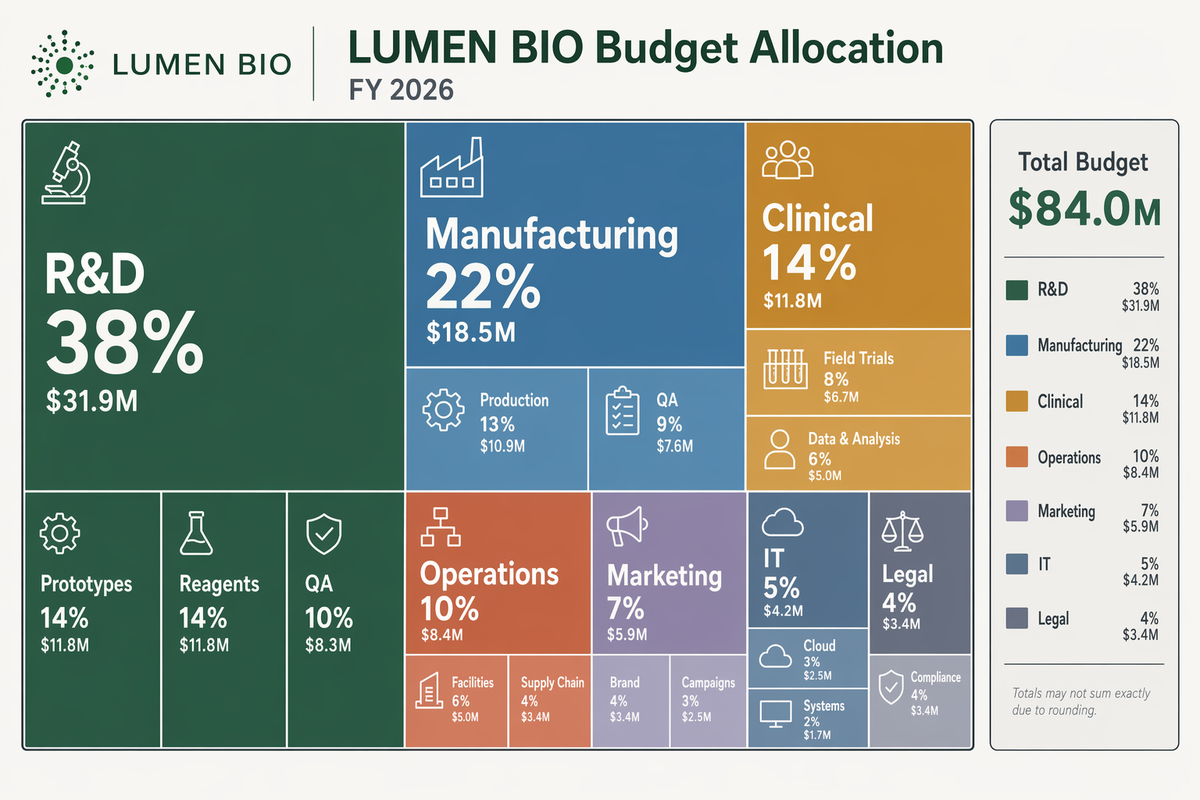
Design a modern treemap infographic showing a fictional company budget allocation for LUMEN BIO in fiscal year 2026. Use a light neutral background and a controlled palette of forest green, desaturated blue, amber, terracotta, lavender-gray, and charcoal outlines. The composition should be a clean rectangular treemap with strong visual grouping and crisp typography. Include a header with the in-image text "LUMEN BIO Budget Allocation" and "FY 2026". Major blocks should be labeled "R&D 38%", "Manufacturing 22%", "Clinical 14%", "Operations 10%", "Marketing 7%", "IT 5%", and "Legal 4%". Within some blocks, add smaller labels like "Prototypes", "Reagents", "QA", "Cloud", and "Field Trials". Include a compact side legend reading "Total Budget $84.0M". Ensure the chart has precise edges, balanced annotation density, clean hierarchy, and sharp text rendering suitable for a technical gallery prompt.
Category
Charts & Infographics
Model
GPT Image 2
Creator
wuyoscar
Views1
Source ID
110

Guide

About "Treemap Budget Allocation"

What is this prompt for?

"Treemap Budget Allocation" AI image prompt for GPT Image 2 (Charts & Infographics). Design a modern treemap infographic showing a fictional company budget all…

The full copyable prompt and example visuals above are ready for AI image generation or one-click recreate in Picva.

How to use this prompt

  1. Step 1

    Open the prompt detail

    Review the example visuals, category, and full prompt text for "Treemap Budget Allocation".

  2. Step 2

    Copy the prompt

    Copy the prompt body from this page, or load it directly in Studio.

  3. Step 3

    Pick a model (GPT Image 2)

    Prefer GPT Image 2. If you switch models, keep subject and composition and tweak style terms.

  4. Step 4

    Generate and export

    Recreate the look in Picva, or export into your workflow for editing and publishing.

FAQ

What is the "Treemap Budget Allocation" prompt?
It is an AI image-generation prompt for GPT Image 2 in the Charts & Infographics category. This page includes the full prompt text, example visuals, and a one-click recreate path in Picva.
How do I use this prompt to generate an image?
Copy the prompt from this page, or use Generate / Studio. Paste it into a compatible image model, or recreate the look in Picva with optional reference images.
Which model is this prompt for?
This page lists GPT Image 2. Most descriptive prompts also transfer to nearby image models such as GPT Image, Flux, or Midjourney with light style tweaks.
Can I use the result commercially?
You can usually copy the prompt for creation, but commercial use of the final image depends on the model terms, reference-image rights, and the generated content. Follow the source author and platform rules.