16

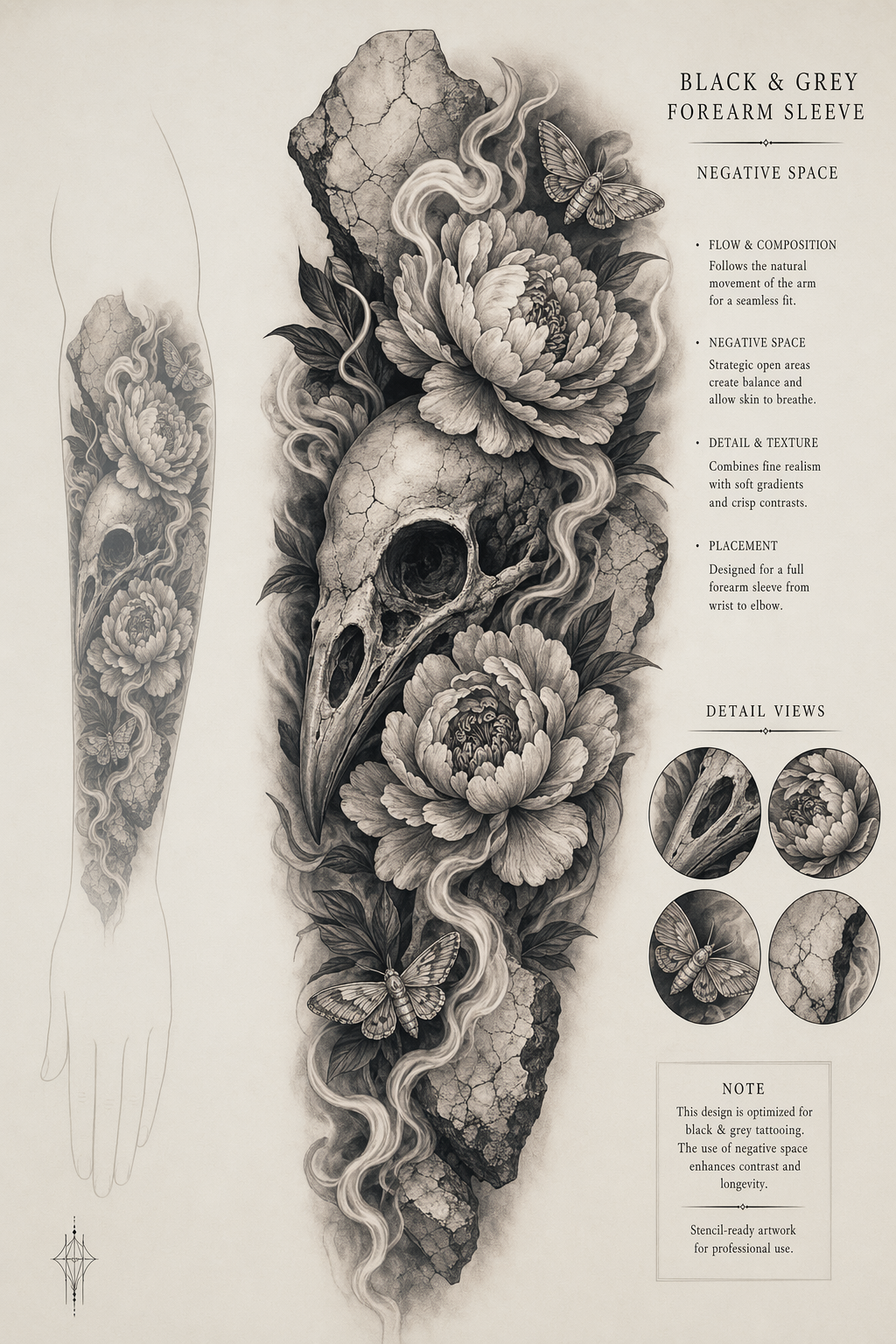
Realistic black-and-grey sleeve study
Enlarge

Realistic black-and-grey sleeve study

Prompt
Create a portrait tattoo design sheet for a realistic black-and-grey forearm sleeve. Subject: a highly detailed raven skull nested with realistic peonies, smoke ribbons, tiny moths, and cracked marble fragments. Present it as premium tattoo flash on warm off-white paper with a faint arm-placement silhouette behind the main artwork. Style: ultra-realistic tattoo shading, smooth dotwork gradients, crisp stencil-ready outlines, high contrast but not muddy, strong negative-space gaps for skin breathing room. Include small layout notes in clean text: "BLACK & GREY" / "FOREARM SLEEVE" / "NEGATIVE SPACE". No gore, no body horror, no brand logos, no actual person, no photorealistic skin photo; make it a professional tattoo design presentation.
Category
Illustration & Art
Model
GPT Image 2
Creator
wuyoscar
Views2
Source ID
157

Guide

About "Realistic black-and-grey sleeve study"

What is this prompt for?

"Realistic black-and-grey sleeve study" AI image prompt for GPT Image 2 (Illustration & Art). Create a portrait tattoo design sheet for a realistic black-and-g…

The full copyable prompt and example visuals above are ready for AI image generation or one-click recreate in Picva.

How to use this prompt

  1. Step 1

    Open the prompt detail

    Review the example visuals, category, and full prompt text for "Realistic black-and-grey sleeve study".

  2. Step 2

    Copy the prompt

    Copy the prompt body from this page, or load it directly in Studio.

  3. Step 3

    Pick a model (GPT Image 2)

    Prefer GPT Image 2. If you switch models, keep subject and composition and tweak style terms.

  4. Step 4

    Generate and export

    Recreate the look in Picva, or export into your workflow for editing and publishing.

FAQ

What is the "Realistic black-and-grey sleeve study" prompt?
It is an AI image-generation prompt for GPT Image 2 in the Illustration & Art category. This page includes the full prompt text, example visuals, and a one-click recreate path in Picva.
How do I use this prompt to generate an image?
Copy the prompt from this page, or use Generate / Studio. Paste it into a compatible image model, or recreate the look in Picva with optional reference images.
Which model is this prompt for?
This page lists GPT Image 2. Most descriptive prompts also transfer to nearby image models such as GPT Image, Flux, or Midjourney with light style tweaks.
Can I use the result commercially?
You can usually copy the prompt for creation, but commercial use of the final image depends on the model terms, reference-image rights, and the generated content. Follow the source author and platform rules.