浅色模式 UI 设计系统项目
Prompt
{
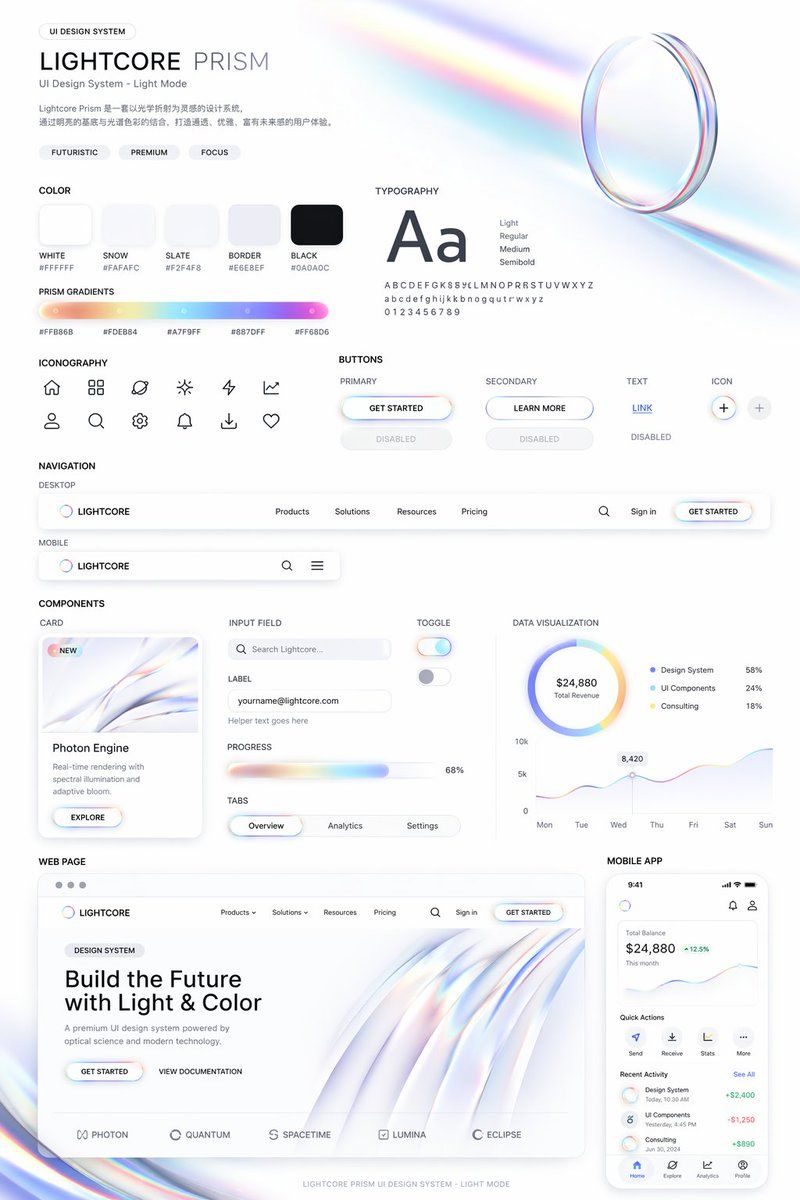
  "type": "UI Design System presentation board",
  "theme": "{argument name=\"visual theme\" default=\"optical science and light refraction\"}",
  "overall_aesthetic": "clean white background, light mode, futuristic, premium, featuring {argument name=\"primary gradient colors\" default=\"iridescent rainbow, pastel orange, yellow, cyan, purple, pink\"} accents",
  "header": {
    "title": "{argument name=\"system name\" default=\"LIGHTCORE PRISM\"}",
    "subtitle": "UI Design System - Light Mode",
    "tags": ["FUTURISTIC", "PREMIUM", "FOCUS"],
    "hero_graphic": "3D transparent glass ring refracting iridescent light"
  },
  "layout": {
    "sections": [
      {
        "title": "COLOR",
        "count": 5,
        "labels": ["WHITE #FFFFFF", "SNOW #FAFAFC", "SLATE #F2F4F8", "BORDER #E6E8EF", "BLACK #0A0A0C"],
        "description": "5 solid color swatches in rounded squares"
      },
      {
        "title": "PRISM GRADIENTS",
        "count": 1,
        "description": "1 long horizontal gradient bar with 5 hex codes below it"
      },
      {
        "title": "TYPOGRAPHY",
        "description": "Large 'Aa' with 4 font weights listed (Light, Regular, Medium, Semibold) and full alphabet/numbers"
      },
      {
        "title": "ICONOGRAPHY",
        "count": 12,
        "description": "12 minimalist line-art icons arranged in a 2x6 grid"
      },
      {
        "title": "BUTTONS",
        "count": 8,
        "categories": ["PRIMARY", "SECONDARY", "TEXT", "ICON"],
        "description": "8 total buttons showing normal and disabled states for each category. Primary button features an iridescent border and {argument name=\"primary button text\" default=\"GET STARTED\"} text."
      },
      {
        "title": "NAVIGATION",
        "count": 2,
        "variants": ["DESKTOP", "MOBILE"],
        "description": "Desktop nav has logo, 4 text links, search, sign in, and a button. Mobile nav has logo, search, and hamburger menu."
      },
      {
        "title": "COMPONENTS",
        "count": 6,
        "items": [
          "CARD: 'Photon Engine' with abstract iridescent graphic and button",
          "INPUT FIELD: Search bar and email input with label",
          "PROGRESS: Iridescent progress bar at 68%",
          "TABS: Overview, Analytics, Settings",
          "TOGGLE: 2 switches (on/off)",
          "DATA VISUALIZATION: 1 donut chart with 3 legend items, 1 line chart over 7 days"
        ]
      },
      {
        "title": "WEB PAGE",
        "description": "Desktop browser mockup featuring the header '{argument name=\"hero headline\" default=\"Build the Future with Light & Color\"}', 2 buttons, a flowing 3D iridescent wave graphic, and 5 partner logos at the bottom."
      },
      {
        "title": "MOBILE APP",
        "description": "Smartphone mockup displaying a balance of $24,880, a line chart, 4 quick action icons, a recent activity list with 3 items, and a bottom navigation bar with 4 icons."
      }
    ]
  }
}- Category
- Charts & Infographics
- Model
- GPT Image 2
- Creator
- cheaty
- Source ID
- 13507
- Published
- Apr 19, 2026
Views5