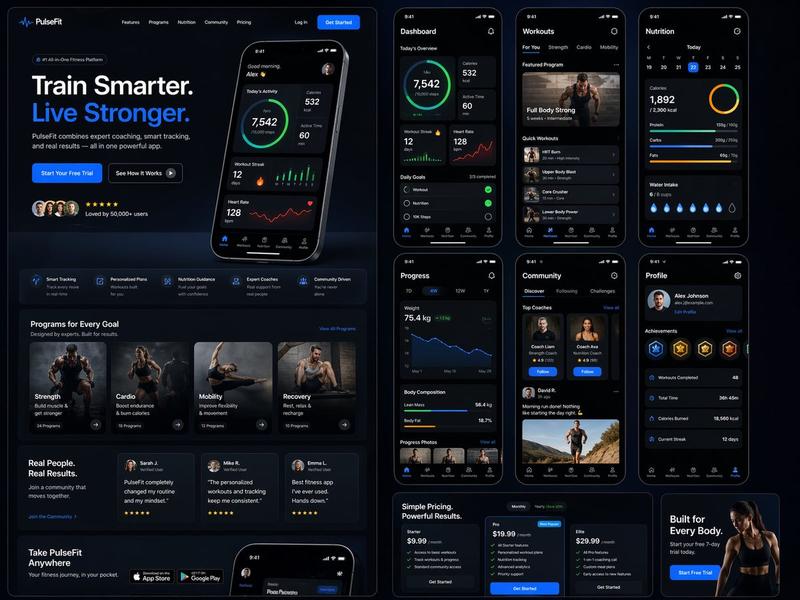
AI 图像生成器 UI 原型设计
Prompt
{
  "type": "UI/UX web application mockup",
  "theme": "dark mode",
  "sidebar": {
    "logo": "{argument name=\"app name\" default=\"ChatGPT\"}",
    "navigation_items": 5,
    "recent_chats_count": 8,
    "user_profile": "User, Free tier"
  },
  "main_content": {
    "header": "Images",
    "input_bar": {
      "placeholder": "{argument name=\"input placeholder\" default=\"Describe a new image...\"}",
      "model_selector": "{argument name=\"model name\" default=\"GPT Image 2\"}"
    },
    "sections": [
      {
        "title": "{argument name=\"hero title\" default=\"New: GPT Image 2 is here!\"}",
        "description": "Our next-generation image model, built for greater realism, better typography, and deeper world knowledge.",
        "feature_tags_count": 4,
        "hero_images_count": 3,
        "hero_images_descriptions": ["mountain lake landscape", "neon cyberpunk street", "typography poster"]
      },
      {
        "title": "Apply a style to an image",
        "style_thumbnails_count": 8,
        "style_labels": ["Anime", "Oil painting", "Cinematic", "3D render", "Line art", "Pixel art", "Watercolor", "Cyberpunk"]
      },
      {
        "title": "Discover new features",
        "feature_cards_count": 6,
        "feature_labels": ["Advanced text rendering", "Consistent characters & scenes", "Higher realism", "World knowledge", "Precise editing", "More creative styles"]
      },
      {
        "title": "My images",
        "recent_images_count": 6,
        "recent_images_descriptions": ["anime boy portrait", "tabby kitten", "tabby kitten", "sleeping white arctic fox", "wedding invitation", "code editor terminal"]
      }
    ]
  }
}- Category
- Charts & Infographics
- Model
- GPT Image 2
- Creator
- Raphi-2Code
- Source ID
- 13627
- Published
- Apr 14, 2026
Views4