18

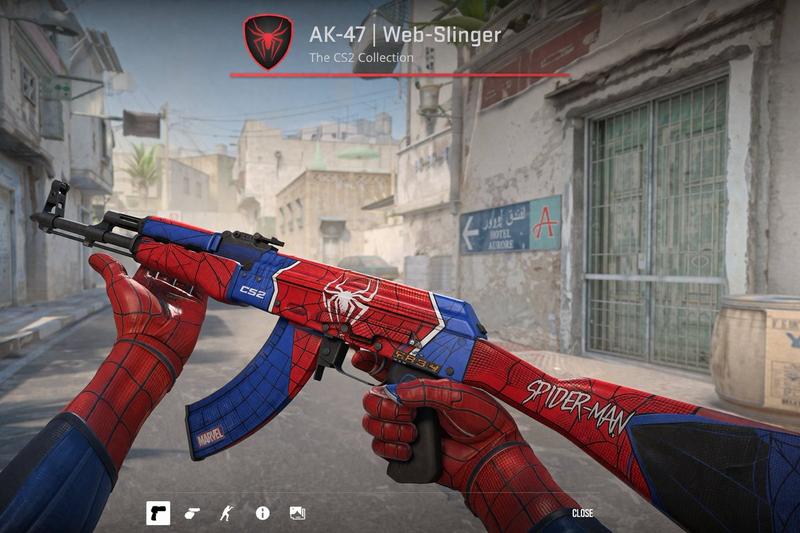
FPS 自定义武器皮肤截图
Enlarge

FPS 自定义武器皮肤截图

Prompt
First-person perspective video game screenshot showing hands wearing {argument name="glove style" default="Spider-Man suit"} gloves holding an AK-47 assault rifle. The weapon features a custom {argument name="weapon theme" default="Spider-Man"} skin with a red and blue color scheme, black webbing patterns, a white spider emblem on the receiver, "CS2" on the handguard, "MARVEL" on the magazine, and "SPIDER-MAN" on the stock. The background is a dusty Middle Eastern town street resembling a tactical shooter map, featuring a sign reading "HOTEL AURORE" with an arrow pointing to "A". The top center UI displays a red shield with a black spider, the text "{argument name="weapon title" default="AK-47 | Web-Slinger"}", and "The CS2 Collection" above a red line. The bottom UI features exactly 5 minimalist white icons on the left and the word "CLOSE" on the right.
Category
Charts & Infographics
Model
GPT Image 2
Views8
Source ID
14081
Published
Apr 15, 2026

Guide

About "FPS 自定义武器皮肤截图"

What is this prompt for?

"FPS 自定义武器皮肤截图" AI image prompt for GPT Image 2 (Charts & Infographics). 生成带有游戏 UI 叠加层和战术地图背景的自定义武器皮肤第一人称射击视角截图。 Copy it on Picva and recreate the look in one…

The full copyable prompt and example visuals above are ready for AI image generation or one-click recreate in Picva.

How to use this prompt

  1. Step 1

    Open the prompt detail

    Review the example visuals, category, and full prompt text for "FPS 自定义武器皮肤截图".

  2. Step 2

    Copy the prompt

    Copy the prompt body from this page, or load it directly in Studio.

  3. Step 3

    Pick a model (GPT Image 2)

    Prefer GPT Image 2. If you switch models, keep subject and composition and tweak style terms.

  4. Step 4

    Generate and export

    Recreate the look in Picva, or export into your workflow for editing and publishing.

FAQ

What is the "FPS 自定义武器皮肤截图" prompt?
It is an AI image-generation prompt for GPT Image 2 in the Charts & Infographics category. This page includes the full prompt text, example visuals, and a one-click recreate path in Picva.
How do I use this prompt to generate an image?
Copy the prompt from this page, or use Generate / Studio. Paste it into a compatible image model, or recreate the look in Picva with optional reference images.
Which model is this prompt for?
This page lists GPT Image 2. Most descriptive prompts also transfer to nearby image models such as GPT Image, Flux, or Midjourney with light style tweaks.
Can I use the result commercially?
You can usually copy the prompt for creation, but commercial use of the final image depends on the model terms, reference-image rights, and the generated content. Follow the source author and platform rules.