18

动态阿波舞夜景
Enlarge

动态阿波舞夜景

Prompt
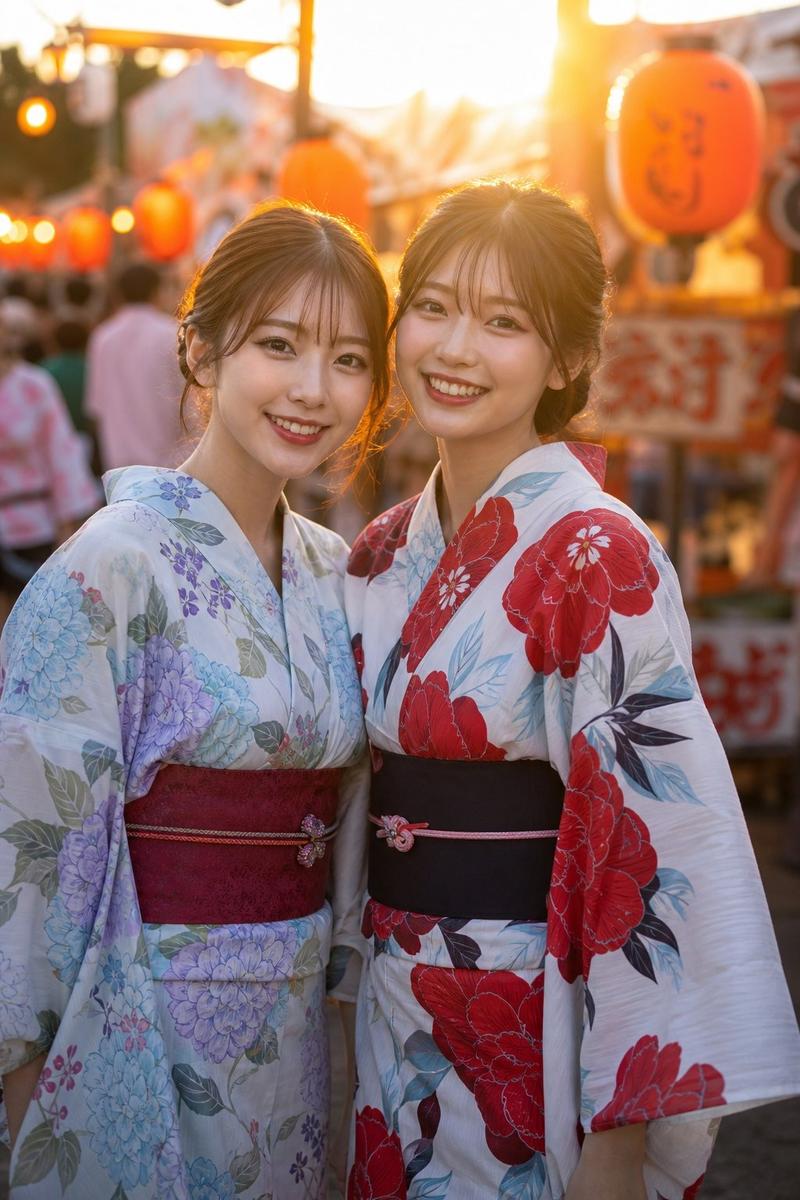
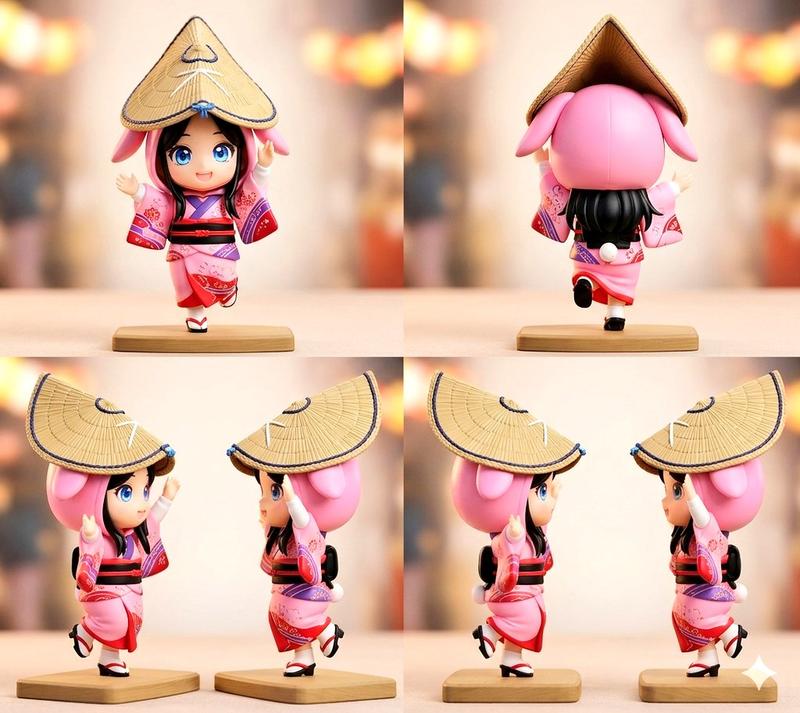
Using the provided reference image, transform the front-center dancer into a more dynamic, cinematic Awa Odori festival scene at night. Keep the same pink kimono, amigasa hat, and overall festival identity, but push the pose into active mid-dance motion with one leg stepping forward, the skirt and sleeves swirling, and both arms raised expressively. Recompose the image into a tighter, lower-angle street-level shot centered on the lead dancer, with additional dancers in matching formation behind her for depth and movement. Change the setting from the wide parade crowd to a lantern-lit festival street with warm glowing paper lanterns, illuminated stalls, and visible vertical signage including Japanese text reading "阿波おどり". Emphasize motion, energy, and warm nighttime atmosphere, with vivid lighting, shallow depth of field, and a polished photoreal festival look.
Category
Posters & Typography
Model
GPT Image 2
Views1
Source ID
16052
Published
Apr 25, 2026

Guide

About "动态阿波舞夜景"

What is this prompt for?

"动态阿波舞夜景" AI image prompt for GPT Image 2 (Posters & Typography). 此提示词可将参考的游行照片转换为更具活力的夜间阿波舞场景,适用于从静态素材创作电影质感的节日视觉效果。 Copy it on Picva and recreate the look in…

The full copyable prompt and example visuals above are ready for AI image generation or one-click recreate in Picva.

How to use this prompt

  1. Step 1

    Open the prompt detail

    Review the example visuals, category, and full prompt text for "动态阿波舞夜景".

  2. Step 2

    Copy the prompt

    Copy the prompt body from this page, or load it directly in Studio.

  3. Step 3

    Pick a model (GPT Image 2)

    Prefer GPT Image 2. If you switch models, keep subject and composition and tweak style terms.

  4. Step 4

    Generate and export

    Recreate the look in Picva, or export into your workflow for editing and publishing.

FAQ

What is the "动态阿波舞夜景" prompt?
It is an AI image-generation prompt for GPT Image 2 in the Posters & Typography category. This page includes the full prompt text, example visuals, and a one-click recreate path in Picva.
How do I use this prompt to generate an image?
Copy the prompt from this page, or use Generate / Studio. Paste it into a compatible image model, or recreate the look in Picva with optional reference images.
Which model is this prompt for?
This page lists GPT Image 2. Most descriptive prompts also transfer to nearby image models such as GPT Image, Flux, or Midjourney with light style tweaks.
Can I use the result commercially?
You can usually copy the prompt for creation, but commercial use of the final image depends on the model terms, reference-image rights, and the generated content. Follow the source author and platform rules.