18

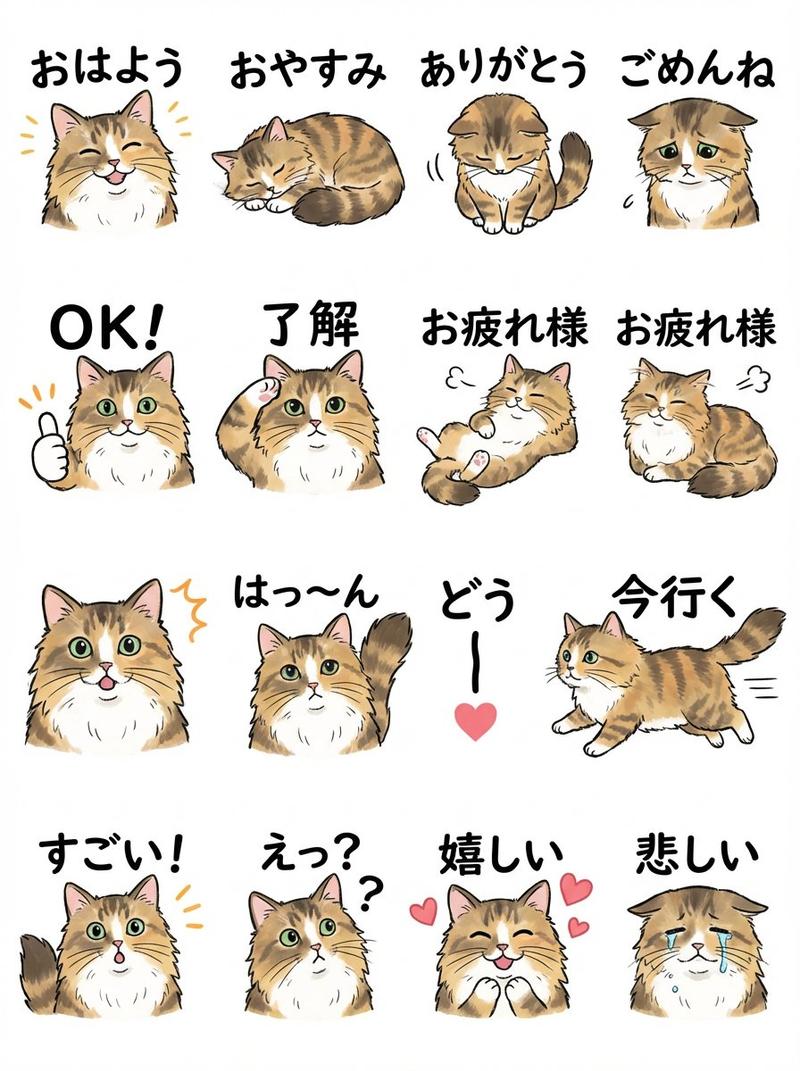
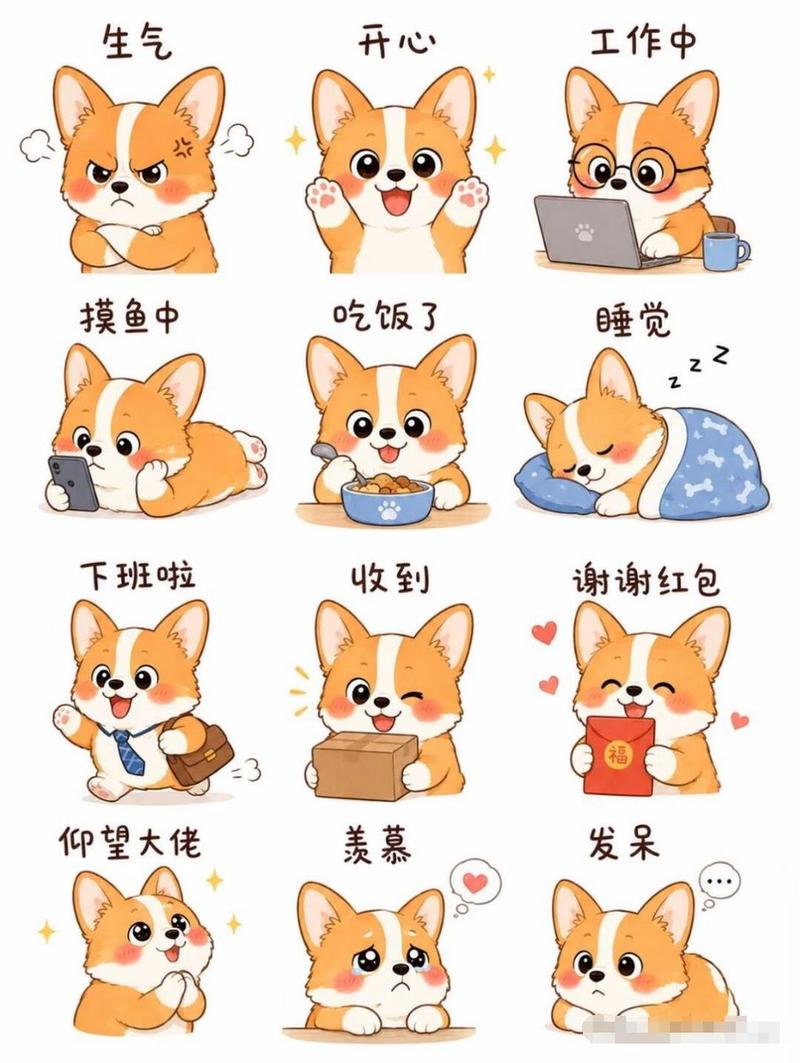
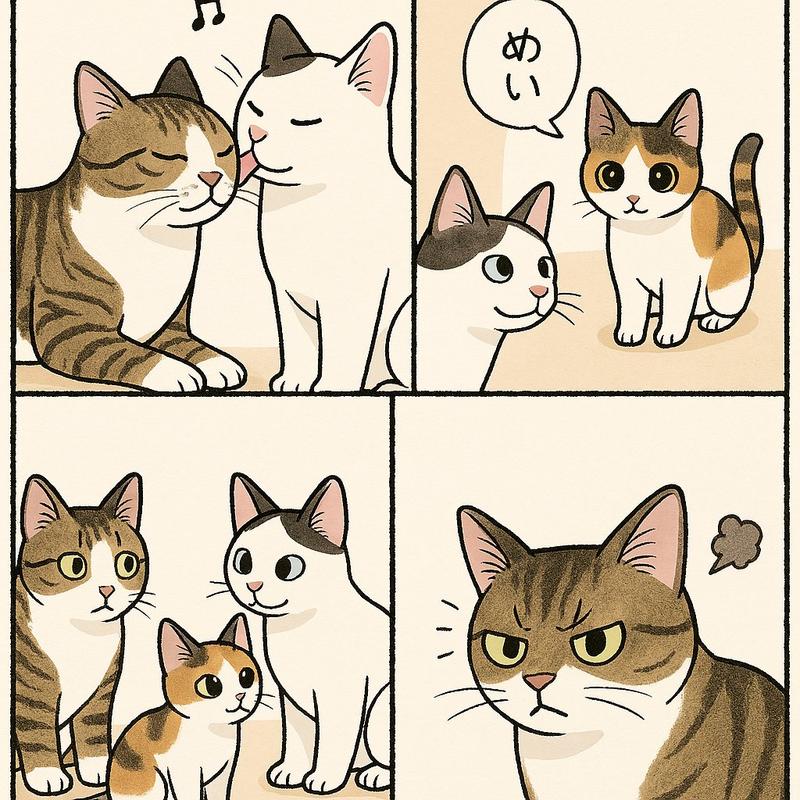
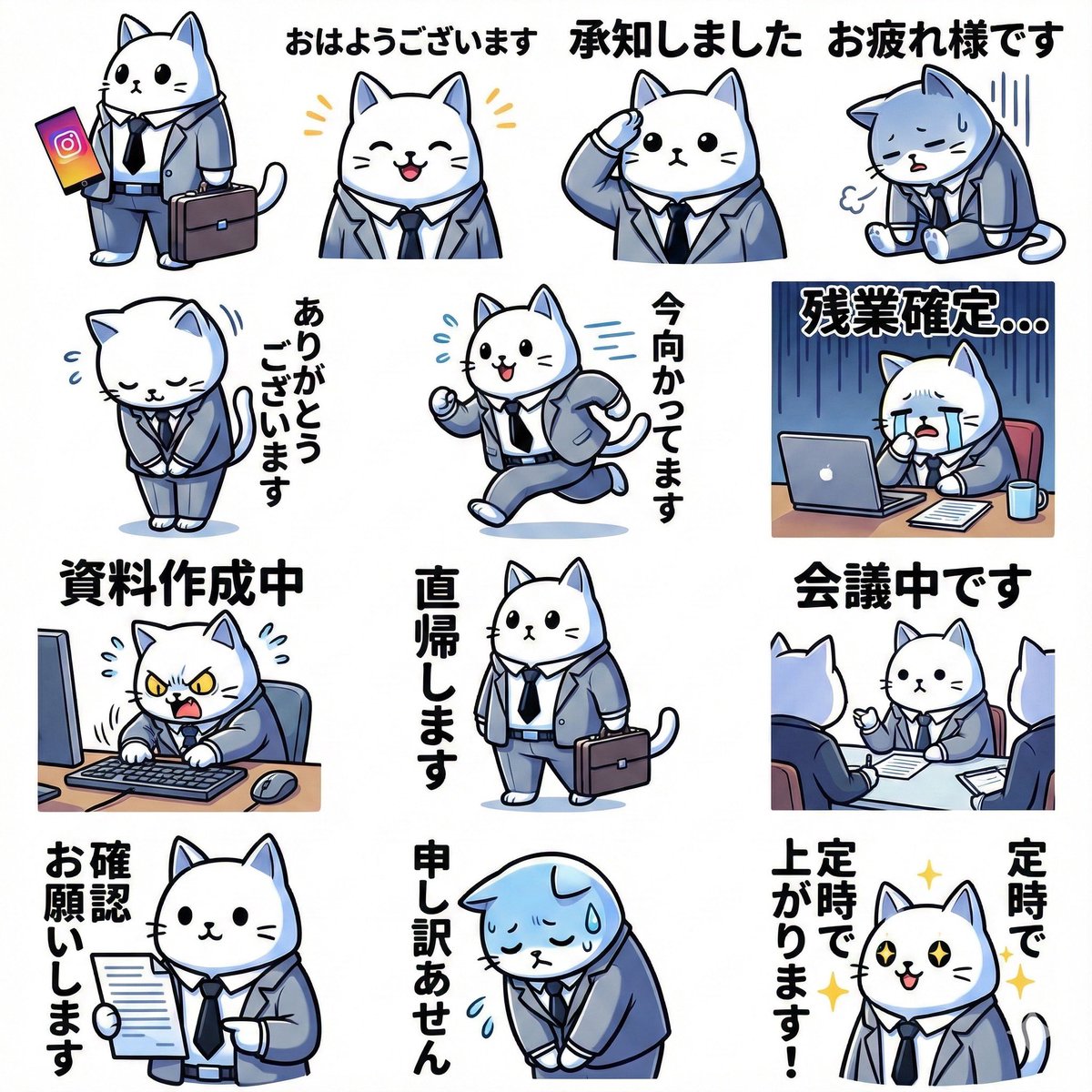
卡通贴纸生成器
Enlarge

卡通贴纸生成器

Prompt
2x2 sticker grid, {argument name="subject" default="chubby orange tabby cat hero"}, die-cut outline, bold black line art, flat colors, white bg, 4 poses with captions: Monday Again / Send Help / Too Cute / Nap Time. 9:16.
Category
Brand & Logos
Model
GPT Image 2
Views5
Source ID
16828
Published
Apr 28, 2026

Guide

About "卡通贴纸生成器"

What is this prompt for?

"卡通贴纸生成器" AI image prompt for GPT Image 2 (Brand & Logos). 创建 2x2 网格的卡通角色贴纸,具有粗轮廓和扁平配色,适合制作自定义贴纸包。 Copy it on Picva and recreate the look in one click.

The full copyable prompt and example visuals above are ready for AI image generation or one-click recreate in Picva.

How to use this prompt

  1. Step 1

    Open the prompt detail

    Review the example visuals, category, and full prompt text for "卡通贴纸生成器".

  2. Step 2

    Copy the prompt

    Copy the prompt body from this page, or load it directly in Studio.

  3. Step 3

    Pick a model (GPT Image 2)

    Prefer GPT Image 2. If you switch models, keep subject and composition and tweak style terms.

  4. Step 4

    Generate and export

    Recreate the look in Picva, or export into your workflow for editing and publishing.

FAQ

What is the "卡通贴纸生成器" prompt?
It is an AI image-generation prompt for GPT Image 2 in the Brand & Logos category. This page includes the full prompt text, example visuals, and a one-click recreate path in Picva.
How do I use this prompt to generate an image?
Copy the prompt from this page, or use Generate / Studio. Paste it into a compatible image model, or recreate the look in Picva with optional reference images.
Which model is this prompt for?
This page lists GPT Image 2. Most descriptive prompts also transfer to nearby image models such as GPT Image, Flux, or Midjourney with light style tweaks.
Can I use the result commercially?
You can usually copy the prompt for creation, but commercial use of the final image depends on the model terms, reference-image rights, and the generated content. Follow the source author and platform rules.