16

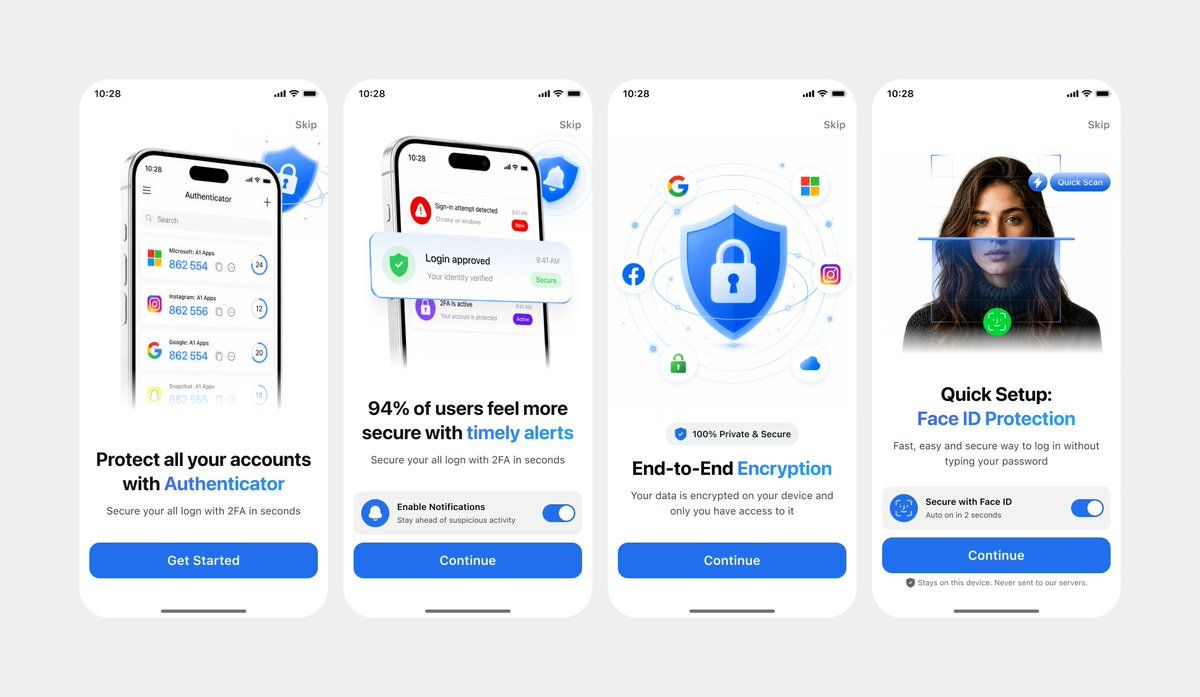
简洁的 Authenticator 入门引导 UI
Enlarge

简洁的 Authenticator 入门引导 UI

Prompt
Using REFERENCE_1 as the primary UI reference and REFERENCE_0 only for the darker variant details if needed, recreate the mobile onboarding flow as a clean, front-facing design mockup instead of a photographed laptop screen. Extract and straighten the four iPhone-style screens, remove all camera perspective, glare, browser chrome, laptop edges, and surrounding environment, and place the screens evenly spaced on a light gray canvas. Keep the same white/light theme, rounded phone cards, blue security branding, typography hierarchy, icons, illustrations, and CTA style. Produce exactly 4 onboarding screens from left to right: 1) authenticator accounts list with headline “Protect all your accounts with Authenticator” and CTA “Get Started”; 2) security alert notifications with headline “94% of users feel more secure with timely alerts” and CTA “Continue”; 3) shield/lock encryption illustration with headline “End-to-End Encryption” and CTA “Continue”; 4) Face ID quick setup with the portrait/scan graphic, headline “Quick Setup: Face ID Protection”, secure Face ID toggle card, small privacy note, and CTA “Continue”. Use {argument name="primary color" default="bright blue"} as the main accent color, keep the app name as {argument name="app name" default="Authenticator"}, and keep the status time as {argument name="status time" default="10:28"}. Make the result look like a polished Figma export/product presentation, crisp and high resolution, with no real-world photo artifacts.
Category
Charts & Infographics
Model
GPT Image 2
Creator
Soumyadip
Views4
Source ID
19294
Published
May 9, 2026

Guide

About "简洁的 Authenticator 入门引导 UI"

What is this prompt for?

"简洁的 Authenticator 入门引导 UI" AI image prompt for GPT Image 2 (Charts & Infographics). 根据拍摄的 UI 参考图,生成精美的四屏移动端 Authenticator 入门引导模型,适用于应用演示或设计迭代。 Copy it on Picv…

The full copyable prompt and example visuals above are ready for AI image generation or one-click recreate in Picva.

How to use this prompt

  1. Step 1

    Open the prompt detail

    Review the example visuals, category, and full prompt text for "简洁的 Authenticator 入门引导 UI".

  2. Step 2

    Copy the prompt

    Copy the prompt body from this page, or load it directly in Studio.

  3. Step 3

    Pick a model (GPT Image 2)

    Prefer GPT Image 2. If you switch models, keep subject and composition and tweak style terms.

  4. Step 4

    Generate and export

    Recreate the look in Picva, or export into your workflow for editing and publishing.

FAQ

What is the "简洁的 Authenticator 入门引导 UI" prompt?
It is an AI image-generation prompt for GPT Image 2 in the Charts & Infographics category. This page includes the full prompt text, example visuals, and a one-click recreate path in Picva.
How do I use this prompt to generate an image?
Copy the prompt from this page, or use Generate / Studio. Paste it into a compatible image model, or recreate the look in Picva with optional reference images.
Which model is this prompt for?
This page lists GPT Image 2. Most descriptive prompts also transfer to nearby image models such as GPT Image, Flux, or Midjourney with light style tweaks.
Can I use the result commercially?
You can usually copy the prompt for creation, but commercial use of the final image depends on the model terms, reference-image rights, and the generated content. Follow the source author and platform rules.