16

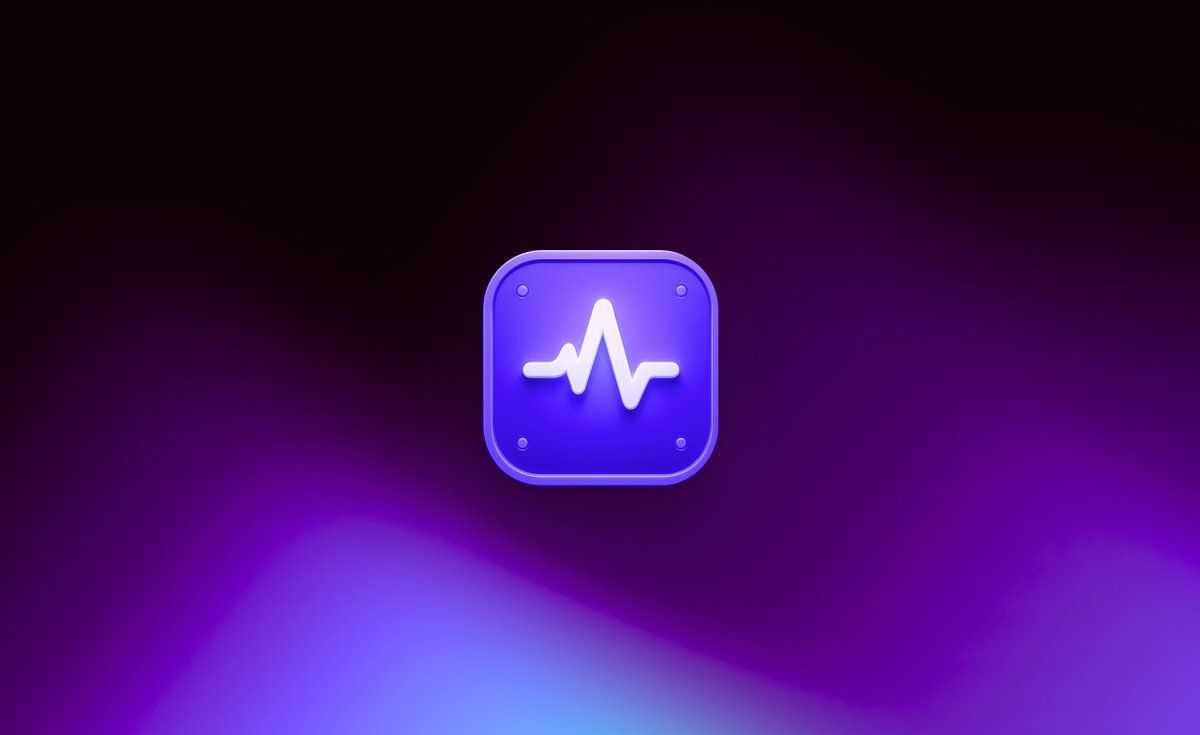
发光 3D 心跳 App 图标
Enlarge

发光 3D 心跳 App 图标

Prompt
Create a clean 3D app-icon style hero image on a wide 16:9 canvas. Center a single floating rounded-square icon with glossy beveled edges, colored {argument name="icon color" default="electric violet blue"}, with a subtle translucent rim, soft inner highlights, and four tiny circular screw-like dots near the rounded corners. On the face of the icon place a raised glowing white heartbeat waveform symbol, thick and smooth, casting a gentle shadow on the icon surface. The icon should hover slightly above the background with a soft purple glow and drop shadow. Use a dark cinematic abstract background: nearly black at the top fading into deep purple and magenta, with blurred neon blue-violet wave shapes along the bottom edge and a faint central haze. Lighting should feel premium, futuristic, minimal, and polished, with no text, no people, no extra objects, and generous negative space around the centered icon.
Category
UI & Interfaces
Model
GPT Image 2
Creator
Milad Mo.
Views3
Source ID
19595
Published
May 10, 2026

Guide

About "发光 3D 心跳 App 图标"

What is this prompt for?

"发光 3D 心跳 App 图标" AI image prompt for GPT Image 2 (UI & Interfaces). 在深色霓虹紫抽象背景上生成精致的未来感 3D 心跳图标,适用于 App 品牌设计或首屏视觉图。 Copy it on Picva and recreate the look in…

The full copyable prompt and example visuals above are ready for AI image generation or one-click recreate in Picva.

How to use this prompt

  1. Step 1

    Open the prompt detail

    Review the example visuals, category, and full prompt text for "发光 3D 心跳 App 图标".

  2. Step 2

    Copy the prompt

    Copy the prompt body from this page, or load it directly in Studio.

  3. Step 3

    Pick a model (GPT Image 2)

    Prefer GPT Image 2. If you switch models, keep subject and composition and tweak style terms.

  4. Step 4

    Generate and export

    Recreate the look in Picva, or export into your workflow for editing and publishing.

FAQ

What is the "发光 3D 心跳 App 图标" prompt?
It is an AI image-generation prompt for GPT Image 2 in the UI & Interfaces category. This page includes the full prompt text, example visuals, and a one-click recreate path in Picva.
How do I use this prompt to generate an image?
Copy the prompt from this page, or use Generate / Studio. Paste it into a compatible image model, or recreate the look in Picva with optional reference images.
Which model is this prompt for?
This page lists GPT Image 2. Most descriptive prompts also transfer to nearby image models such as GPT Image, Flux, or Midjourney with light style tweaks.
Can I use the result commercially?
You can usually copy the prompt for creation, but commercial use of the final image depends on the model terms, reference-image rights, and the generated content. Follow the source author and platform rules.