19

21 世纪初派对照片 UI
Enlarge

21 世纪初派对照片 UI

Prompt
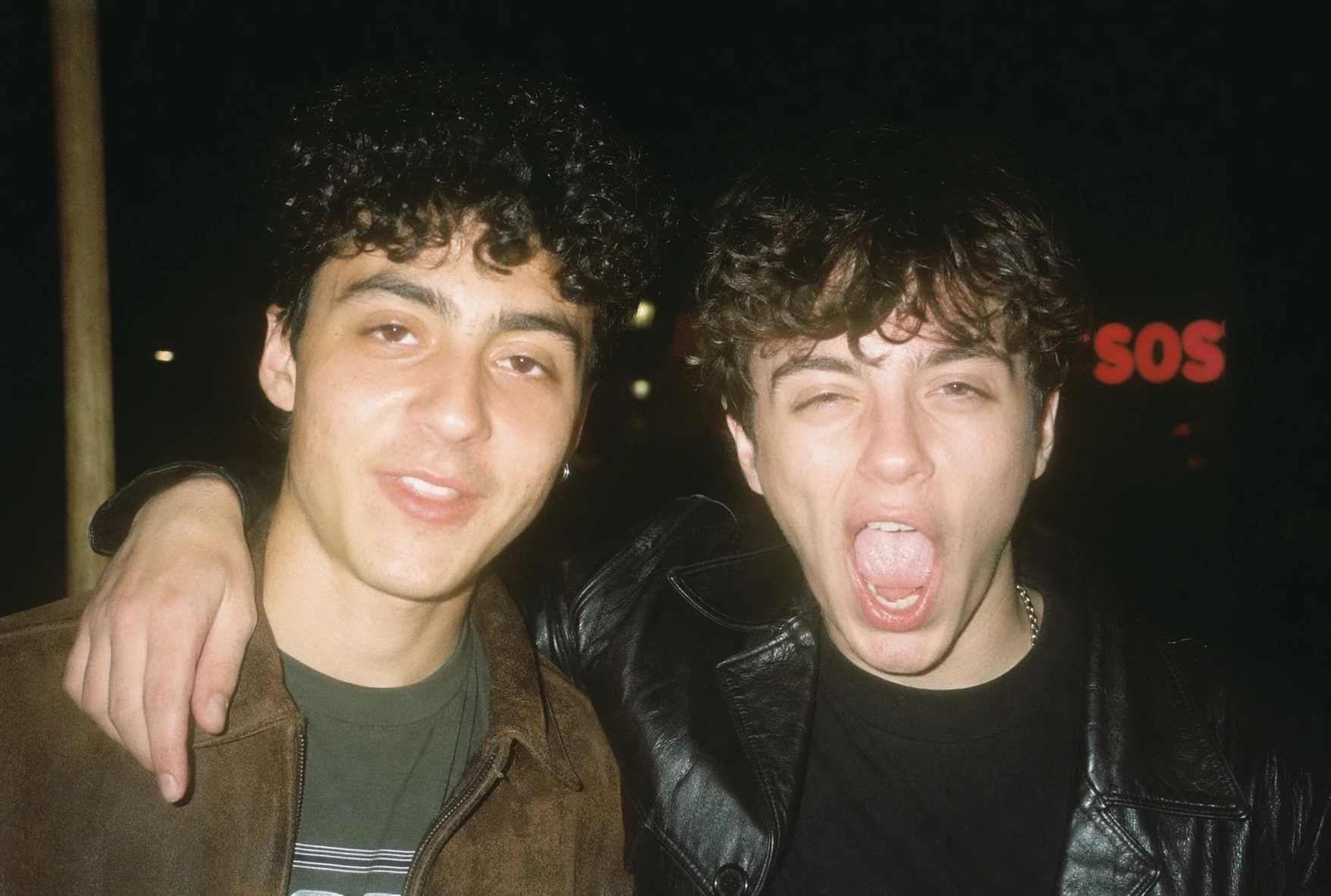
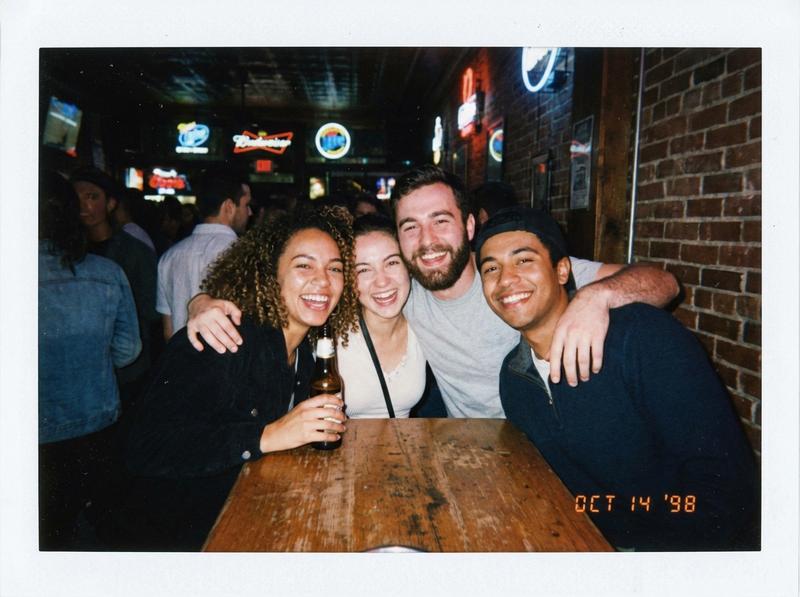
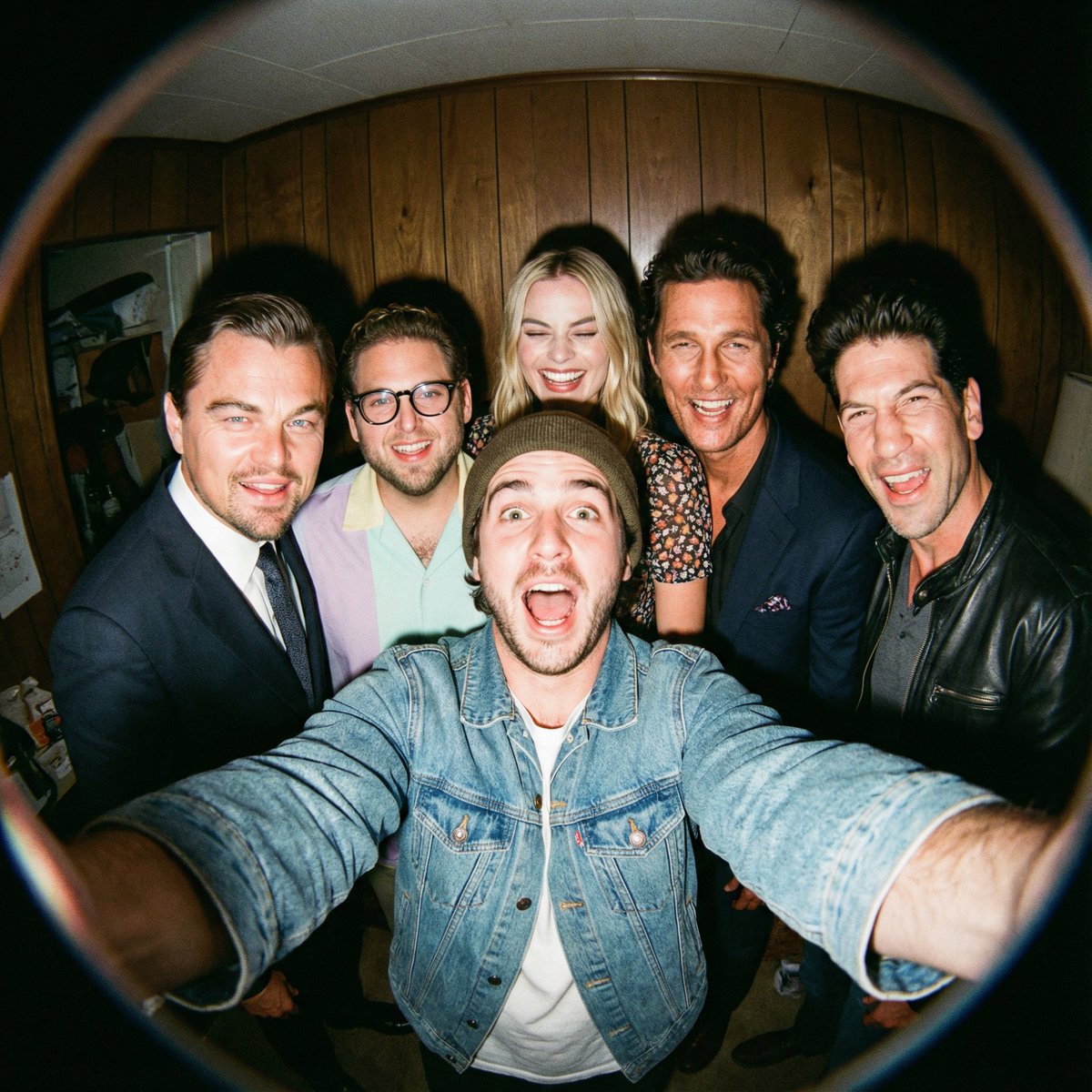
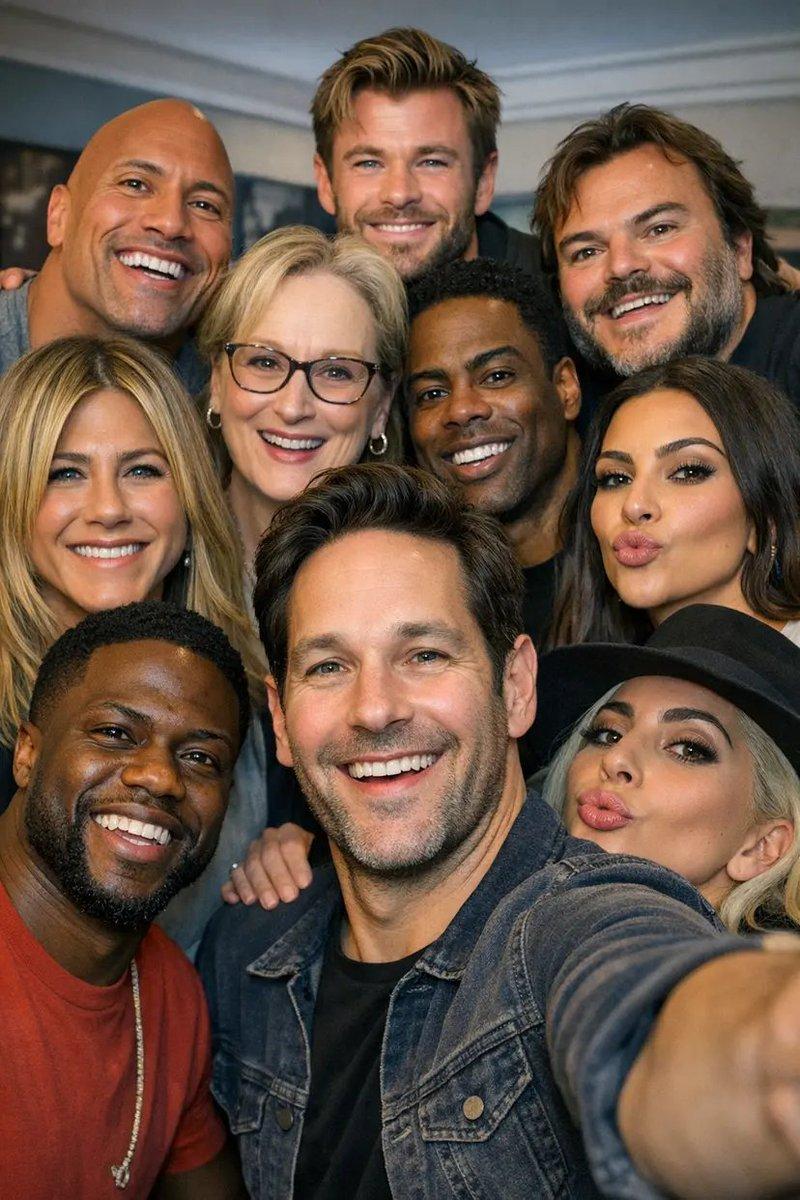
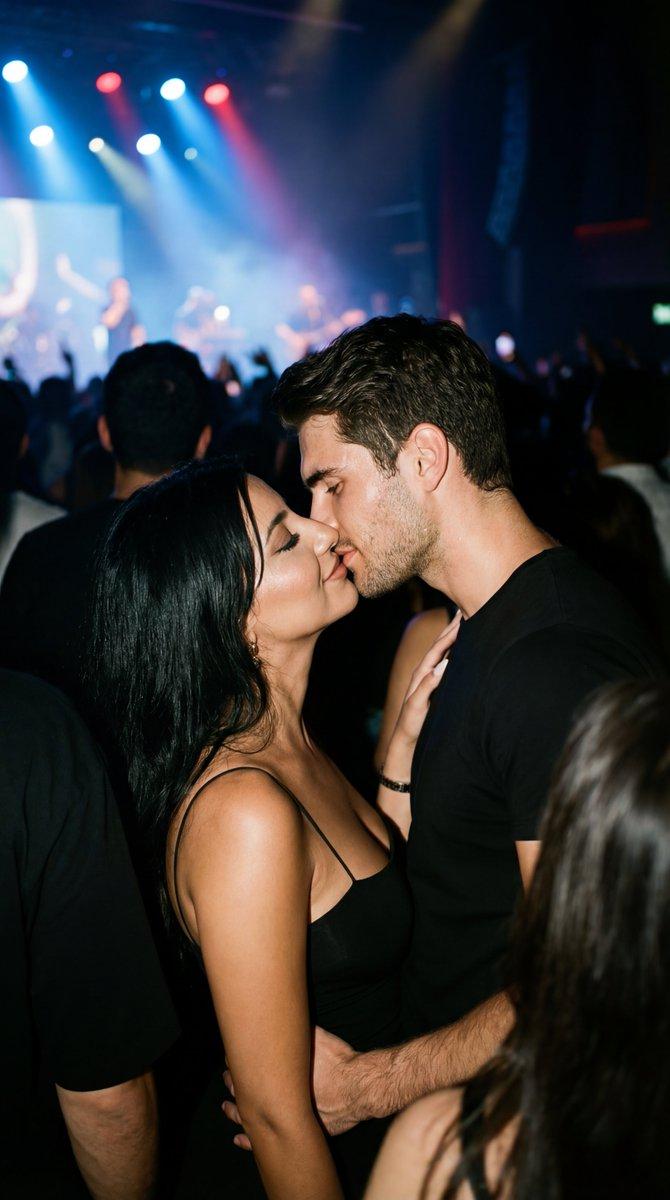
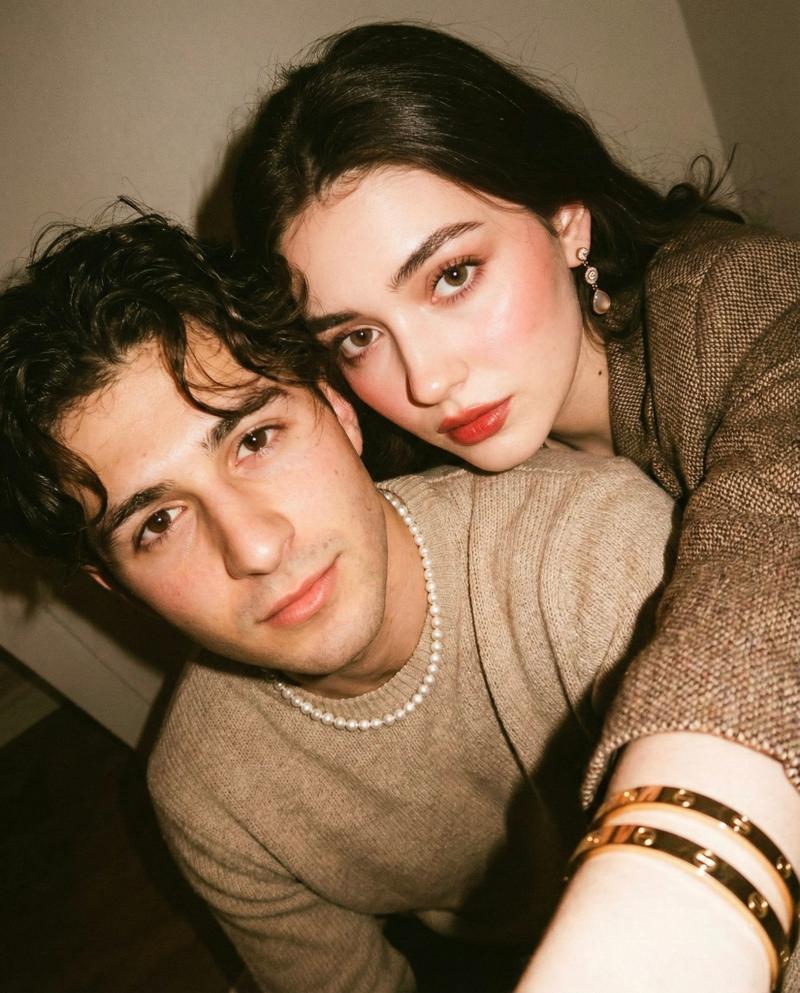
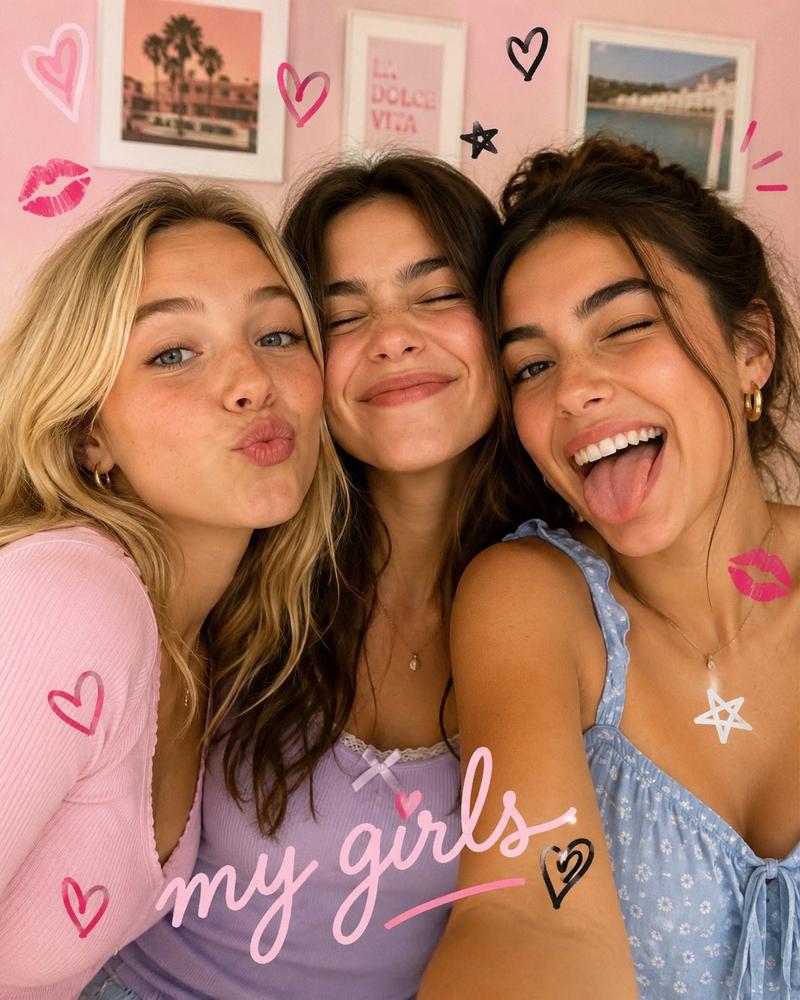
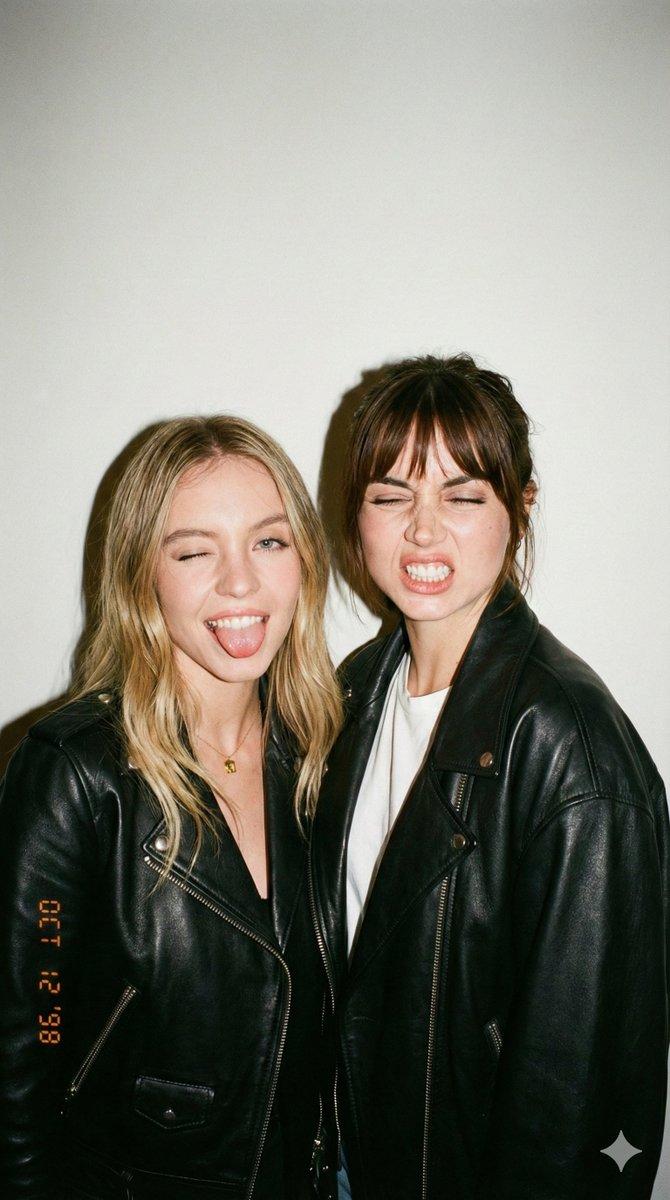
Create a nostalgic early-2000s candid point-and-shoot flash photograph of {argument name="number of friends" default="three friends"} posing close together at a casual house party against a plain beige wall. The photo should look like a low-resolution disposable-camera snapshot with harsh direct flash, warm indoor color cast, slight grain, soft focus, mild overexposure on skin, and a dark vignette. Show one blonde woman on the left wearing a brown trucker cap with a small vintage logo patch, a green tank top over a white underlayer, and jewelry; one man in the center with short spiky dark hair wearing a black Hurley-style T-shirt, arms around both friends; and one brunette woman on the right wearing a brown halter top over white lace and a turquoise pendant necklace. Obscure each face with a flat rectangular skin-tone censor block, exactly 3 censor rectangles total. Add an orange digital camera date stamp in the bottom-right reading {argument name="date stamp" default="05 14 2003"}. Below the photo, include a modern rounded white prompt input bar as if in an AI image app, containing the text {argument name="input prompt text" default="early 2000s flash photo, red eyes, friends at a house party, point-and-shoot camera"}, with a vertical cursor at the end and a circular send button on the right containing a black arrow icon. Use a landscape 16:9 composition with the photo occupying the upper portion and the UI prompt bar occupying the lower portion.
Category
Charts & Infographics
Model
GPT Image 2
Creator
zedd
Views4
Source ID
20358
Published
May 14, 2026

Guide

About "21 世纪初派对照片 UI"

What is this prompt for?

"21 世纪初派对照片 UI" AI image prompt for GPT Image 2 (Charts & Infographics). 生成一张带有面部遮挡的怀旧闪光灯派对快照,并包含用于社交媒体或应用演示视觉效果的 AI 提示词输入栏。 Copy it on Picva and recreate the…

The full copyable prompt and example visuals above are ready for AI image generation or one-click recreate in Picva.

How to use this prompt

  1. Step 1

    Open the prompt detail

    Review the example visuals, category, and full prompt text for "21 世纪初派对照片 UI".

  2. Step 2

    Copy the prompt

    Copy the prompt body from this page, or load it directly in Studio.

  3. Step 3

    Pick a model (GPT Image 2)

    Prefer GPT Image 2. If you switch models, keep subject and composition and tweak style terms.

  4. Step 4

    Generate and export

    Recreate the look in Picva, or export into your workflow for editing and publishing.

FAQ

What is the "21 世纪初派对照片 UI" prompt?
It is an AI image-generation prompt for GPT Image 2 in the Charts & Infographics category. This page includes the full prompt text, example visuals, and a one-click recreate path in Picva.
How do I use this prompt to generate an image?
Copy the prompt from this page, or use Generate / Studio. Paste it into a compatible image model, or recreate the look in Picva with optional reference images.
Which model is this prompt for?
This page lists GPT Image 2. Most descriptive prompts also transfer to nearby image models such as GPT Image, Flux, or Midjourney with light style tweaks.
Can I use the result commercially?
You can usually copy the prompt for creation, but commercial use of the final image depends on the model terms, reference-image rights, and the generated content. Follow the source author and platform rules.