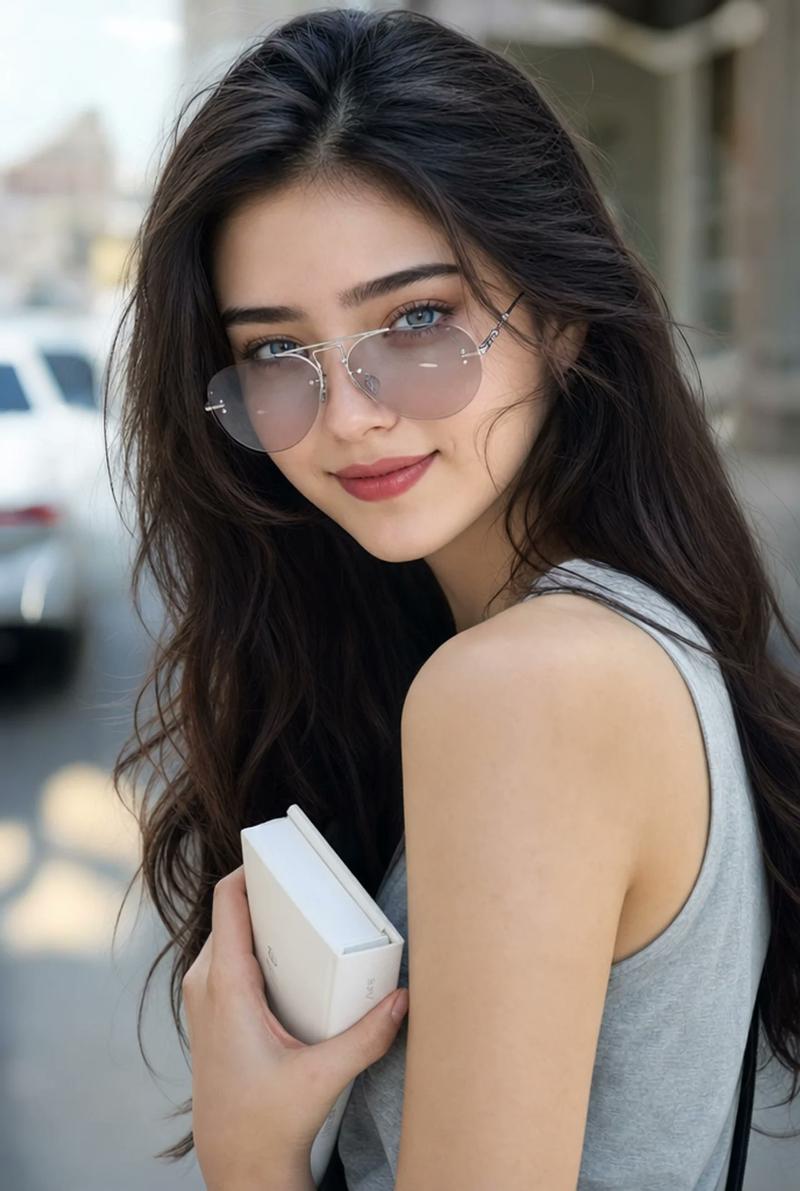
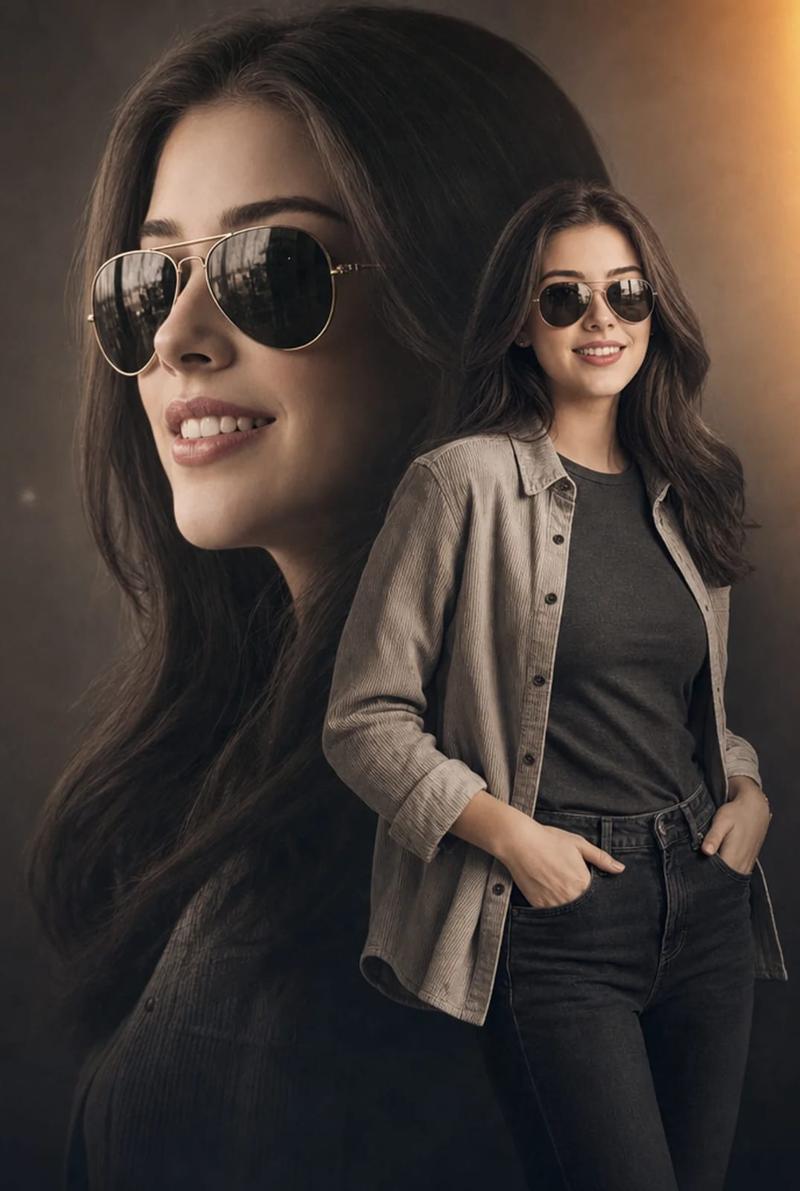
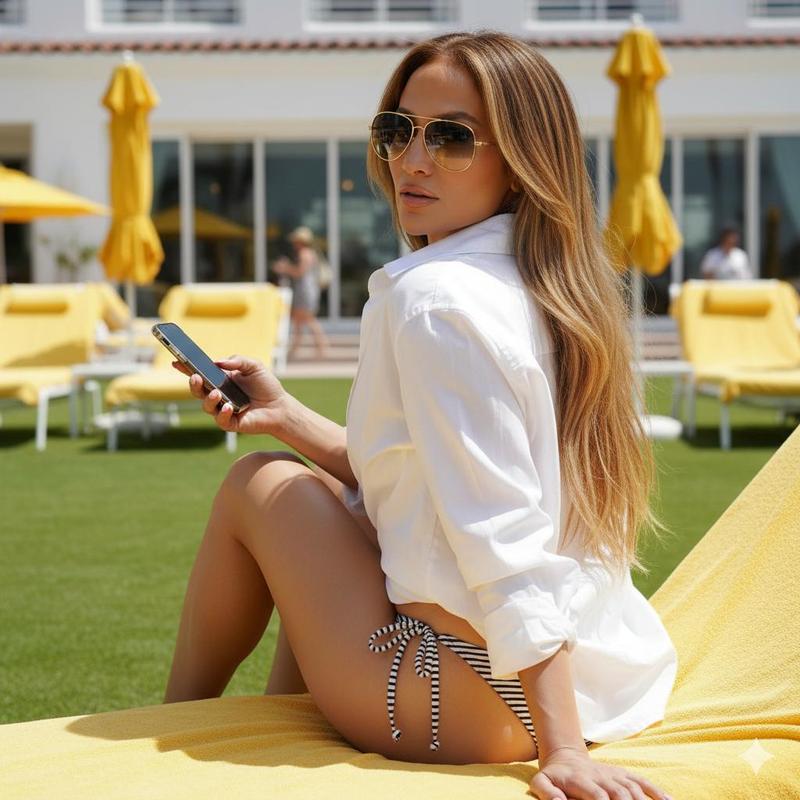
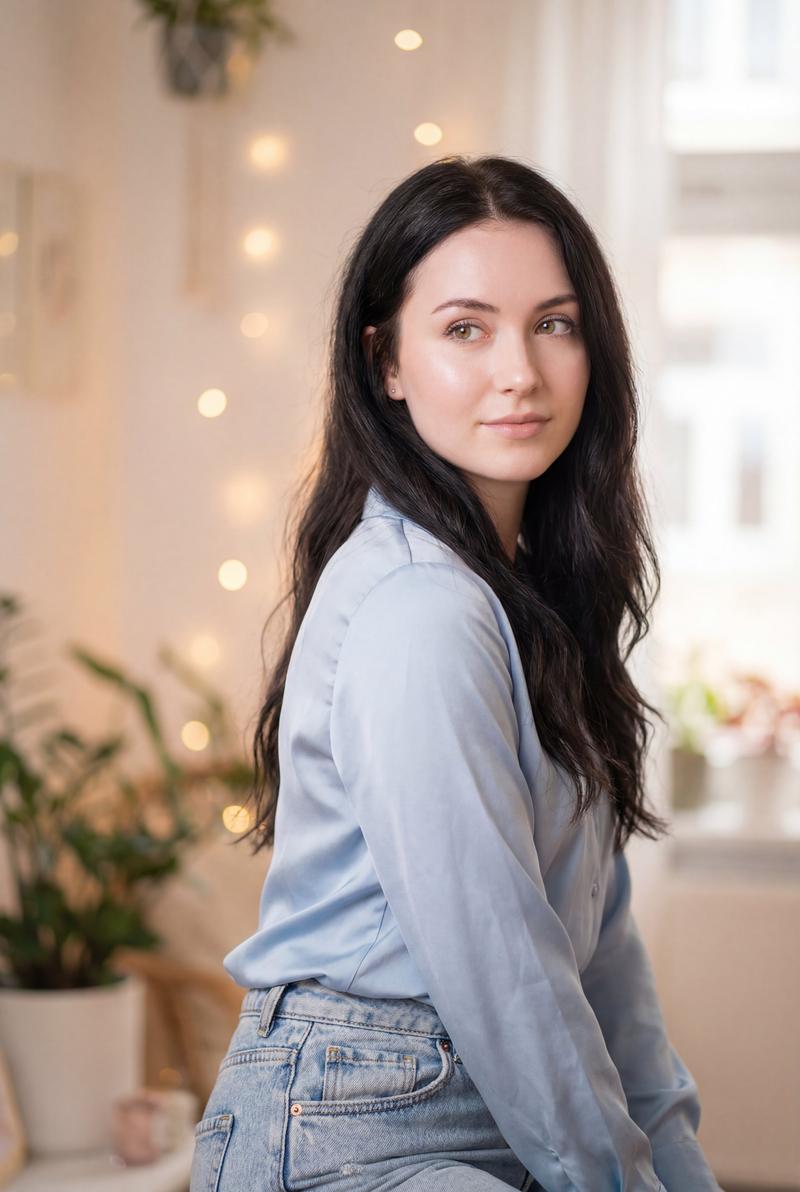
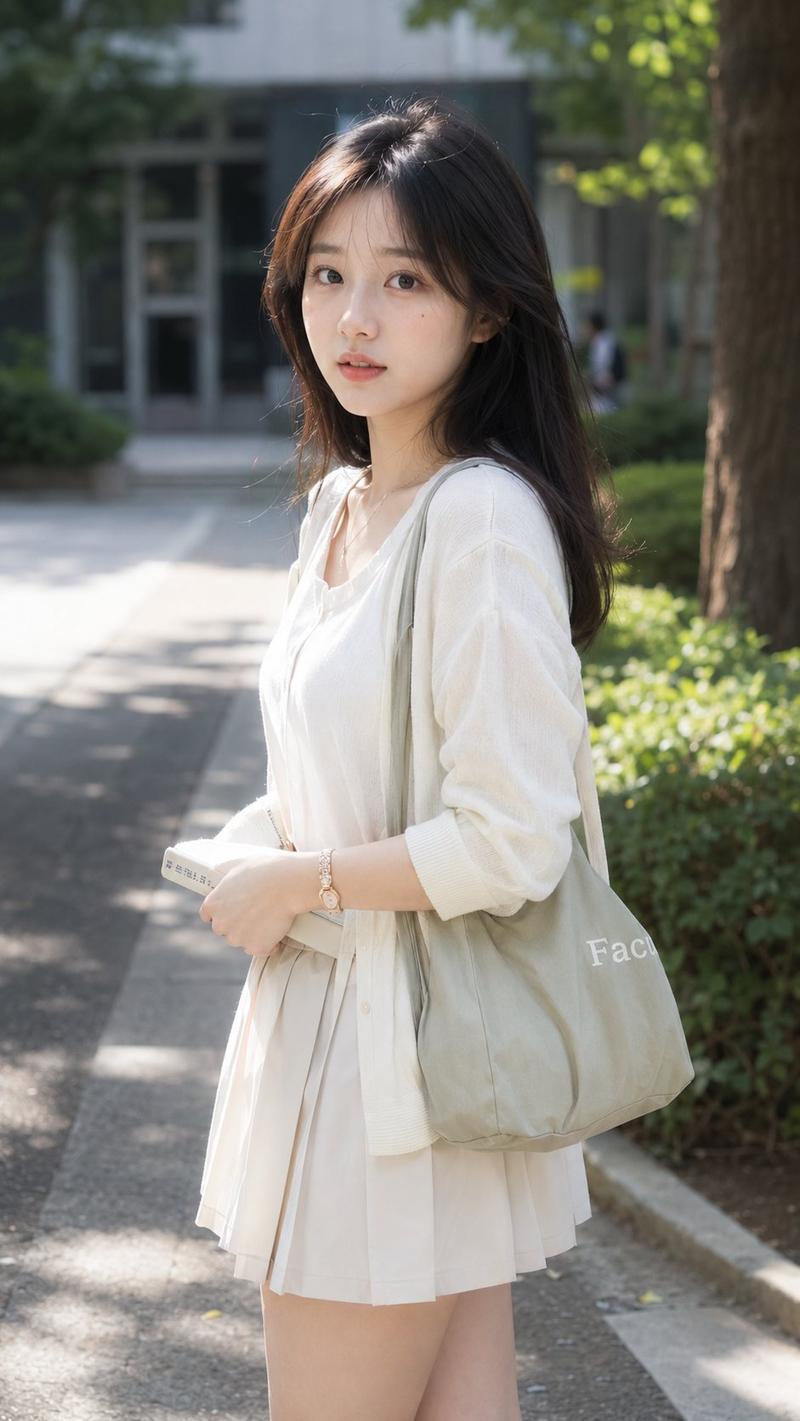
眼镜反光去除效果对比
Prompt
Create a realistic side-by-side comparison image showing the same outdoor cafe-style portrait duplicated in two vertical panels. Canvas is a wide 16:9 frame. Layout: exactly 2 equal panels placed left and right, separated by 1 thin vertical white divider line at the center. Each panel shows the same young woman from the chest up, standing outdoors in warm late-afternoon sunlight with a shallow-depth-of-field background of greenery, modern glass buildings, and soft bokeh. She has long light-brown/blonde hair backlit by the sun, wears a cozy cream knit sweater, and holds 1 slim gray laptop or notebook against her chest with both arms. Her head is turned slightly toward the camera, but the entire face area is anonymized with exactly 2 opaque rectangular blocks, one per panel, colored warm taupe-brown, covering forehead through chin. Include thin round eyeglass rims visible at the sides of the anonymized face; in the left panel, show a noticeable pale blue-white glare/reflection on the glasses lens, while in the right panel make the glasses clearer with the glare mostly removed, preserving the same face shape, hair, pose, clothing, lighting, and background. Photorealistic DSLR portrait, natural color grading, sunlit hair rim light, crisp subject with blurred background, no text, no labels, no watermark. Customizable details: subject is {argument name="subject description" default="a young woman with long light-brown blonde hair"}, clothing is {argument name="clothing" default="a cream knit sweater"}, object held is {argument name="held object" default="a slim gray laptop"}, anonymizing block color is {argument name="face block color" default="warm taupe-brown"}, setting is {argument name="setting" default="outdoor cafe courtyard with greenery and modern glass buildings"}.- Category
- Posters & Typography
- Model
- GPT Image 2
- Creator
- peak of human evolution
- Source ID
- 21728
- Published
- May 20, 2026
Views3