19

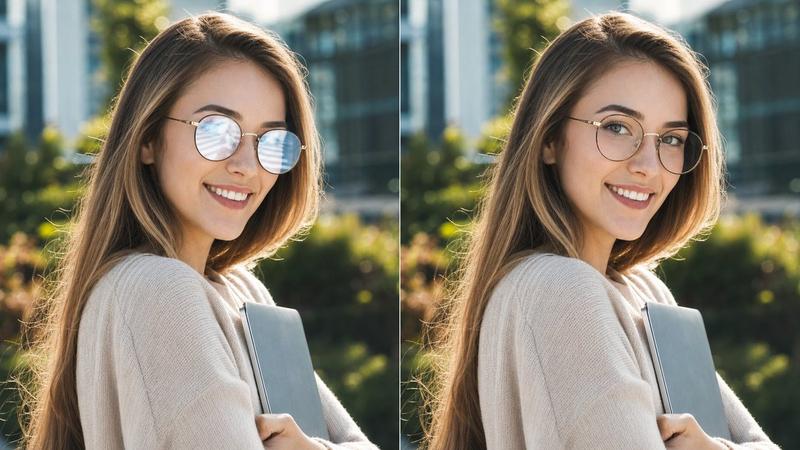
眼镜反光去除对比
Enlarge

眼镜反光去除对比

Prompt
Create a realistic side-by-side before-and-after comparison image showing the same outdoor portrait in two vertical panels separated by a thin white divider. The subject is {argument name="subject description" default="a woman with long dark curly hair wearing a loose white linen beach blouse, small gold hoop earrings, and light-framed eyeglasses"}, photographed from the shoulders up in three-quarter profile on a sunny beach boardwalk. The background shows ocean waves on the left, pale blue sky, wooden railings, and softly blurred palm trees, with shallow depth of field and natural warm daylight. Use exactly 2 panels: left panel is the original portrait with visible glasses glare/reflections partially obscuring the eyes, and right panel is the edited version where the glare has been removed and the eyes look natural while the face shape, pose, hair, clothing, lighting, and background remain unchanged. Add no labels or captions. Preserve photorealistic texture in the curls, translucent white fabric, skin tones, and beach environment. Keep the composition cropped horizontally like a social media comparison image, with the subject centered across both panels and the edit looking subtle and trustworthy for a profile photo. Use {argument name="image ratio" default="16:9 landscape"}, {argument name="setting" default="sunny beach boardwalk"}, and {argument name="edit goal" default="remove eyeglasses glare without changing the face"}.
Category
Charts & Infographics
Model
GPT Image 2
Views4
Source ID
21729
Published
May 20, 2026

Guide

About "眼镜反光去除对比"

What is this prompt for?

"眼镜反光去除对比" AI image prompt for GPT Image 2 (Charts & Infographics). 生成一张照片级逼真的前后对比人像,展示在去除眼镜反光的同时保持主体特征不变。 Copy it on Picva and recreate the look in one click.

The full copyable prompt and example visuals above are ready for AI image generation or one-click recreate in Picva.

How to use this prompt

  1. Step 1

    Open the prompt detail

    Review the example visuals, category, and full prompt text for "眼镜反光去除对比".

  2. Step 2

    Copy the prompt

    Copy the prompt body from this page, or load it directly in Studio.

  3. Step 3

    Pick a model (GPT Image 2)

    Prefer GPT Image 2. If you switch models, keep subject and composition and tweak style terms.

  4. Step 4

    Generate and export

    Recreate the look in Picva, or export into your workflow for editing and publishing.

FAQ

What is the "眼镜反光去除对比" prompt?
It is an AI image-generation prompt for GPT Image 2 in the Charts & Infographics category. This page includes the full prompt text, example visuals, and a one-click recreate path in Picva.
How do I use this prompt to generate an image?
Copy the prompt from this page, or use Generate / Studio. Paste it into a compatible image model, or recreate the look in Picva with optional reference images.
Which model is this prompt for?
This page lists GPT Image 2. Most descriptive prompts also transfer to nearby image models such as GPT Image, Flux, or Midjourney with light style tweaks.
Can I use the result commercially?
You can usually copy the prompt for creation, but commercial use of the final image depends on the model terms, reference-image rights, and the generated content. Follow the source author and platform rules.