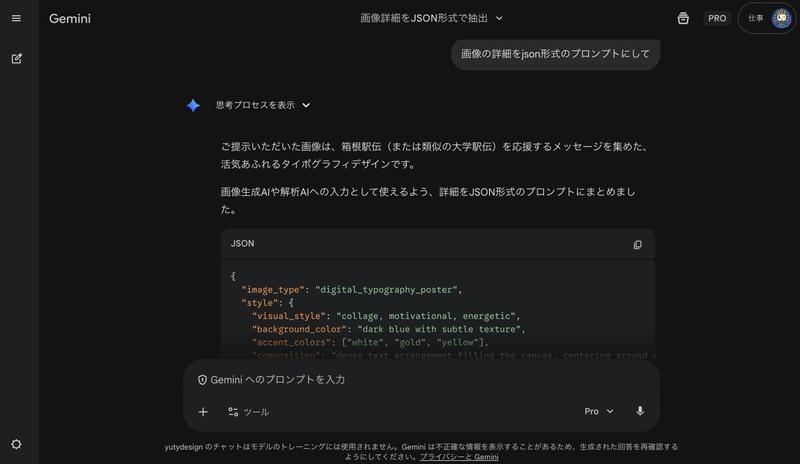
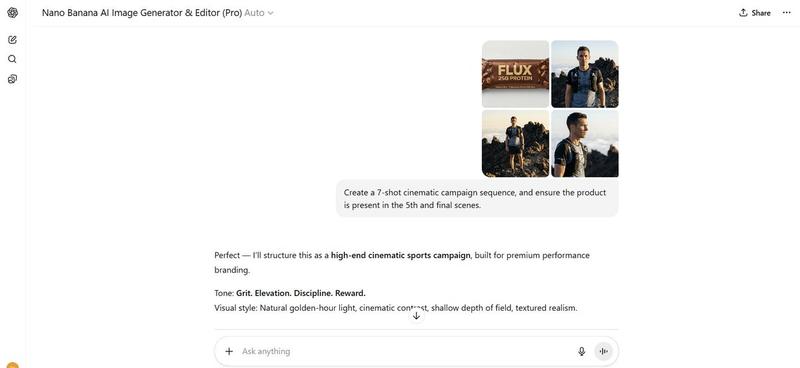
深色模式聊天界面动漫转换截图
Prompt
Goal: Create a dark-mode chat interface screenshot showing an AI image-generation conversation about making anime-style animated characters from photos.

Canvas: Square 768×768 image, dark charcoal background, cropped like a desktop chat app. Use subtle rounded rectangles, soft shadows, and muted gray dividers.

Layout: At the top left, display exactly 3 square thumbnail cards in a row, each with a circular portrait inside: 1) a brunette woman with shoulder-length wavy hair, 2) a blonde woman with long light hair, 3) a black-haired woman with straight long hair. Each face should be intentionally blurred or covered with a soft rectangular privacy blur. To the right beneath the thumbnails, place a rounded dark chat bubble containing the Japanese message {argument name="first message" default="あー、あとアニメ風の Ping を作りたいかも??"}. Below, show a small gray status line on the left reading {argument name="status text" default="2m 38s作業しました ›"}, followed by a thin horizontal divider.

Generated image preview: Under the divider on the left, place exactly 1 rounded rectangular preview image showing the same 3 women transformed into polished anime/semi-realistic character art, standing shoulder-to-shoulder on a warm off-white background. Count the characters exactly: 3 women — brunette in a cream cardigan over a light blue shirt, blonde in a white top with layered necklaces, and black-haired woman in a black leather jacket. Keep all faces privacy-blurred with soft rectangular blur blocks.

Chat bubbles: Include exactly 4 visible outgoing message bubbles total: 1 top prompt bubble, 2 mid-lower bubbles, and 1 bottom-right bubble. The mid-lower first bubble should read {argument name="reaction message" default="おー超いい感じ!!\n一人一人、一枚ずつ、作る感じで"}. The mid-lower second, wider bubble should read {argument name="instruction message" default="その上で、そのまま、最後まで動く、ナレーション込みのやつでお願い"}. The bottom-right bubble should read {argument name="final message" default="作って欲しい"}. Add a small circular down-arrow button centered near the lower middle between the bubbles.

Visual style: Realistic UI screenshot, Japanese chat app aesthetic, minimal and modern, dark theme, rounded corners, graphite message bubbles, light gray text, clean spacing. The character art preview should look like high-quality anime-photo conversion rather than flat cartoon.

Constraints: Use exactly 3 top portrait thumbnails, exactly 1 generated preview image, exactly 3 anime-style women inside the preview, exactly 4 chat bubbles, and exactly 1 down-arrow button. Do not add app logos, watermarks, extra buttons, extra text, or extra people.- Category
- Charts & Infographics
- Model
- GPT Image 2
- Creator
- スナガク
- Source ID
- 21946
- Published
- May 21, 2026
Views4


![[Nano Banana Pro] Original effect, major update. ✨Promo Effect v2.0✨ Based on th](https://cdn.pixshop.app/prompt-library/tweet-2014271293349327251/primary-0-1769349184828-32ubf80d.jpeg)