20

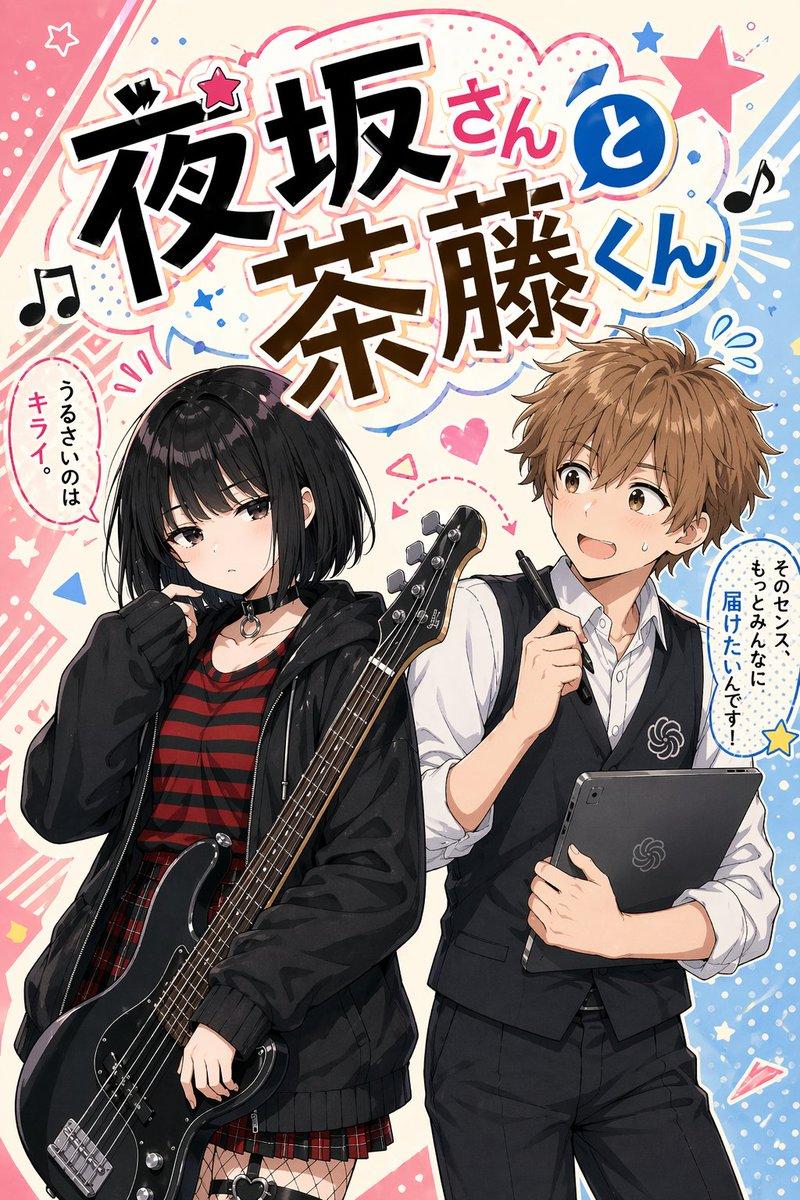
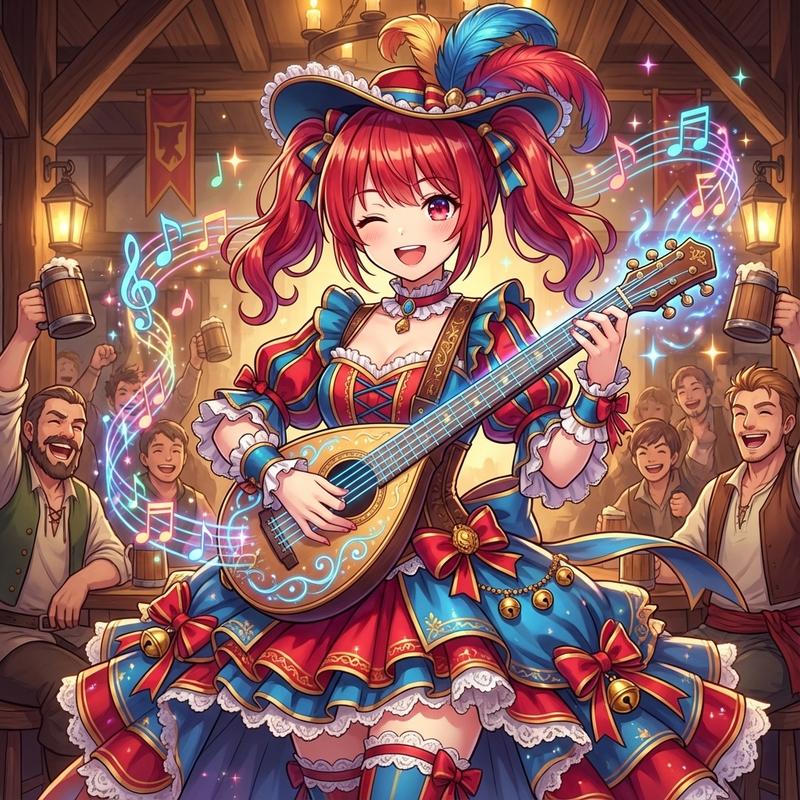
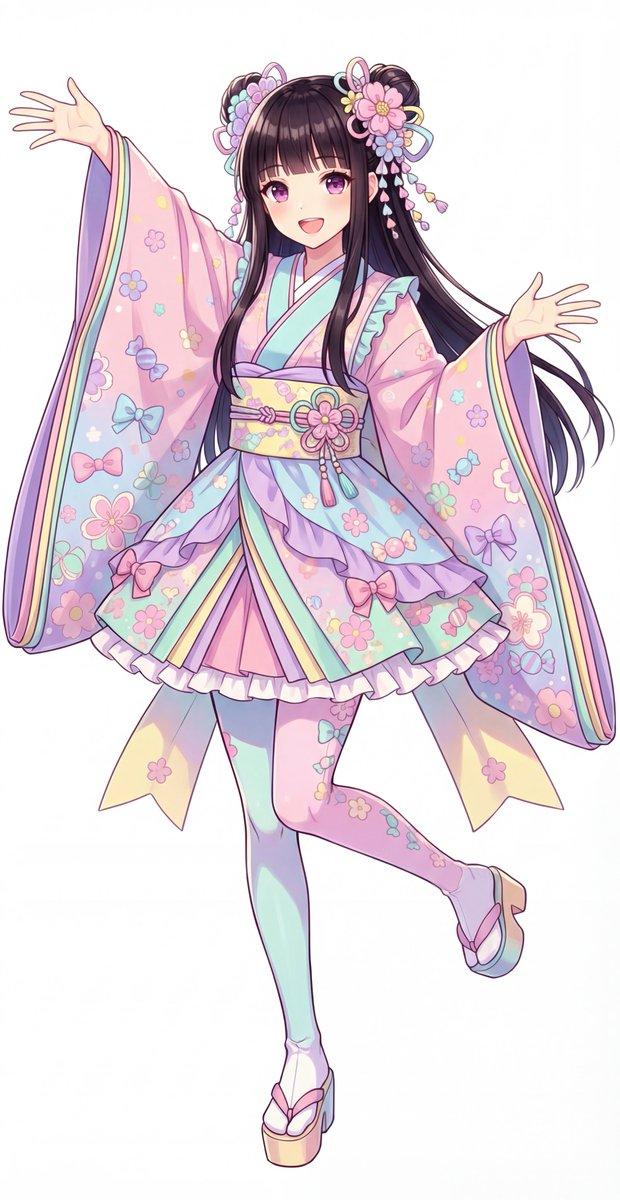
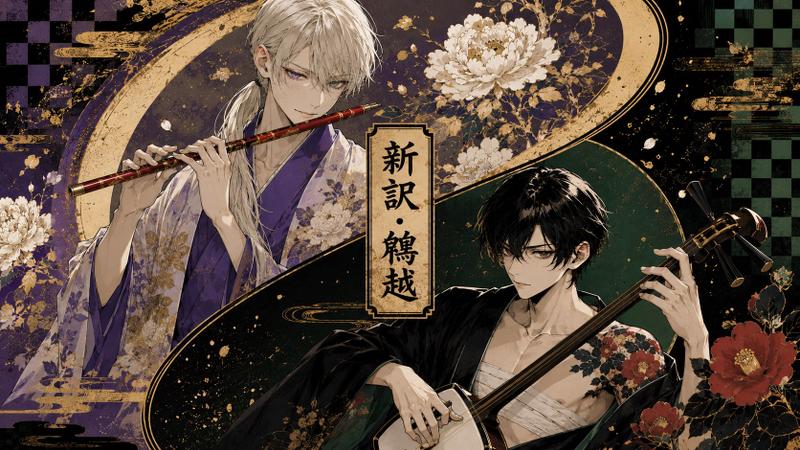
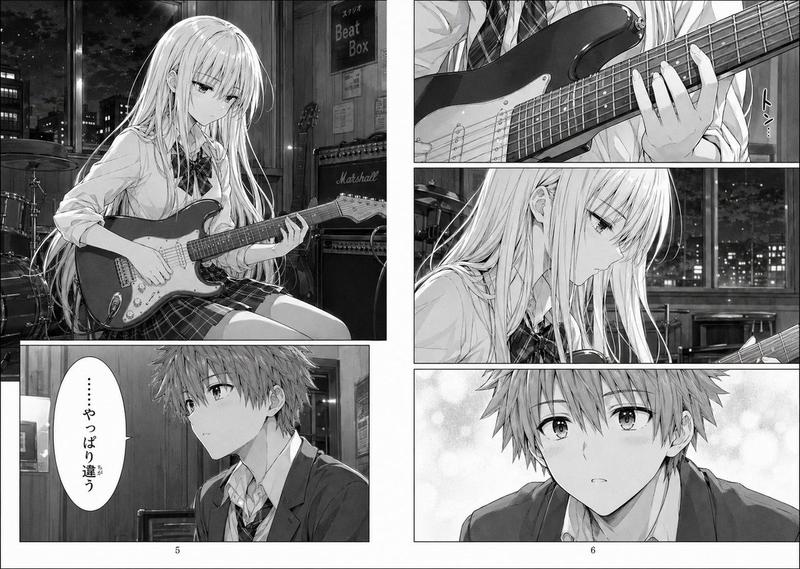
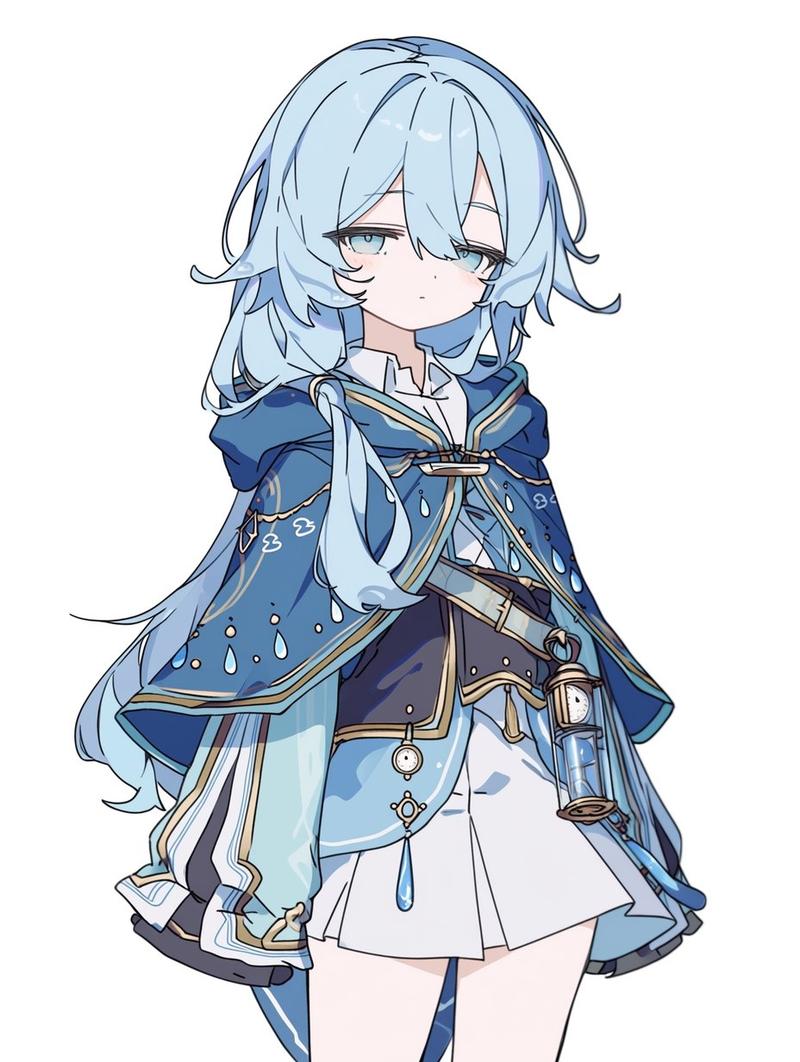
矢量风格角色重绘
Enlarge

矢量风格角色重绘

Prompt
捕捉参考图像中角色的特征,并按以下方式重绘:{argument name="style" default="矢量插画,纯色插画,色彩鲜艳且具有波普感,扁平化上色,无边框插画"}。单色背景,通过变形来强调角色特征。{argument name="aspect ratio" default="2:3"} 图像。
Category
Characters & People
Model
GPT Image 2
Views2
Source ID
22348
Published
May 24, 2026

Guide

About "矢量风格角色重绘"

What is this prompt for?

"矢量风格角色重绘" AI image prompt for GPT Image 2 (Characters & People). 将现有角色重绘为色彩鲜艳的波普矢量插画风格,同时保留其独特特征。 Copy it on Picva and recreate the look in one click.

The full copyable prompt and example visuals above are ready for AI image generation or one-click recreate in Picva.

How to use this prompt

  1. Step 1

    Open the prompt detail

    Review the example visuals, category, and full prompt text for "矢量风格角色重绘".

  2. Step 2

    Copy the prompt

    Copy the prompt body from this page, or load it directly in Studio.

  3. Step 3

    Pick a model (GPT Image 2)

    Prefer GPT Image 2. If you switch models, keep subject and composition and tweak style terms.

  4. Step 4

    Generate and export

    Recreate the look in Picva, or export into your workflow for editing and publishing.

FAQ

What is the "矢量风格角色重绘" prompt?
It is an AI image-generation prompt for GPT Image 2 in the Characters & People category. This page includes the full prompt text, example visuals, and a one-click recreate path in Picva.
How do I use this prompt to generate an image?
Copy the prompt from this page, or use Generate / Studio. Paste it into a compatible image model, or recreate the look in Picva with optional reference images.
Which model is this prompt for?
This page lists GPT Image 2. Most descriptive prompts also transfer to nearby image models such as GPT Image, Flux, or Midjourney with light style tweaks.
Can I use the result commercially?
You can usually copy the prompt for creation, but commercial use of the final image depends on the model terms, reference-image rights, and the generated content. Follow the source author and platform rules.