15

复古时尚与卡通角色
Enlarge

复古时尚与卡通角色

Prompt
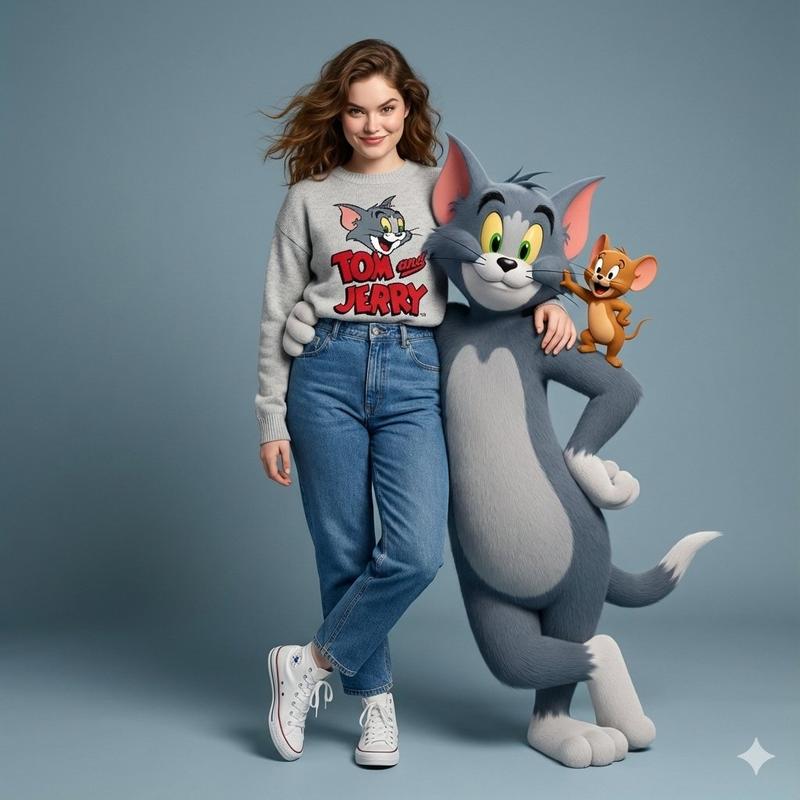
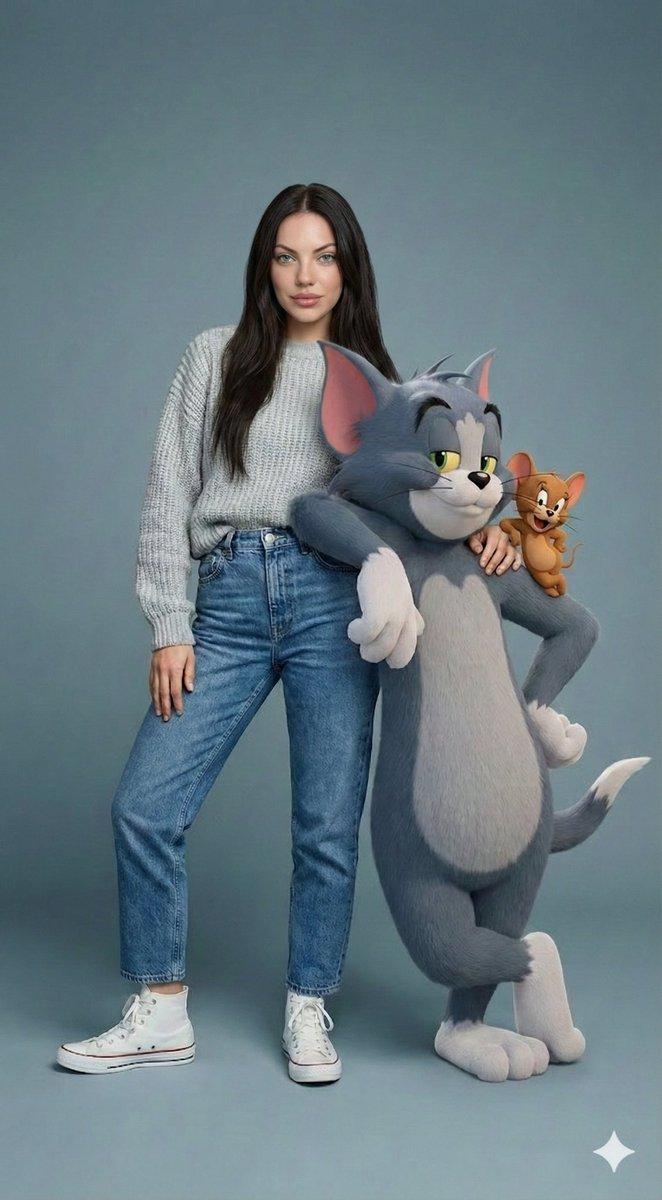
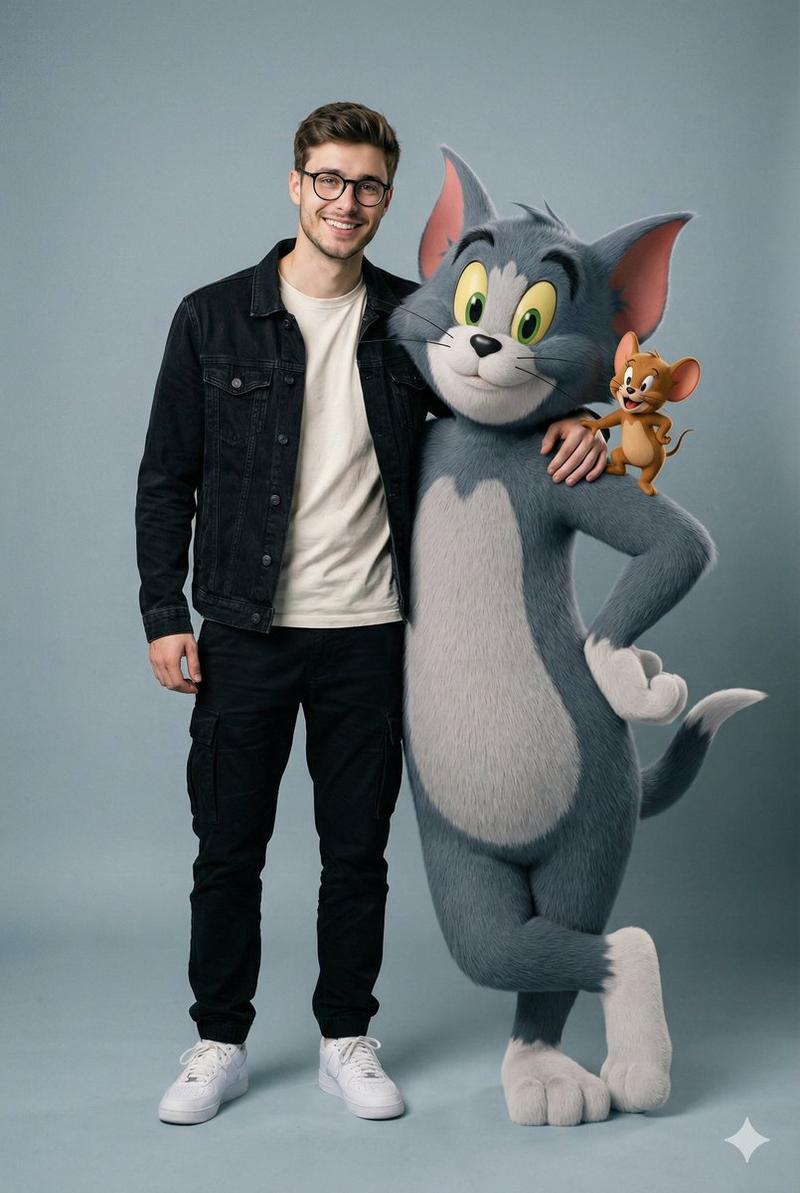
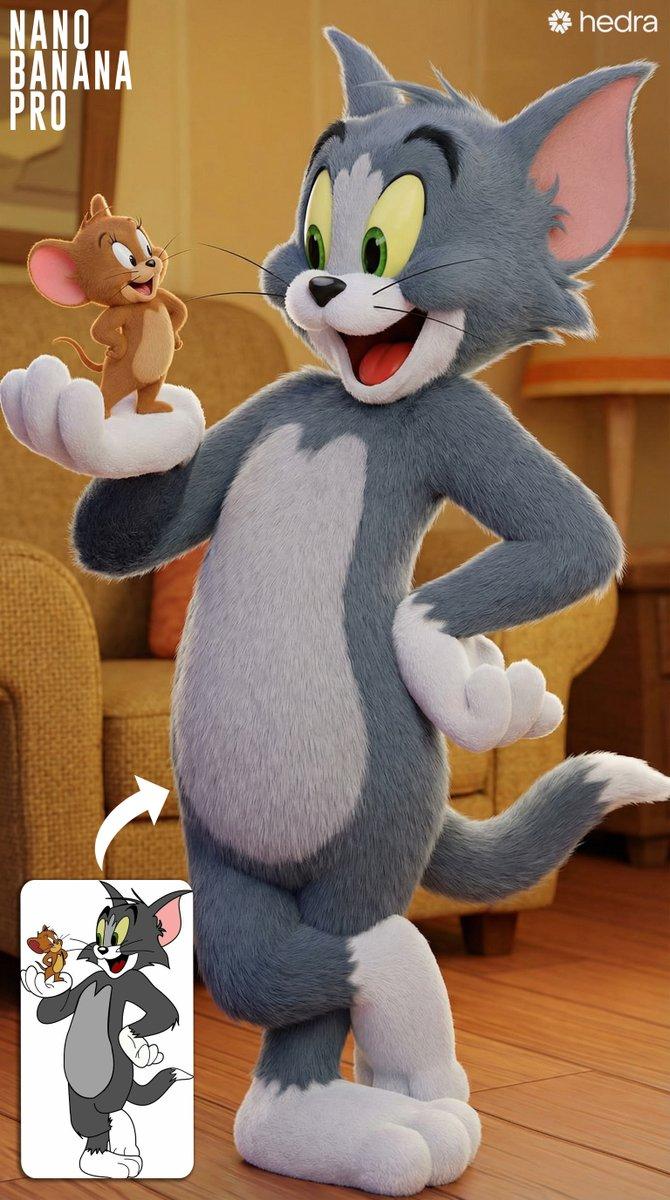
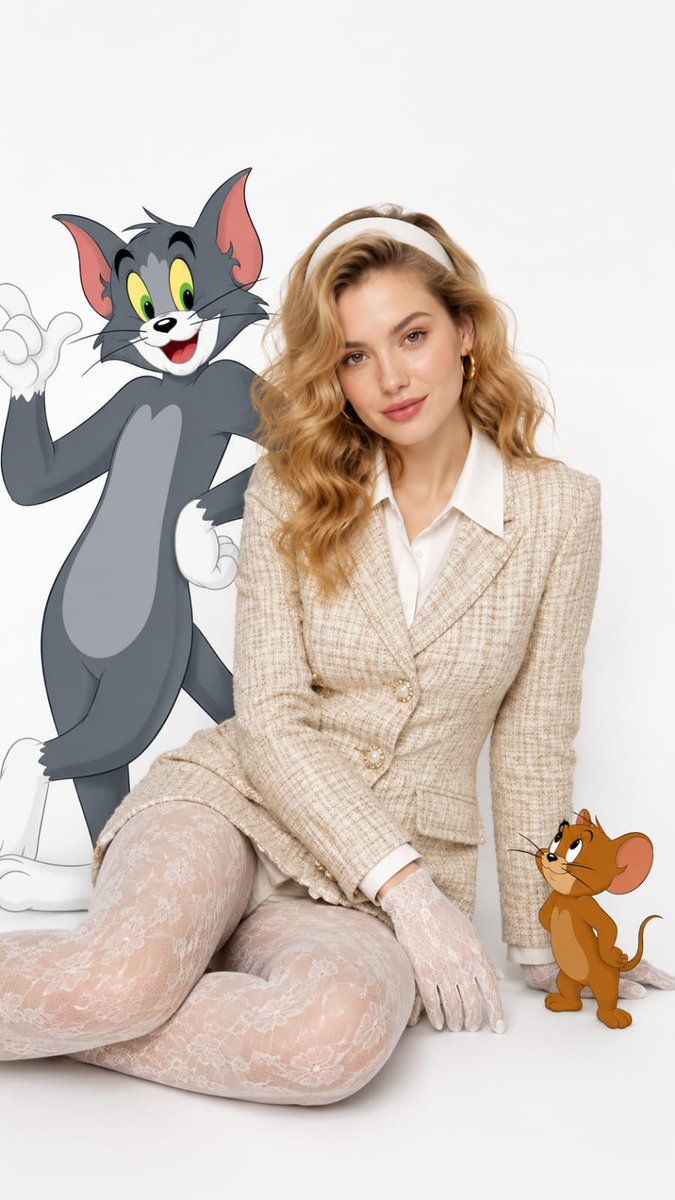
Studio photo, clean white background, vertical 9:16 aspect ratio.\n\nSubject: A {argument name="gender" default="blonde woman"} sitting on the floor in a relaxed pose, facing the camera with a gentle smile. She has {argument name="hair style" default="wavy hair"}, wears a white headband, gold hoop earrings, a beige tweed blazer dress with a white collared shirt underneath, and lace gloves and lace tights. The outfit has a vintage, elegant style.\n\nElements: {argument name="cartoon characters" default="Two cartoon characters"} posed next to her - a tall gray cartoon cat on her left in a confident pose with one hand on hip and one raised, and a small brown cartoon mouse on her right standing upright and looking up at her. The cartoon characters have a classic 2D animated style with bold outlines and flat colors.\n\nLighting: Bright, even studio lighting, soft shadows, high key background.\n\nStyle: Blend of live-action photography and 2D cartoon animation, clean
Category
Charts & Infographics
Model
GPT Image 2
Creator
Anissa
Views4
Source ID
22715
Published
May 26, 2026

Guide

About "复古时尚与卡通角色"

What is this prompt for?

"复古时尚与卡通角色" AI image prompt for GPT Image 2 (Charts & Infographics). 一个创意摄影提示词,将真人复古时尚与经典 2D 卡通角色相结合,打造俏皮的编辑风格视觉效果。 Copy it on Picva and recreate the look in o…

The full copyable prompt and example visuals above are ready for AI image generation or one-click recreate in Picva.

How to use this prompt

  1. Step 1

    Open the prompt detail

    Review the example visuals, category, and full prompt text for "复古时尚与卡通角色".

  2. Step 2

    Copy the prompt

    Copy the prompt body from this page, or load it directly in Studio.

  3. Step 3

    Pick a model (GPT Image 2)

    Prefer GPT Image 2. If you switch models, keep subject and composition and tweak style terms.

  4. Step 4

    Generate and export

    Recreate the look in Picva, or export into your workflow for editing and publishing.

FAQ

What is the "复古时尚与卡通角色" prompt?
It is an AI image-generation prompt for GPT Image 2 in the Charts & Infographics category. This page includes the full prompt text, example visuals, and a one-click recreate path in Picva.
How do I use this prompt to generate an image?
Copy the prompt from this page, or use Generate / Studio. Paste it into a compatible image model, or recreate the look in Picva with optional reference images.
Which model is this prompt for?
This page lists GPT Image 2. Most descriptive prompts also transfer to nearby image models such as GPT Image, Flux, or Midjourney with light style tweaks.
Can I use the result commercially?
You can usually copy the prompt for creation, but commercial use of the final image depends on the model terms, reference-image rights, and the generated content. Follow the source author and platform rules.