15

GPT Image 2 人像布光参考
Enlarge

GPT Image 2 人像布光参考

Prompt
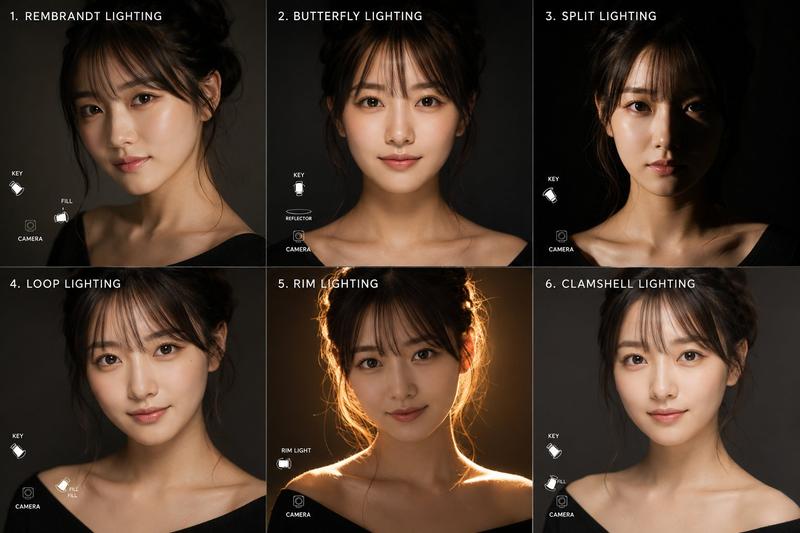
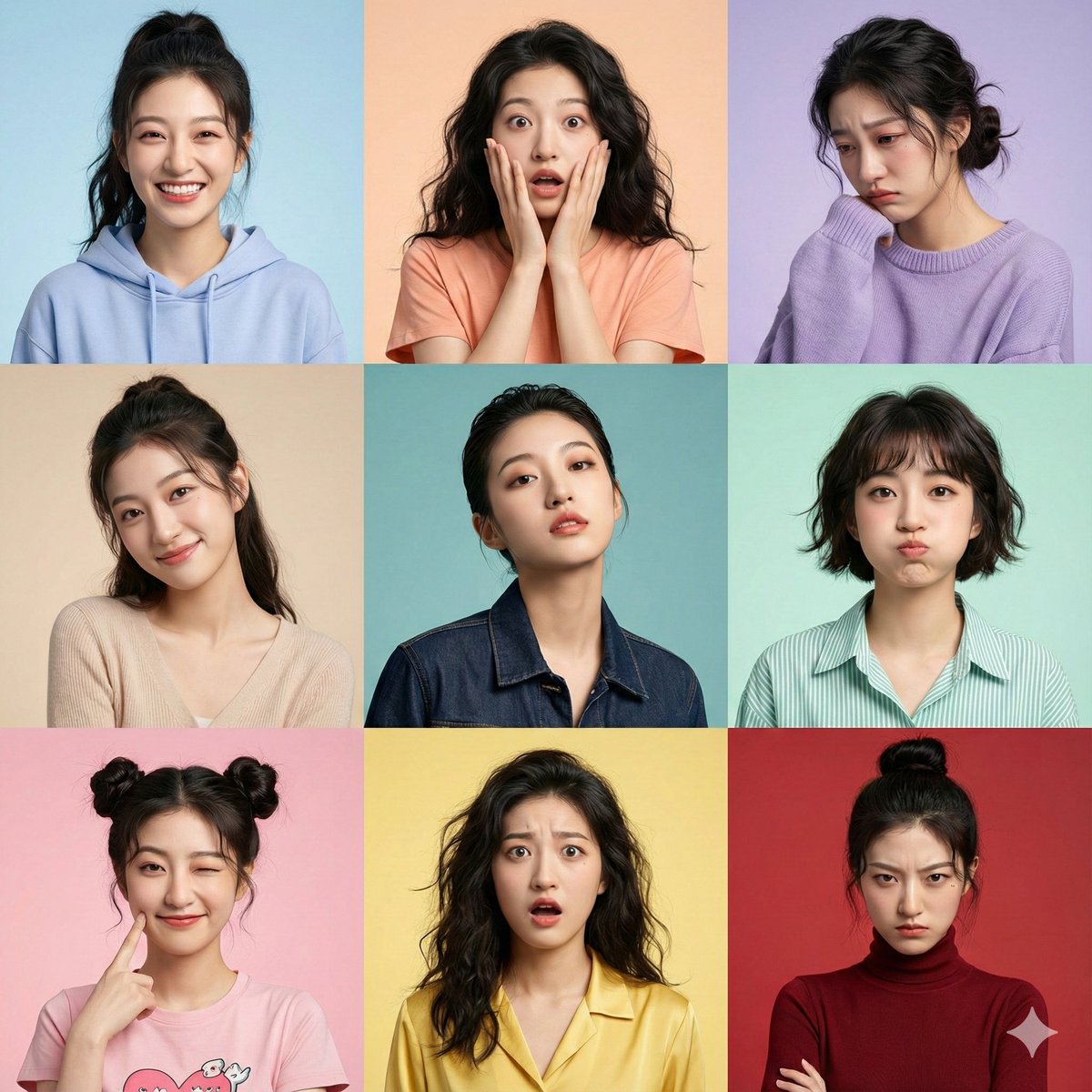
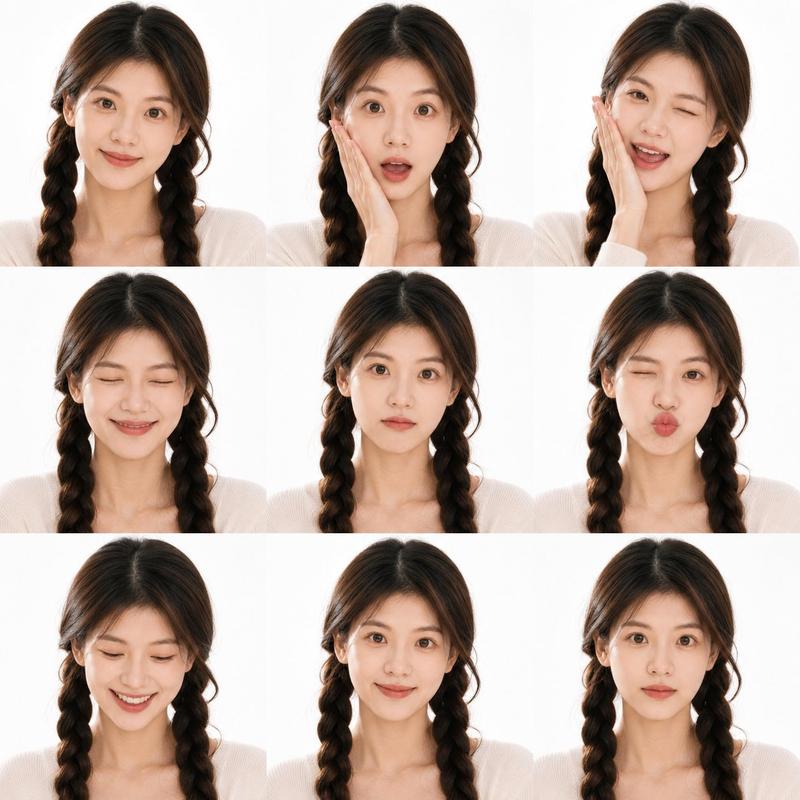
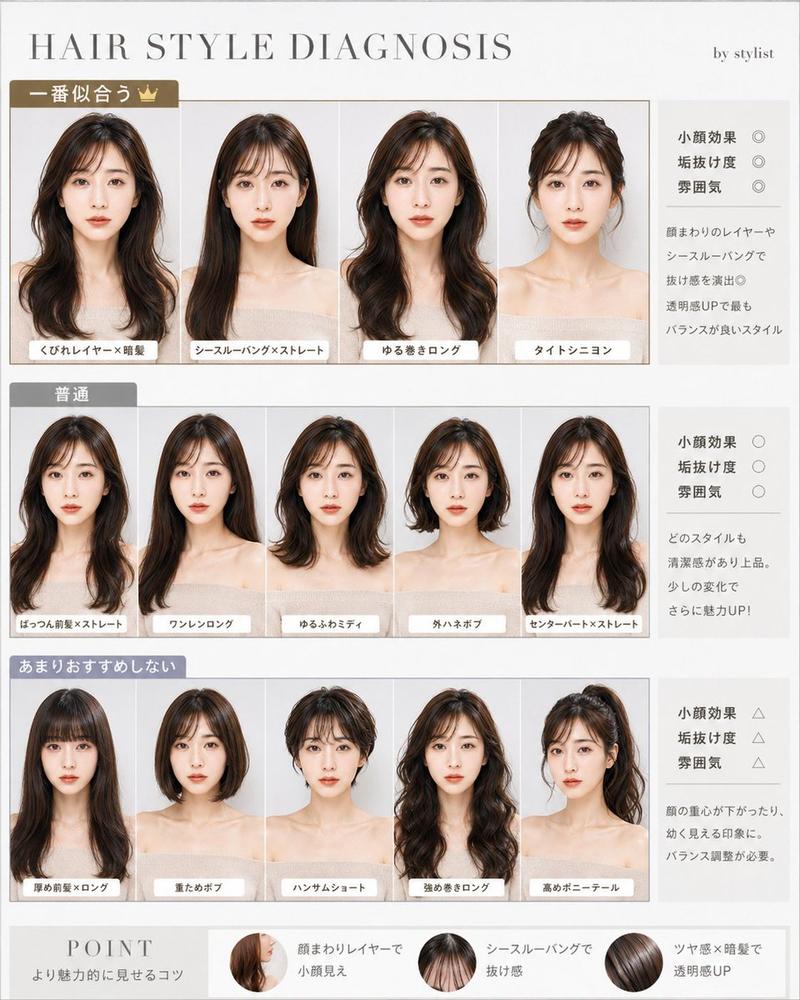
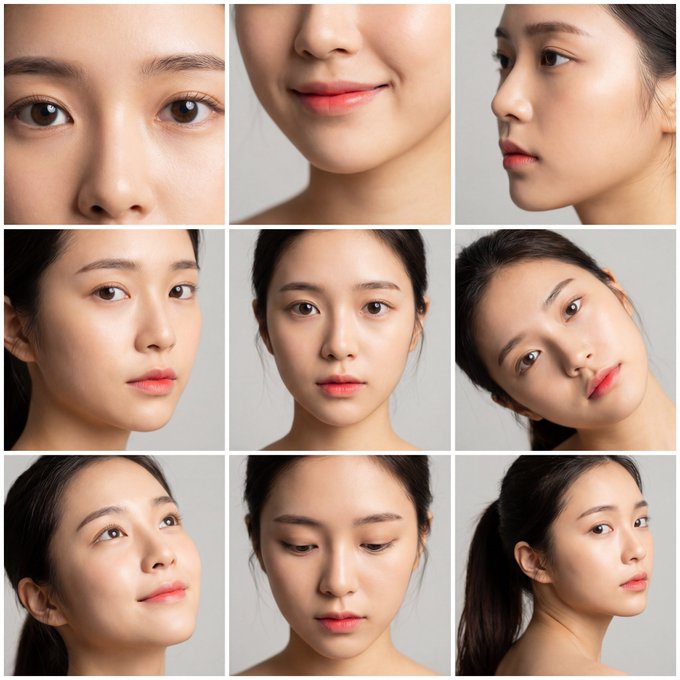
Zone 1 (top-left): Rembrandt lighting, key 45° elevated camera left, fill -45° camera right 0.5x, dramatic triangle on shadow cheek Zone 2 (top-center): Butterfly lighting, key overhead slightly front, fill reflector under chin, butterfly nose shadow, beauty editorial Zone 3 (top-right): Split lighting, hard key 90° camera left, zero fill, half face in shadow, noir mystery Zone 4 (bottom-left): Loop lighting, key 30° elevated camera left, fill -30° camera right 0.3x, small nose loop shadow, natural commercial Zone 5 (bottom-center): Rim lighting dominant, hard backlight 170° camera right gold gel, hair glow, edge separation, heroic silhouette Zone 6 (bottom-right): Clamshell lighting, butterfly key overhead + large soft fill from below 45°, zero shadows, porcelain skin, high-end beauty
Category
Brand & Logos
Model
GPT Image 2
Creator
阿越-AY
Views0
Source ID
25879
Published
Jun 16, 2026

Guide

About "GPT Image 2 人像布光参考"

What is this prompt for?

"GPT Image 2 人像布光参考" AI image prompt for GPT Image 2 (Brand & Logos). 这是一系列针对 GPT Image 2 的技术提示词,展示了六种用于专业人像摄影的经典电影级布光设置。 Copy it on Picva and recreate the loo…

The full copyable prompt and example visuals above are ready for AI image generation or one-click recreate in Picva.

How to use this prompt

  1. Step 1

    Open the prompt detail

    Review the example visuals, category, and full prompt text for "GPT Image 2 人像布光参考".

  2. Step 2

    Copy the prompt

    Copy the prompt body from this page, or load it directly in Studio.

  3. Step 3

    Pick a model (GPT Image 2)

    Prefer GPT Image 2. If you switch models, keep subject and composition and tweak style terms.

  4. Step 4

    Generate and export

    Recreate the look in Picva, or export into your workflow for editing and publishing.

FAQ

What is the "GPT Image 2 人像布光参考" prompt?
It is an AI image-generation prompt for GPT Image 2 in the Brand & Logos category. This page includes the full prompt text, example visuals, and a one-click recreate path in Picva.
How do I use this prompt to generate an image?
Copy the prompt from this page, or use Generate / Studio. Paste it into a compatible image model, or recreate the look in Picva with optional reference images.
Which model is this prompt for?
This page lists GPT Image 2. Most descriptive prompts also transfer to nearby image models such as GPT Image, Flux, or Midjourney with light style tweaks.
Can I use the result commercially?
You can usually copy the prompt for creation, but commercial use of the final image depends on the model terms, reference-image rights, and the generated content. Follow the source author and platform rules.