15

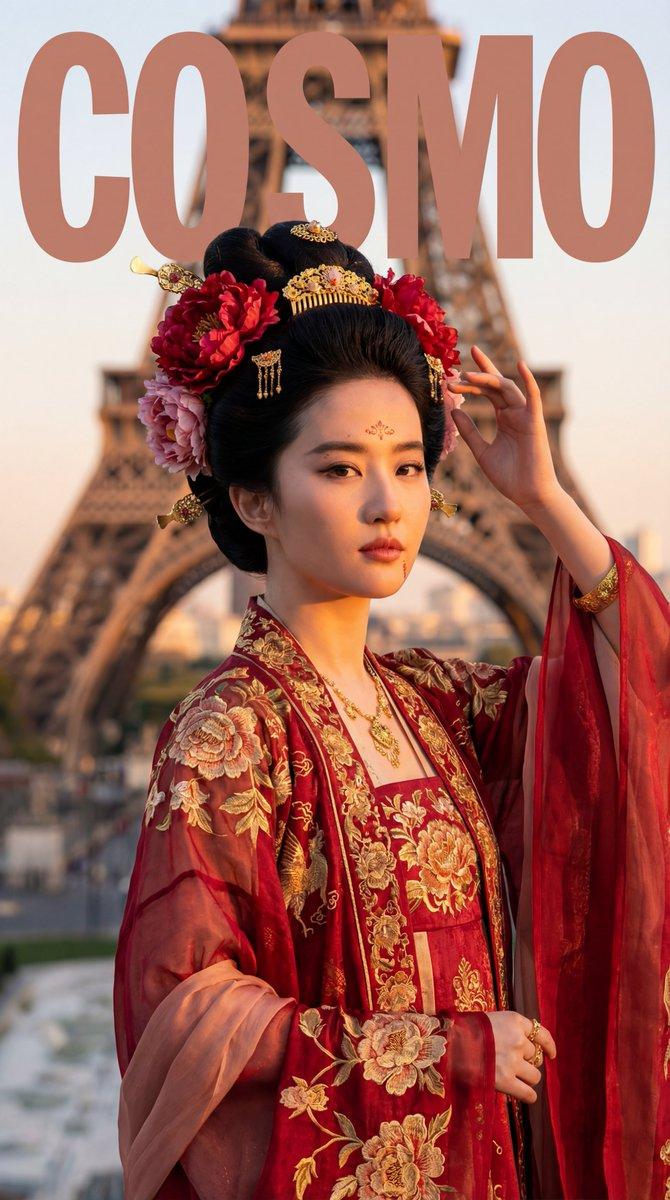
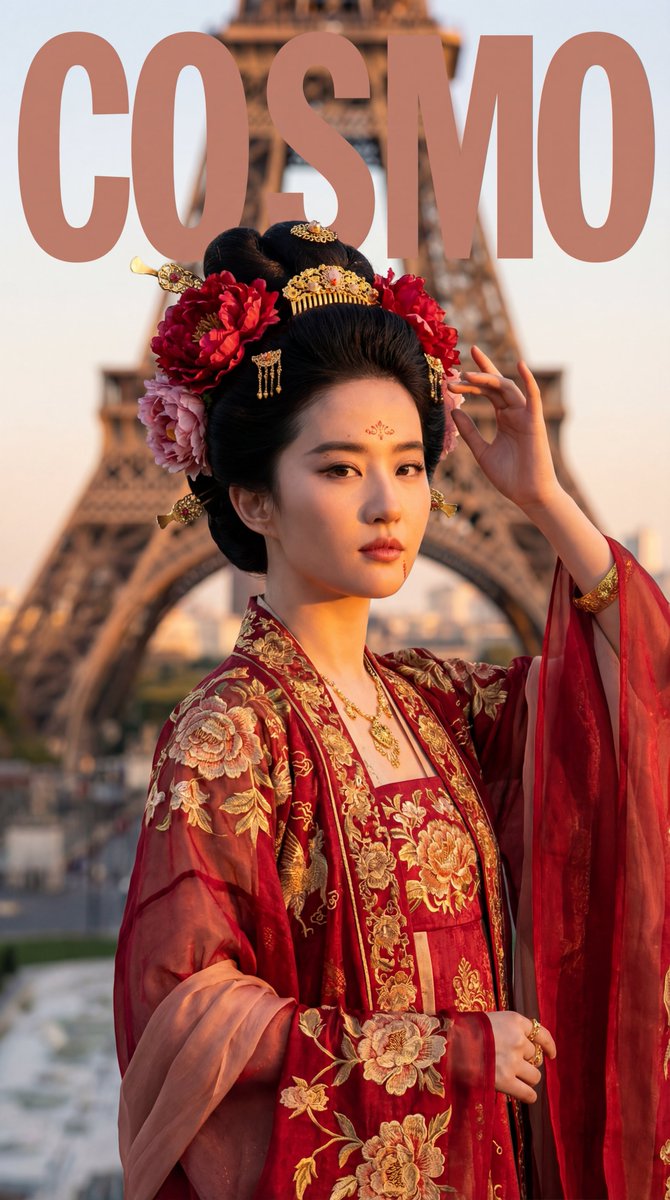
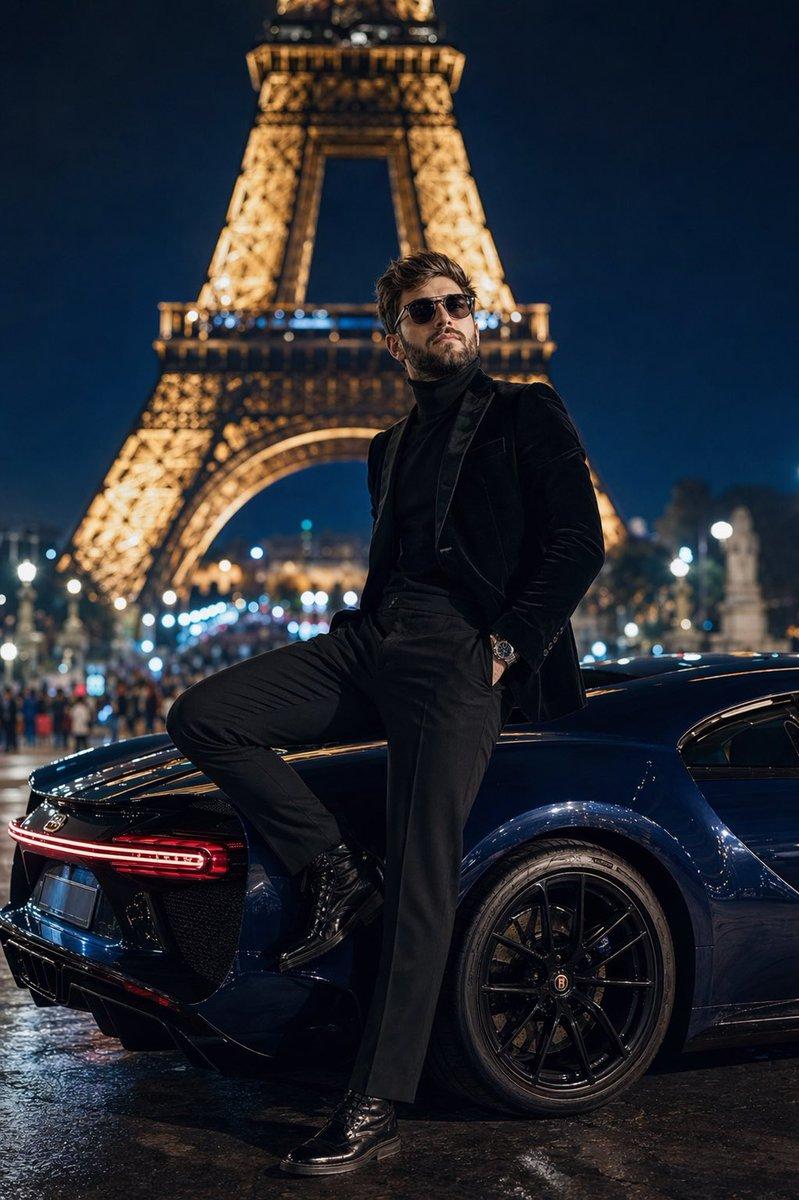
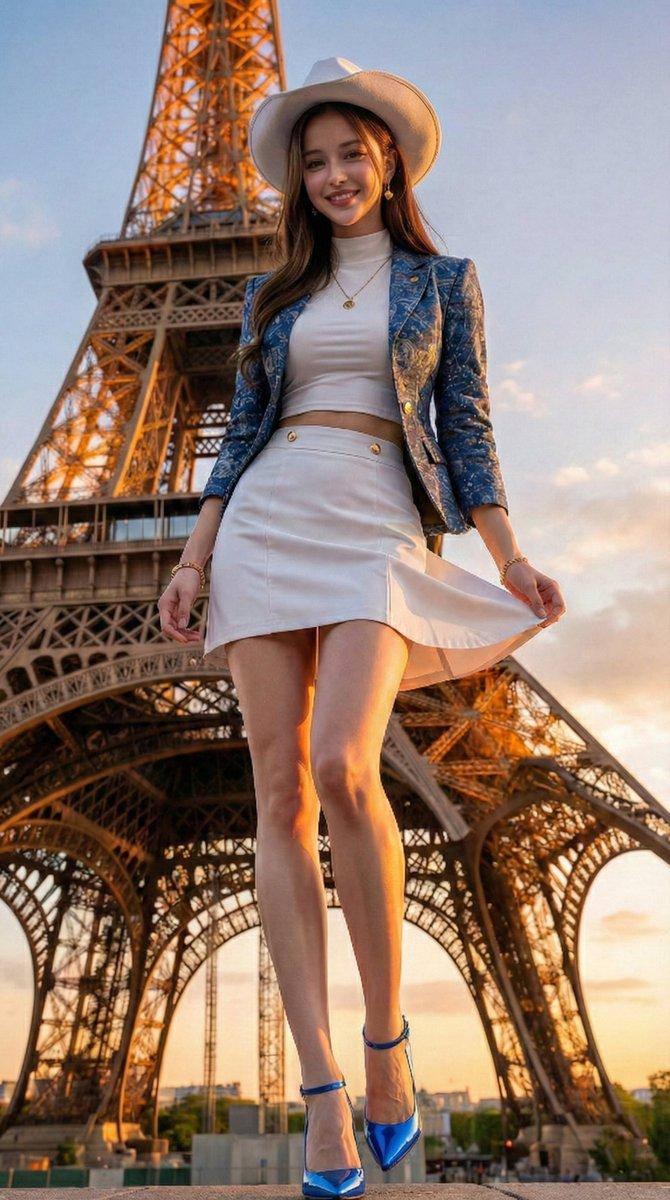
武士 Cosplay 地标人像生成器
Enlarge

武士 Cosplay 地标人像生成器

Prompt
[输入项]
角色:{argument name="role" default="武士"}
盔甲主色:{argument name="armor color" default="红色"}
武器:[武士刀 / 薙刀 / 弓 / 无]
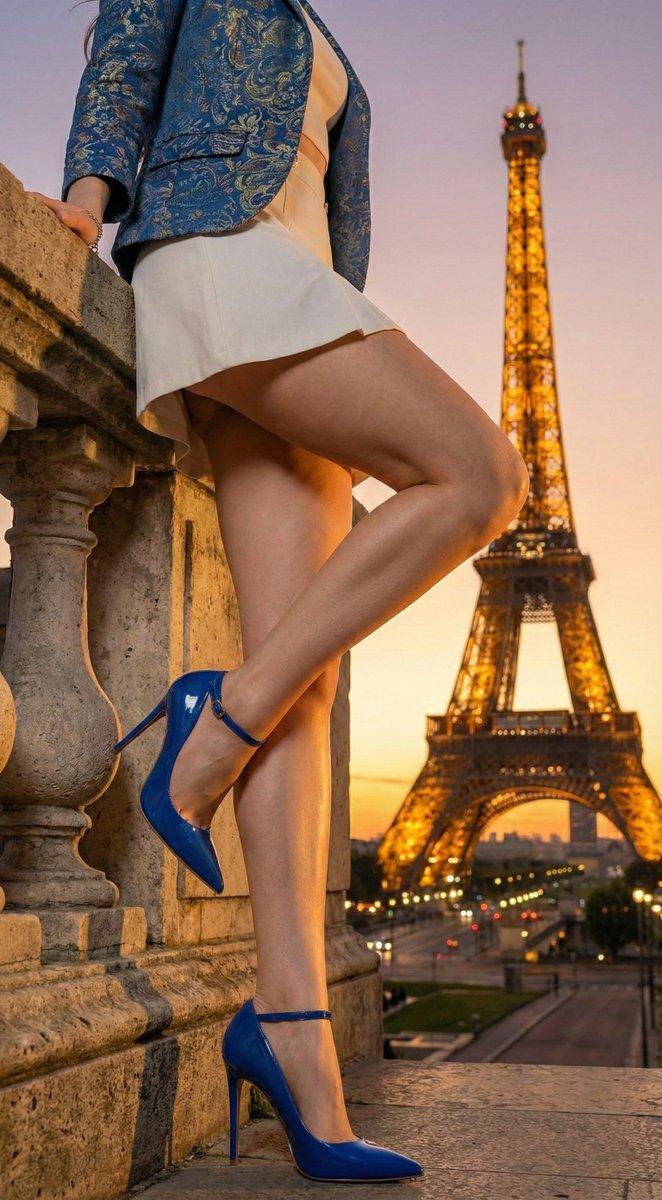
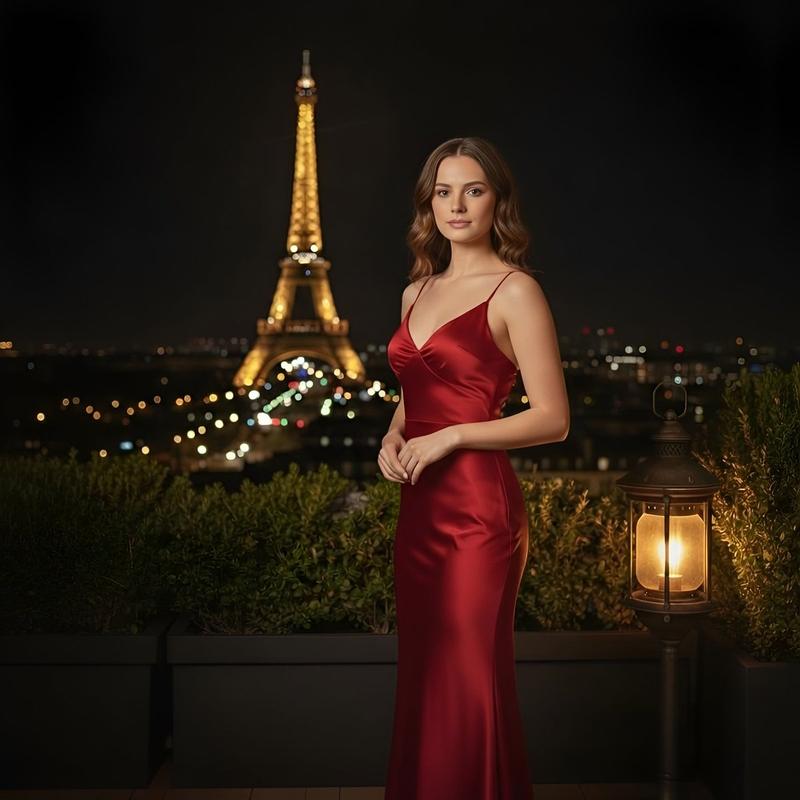
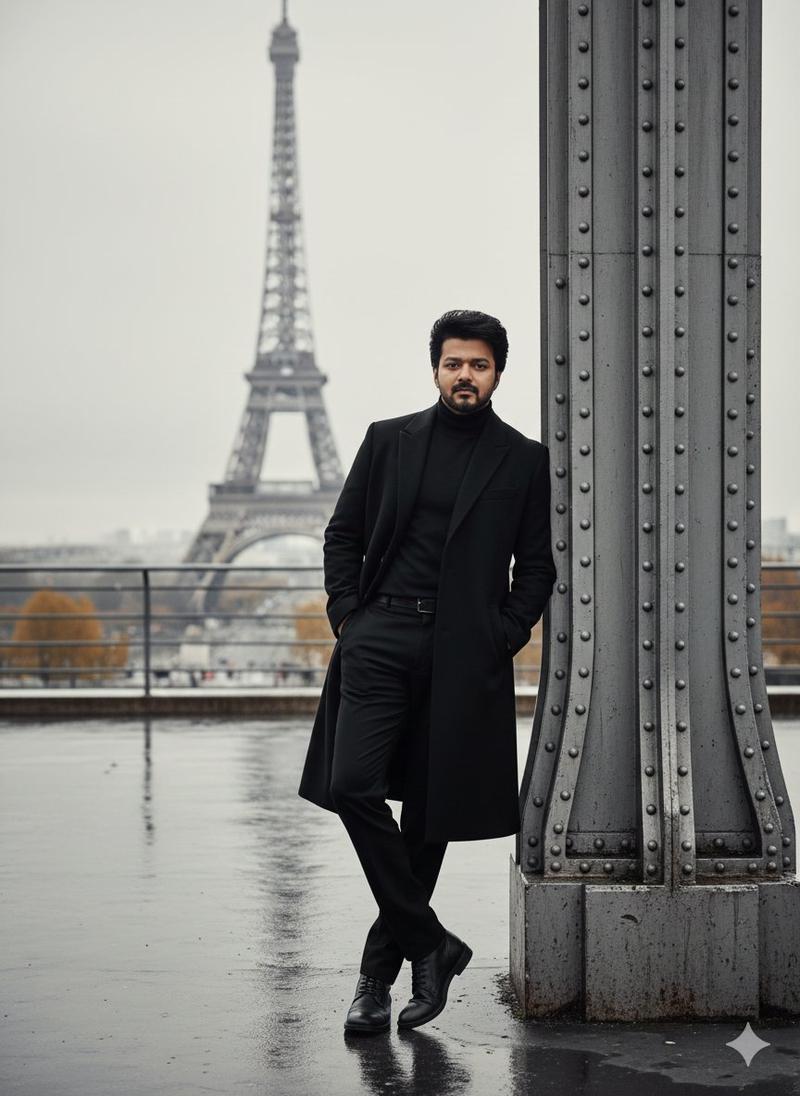
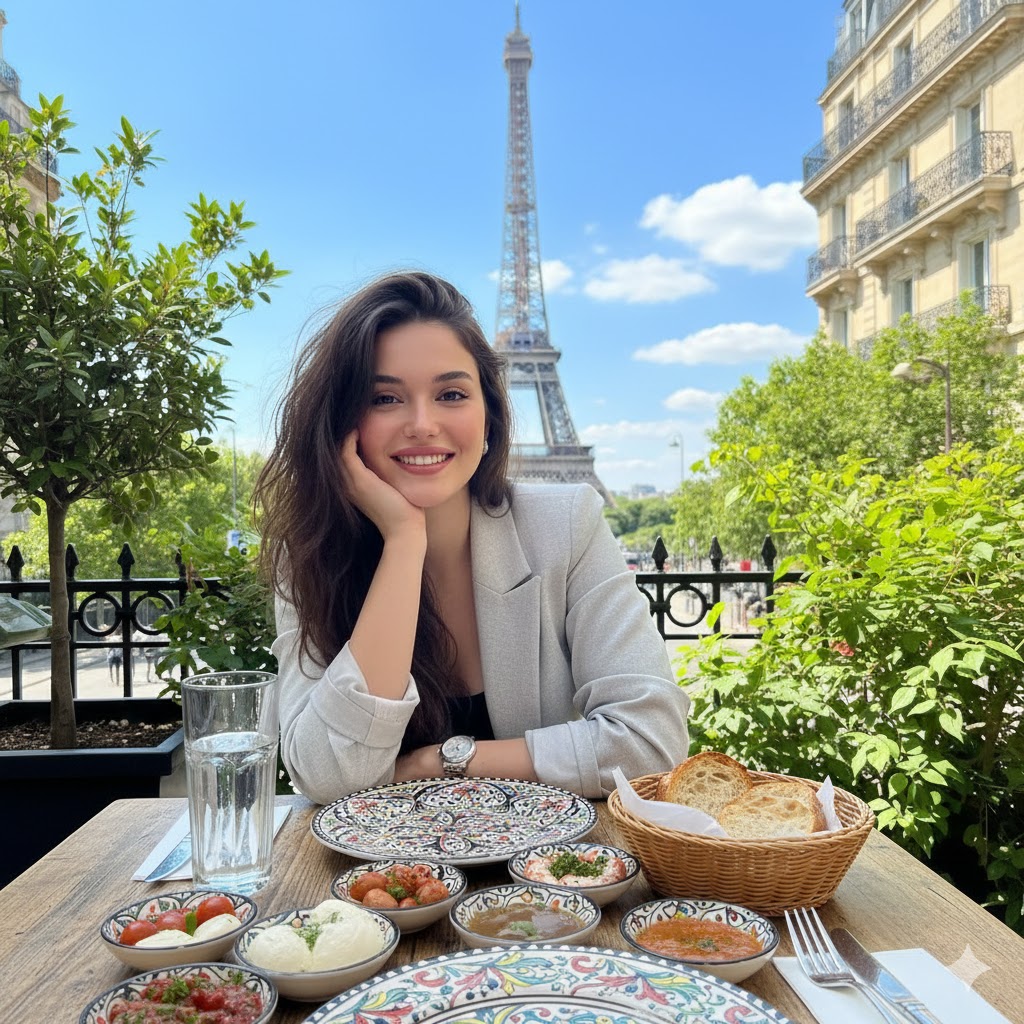
地点:{argument name="location" default="巴黎,埃菲尔铁塔"}
时间:[白天 / 黄昏 / 夜晚]
风格:[保持参考风格 / 写实 / 动漫]

[指令文本]
请将附件参考图中的人物描绘为身着华丽武士装束、站在指定世界地标前的全身像。

忠实保留参考图中的面部特征、眼神印象、发型、发色、年龄感、性别、体格及整体比例,切勿将其变成另一个人。请将面部和发型的还原置于首位;不要继承原图中的服装、背景、姿势、光影、道具或配饰。

将人物转换为指定角色,并为其穿上具有历史武士外观的实用盔甲。以黑铁或深金属色为基底,并在绳结、织物装饰、点缀色及盔甲部件中体现指定的盔甲主色。加入精致的金属装饰、细腻的花纹以及庄重的盔甲层叠,使其比标准战斗盔甲更显华丽。但请避免过度奇幻、机械化盔甲或廉价的 Cosplay 感。

不要佩戴头盔;保持面部和发型清晰可见。不要使用遮挡头发的大型头饰。

根据输入项,让他们自然地持握武器,且姿势不得遮挡面部或身体。若选择无武器,则采用庄重自然的站姿。

背景应为指定的现实地标,构图需使地点一眼可辨。统一人物与背景的透视关系、光照方向、阴影、双脚触地的真实感以及整体氛围,确保画面不显突兀。根据输入项自然地呈现光影时间。

若风格选择“保持参考风格”,写实图像应保持高质量写实感,动漫/插画图像应保留其原始线条、配色、面部设计及质感。若指定“写实”或“动漫”,则以该风格进行高质量重构。

仅限一人。使用从头顶到脚底的全身构图,创作出一幅武士形象与地标建筑均清晰可见的完整视觉作品。画面中不得包含文字、Logo、水印、说明、分屏、拼贴或角色设定图展示。
Category
Brand & Logos
Model
GPT Image 2
Views0
Source ID
26242
Published
Jun 19, 2026

Guide

About "武士 Cosplay 地标人像生成器"

What is this prompt for?

"武士 Cosplay 地标人像生成器" AI image prompt for GPT Image 2 (Brand & Logos). 一套专为 GPT Image 2 设计的精细化提示词结构,旨在生成高质量的武士 Cosplay 地标人像,并严格保持参考人物的面部特征与身体比例。 Copy it on Picv…

The full copyable prompt and example visuals above are ready for AI image generation or one-click recreate in Picva.

How to use this prompt

  1. Step 1

    Open the prompt detail

    Review the example visuals, category, and full prompt text for "武士 Cosplay 地标人像生成器".

  2. Step 2

    Copy the prompt

    Copy the prompt body from this page, or load it directly in Studio.

  3. Step 3

    Pick a model (GPT Image 2)

    Prefer GPT Image 2. If you switch models, keep subject and composition and tweak style terms.

  4. Step 4

    Generate and export

    Recreate the look in Picva, or export into your workflow for editing and publishing.

FAQ

What is the "武士 Cosplay 地标人像生成器" prompt?
It is an AI image-generation prompt for GPT Image 2 in the Brand & Logos category. This page includes the full prompt text, example visuals, and a one-click recreate path in Picva.
How do I use this prompt to generate an image?
Copy the prompt from this page, or use Generate / Studio. Paste it into a compatible image model, or recreate the look in Picva with optional reference images.
Which model is this prompt for?
This page lists GPT Image 2. Most descriptive prompts also transfer to nearby image models such as GPT Image, Flux, or Midjourney with light style tweaks.
Can I use the result commercially?
You can usually copy the prompt for creation, but commercial use of the final image depends on the model terms, reference-image rights, and the generated content. Follow the source author and platform rules.